









Dynamic pricing
The price of every slot, by day type, demand hour and special date
- A Venue Manager account
- A venue with courts
Venue Manager
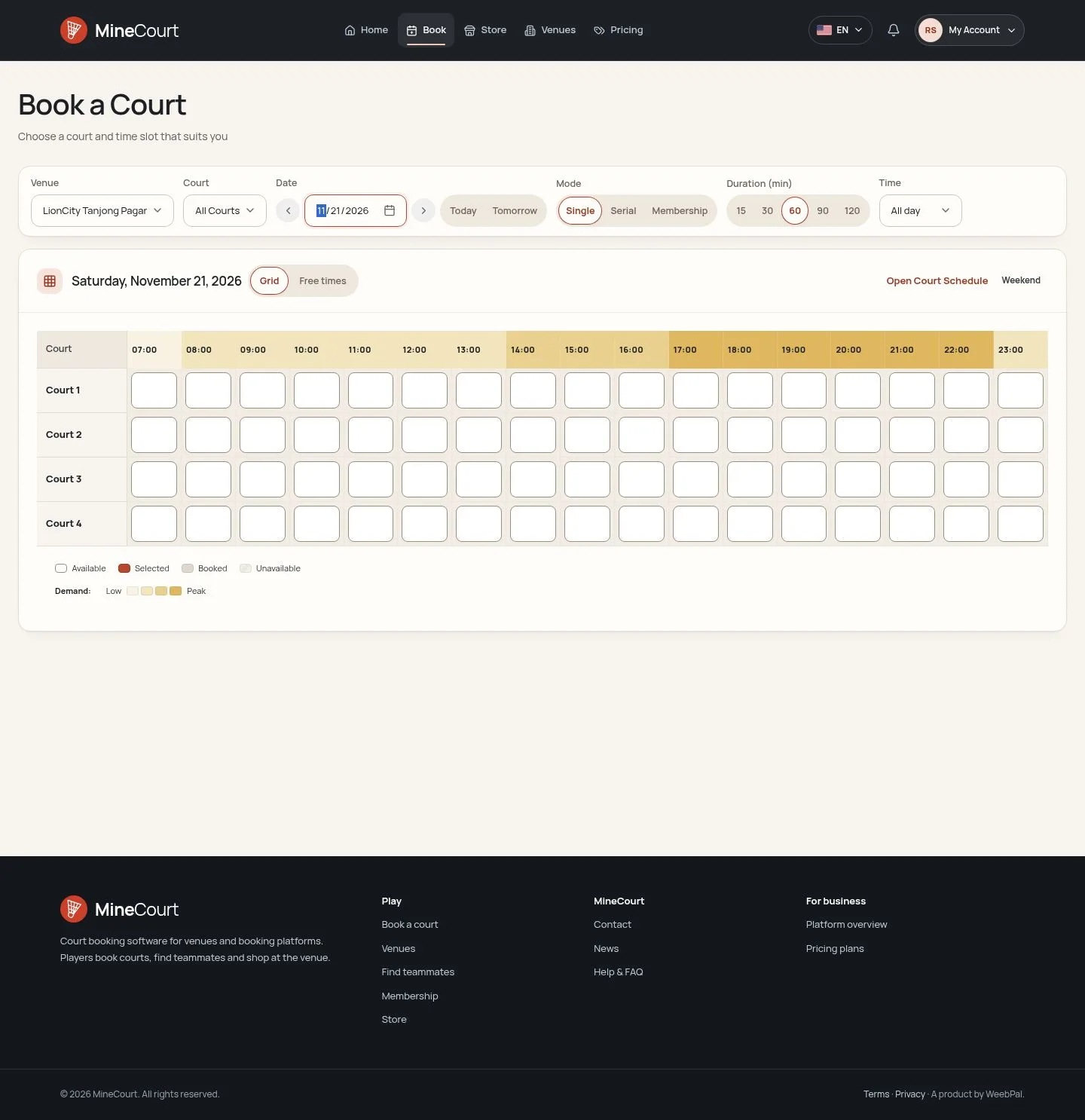
Time of day
Venue Manager
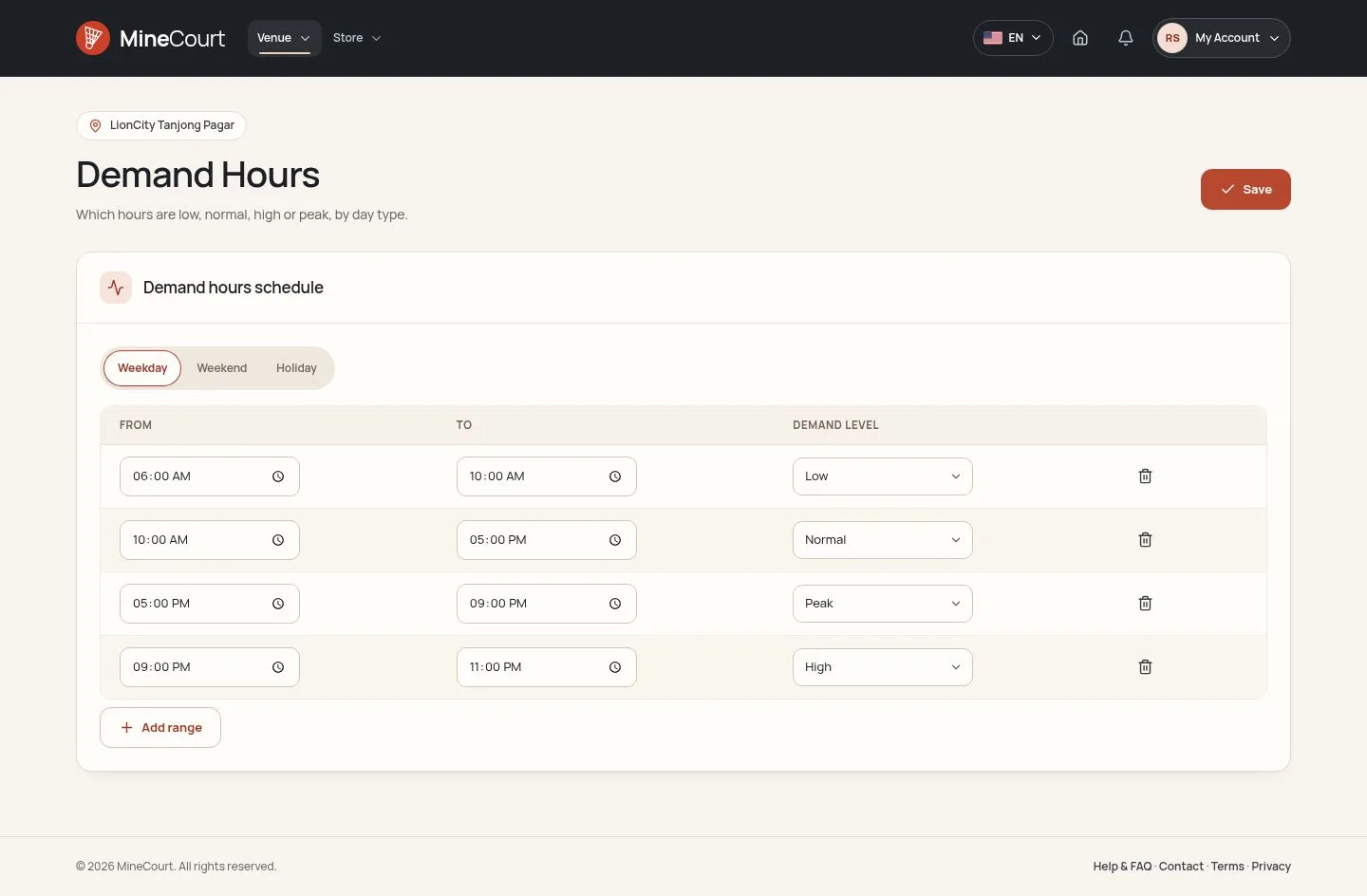
Smart matrix
Venue Manager
4Step 4 of 8
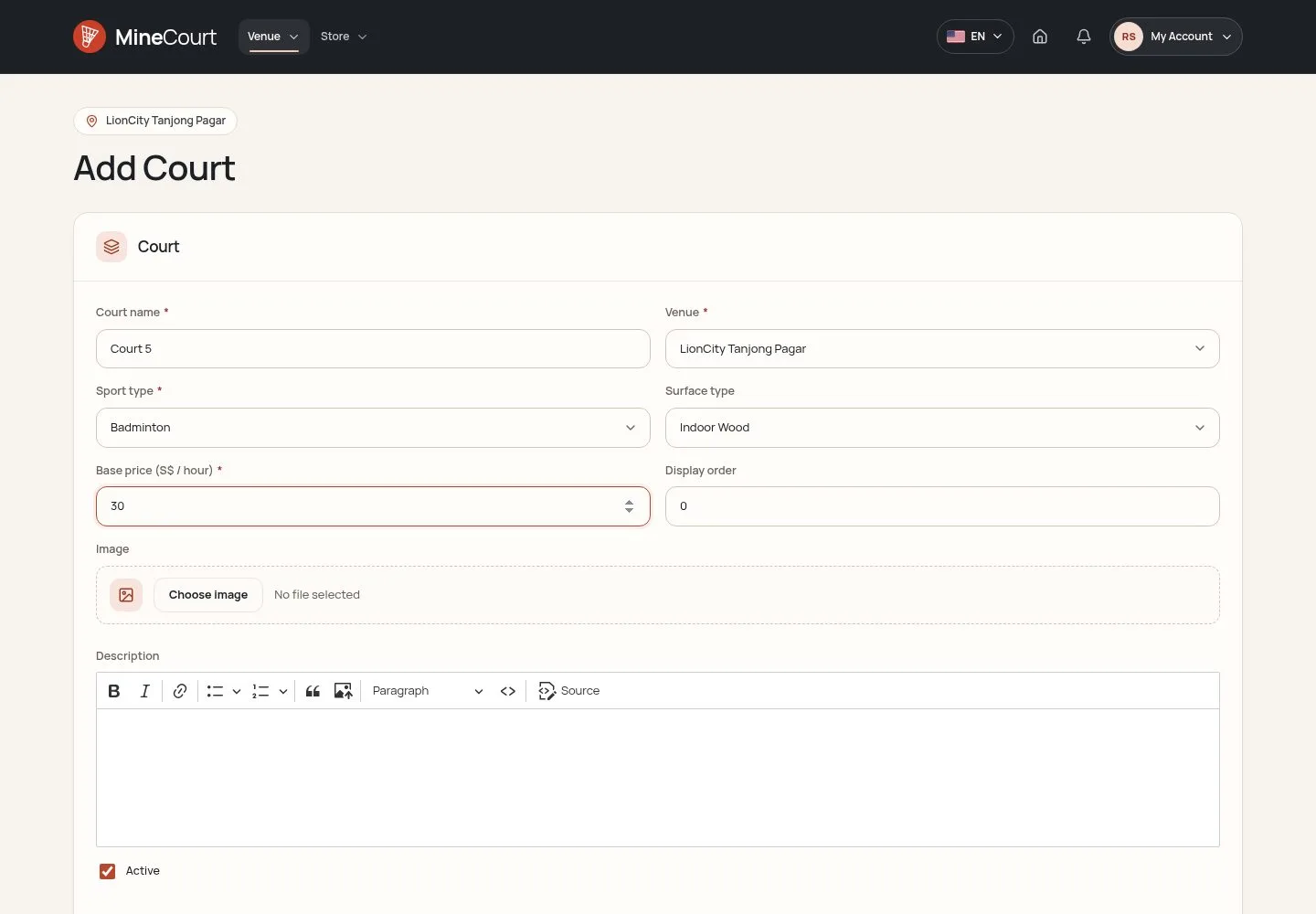
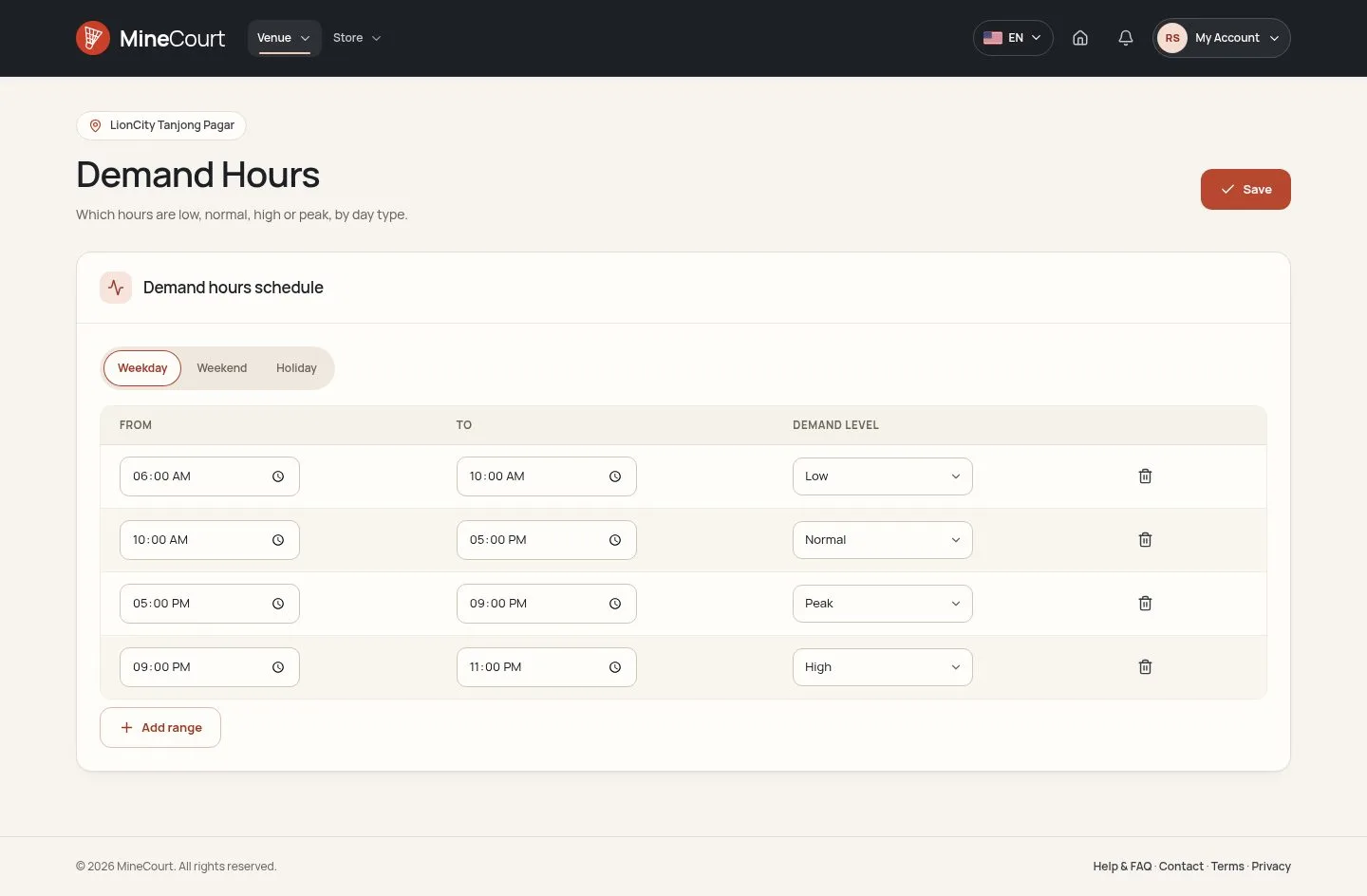
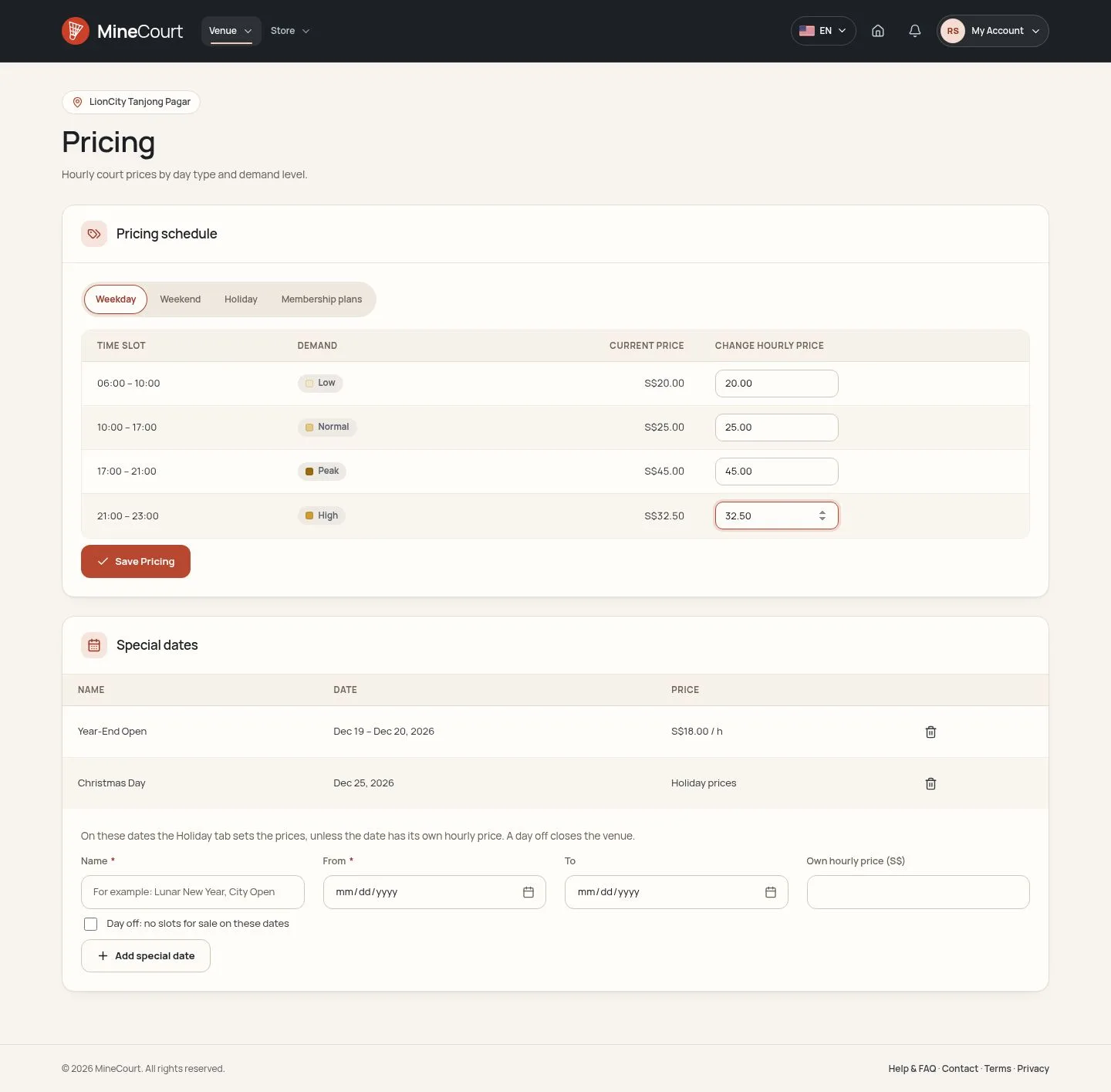
- Venue → Pricing: each day type tab lists its ranges with the Current price; type a new one under Change hourly price.
- Day type × demand level gives 12 hourly prices for each venue; one the venue has not set falls back to the platform default, if there is one.
- Save Pricing writes the prices to the slots: the next two months at once, later months within minutes.
Enlarge, then scroll
Holidays
Venue Manager
5Step 5 of 8
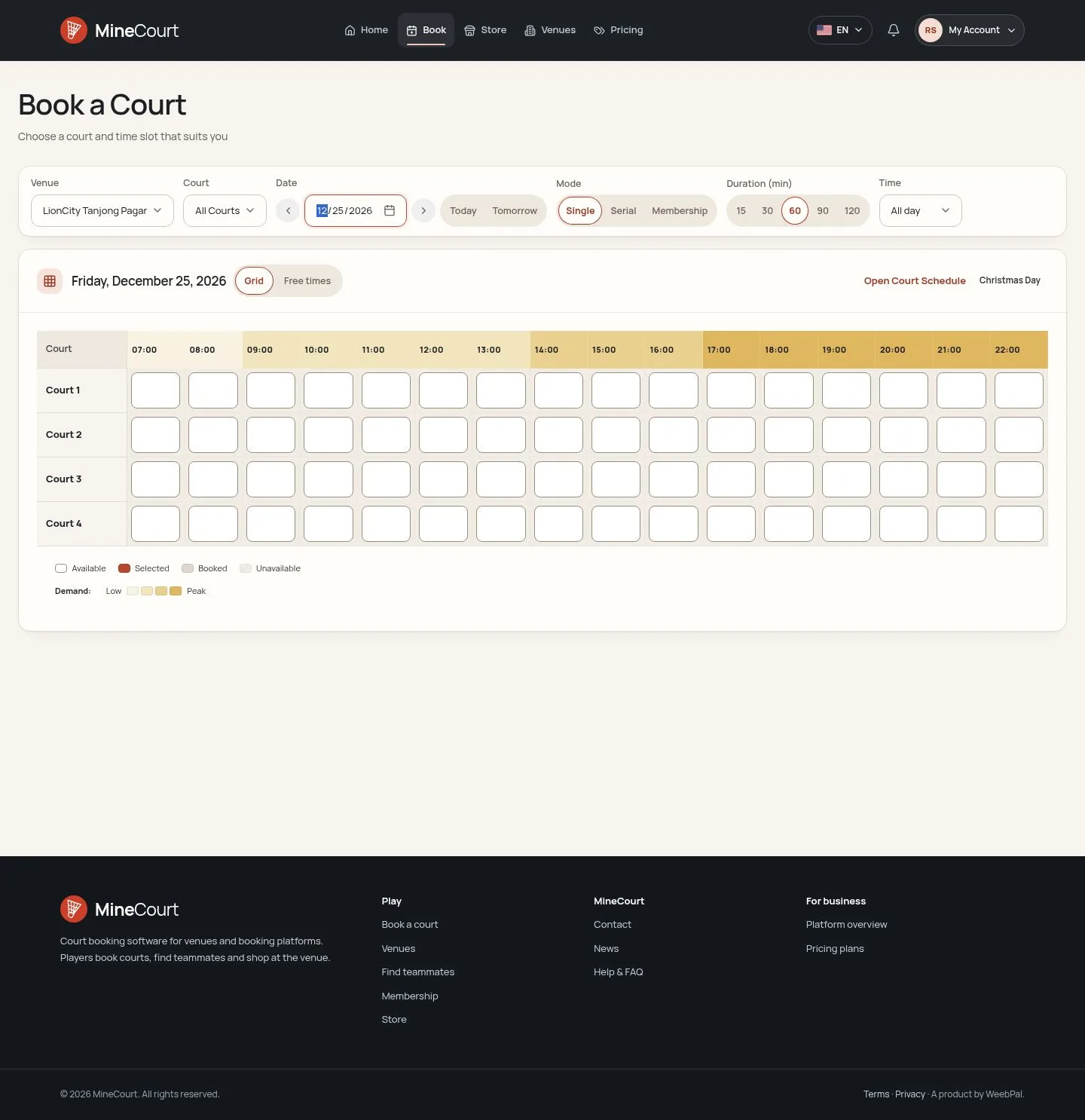
- The Holiday tab has its own prices, and Demand Hours its own Holiday ranges.
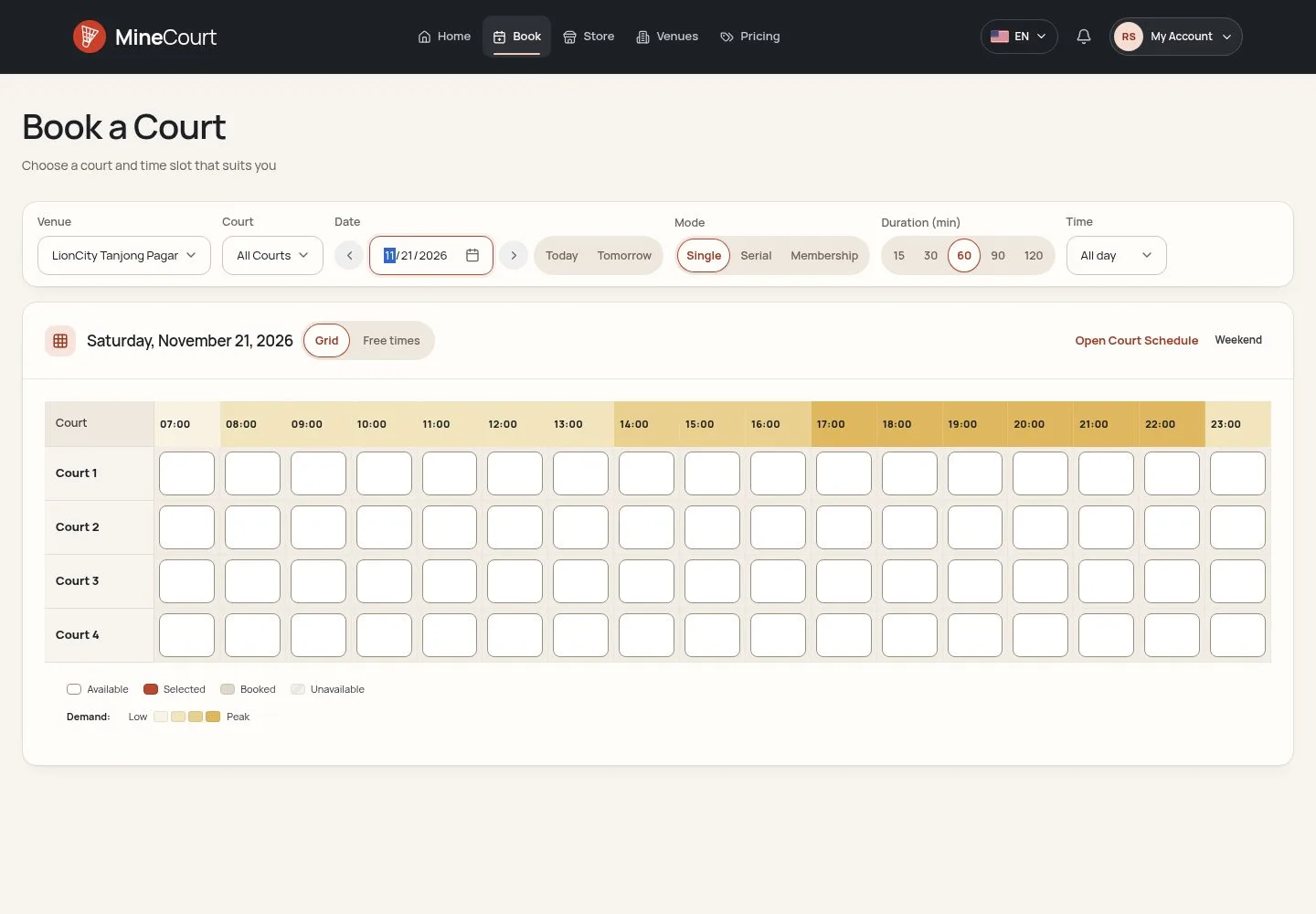
- They apply on the dates of a special date: with Christmas Day added, the grid sells that day at Holiday prices and names it above the cells.
To close on a holiday, mark the special date Day off: its slots show Unavailable.
Enlarge, then scroll
Special events
Venue Manager

6Step 6 of 8
- Under Special dates on Pricing, type a Name, From and To, and an Own hourly price, or tick Day off; then Add special date.
- An own hourly price replaces the matrix on every slot of its dates: a tournament, a league or a promotion.
- Day off blocks every slot of its dates; Delete returns the dates to their usual prices.
Slots already sold keep their price.
Enlarge, then scroll
Membership
Player
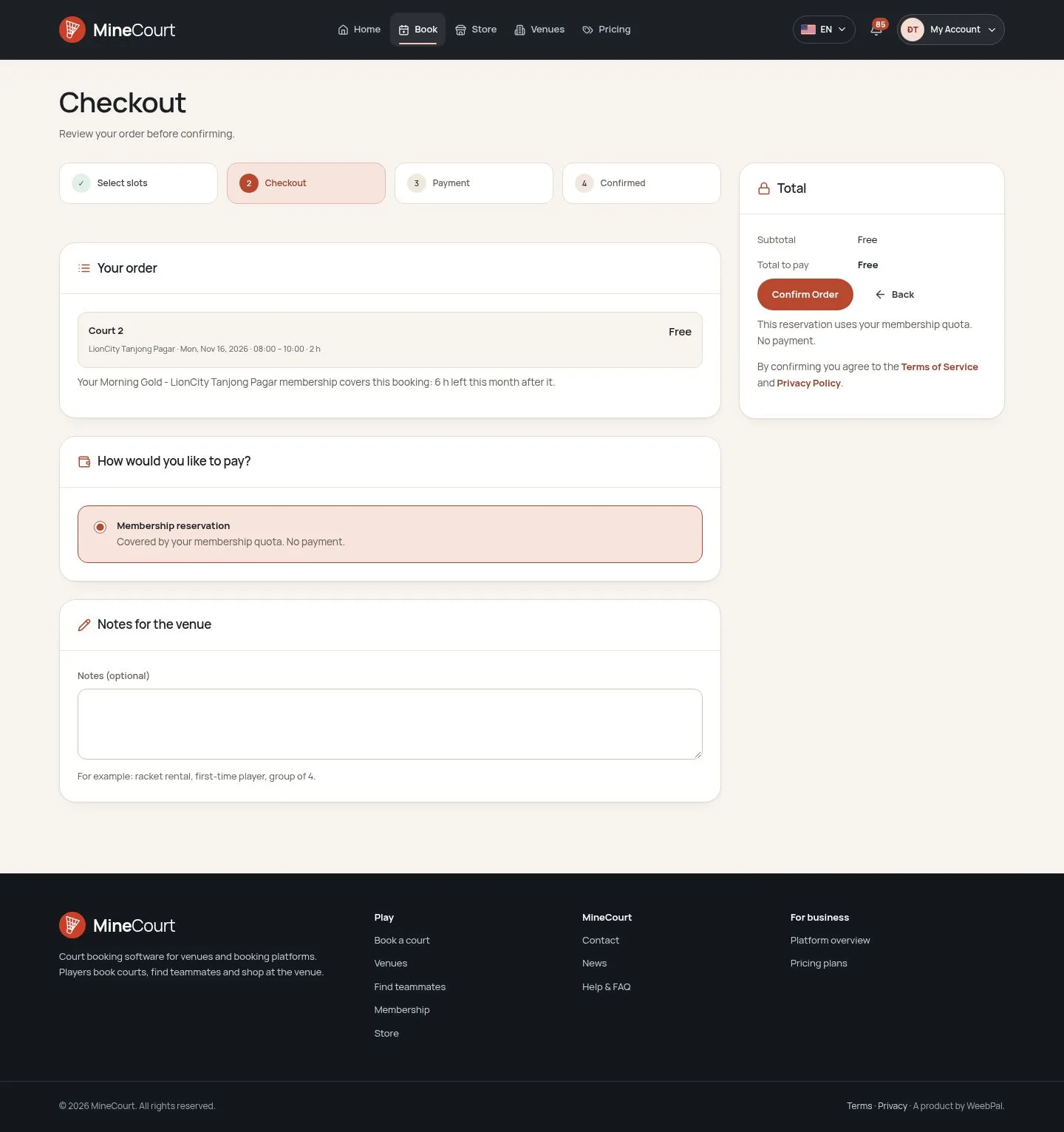
7Step 7 of 8
- A member's whole order is free while it fits the plan: booking window, monthly hours and daily hours; otherwise the member pays the full price.
- The Membership plans tab on Pricing sets the hours, the booking window and the prices of each plan; Memberships explains the rest.
Enlarge, then scroll
Final price
Venue Manager
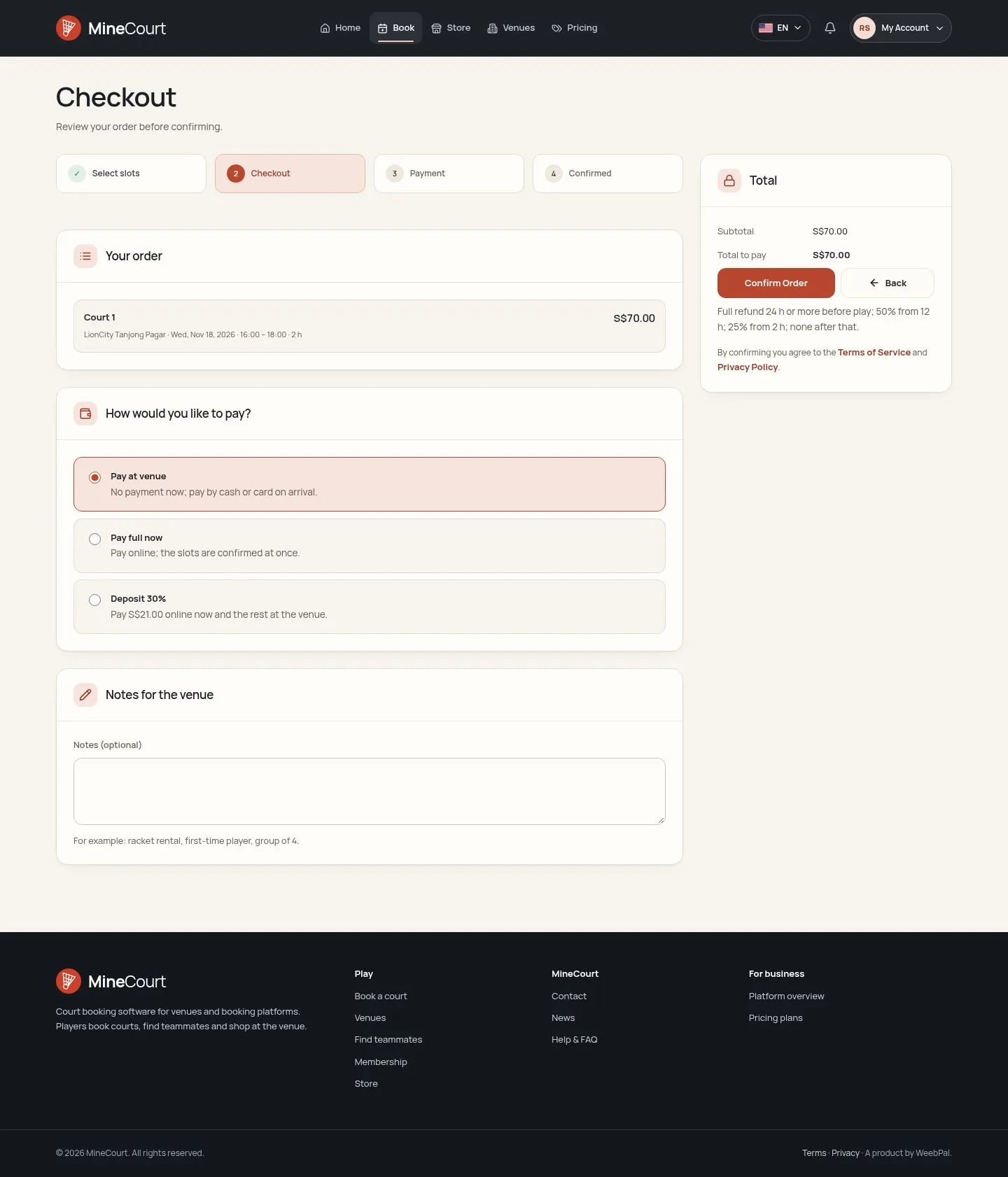
8Step 8 of 8
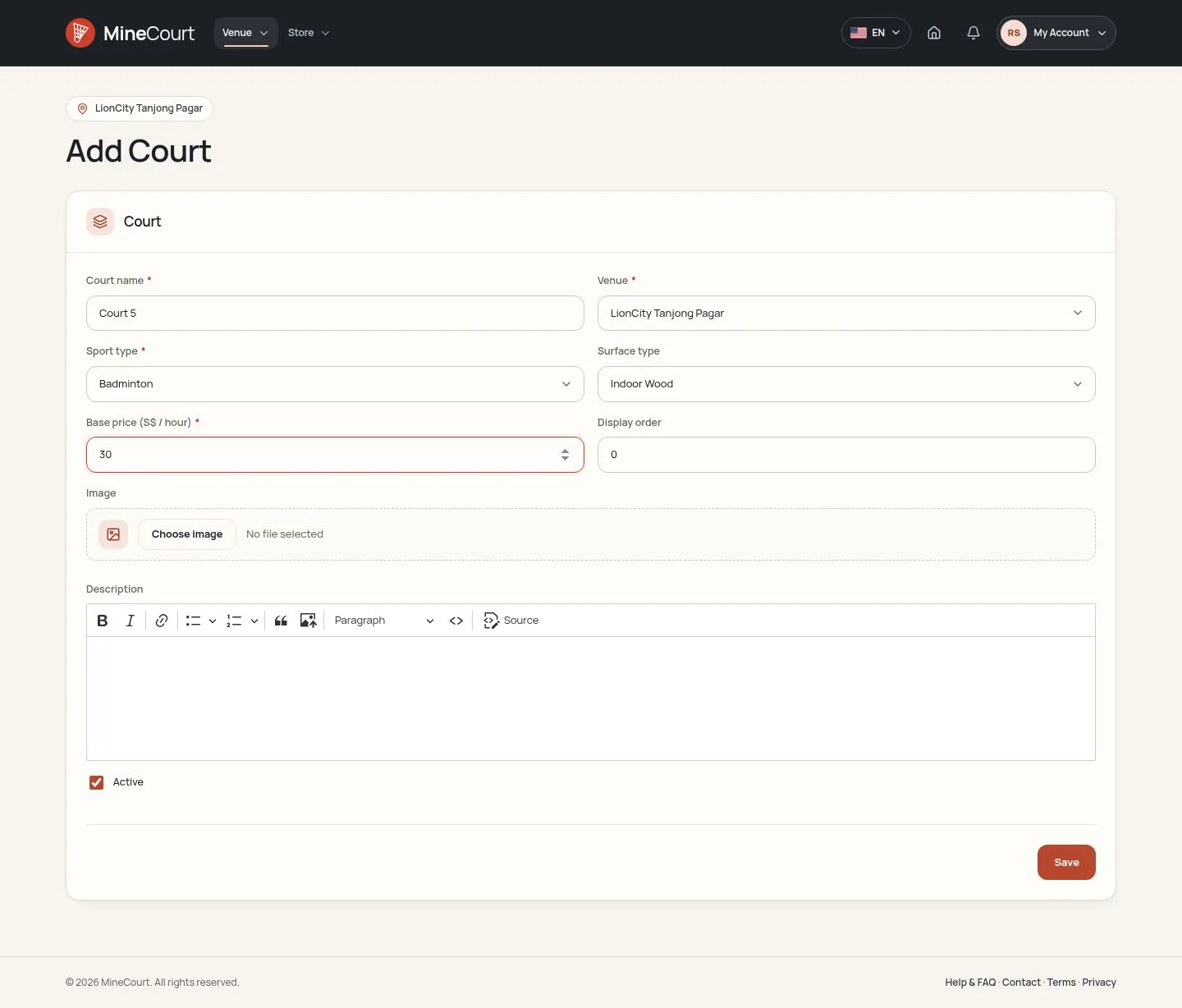
- The hourly price of a slot is the special date's own price, otherwise the matrix, otherwise the base price.
- A 15-minute slot costs a quarter of the hourly price: S$32.50 an hour is 8.13 + 8.13 + 8.12 + 8.12.
- The order total is the sum of its slots: this order is 16:00 to 17:00 at S$25 + 17:00 to 18:00 at S$45 = S$70.
Enlarge, then scroll
Open the function ↗Full image ↗
Check
Every slot carries its price and demand level
1 / 9