




Courts & opening hours

Courts, hours and exceptions decide which slots exist

  • A Venue Manager account
Venue Manager
Courts

Venue Manager

Courts

1Step 1 of 10

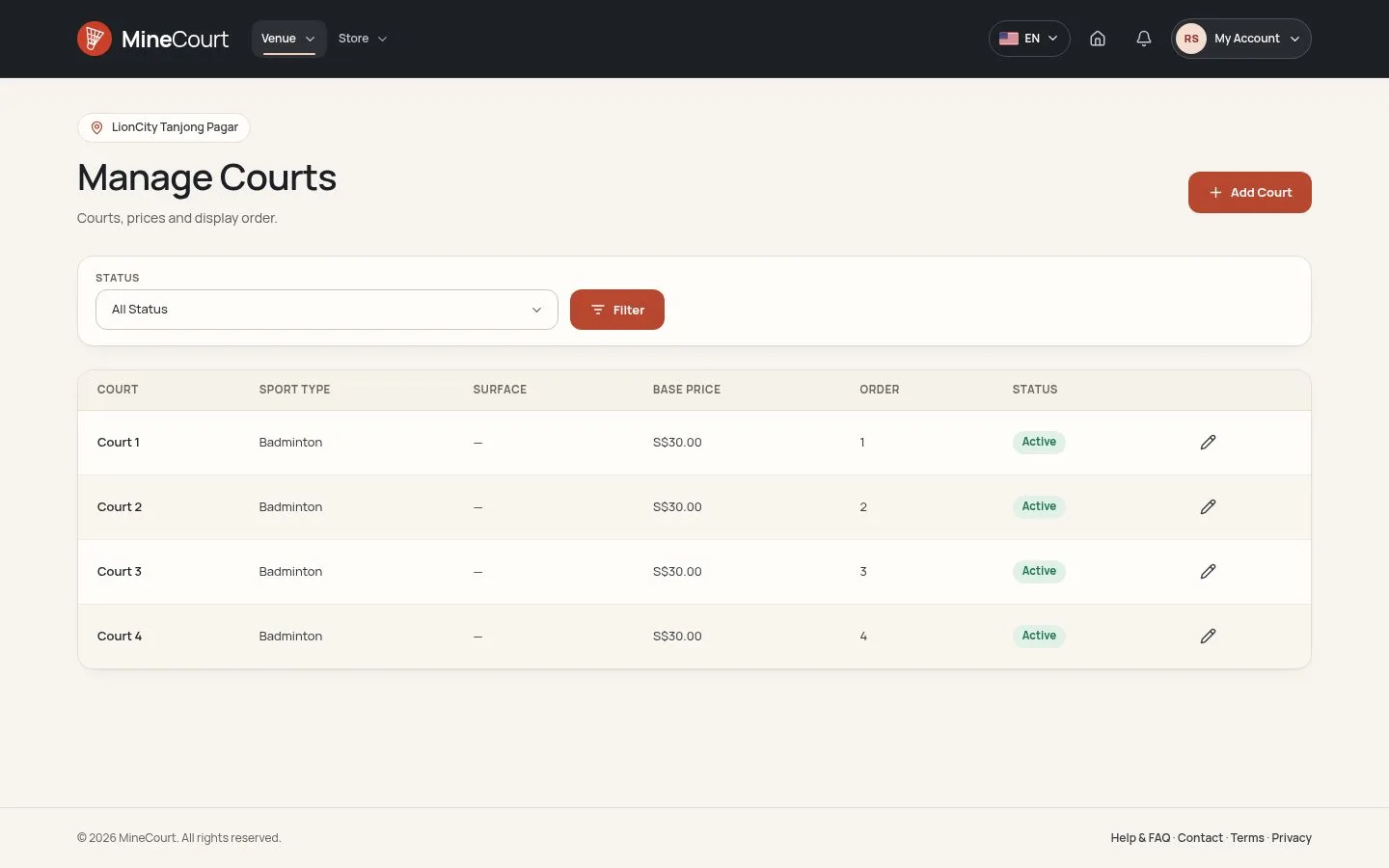
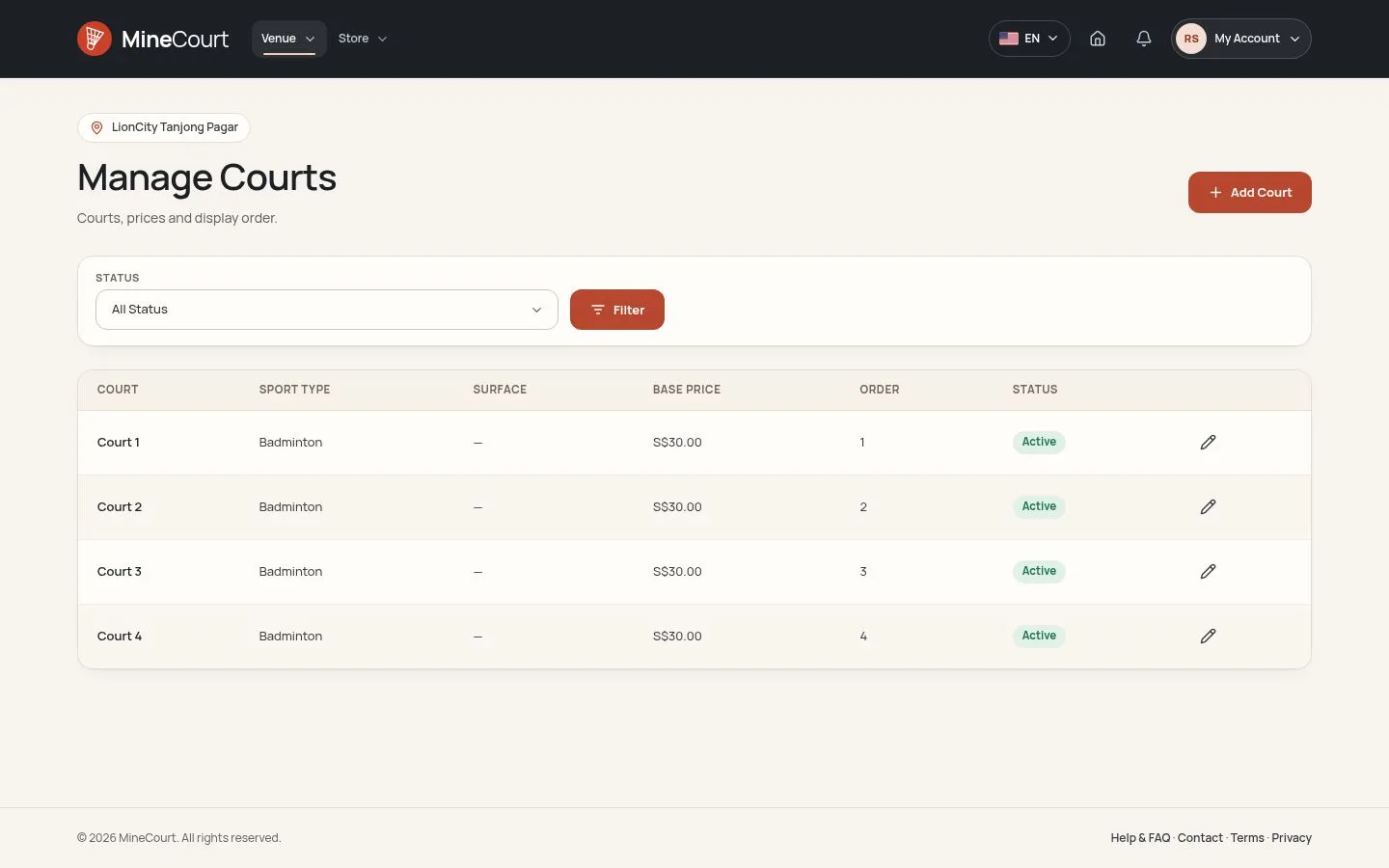
  1. Venue → Courts lists the courts of the venue with their sport, surface, base price, display order and status.
  2. The pencil edits a court; Add Court adds one.

Open the function ↗Full image ↗

Venue Manager · Courts & opening hours01

Add a court

Venue Manager

Add a court

2Step 2 of 10

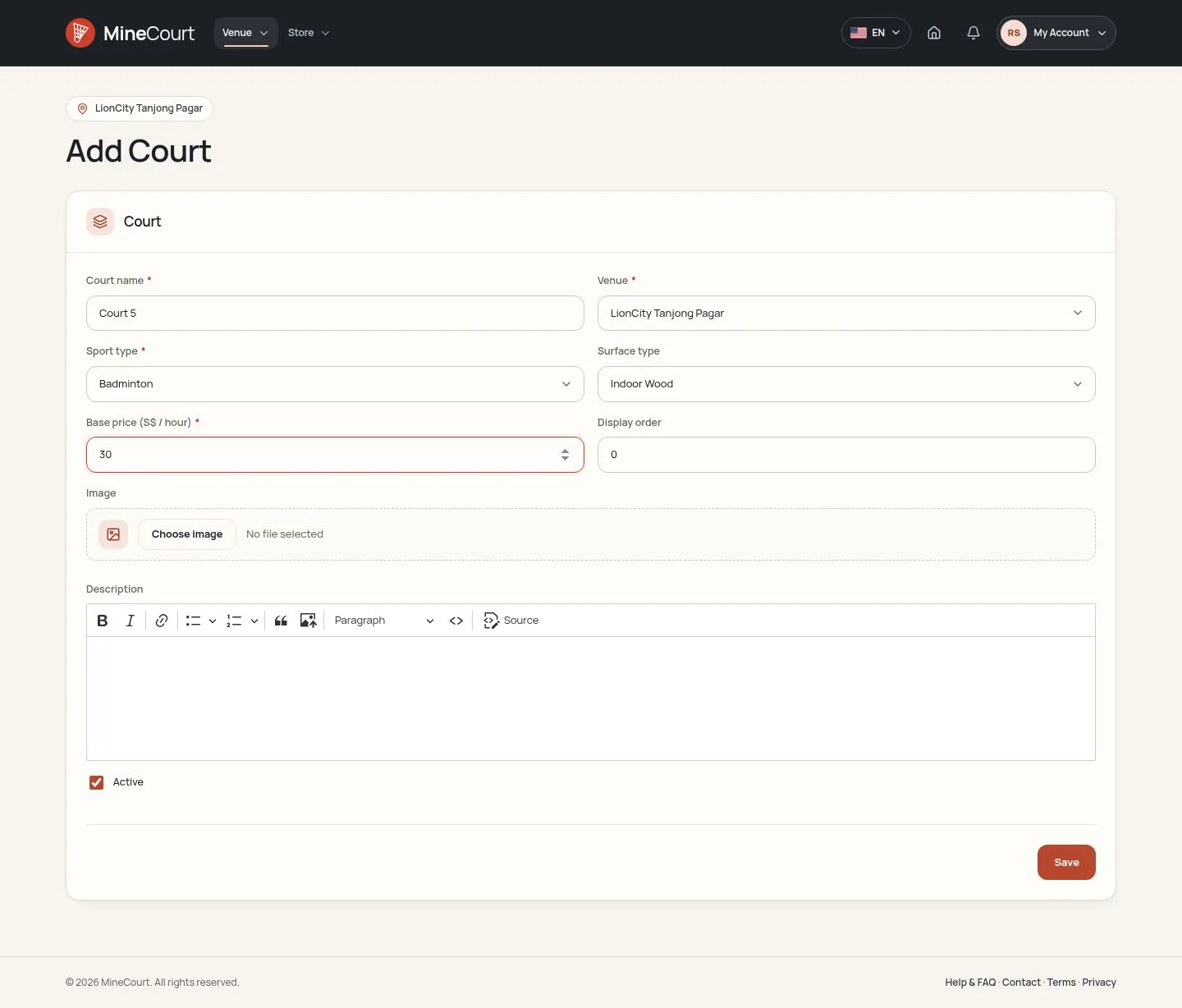
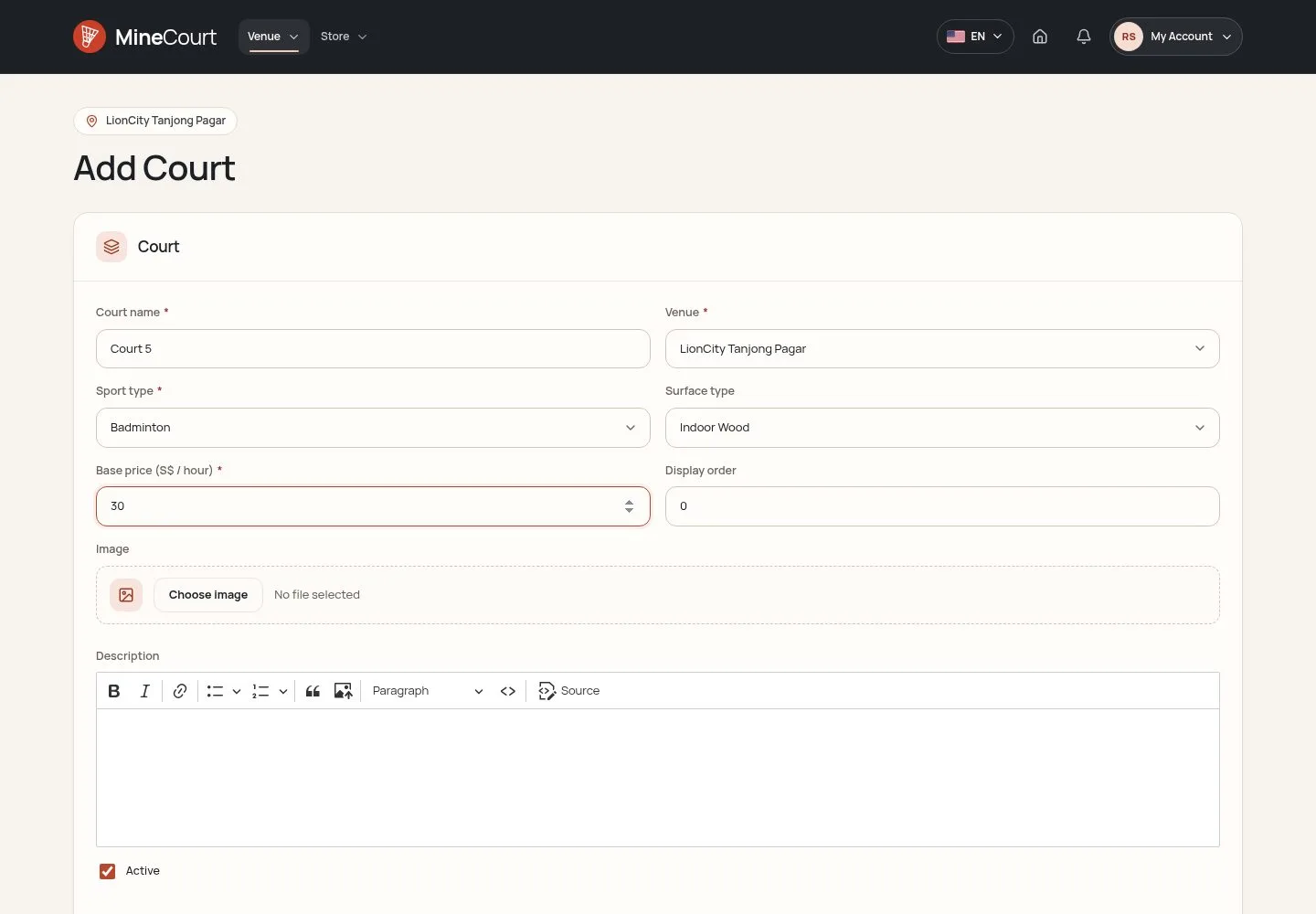
  1. Fill in the Court name, Venue, Sport type, Surface type and Base price, per hour in the currency of the venue; Display order sets its place in lists.
  2. Add an image and a description if wanted; Active puts the court on sale.

Enlarge, then scroll

Open the function ↗Full image ↗

Venue Manager · Courts & opening hours02

Opening hours

Venue Manager

Opening hours

3Step 3 of 10

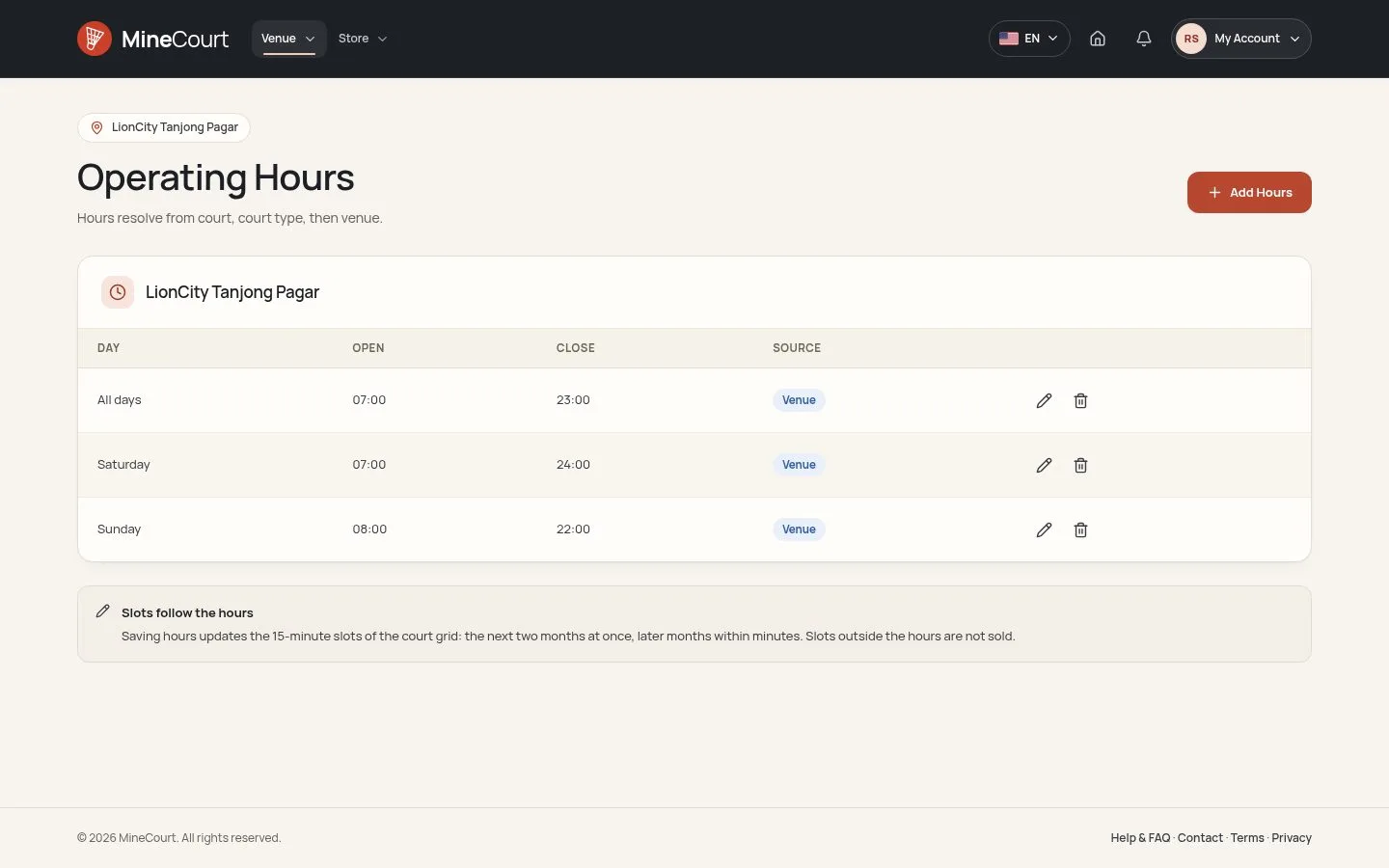
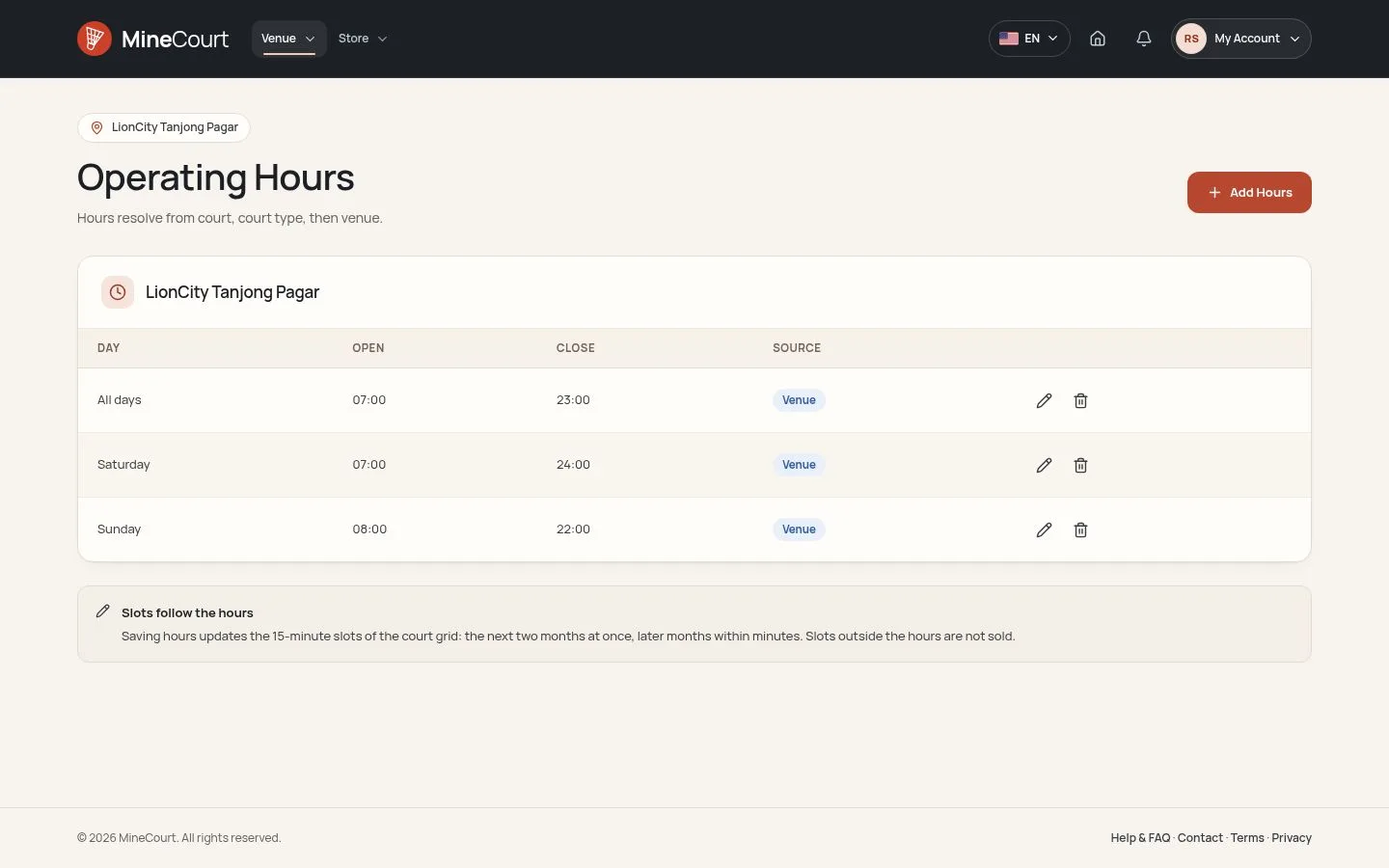
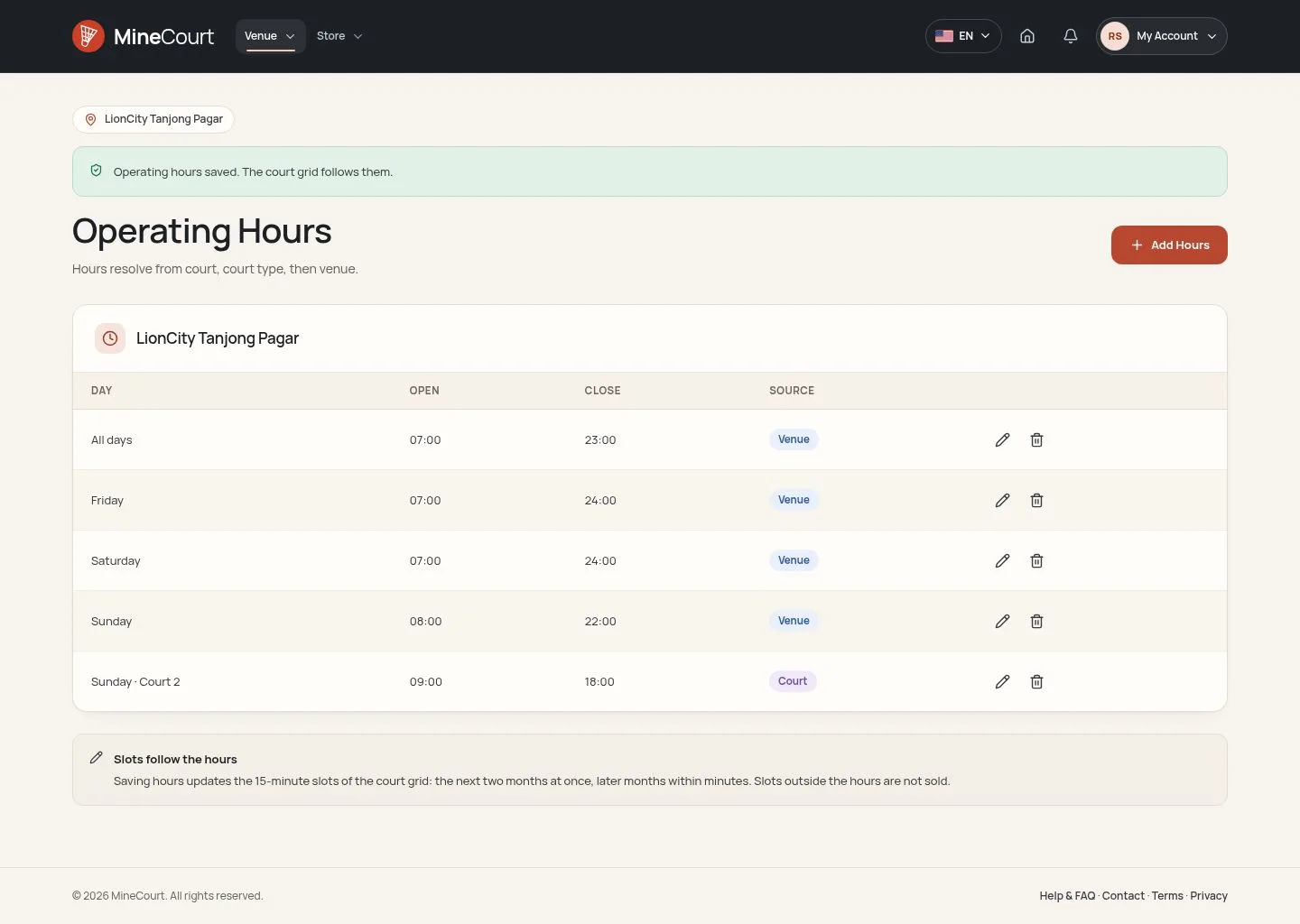
  1. Venue → Hours lists Operating Hours: each record has a Day (All days or one weekday), Open, Close and its Source: Venue, Court type or Court.
  2. A new venue starts with an All days record, taken from the hours of the venue or of its company.

Venue Staff, Venue Managers, Company Owners and Platform Managers change hours and add exceptions; deleting an exception takes a Venue Manager or above.
Open the function ↗Full image ↗

Venue Manager · Courts & opening hours03

Add hours

Venue Manager

Add hours

4Step 4 of 10

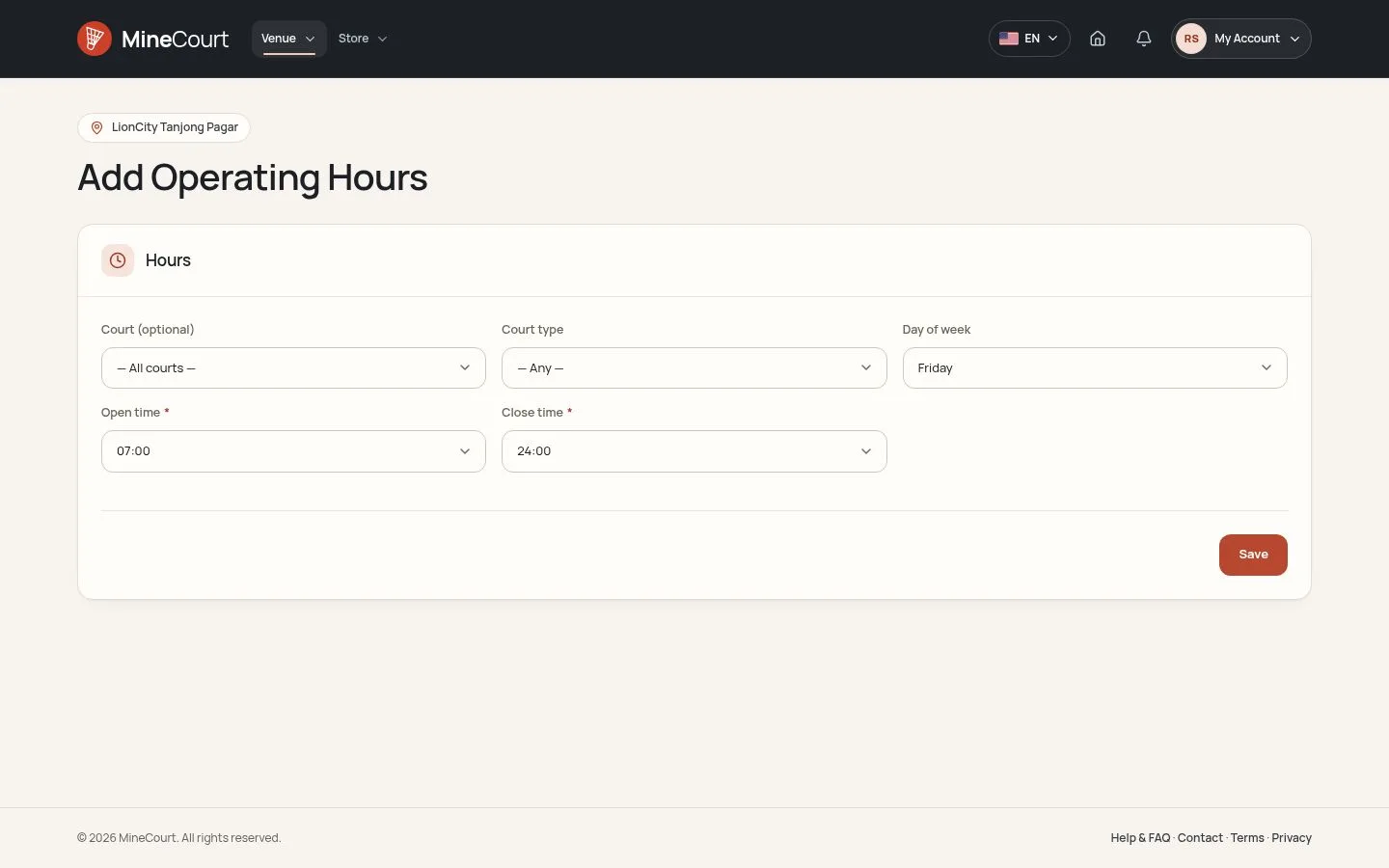
  1. Add Hours: choose a Court (optional) or a Court type, the Day of week, then the Open time and Close time, in 15-minute steps; Save.

Open the function ↗Full image ↗

Venue Manager · Courts & opening hours04

Which hours apply

Venue Manager

Which hours apply

5Step 5 of 10

  1. A record of the court comes first, then of its court type, then of the venue.
  2. A record of one weekday comes before All days.
  3. A venue without any hours is closed.

Delete a record and that day follows the general hours again.

Enlarge, then scroll

Open the function ↗Full image ↗

Venue Manager · Courts & opening hours05

Slots follow

Venue Manager

Slots follow

6Step 6 of 10

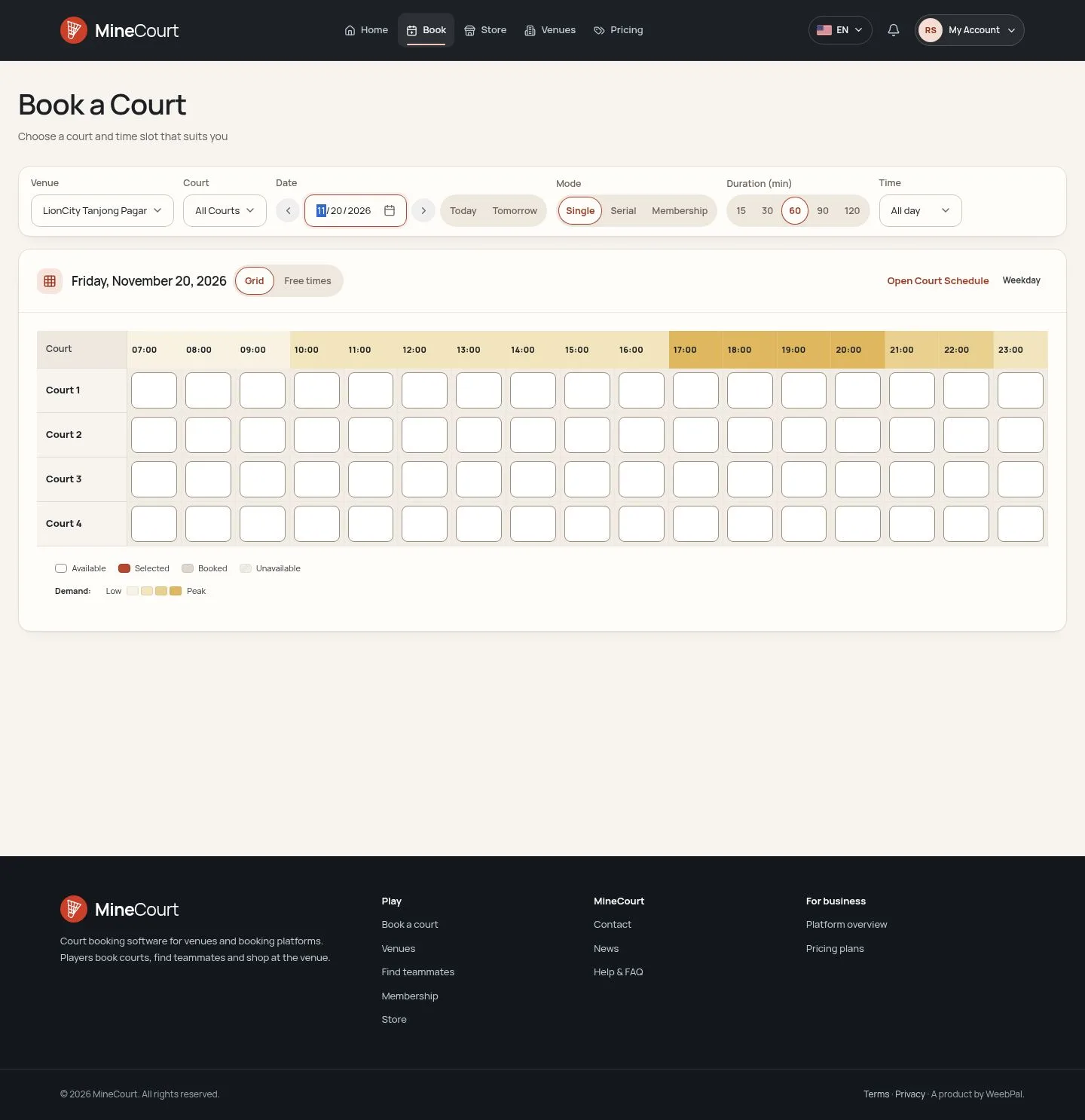
  1. Saving hours updates the 15-minute slots of every court: the next two months at once, later months within minutes, up to the end of next year.
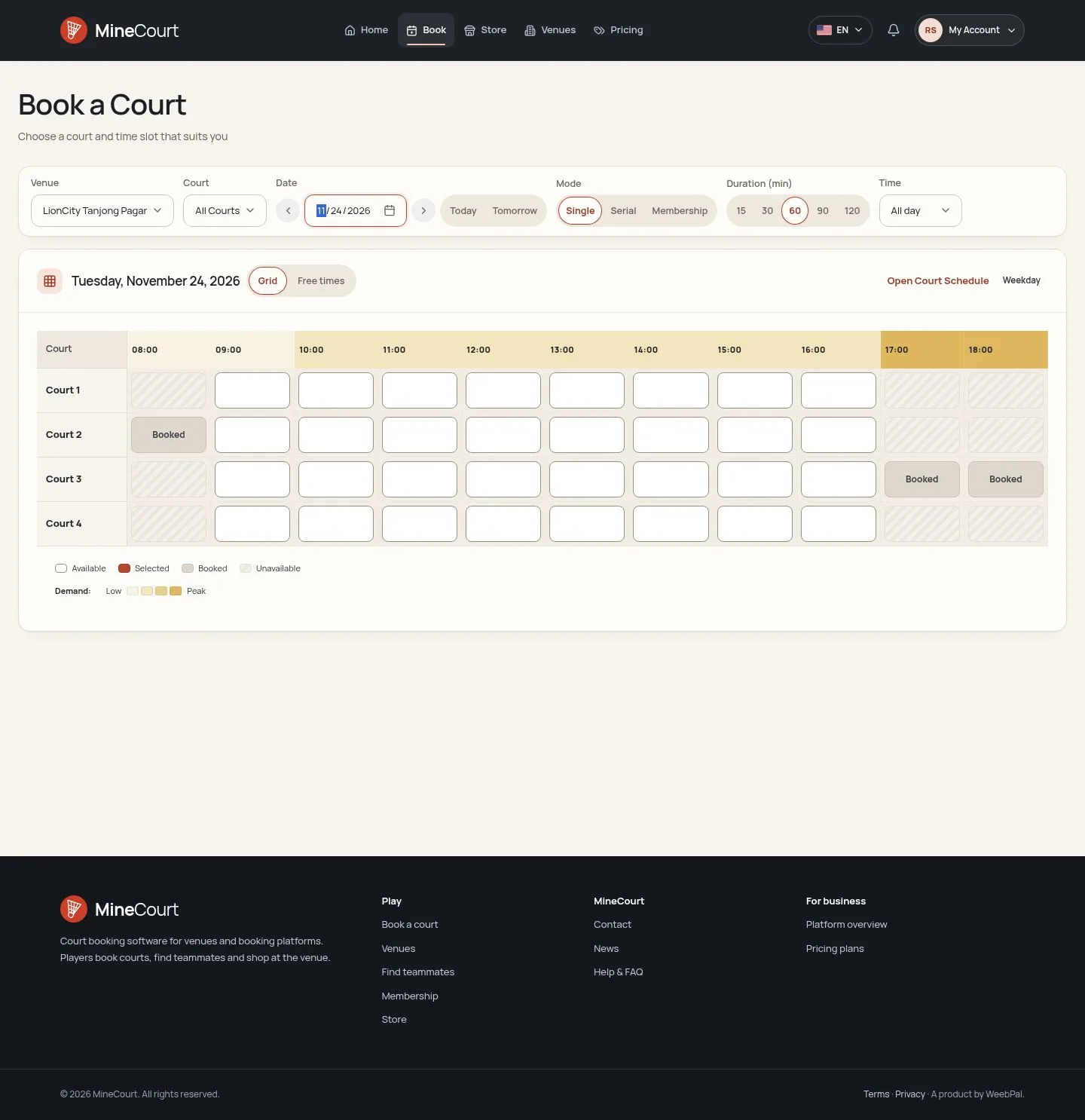
  2. Nothing is sold outside the hours: the court grid shows only the open hours.

Enlarge, then scroll

Open the function ↗Full image ↗

Venue Manager · Courts & opening hours06

Exceptions

Venue Manager

Exceptions

7Step 7 of 10

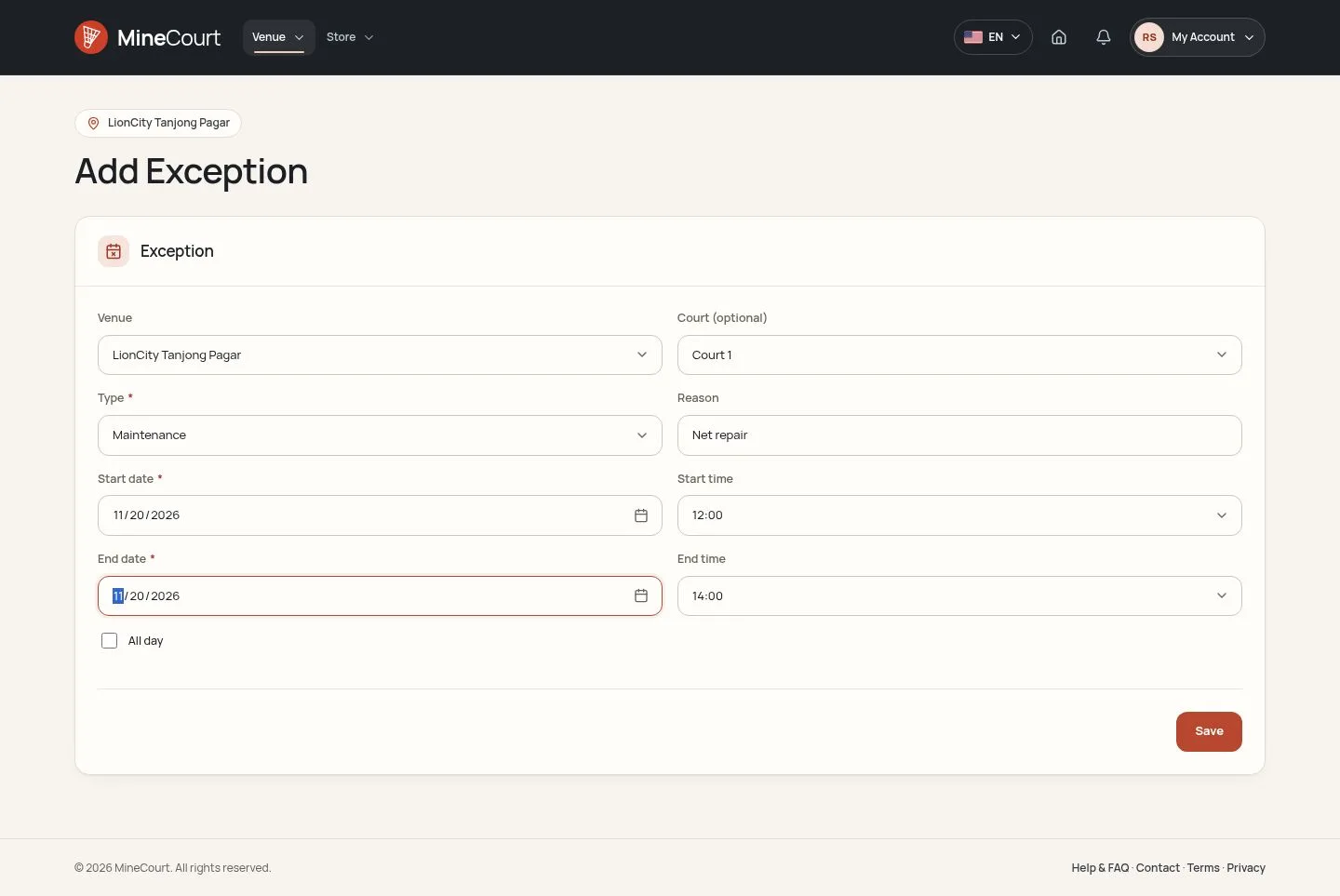
  1. Venue → Exceptions → Add Exception: choose the Venue, a Court (optional), the Type and a Reason, then the Start and End, or tick All day; Save.
  2. Type is Blocked, Holiday, Maintenance or Special hours.

Open the function ↗Full image ↗

Venue Manager · Courts & opening hours07

Closed on the grid

Venue Manager

Closed on the grid

8Step 8 of 10

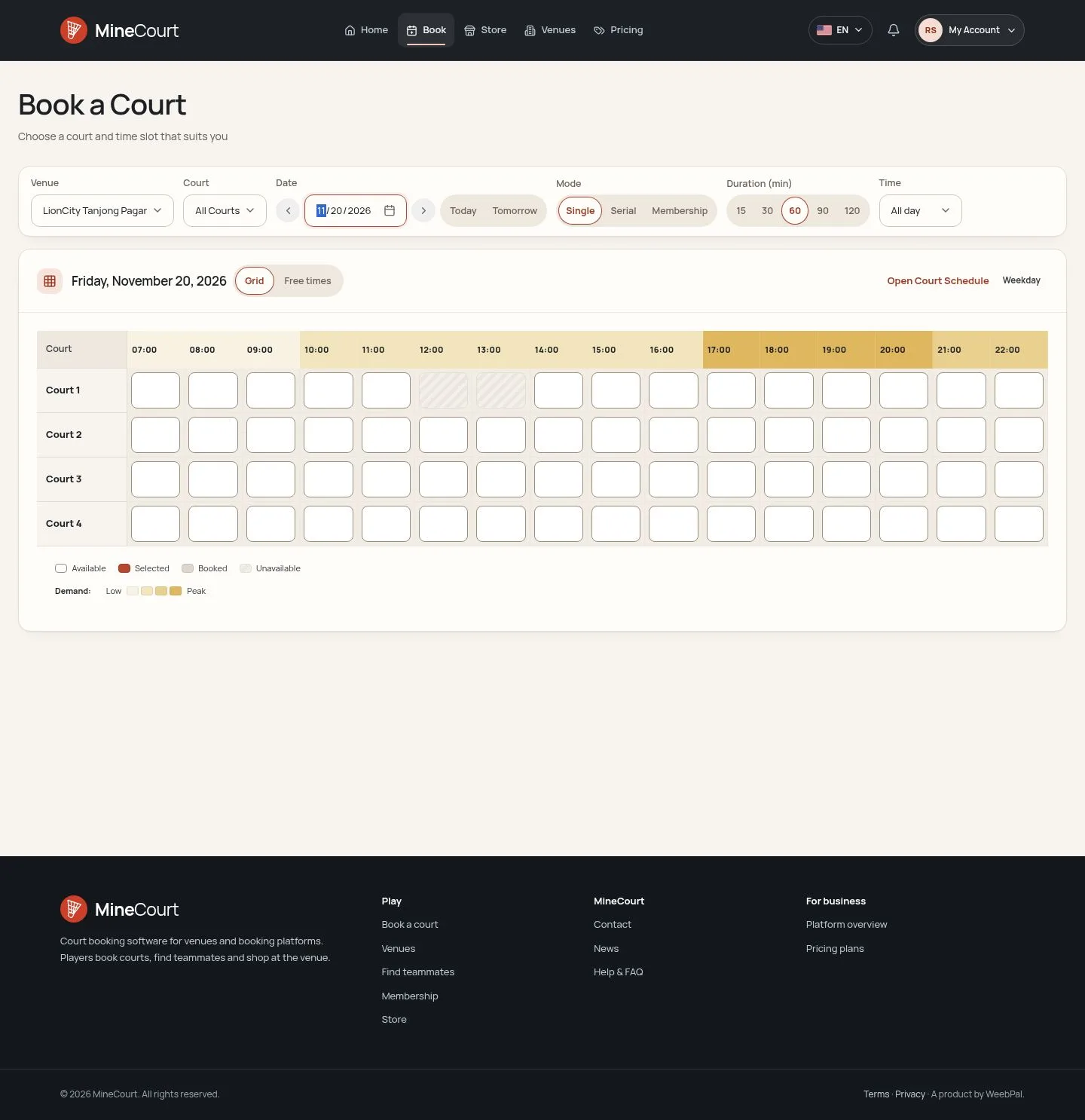
  1. Slots inside an exception are blocked and show Unavailable.
  2. Delete the exception and they are back on sale.

Enlarge, then scroll

Open the function ↗Full image ↗

Venue Manager · Courts & opening hours08

Special hours

Venue Manager

Special hours

9Step 9 of 10

  1. Special hours have their own open and close; only those hours are sold on that date.

Enlarge, then scroll

Open the function ↗Full image ↗

Venue Manager · Courts & opening hours09

Month calendar

Venue Manager

Month calendar

10Step 10 of 10

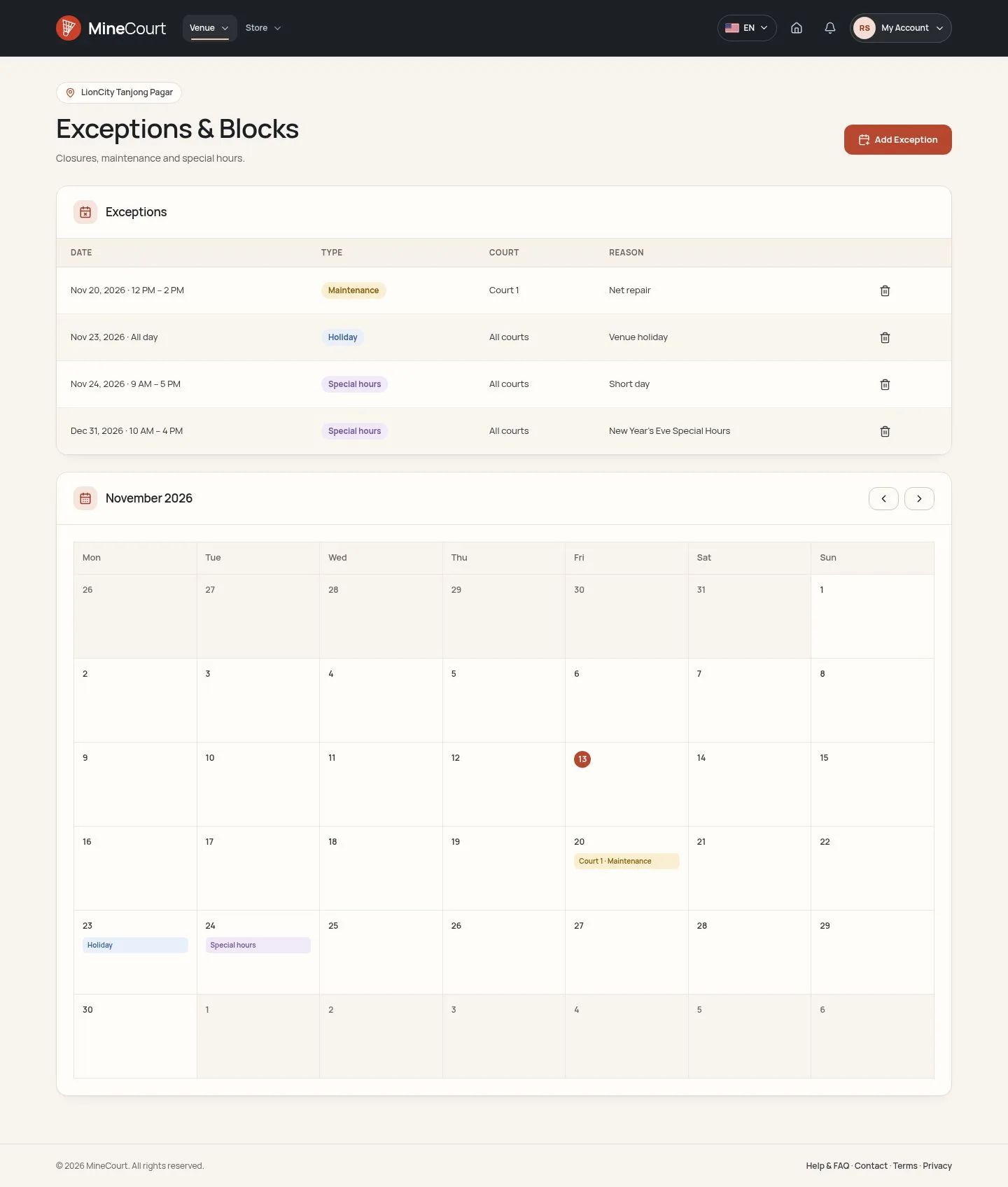
  1. Exceptions & Blocks lists every exception with its date, type, court and reason; Delete removes one.
  2. Under the list, a calendar shows them month by month.

Enlarge, then scroll

Open the function ↗Full image ↗

Check

The grid shows only the slots that can be sold

Venue Manager · Courts & opening hours10
1 / 11
Privacy Terms