









Counter & POS
Counter orders, payments, check-in and cash shifts
- A Venue Staff account, assigned to the venue

Court Schedule
Venue Staff
3Step 3 of 30
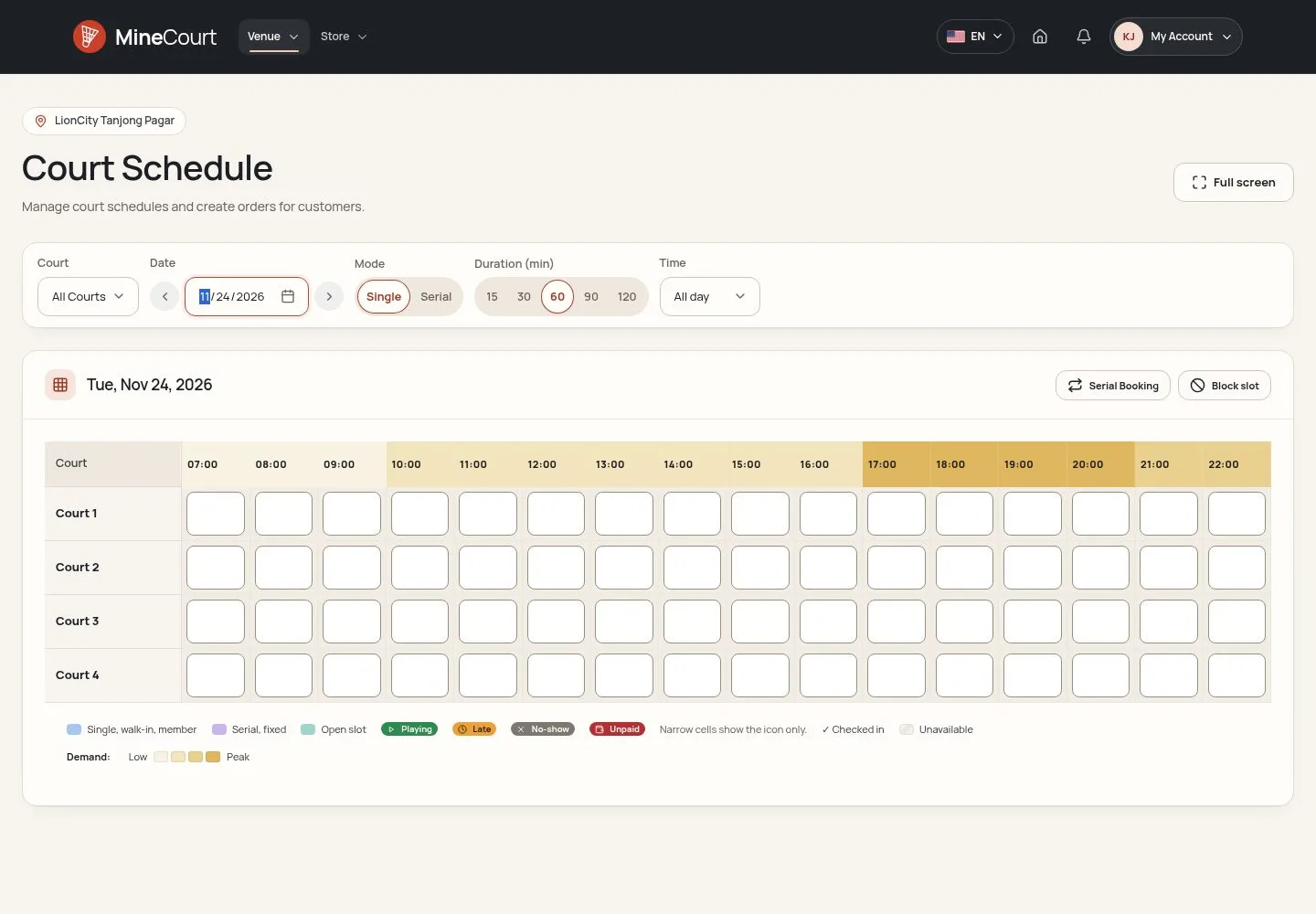
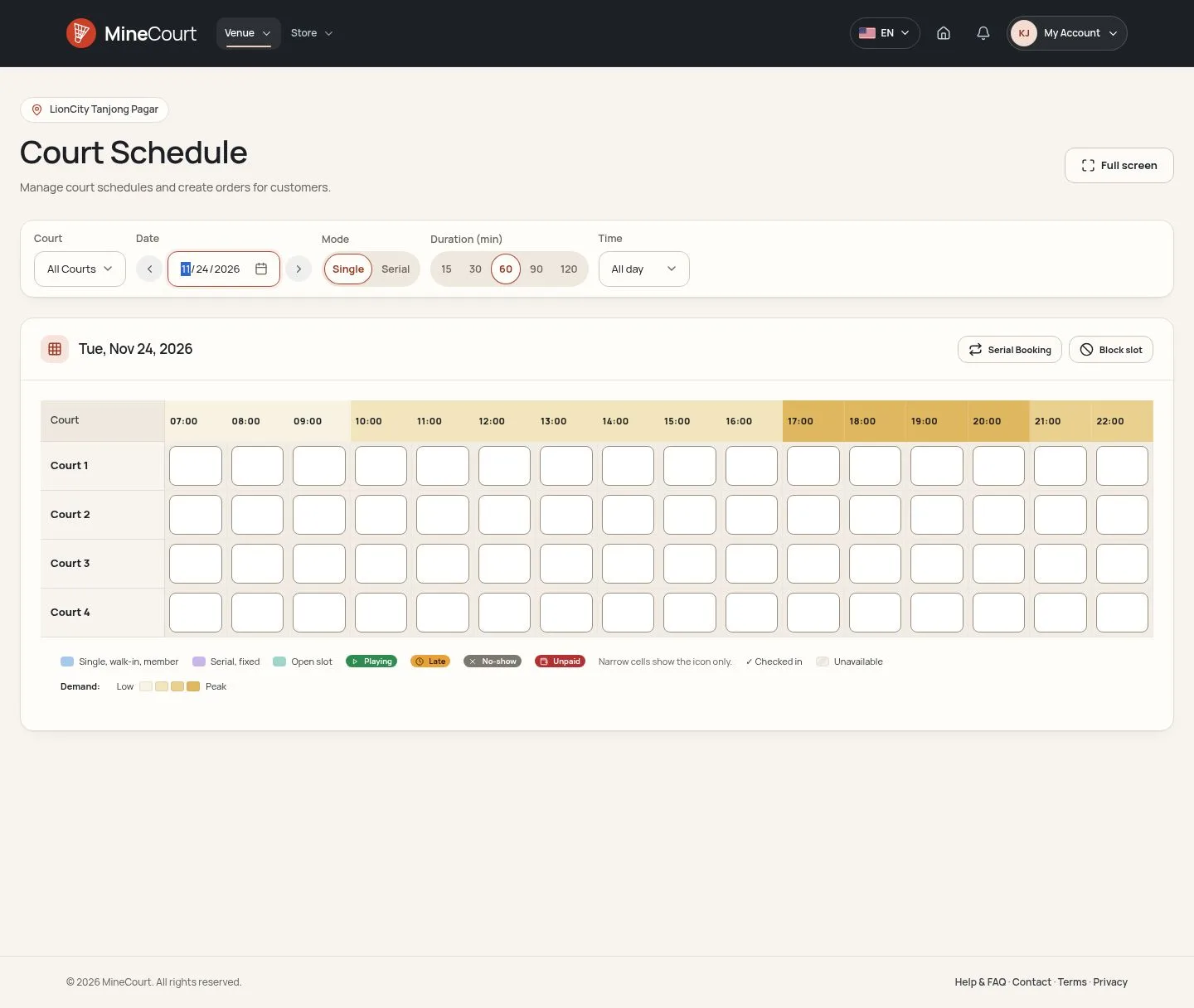
- Venue → Schedule opens Court Schedule: one day of every court; choose the Court, Date, Mode, Duration and Time.
- An order is one block over its hours, coloured by its kind: single, walk-in or member; serial or fixed; open slot. Its labels say Playing, Late, No-show or Unpaid, and ✓ marks a check-in.
- Each hour is coloured by its demand level; on today the current hour has a dot. The legend under the grid explains it all; Full screen gives the grid the whole screen.
- Staff of several venues switch venue above the title.
Venue Managers and Company Owners have the same screen; Company Managers and Accountants read it without changing it.
Enlarge, then scroll
See the schedule
Company Manager
4Step 4 of 30
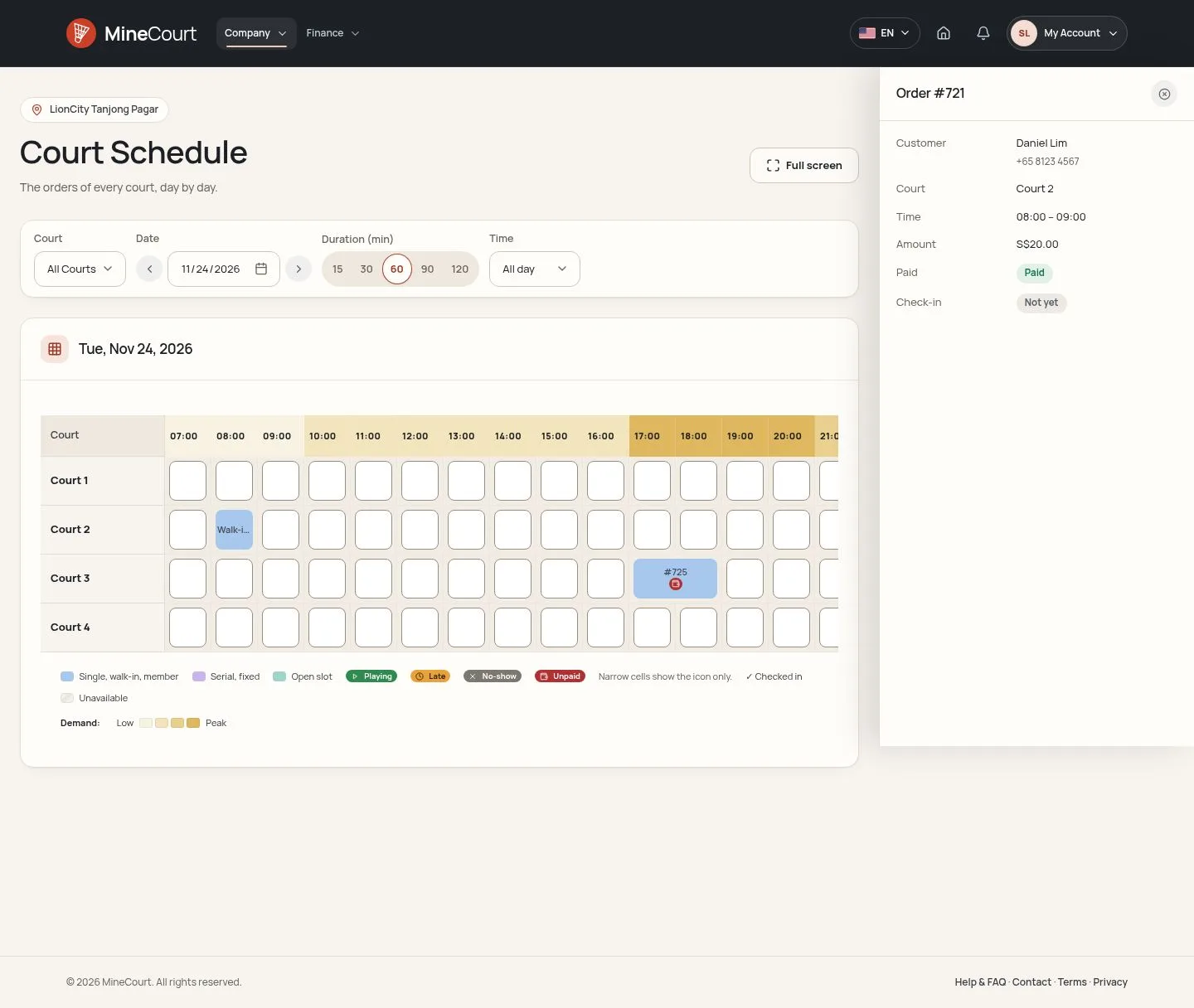
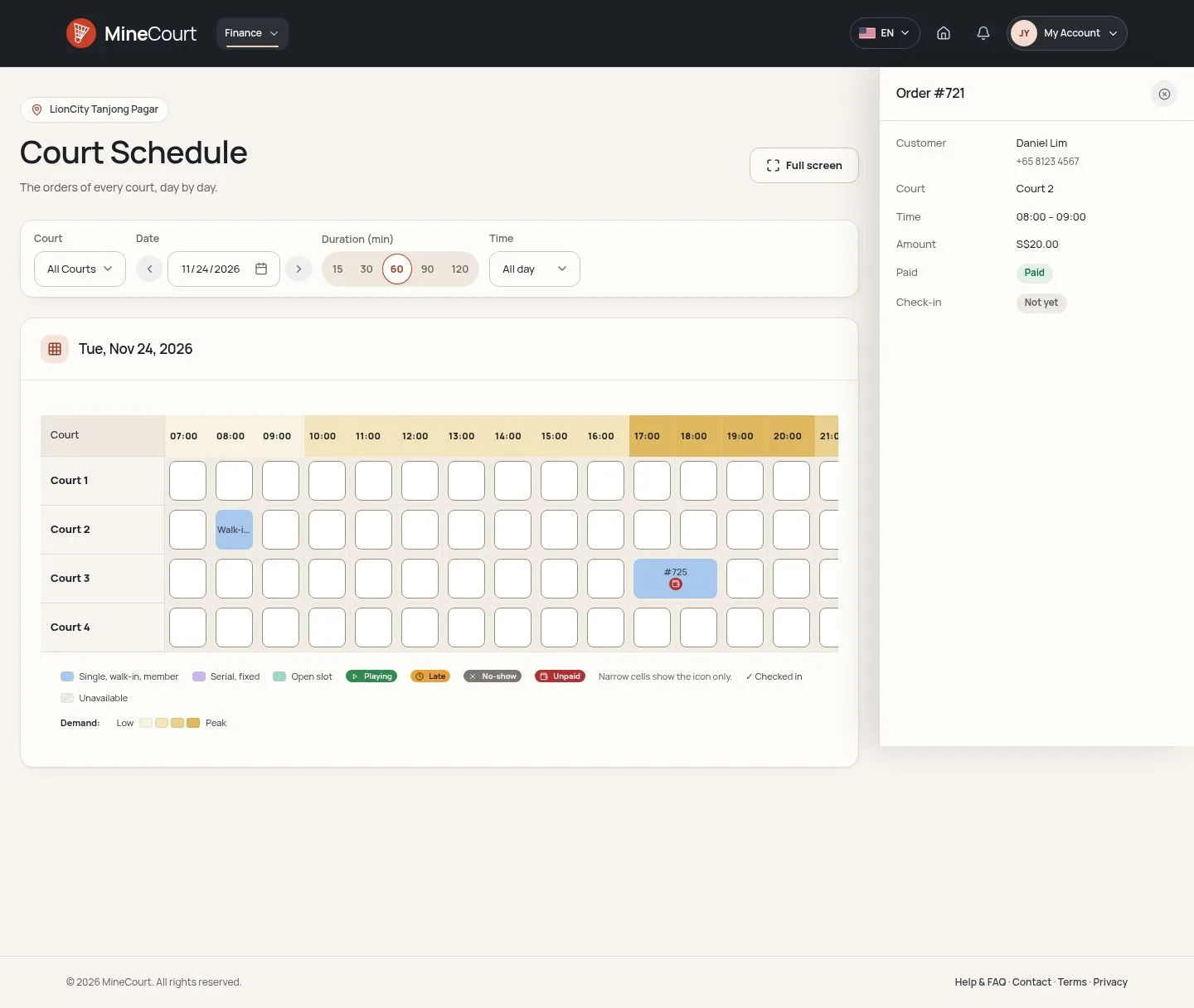
- Company → Schedule shows the court grid of a venue of the company, day by day; with several venues, change venue above the title.
- A cell opens its order: customer, court, time, amount, paid and check-in.
- It is read only: no new order, no blocked slot, no payment and no reschedule.
Enlarge, then scroll
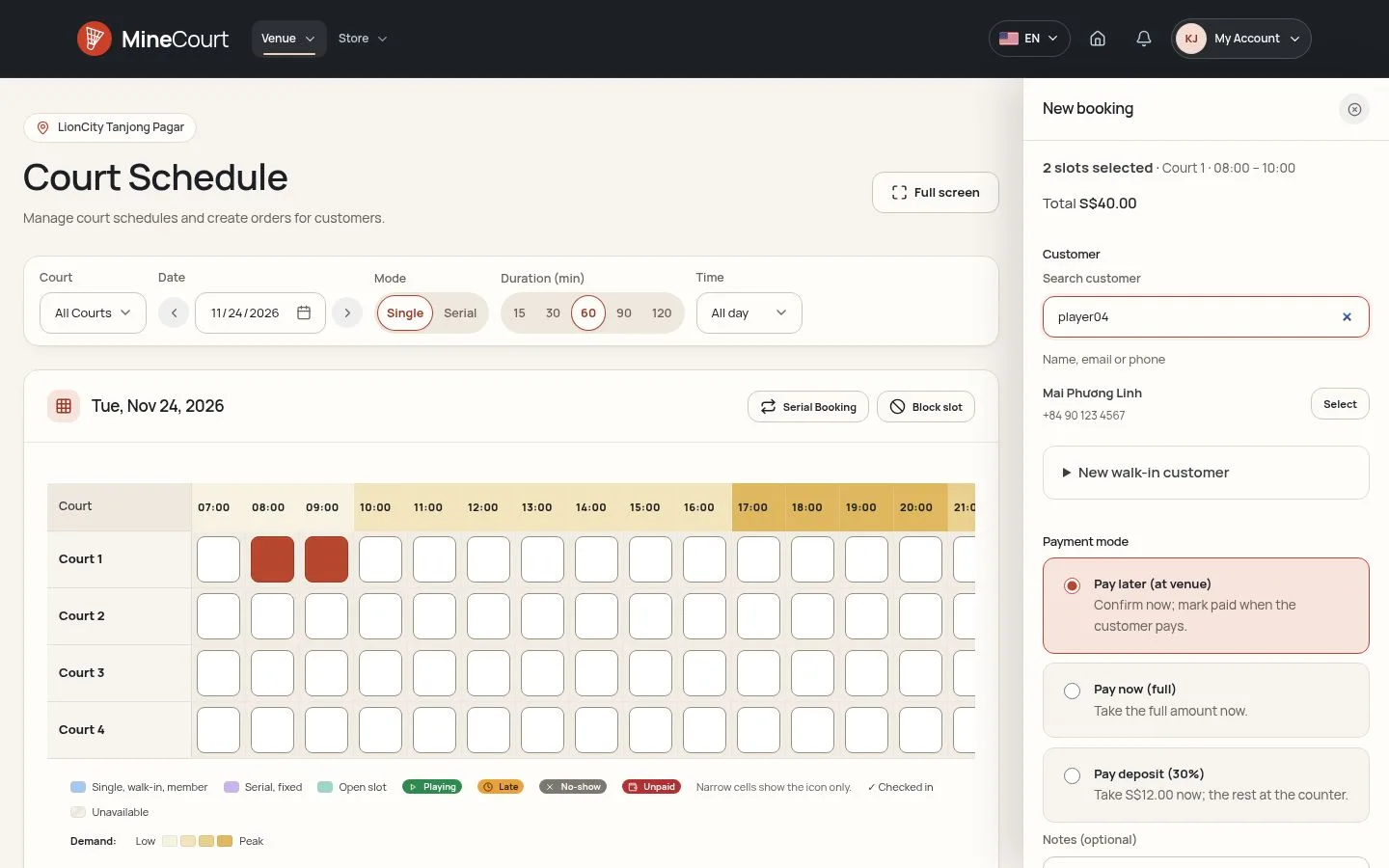
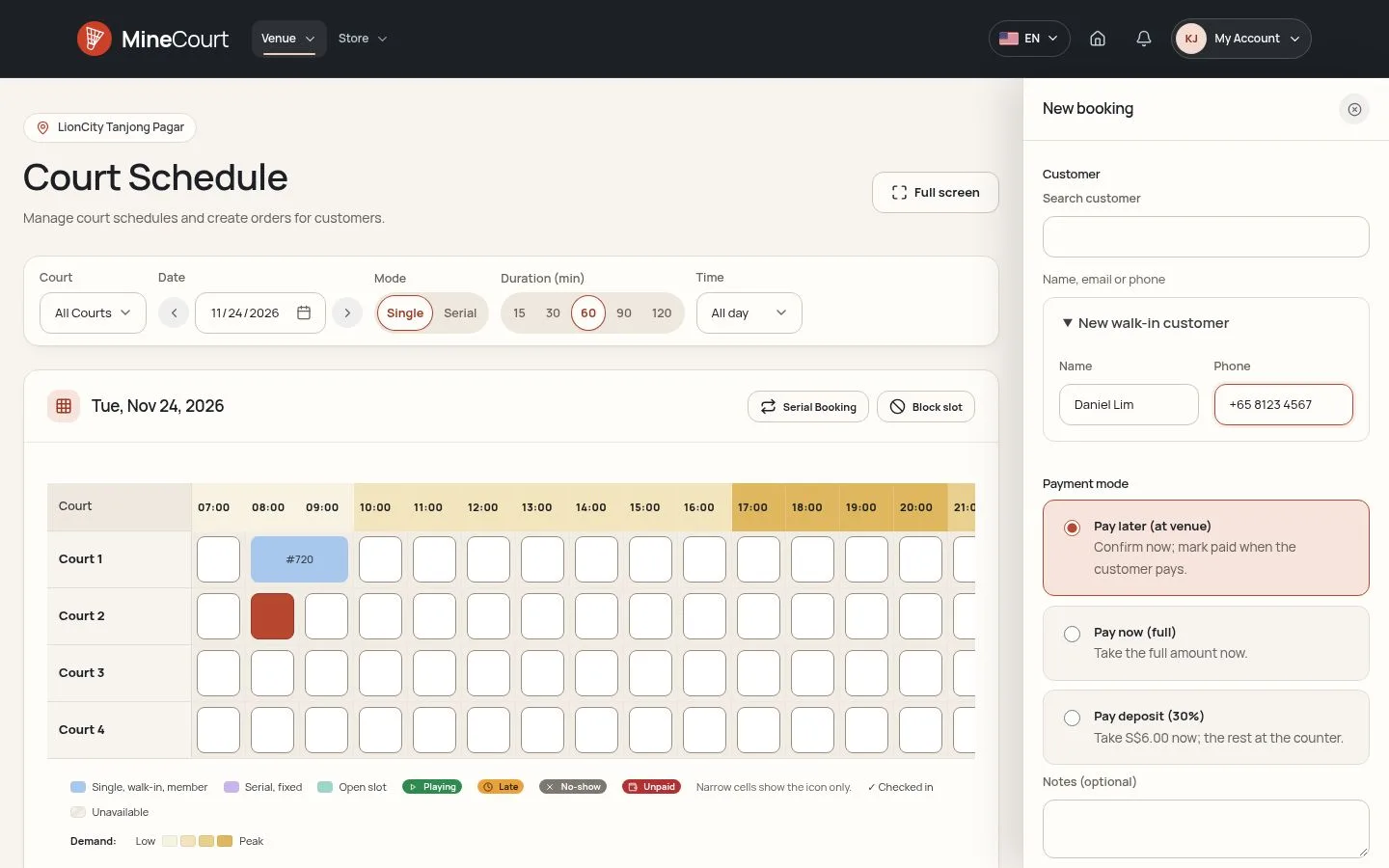
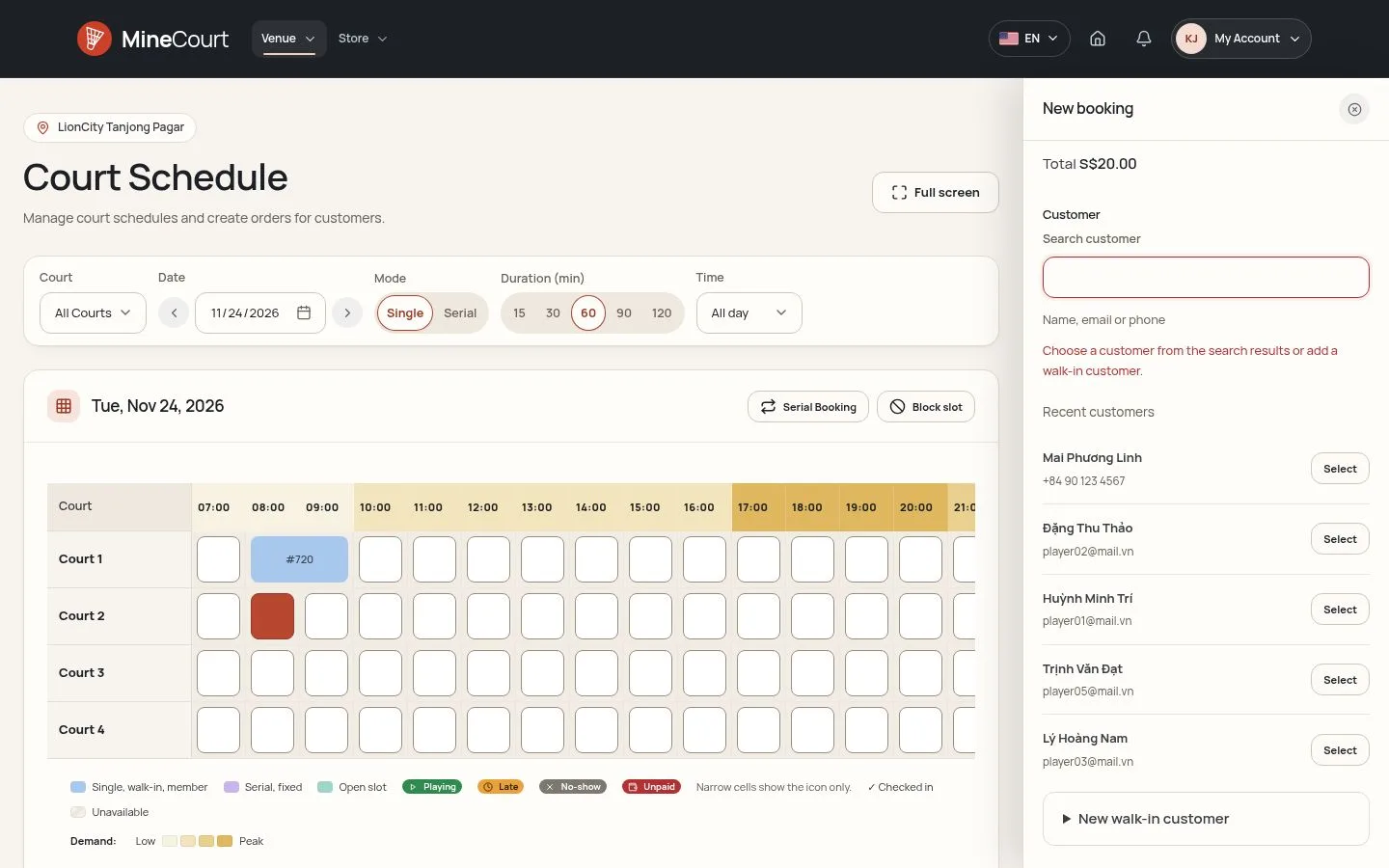
Payment mode
Venue Staff

10Step 10 of 30
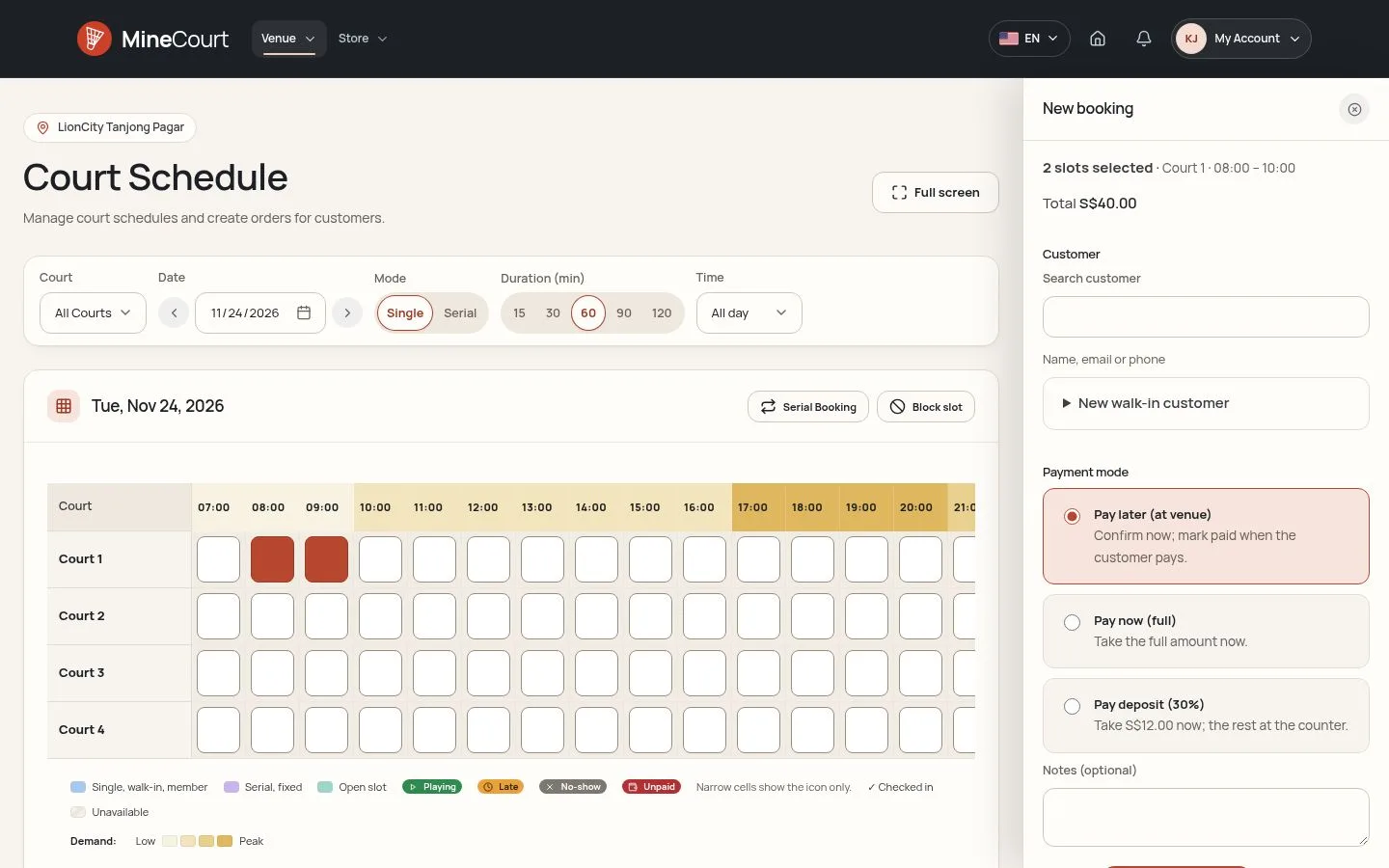
- Pay later (at venue) confirms the order now; it is marked paid when the customer pays.
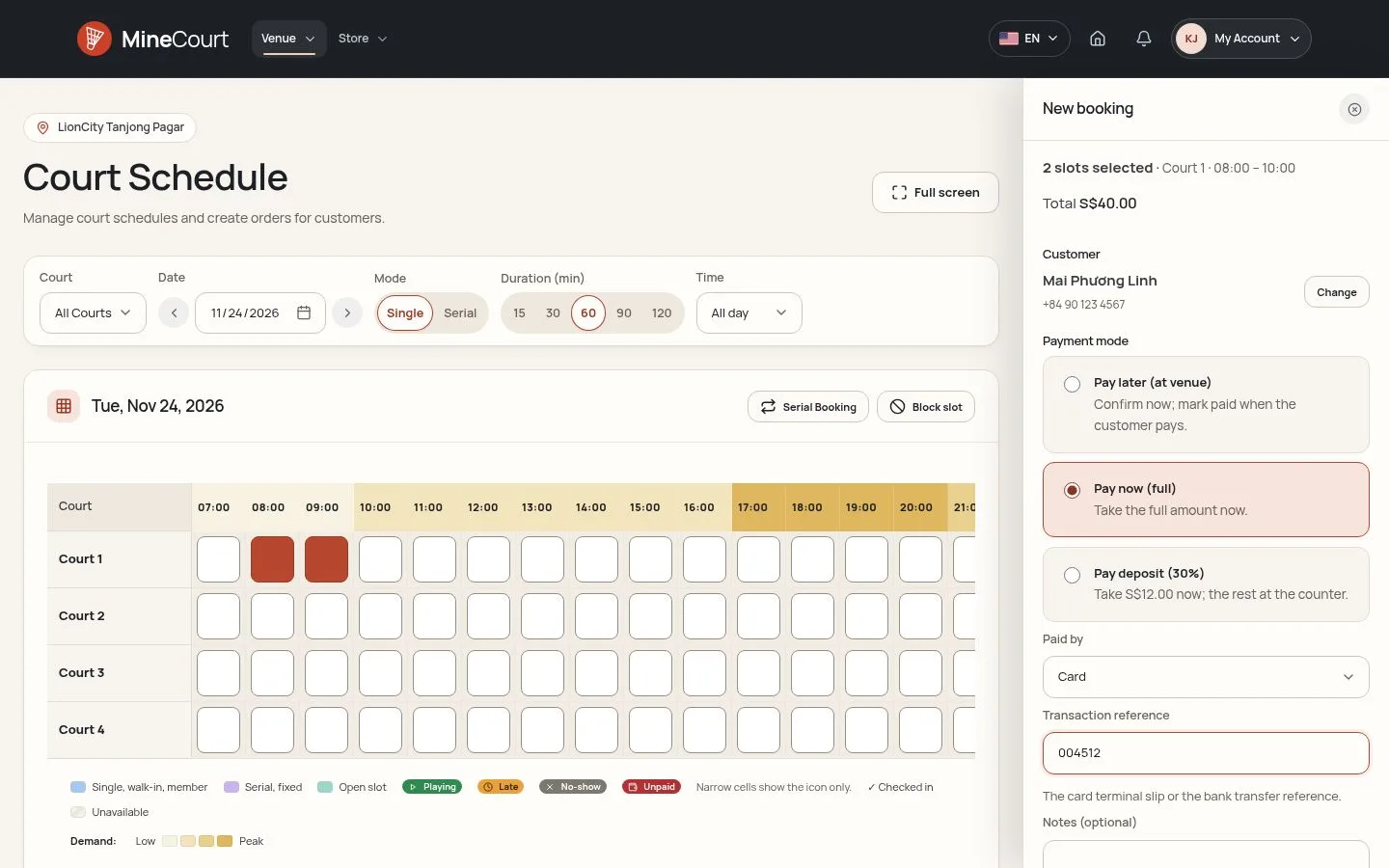
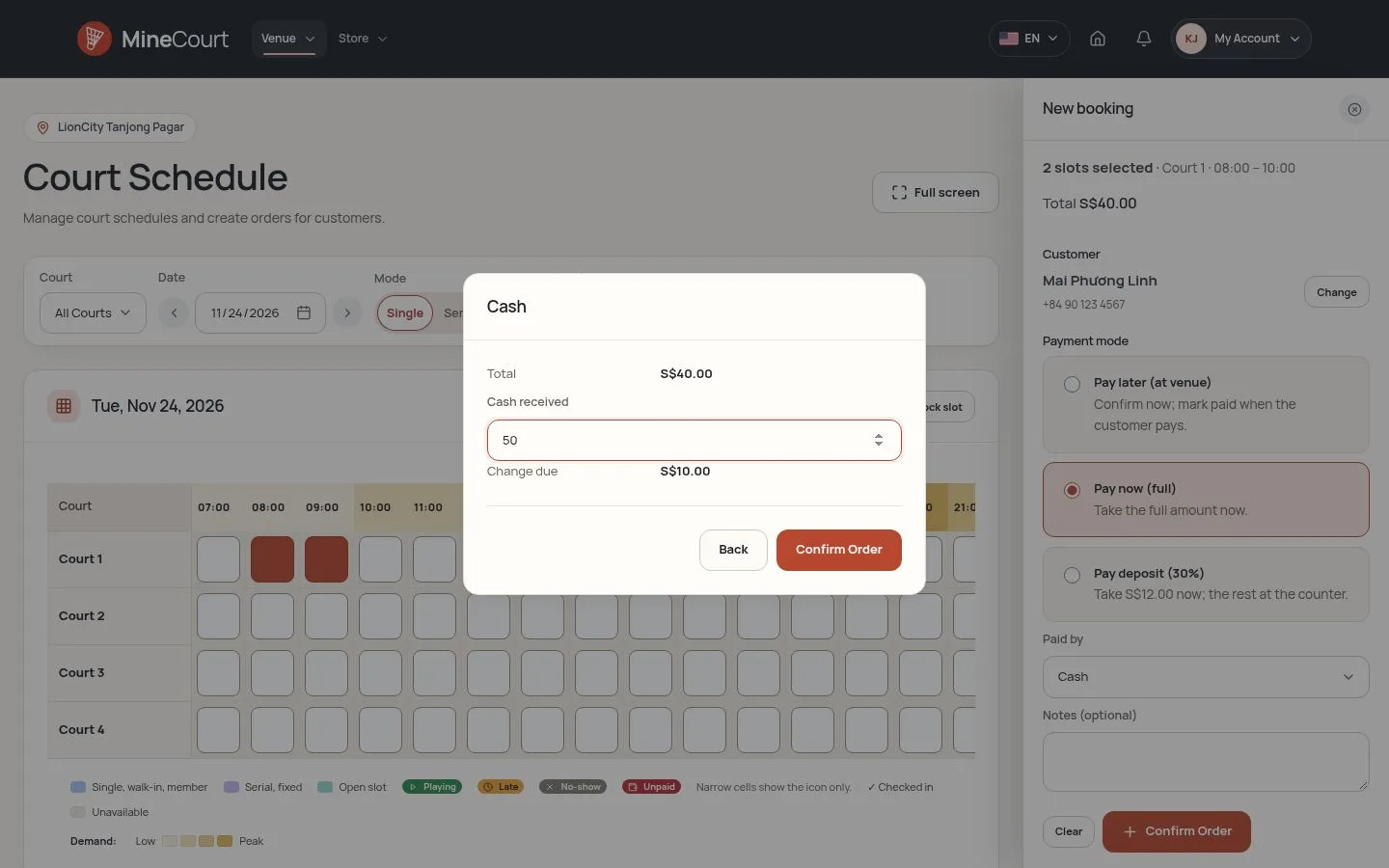
- Pay now (full) or Pay deposit (30%) takes the money now: choose Paid by Cash, Bank transfer or Card, then Confirm Order.
Cash goes in the open shift of the staff member: without one, the drawer asks to open it in Point of Sale first.
Discount
Venue Manager
12Step 12 of 30
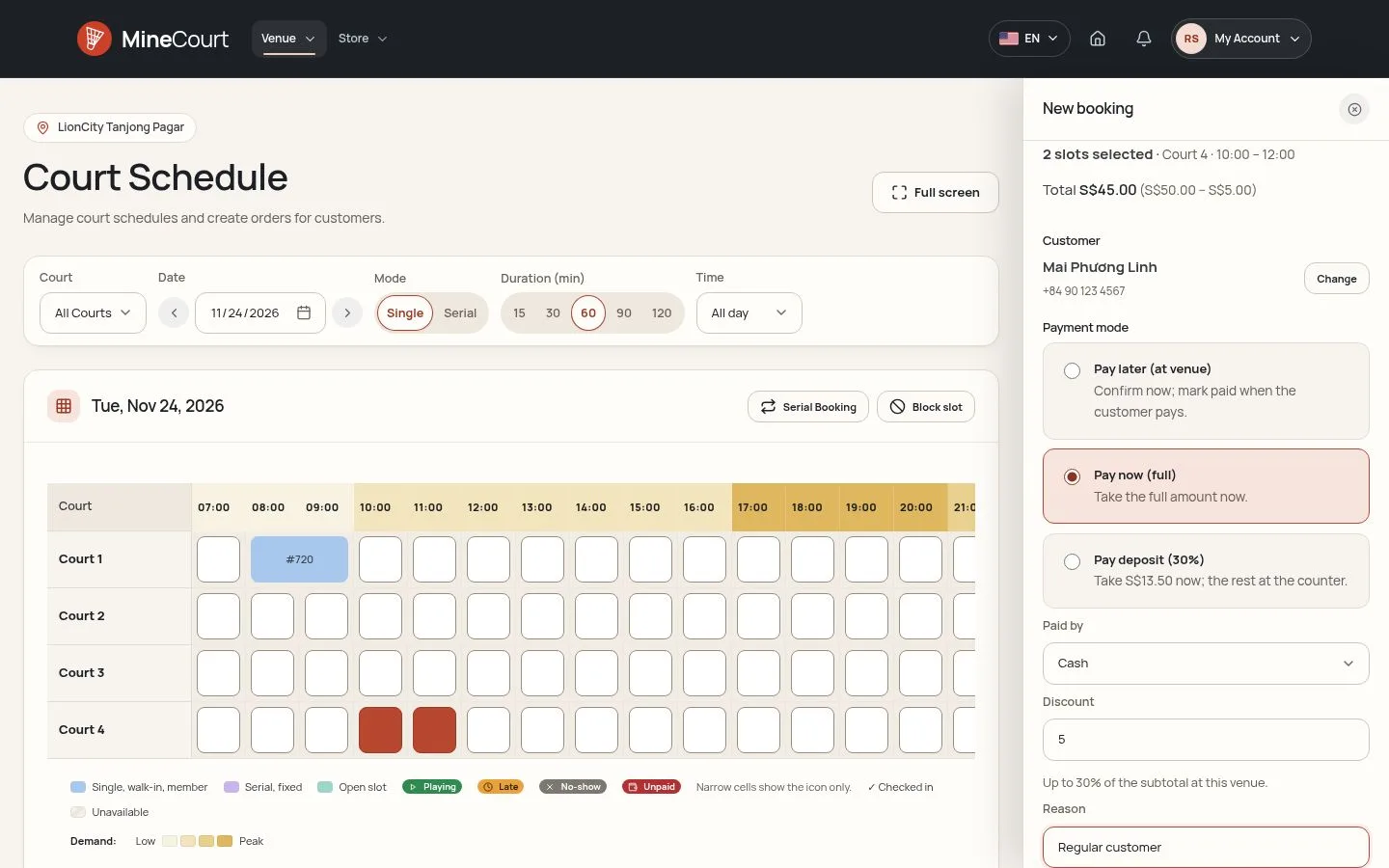
- Type the Discount, in the currency of the venue, and its Reason: Total shows the price after it.
- At most 30% of the subtotal; a deposit is 30% of the discounted total.
- Order Detail shows the discount and its reason; the Audit Log keeps who gave it.
Venue Managers, Company Managers and Company Owners give discounts; Venue Staff do not see the field.


Mark Paid
Venue Staff
17Step 17 of 30
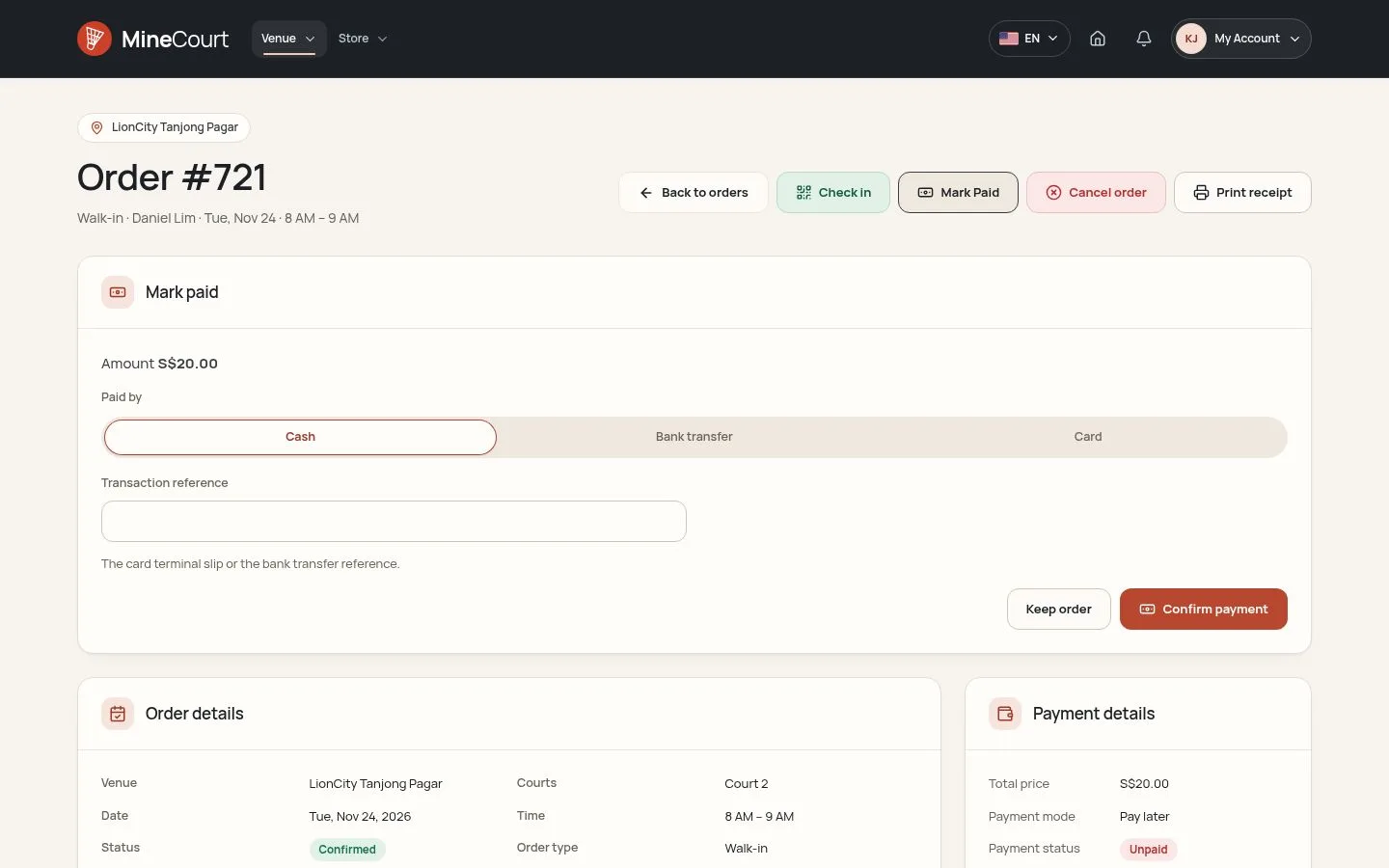
- Mark Paid opens a panel with the Amount: choose Paid by Cash, Bank transfer or Card, and type the Transaction reference for card or transfer.
- Confirm payment marks the order completed and paid; cash goes into the open shift, as at Payment mode. Keep order closes the panel.
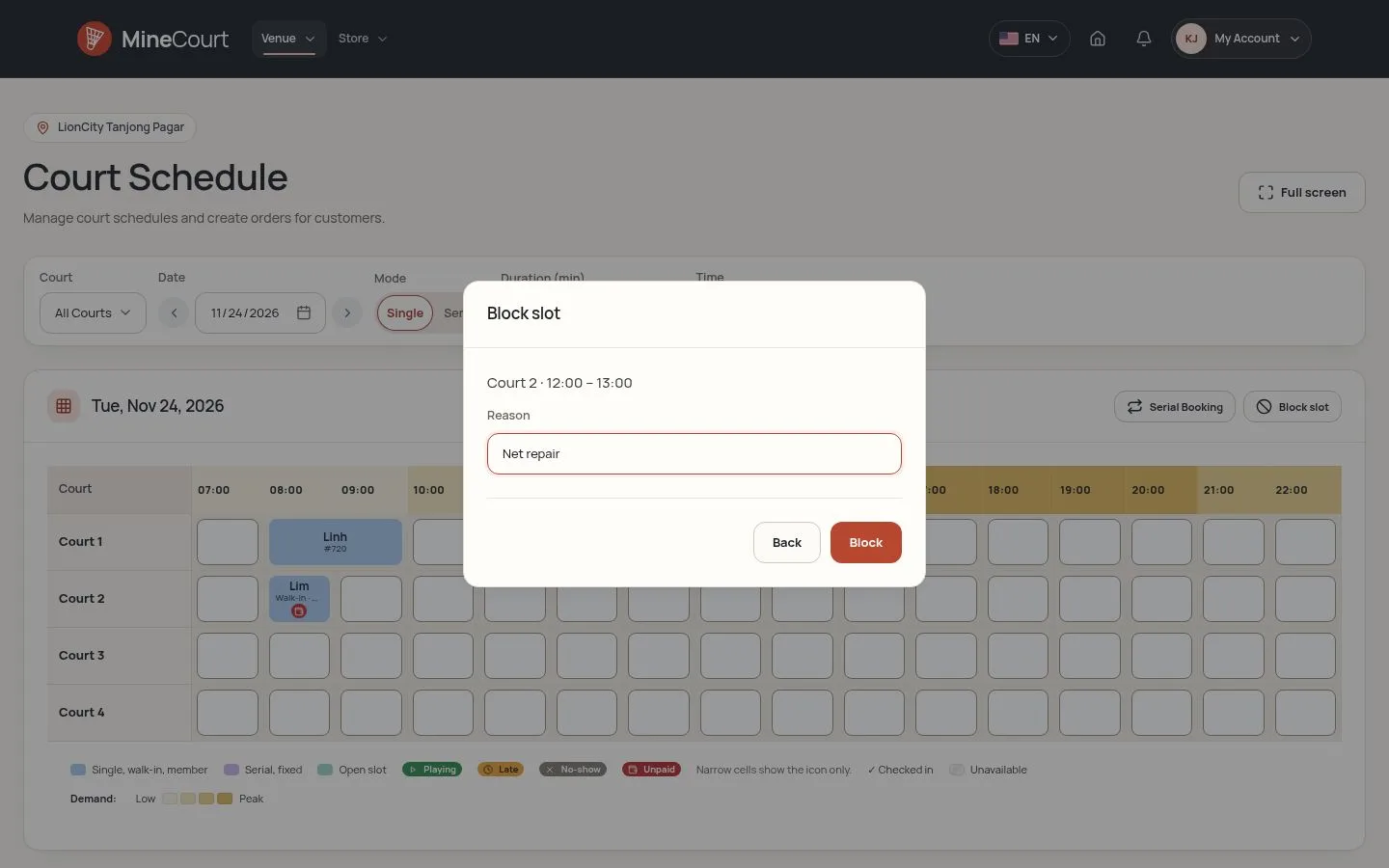
- The drawer of a booked cell and the right-click menu of Court Schedule offer the same.
Receipt
Venue Staff

18Step 18 of 30
- Print receipt shows the company with its address and tax ID, the customer, the court time, each payment with its method and reference, then Total, Paid and Balance due.
- Print gives one A4 page, without the menus.
- The player opens the same receipt from the order in My Orders.
A discount shows on the receipt; Tax included shows when the company has a Tax rate (Edit Company).
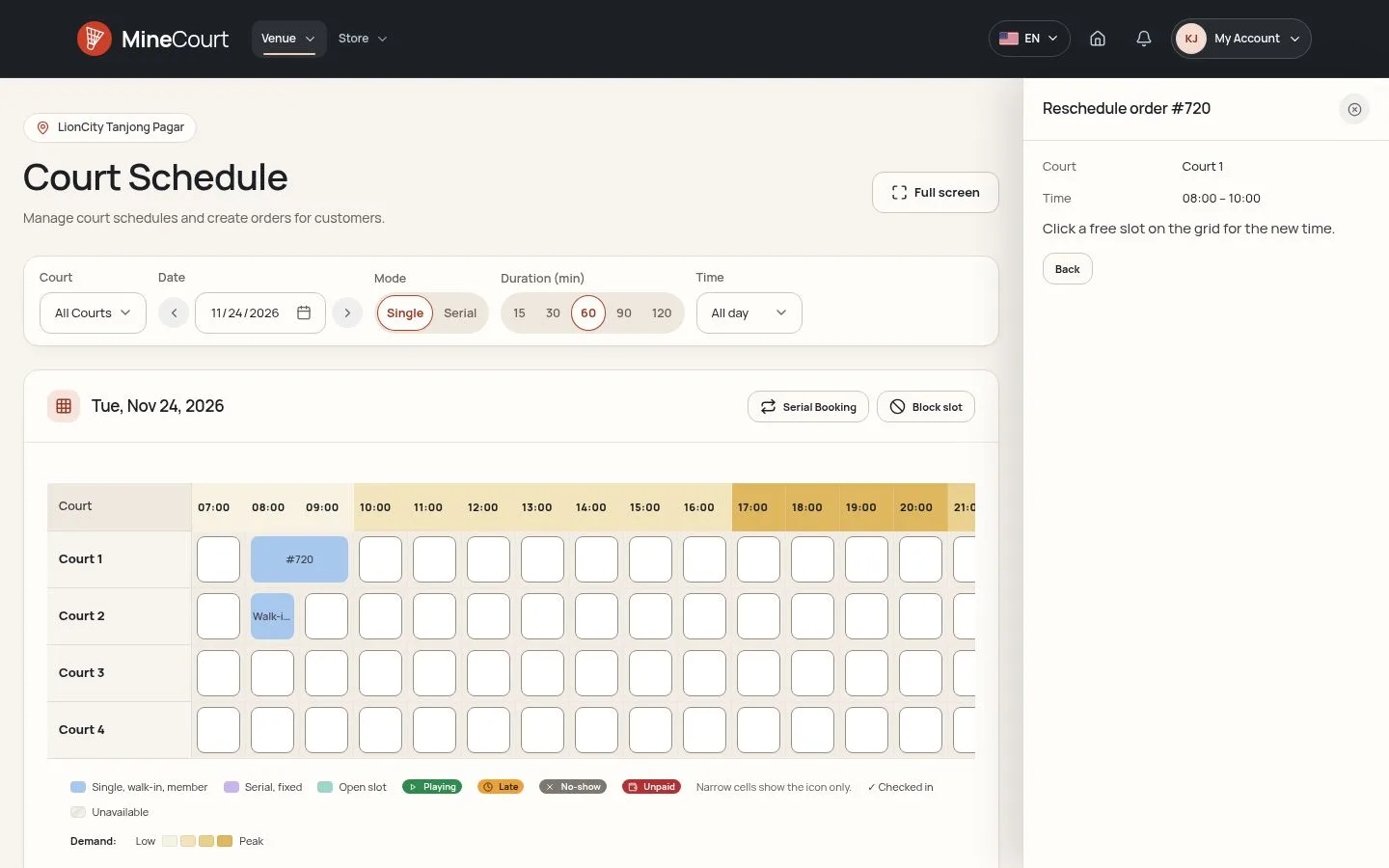
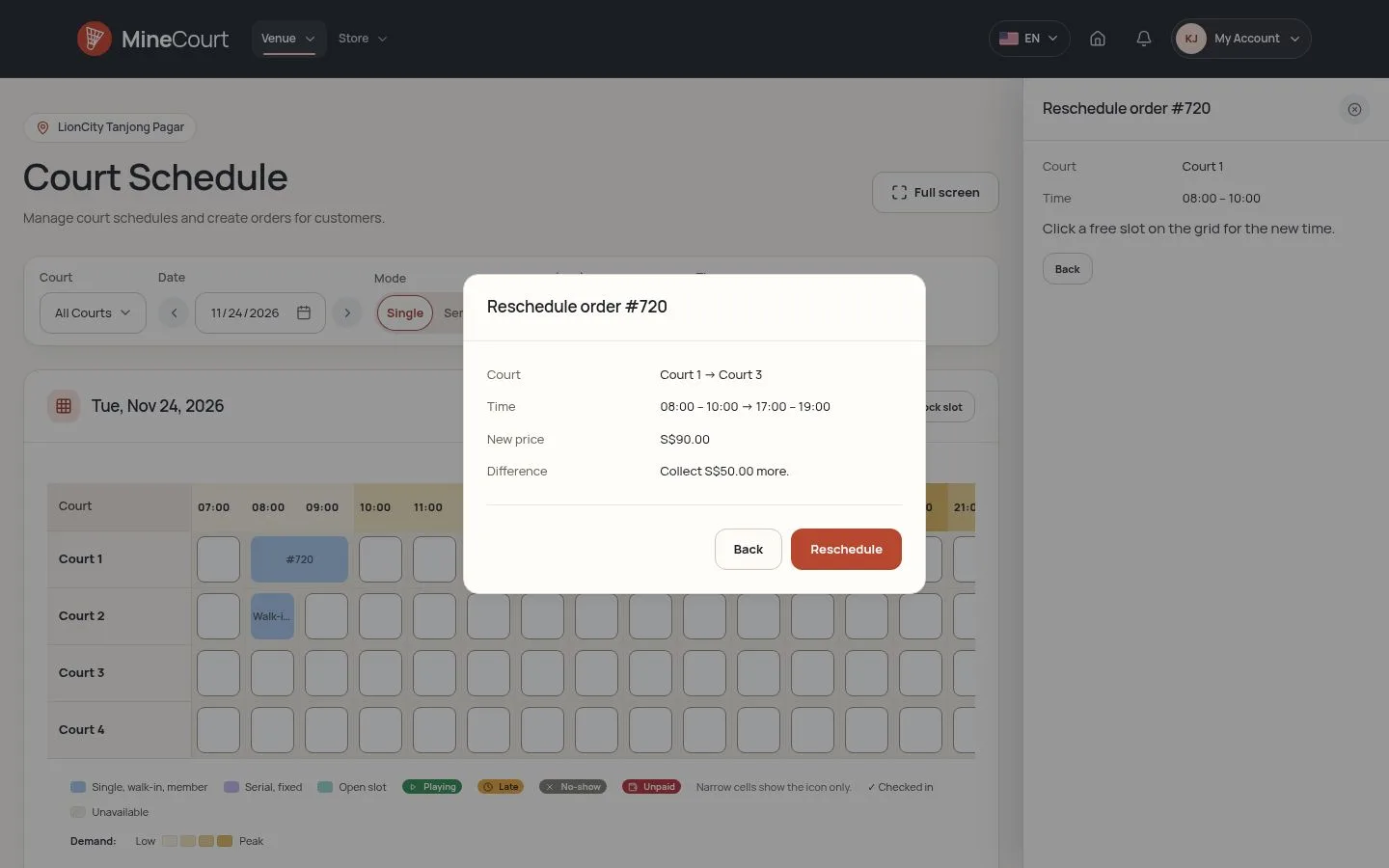
Moved
Venue Staff

21Step 21 of 30
- A new order takes the new time and keeps the payment of the old one; the old order shows Rescheduled, with a link to the new one.
- Dearer: the new order shows Deposit paid and the Balance due at the venue, collected with Mark Paid.
- Cheaper: a card payment gets the difference back through the gateway; cash or a transfer waits as Refund pending, until a Venue Manager or Company Owner hands it back and uses Mark refunded.
- The old cells are free again; the new ones are booked.
Enlarge, then scroll
Right now
Venue Staff
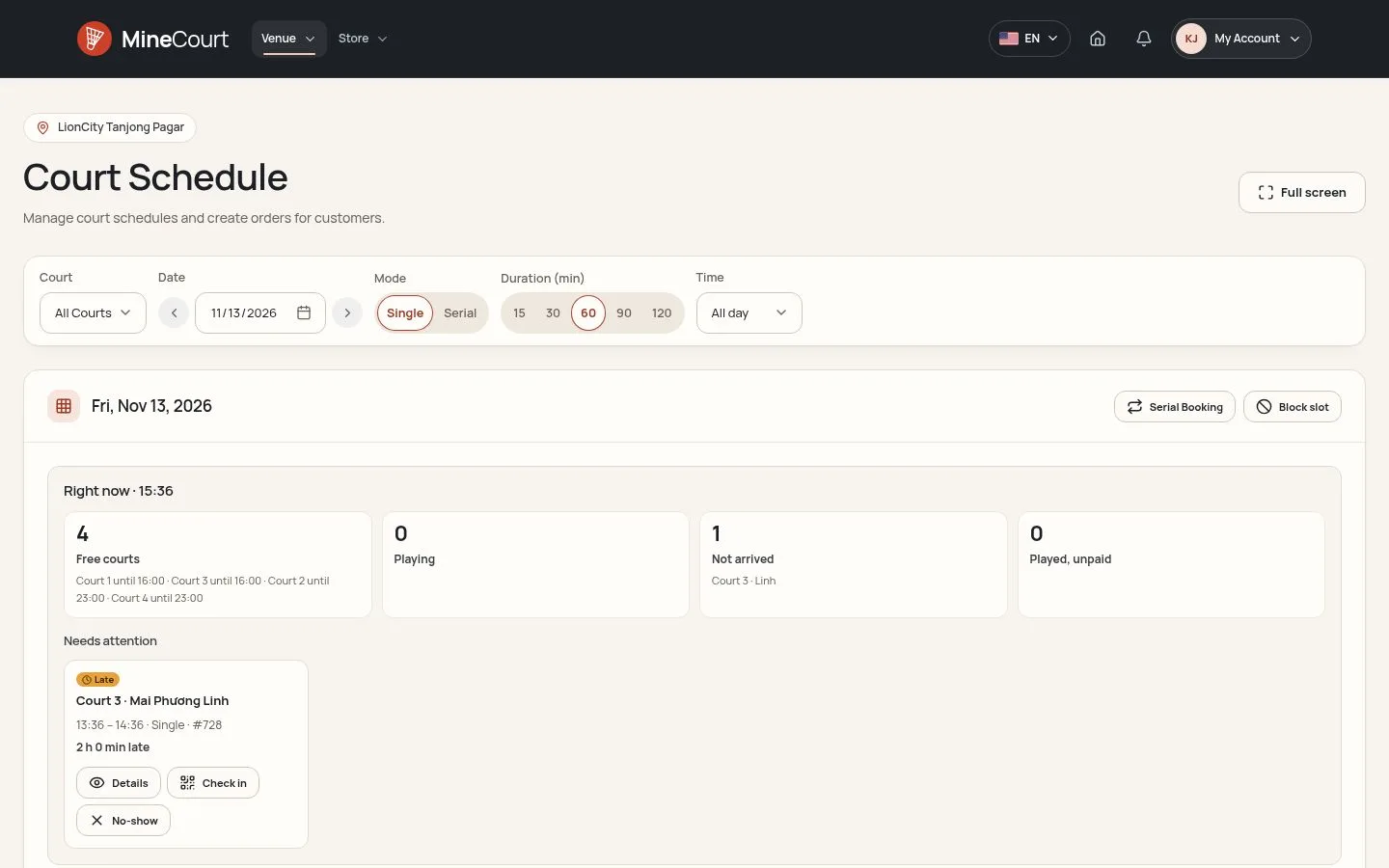
22Step 22 of 30
- On today, Right now above the grid counts the Free courts and until when, the courts Playing and until when, the orders Not arrived and those Played, unpaid with the money due.
- Needs attention has a card for each order that started without check-in, with Check in and No-show, and for each order played and not paid, with Collect payment, which opens Mark Paid in its drawer.
- Details shows the phone of the customer, with Copy, and the email; the cards never show the phone.
Right now and the grid load again every minute while the page is open.
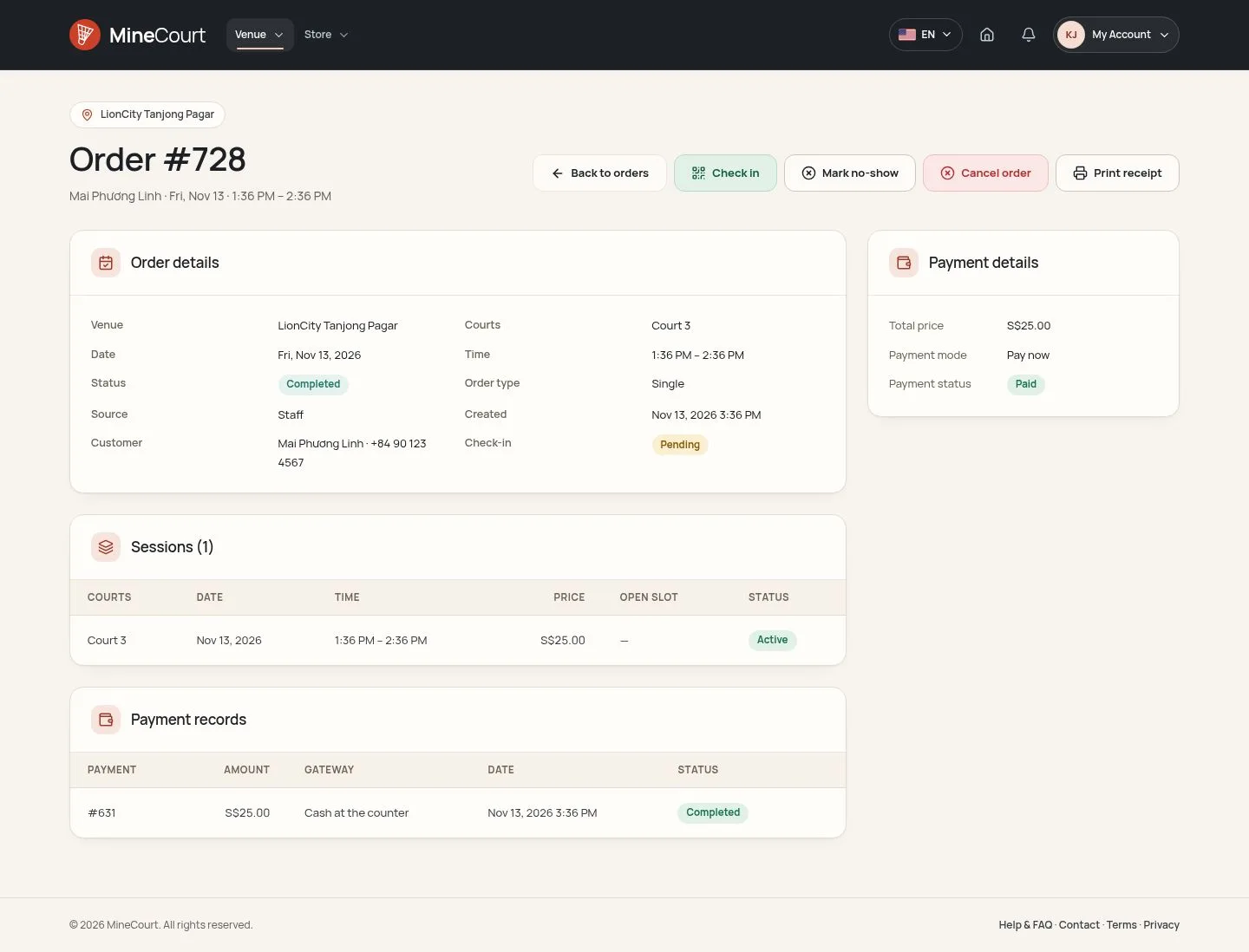
Check in
Venue Staff
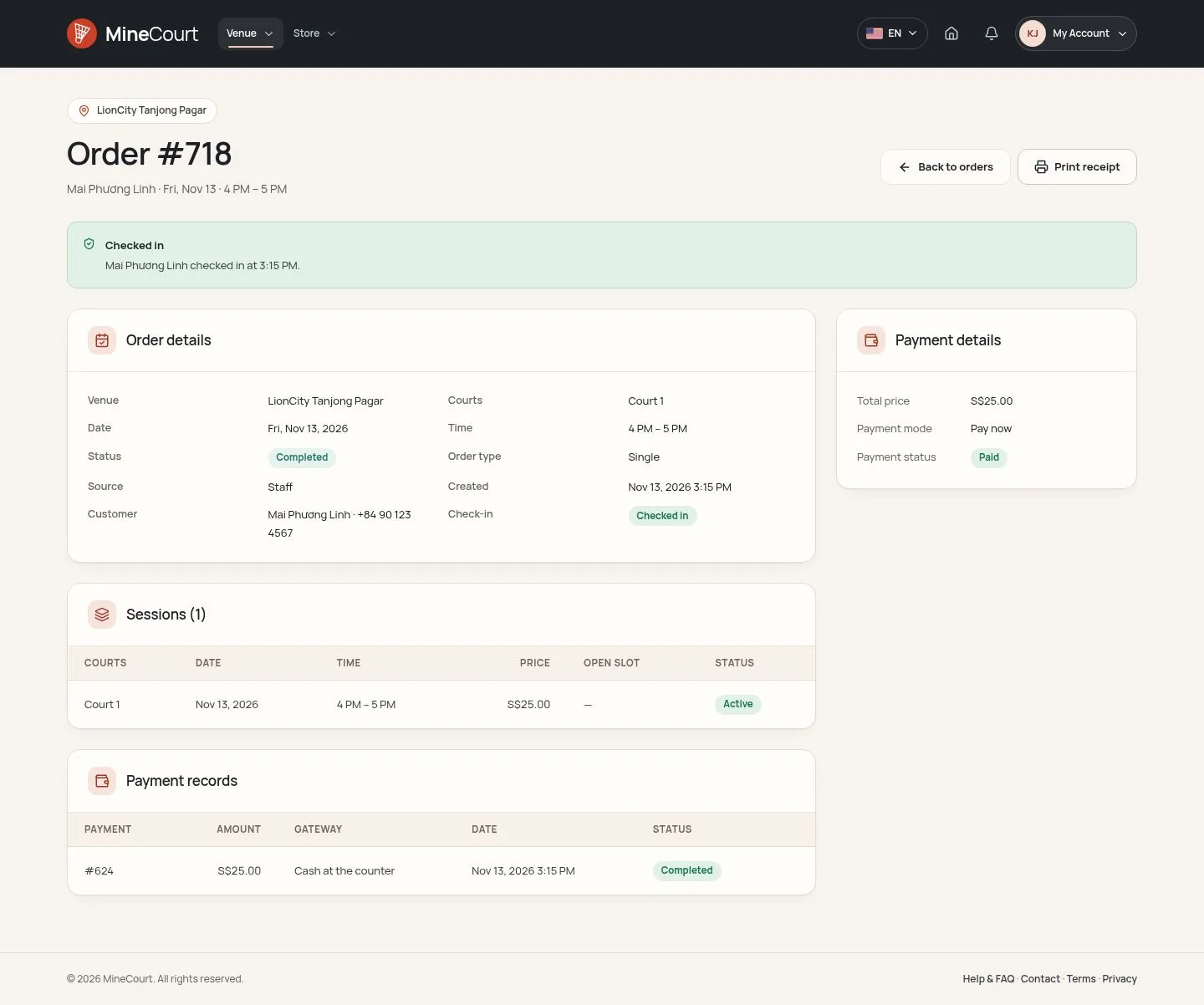
23Step 23 of 30
- Check in is offered on a confirmed order, paid or not, from 14 days before its start to 14 days after; payment is still taken with Mark Paid.
- The order records the time and who checked the player in; the order panel of Court Schedule has Undo check-in.
One hour after it ends, a session counts as played.
Enlarge, then scroll
Open a shift
Venue Staff

Sell
Venue Staff
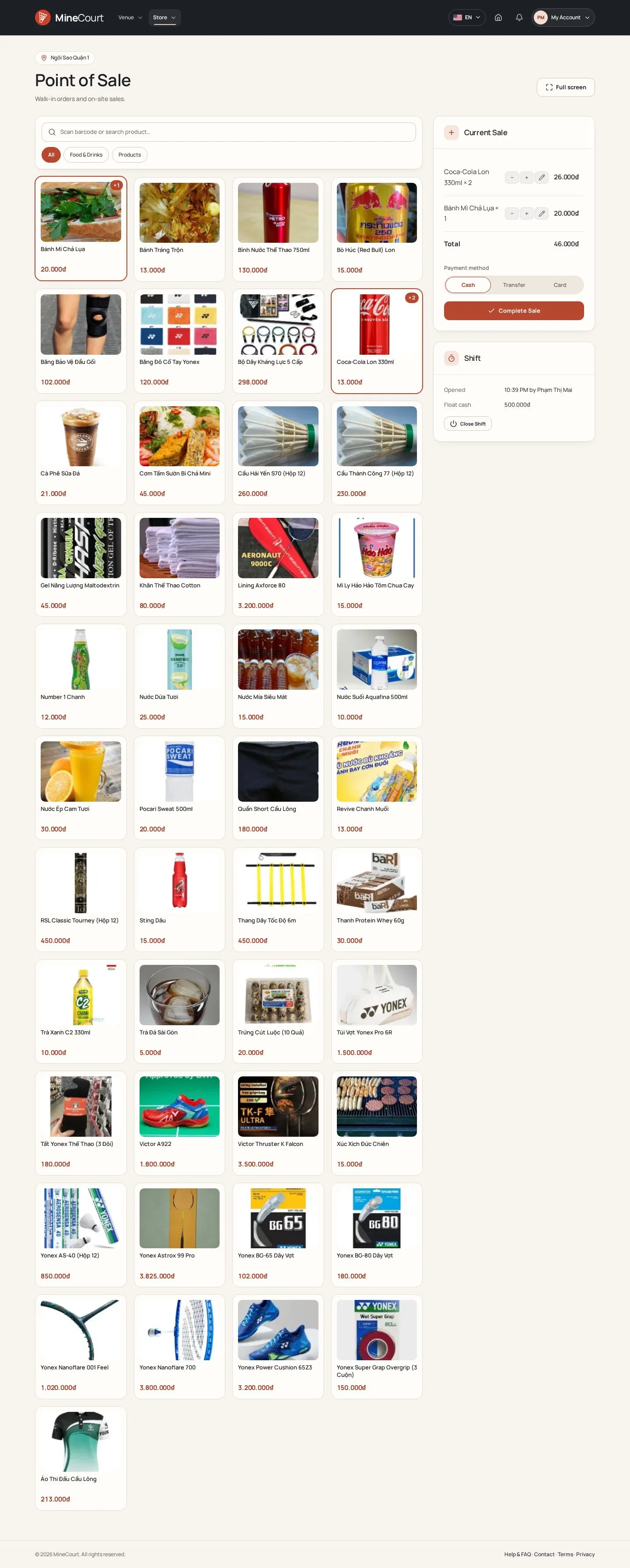
26Step 26 of 30
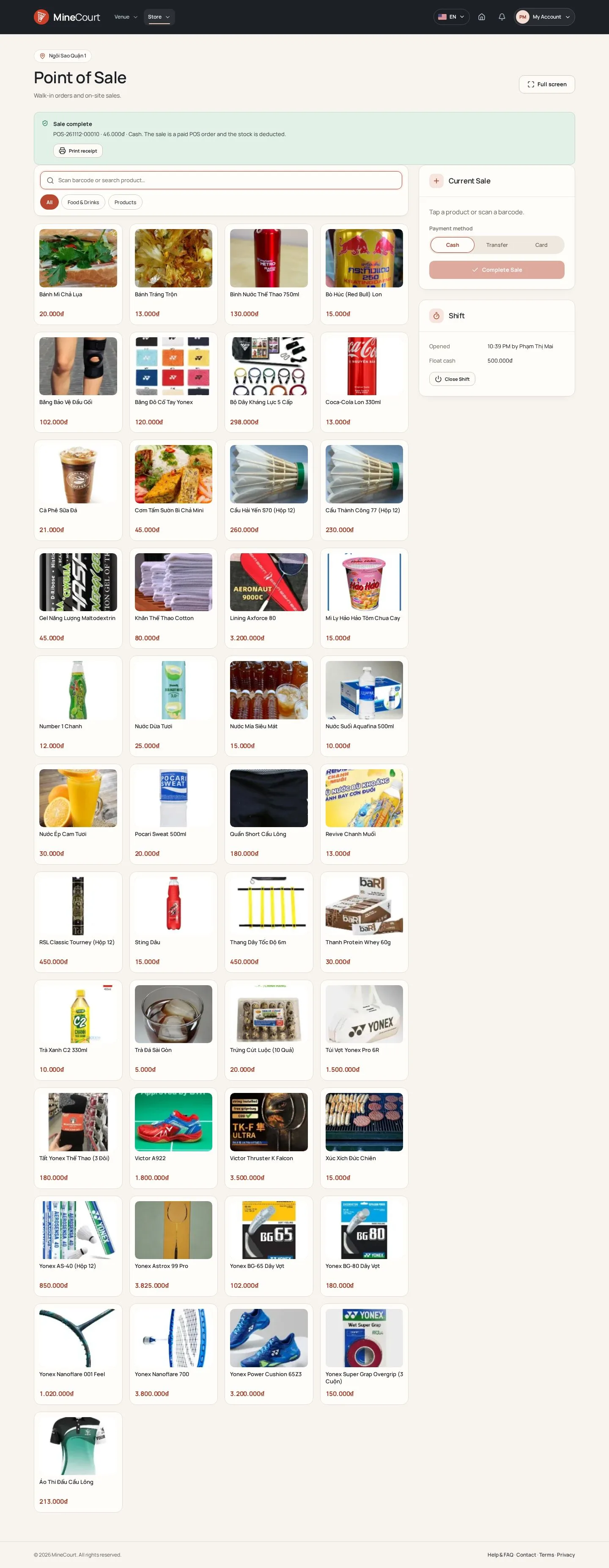
- Tap a product, scan its barcode or search it; Food & Drinks and Products filter the list, and − and + change the quantity in Current Sale.
- Choose Cash, Transfer or Card, then Complete Sale.
- Card is paid on the card terminal of the counter: it stays out of the cash of the shift.
Enlarge, then scroll
Change a price
Venue Staff
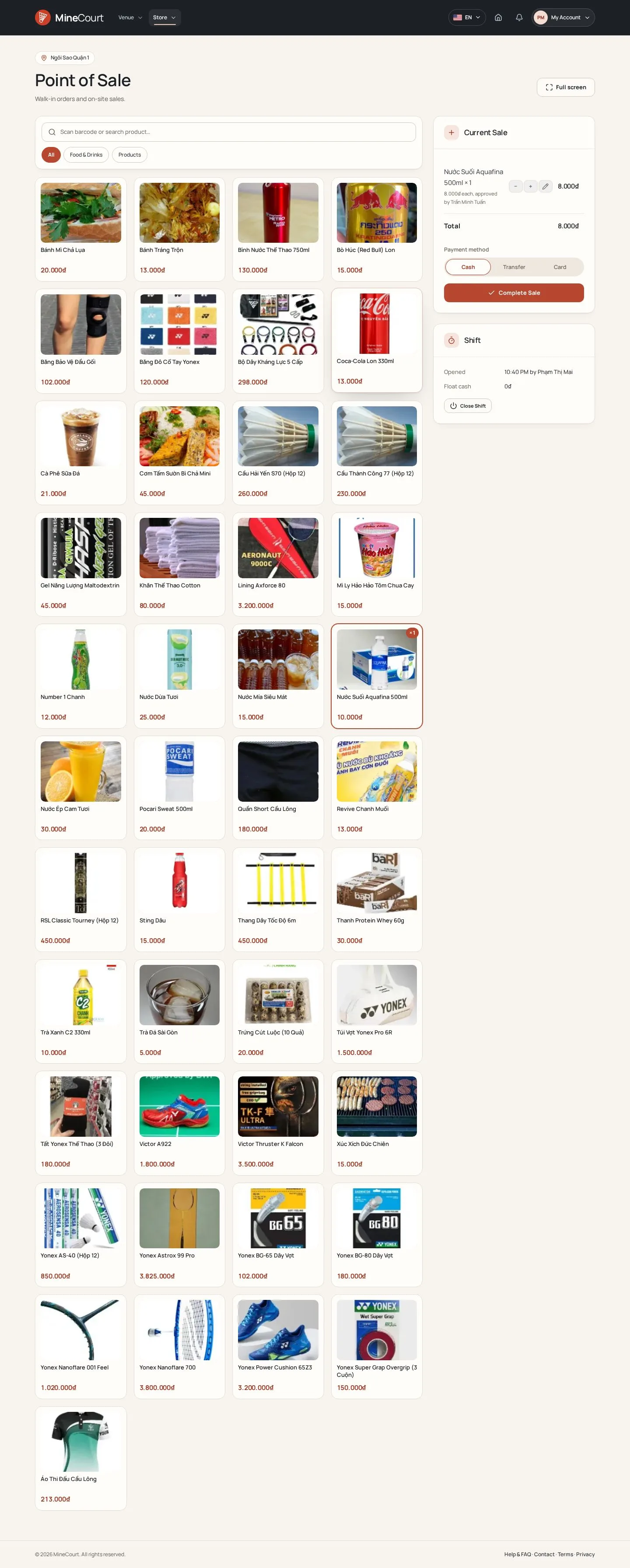
28Step 28 of 30
- The pencil on a line changes its price: type the new price and a reason.
- A Venue Manager or Company Owner approves it with their PIN; the line shows who approved it.
- The order keeps the new price; the Audit Log keeps both prices, the reason and who approved.
The Manager PIN is set in My Profile: 4 to 8 digits. Five wrong PINs in 15 minutes make the seller wait 15 minutes.
Enlarge, then scroll
Close the shift
Venue Staff
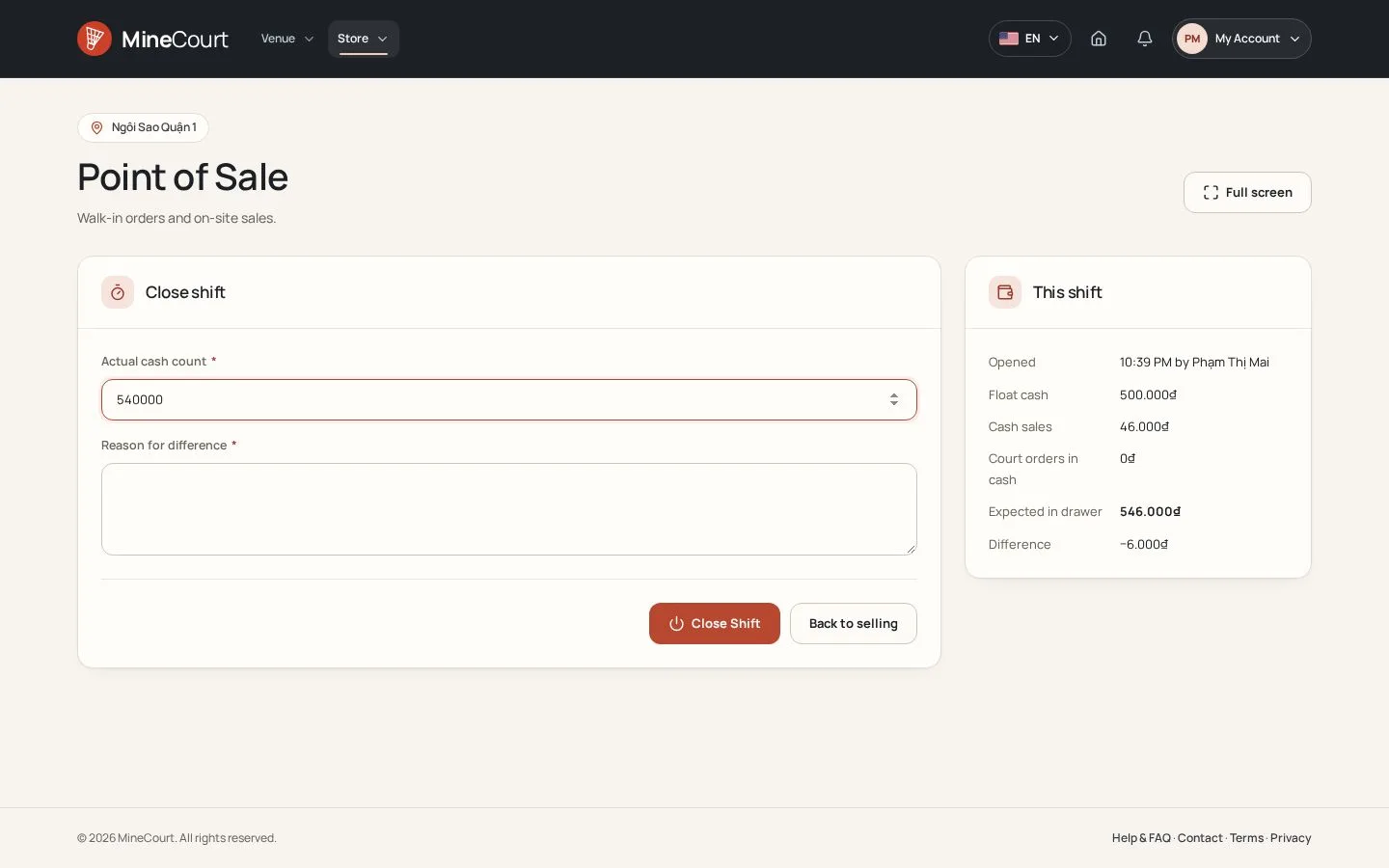
Shift closed
Venue Staff
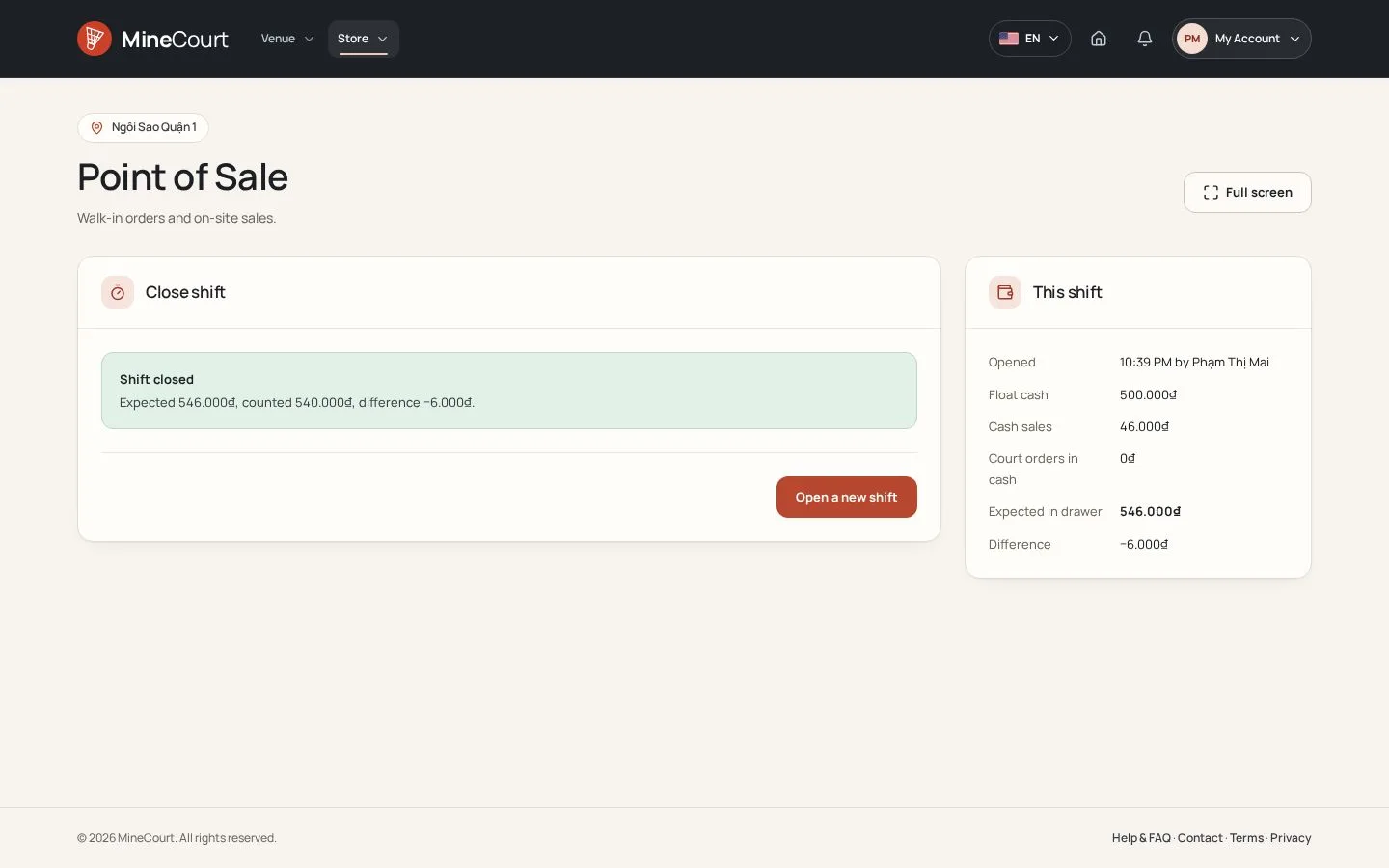
30Step 30 of 30
- Shift closed shows expected, counted and the difference; with the reason and the court orders paid in cash, they stay on the shift report.
- Managers read it in Reports & finance, under Cash shifts.
Open the function ↗Full image ↗
Counter orders recorded or moved, arrivals checked in, the shift closed with its cash counted