






Open slots

Find teammates for a booked court

  • A booked order
Player

Open a slot

Player

Open a slot

1Step 1 of 13

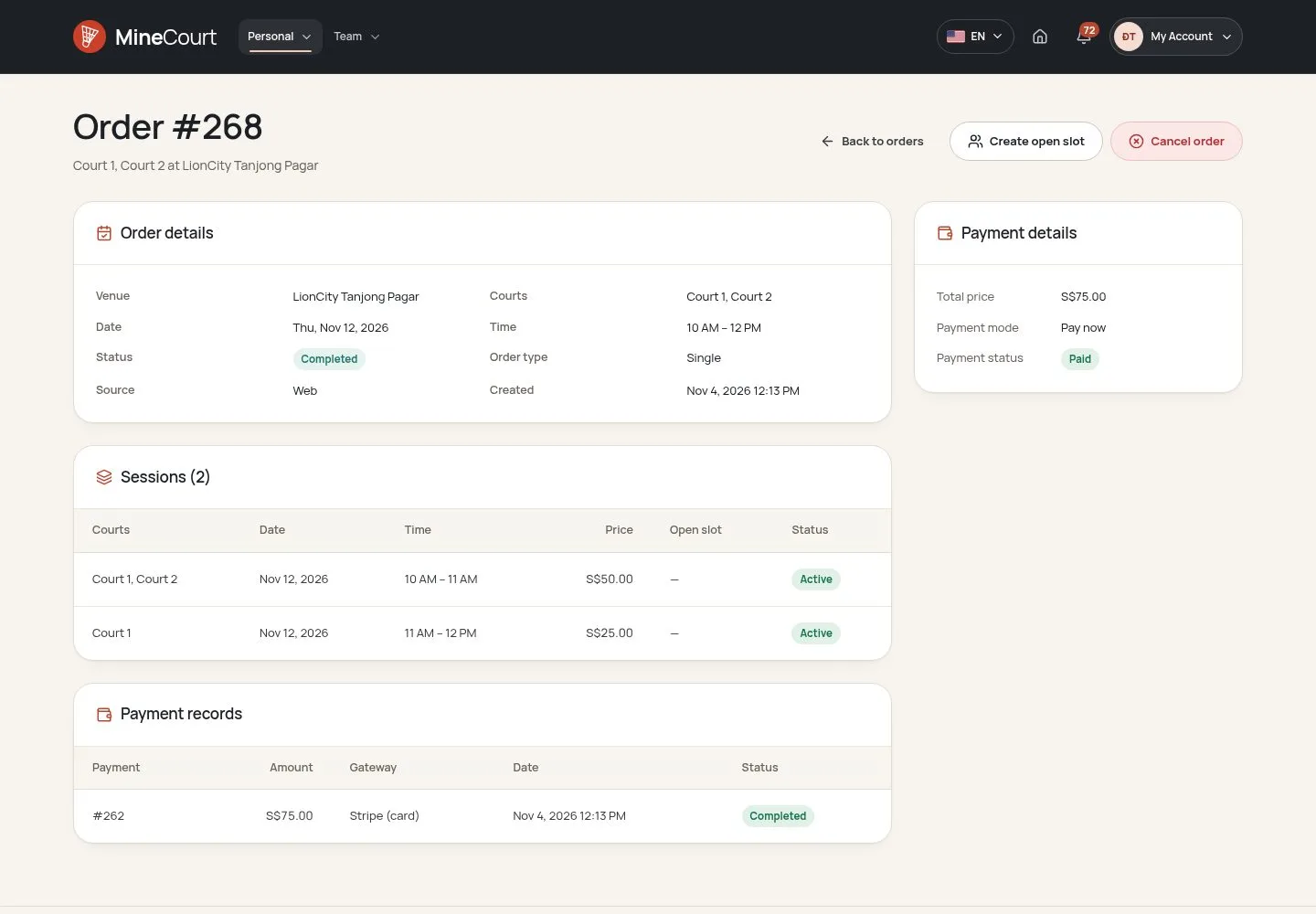
  1. Order Detail → Create open slot, for one session of the order.

Enlarge, then scroll

Open illustrated screen ↗Full image ↗

Player · Open slots01

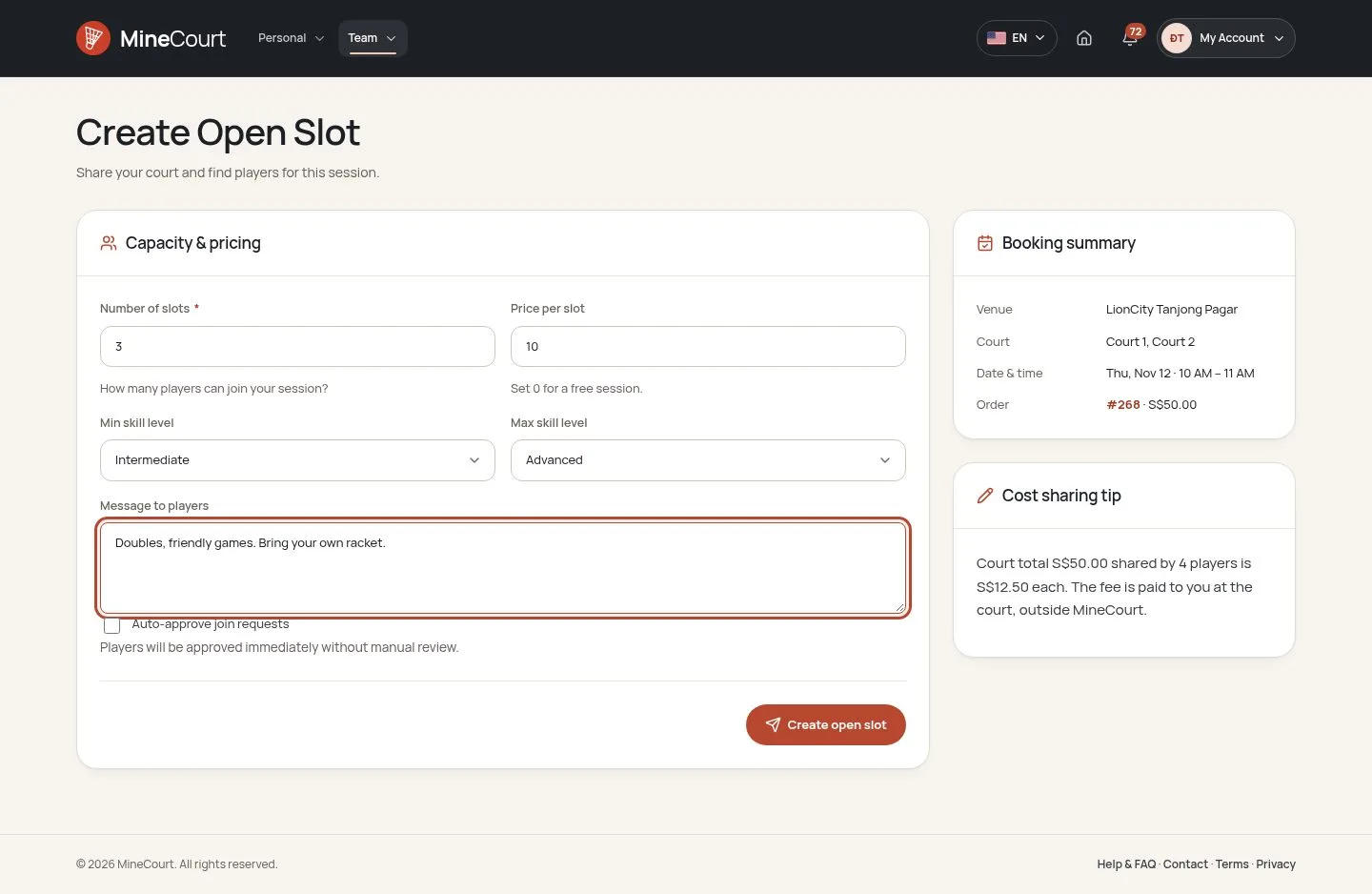
Slots, price and level

Player

Slots, price and level

2Step 2 of 13

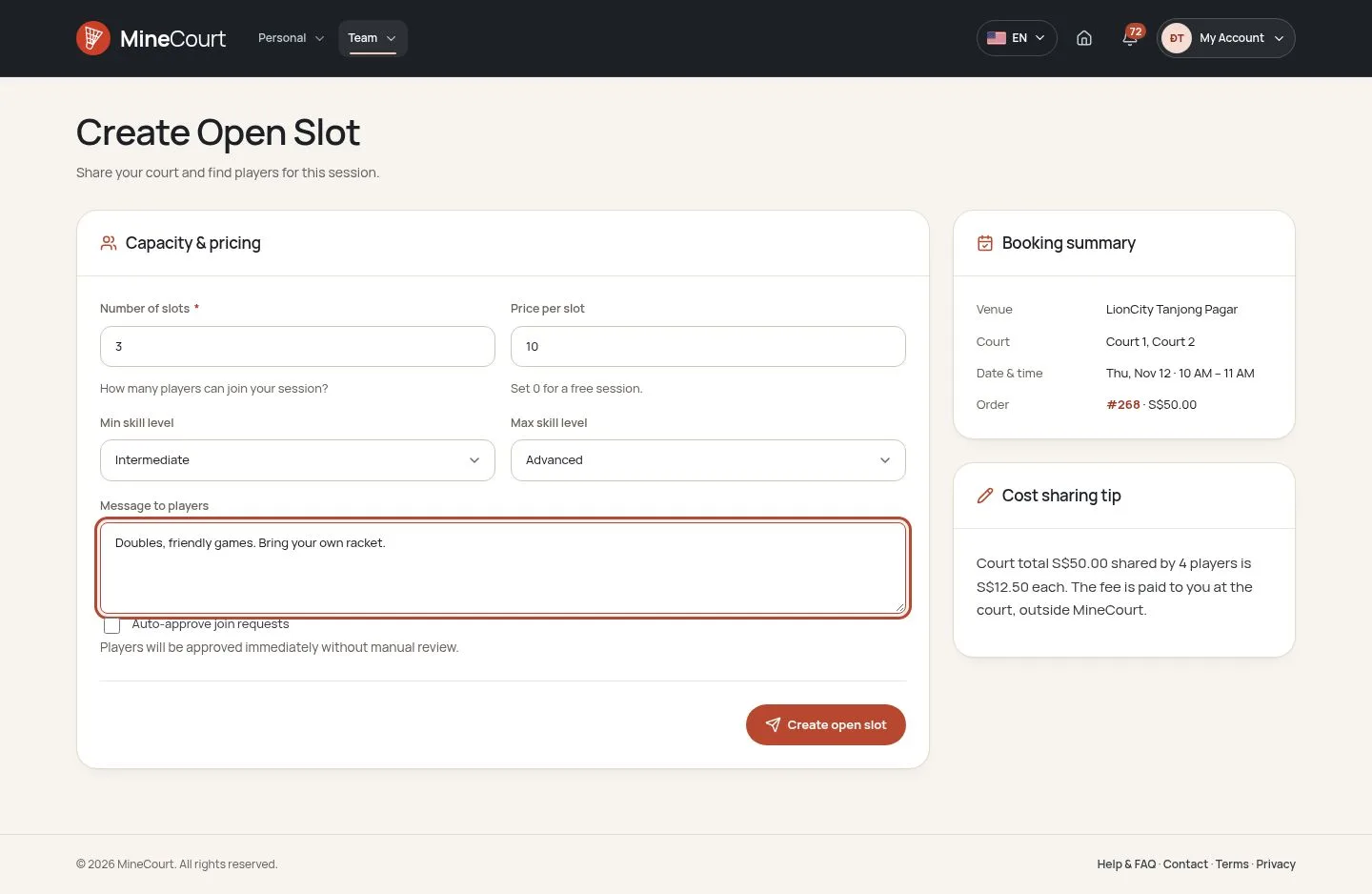
  1. Number of slots, price per slot (0 is free), minimum and maximum skill level, a message to players and Auto-approve join requests.
  2. The page sums up the booking and suggests a fee: the court total ÷ 4.

Open illustrated screen ↗Full image ↗

Player · Open slots02

Find Teammates

Player

Find Teammates

3Step 3 of 13

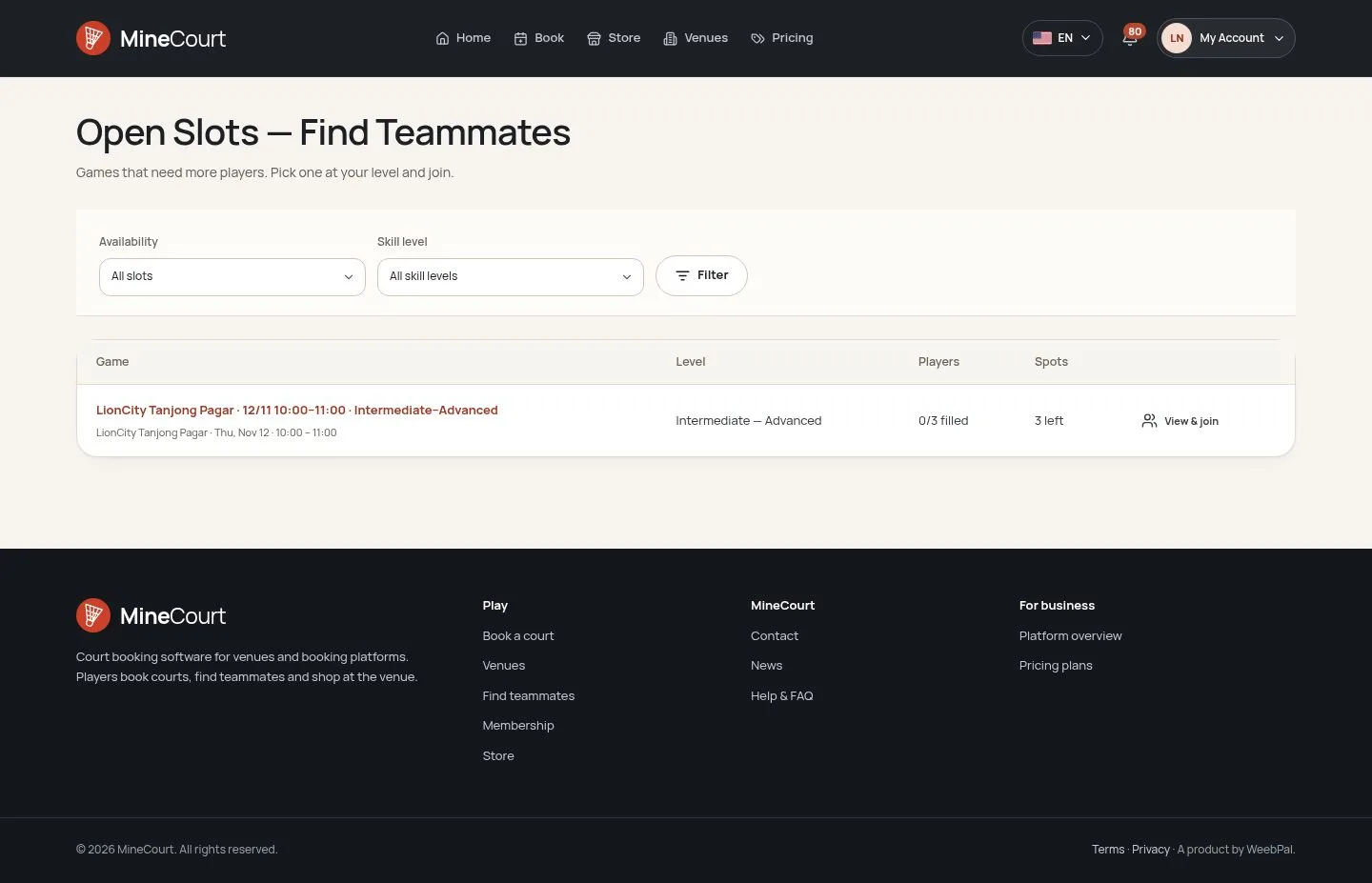
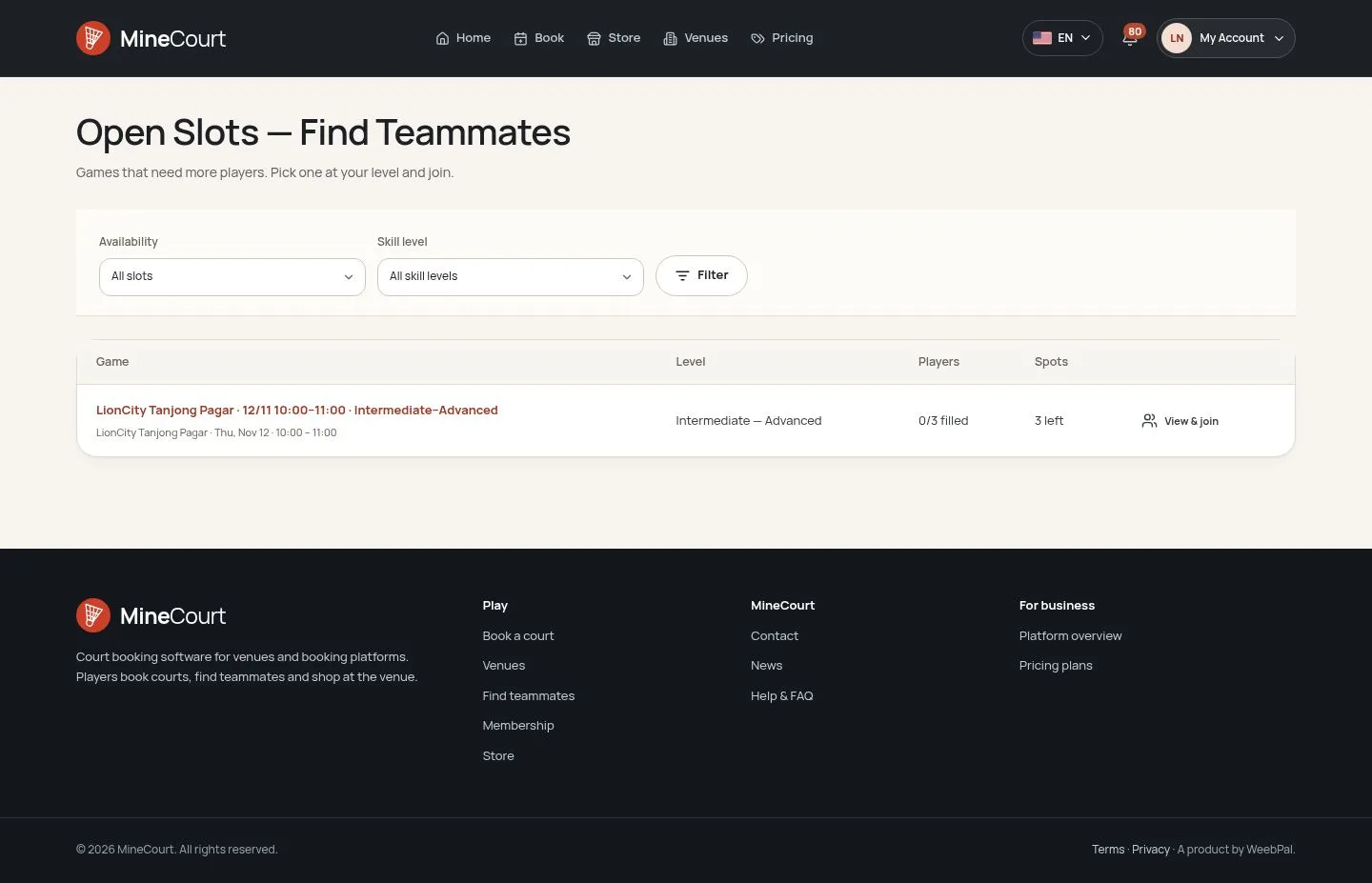
  1. Open slots are listed, and filtered by availability and skill level.
  2. Home lists the open games of the next 7 days.

Open illustrated screen ↗Full image ↗

Player · Open slots03

Ask to join

Player

Ask to join

4Step 4 of 13

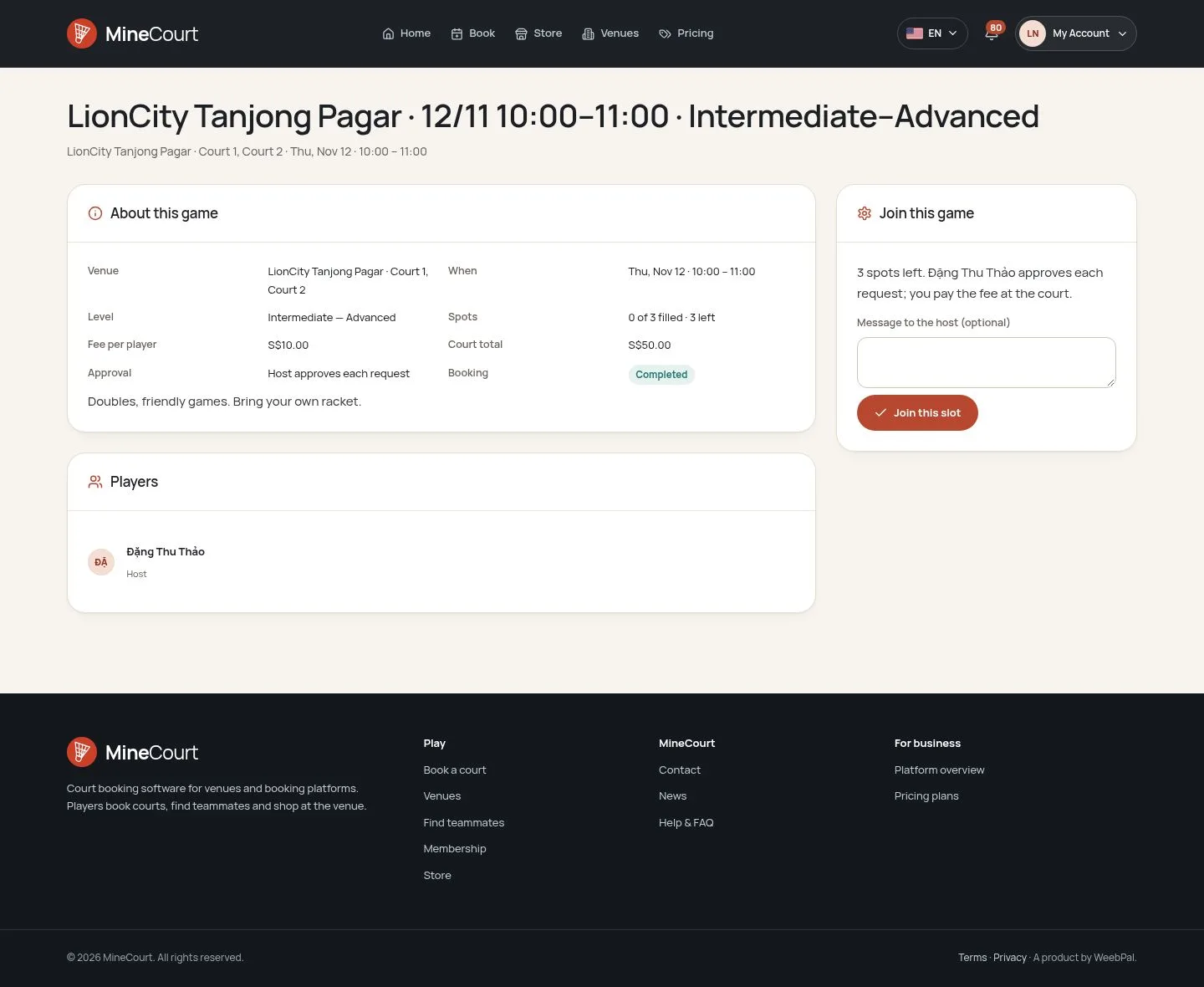
  1. Venue, courts and times, skill level, free slots, fee and the court total of the session.
  2. The player sends a request, with a message if wanted.

Enlarge, then scroll

Open illustrated screen ↗Full image ↗

Player · Open slots04

Auto-approve

Player

Auto-approve

5Step 5 of 13

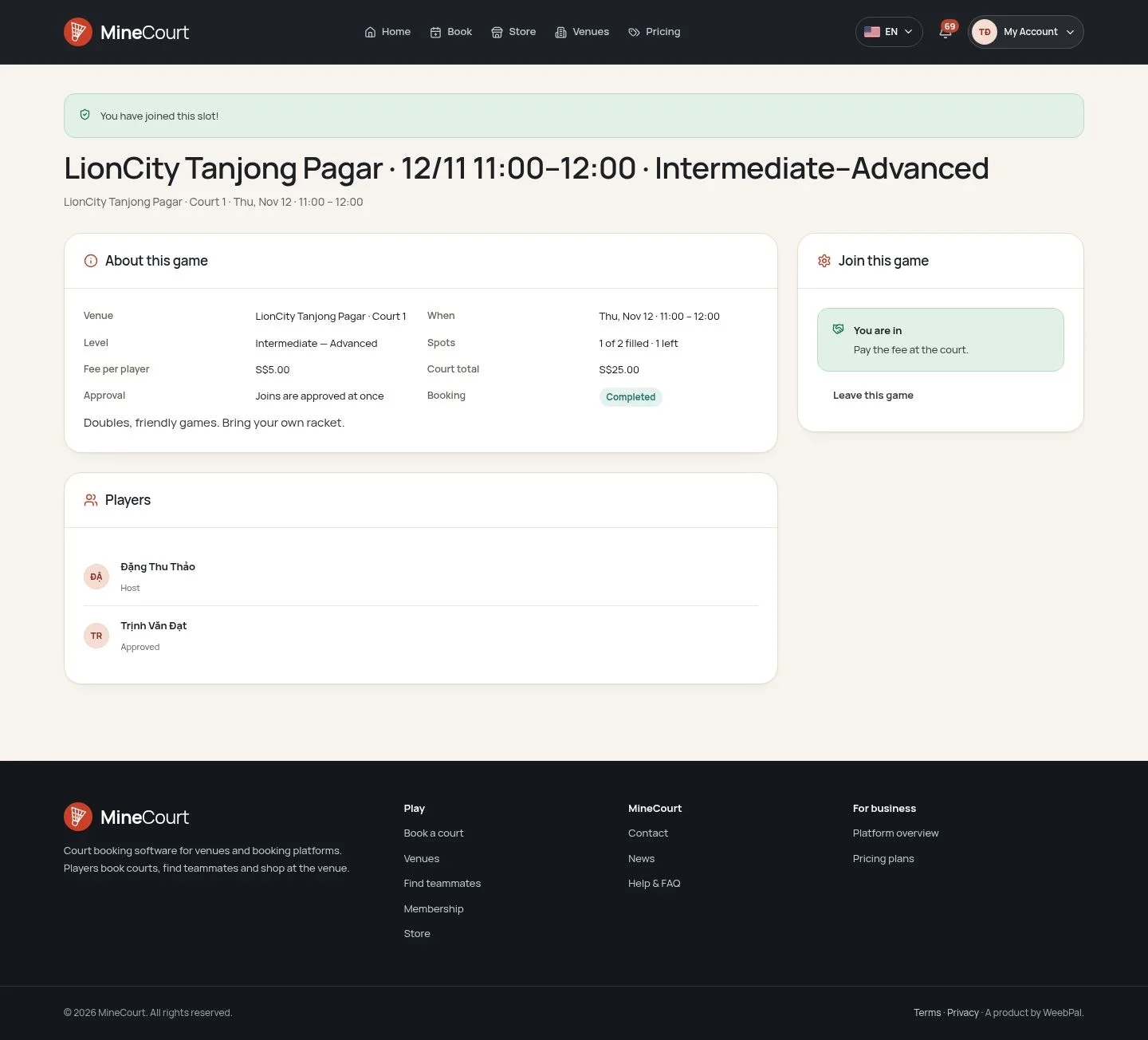
  1. With Auto-approve the player is in at once.

Enlarge, then scroll

Open illustrated screen ↗Full image ↗

Player · Open slots05

New join request

Player

New join request

6Step 6 of 13

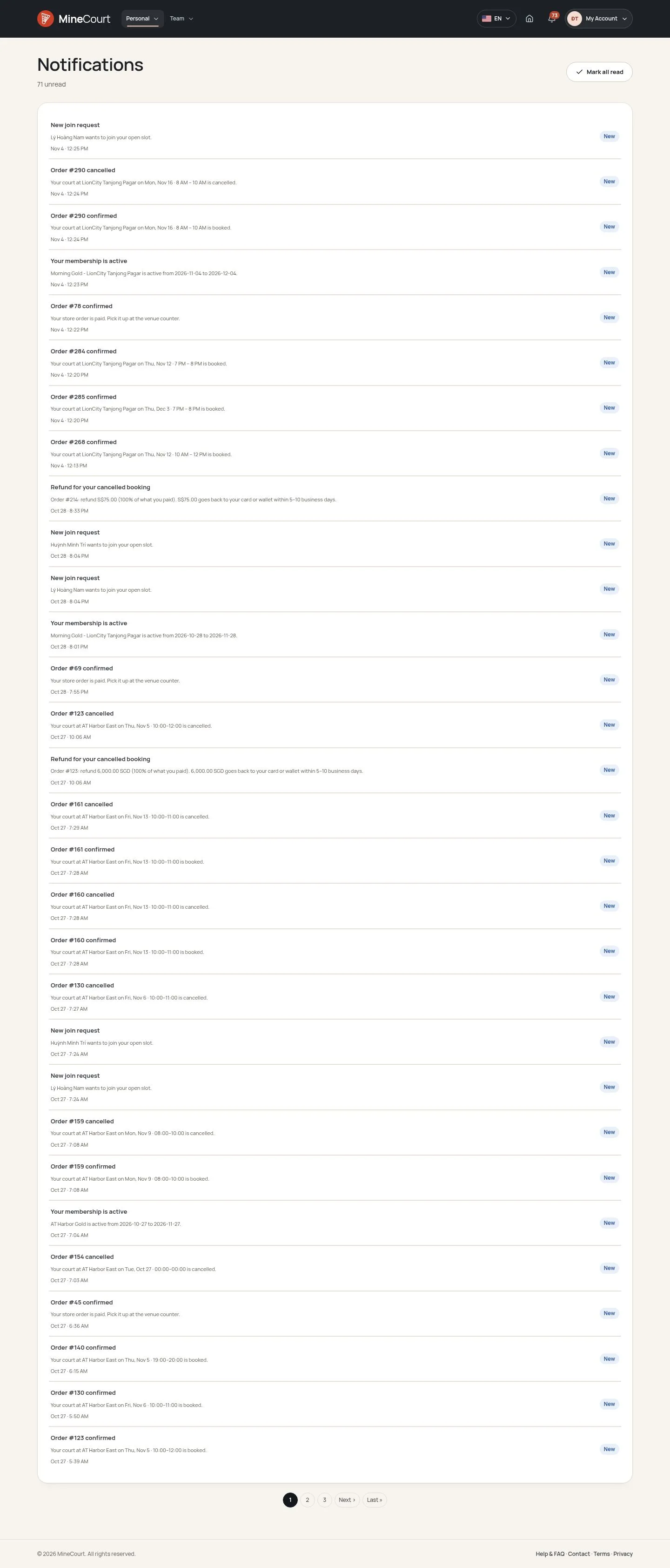
  1. Without Auto-approve the request waits and the host is notified.

Enlarge, then scroll

Open illustrated screen ↗Full image ↗

Player · Open slots06

Manage Participants

Player

Manage Participants

7Step 7 of 13

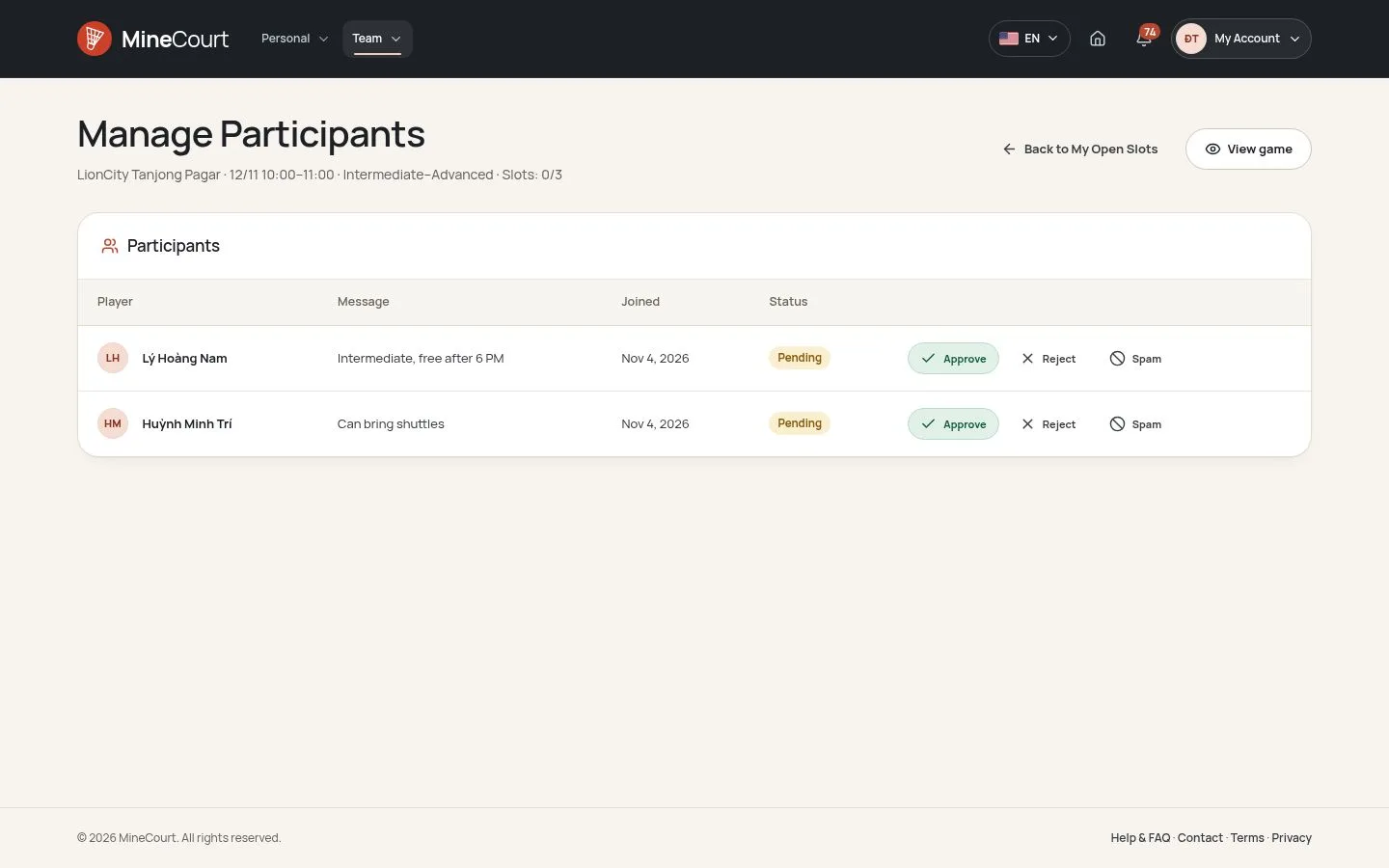
  1. The message, the date and the status of each request.
  2. Approve, Reject or Spam; the player is told Join request approved or declined.

Open illustrated screen ↗Full image ↗

Player · Open slots07

Collect the fee

Player

Collect the fee

8Step 8 of 13

  1. The fee is paid outside the system, at the court.
  2. The host uses Mark Paid after receiving it; a free game has no such button.

Open illustrated screen ↗Full image ↗

Player · Open slots08

Leave the game

Player

Leave the game

9Step 9 of 13

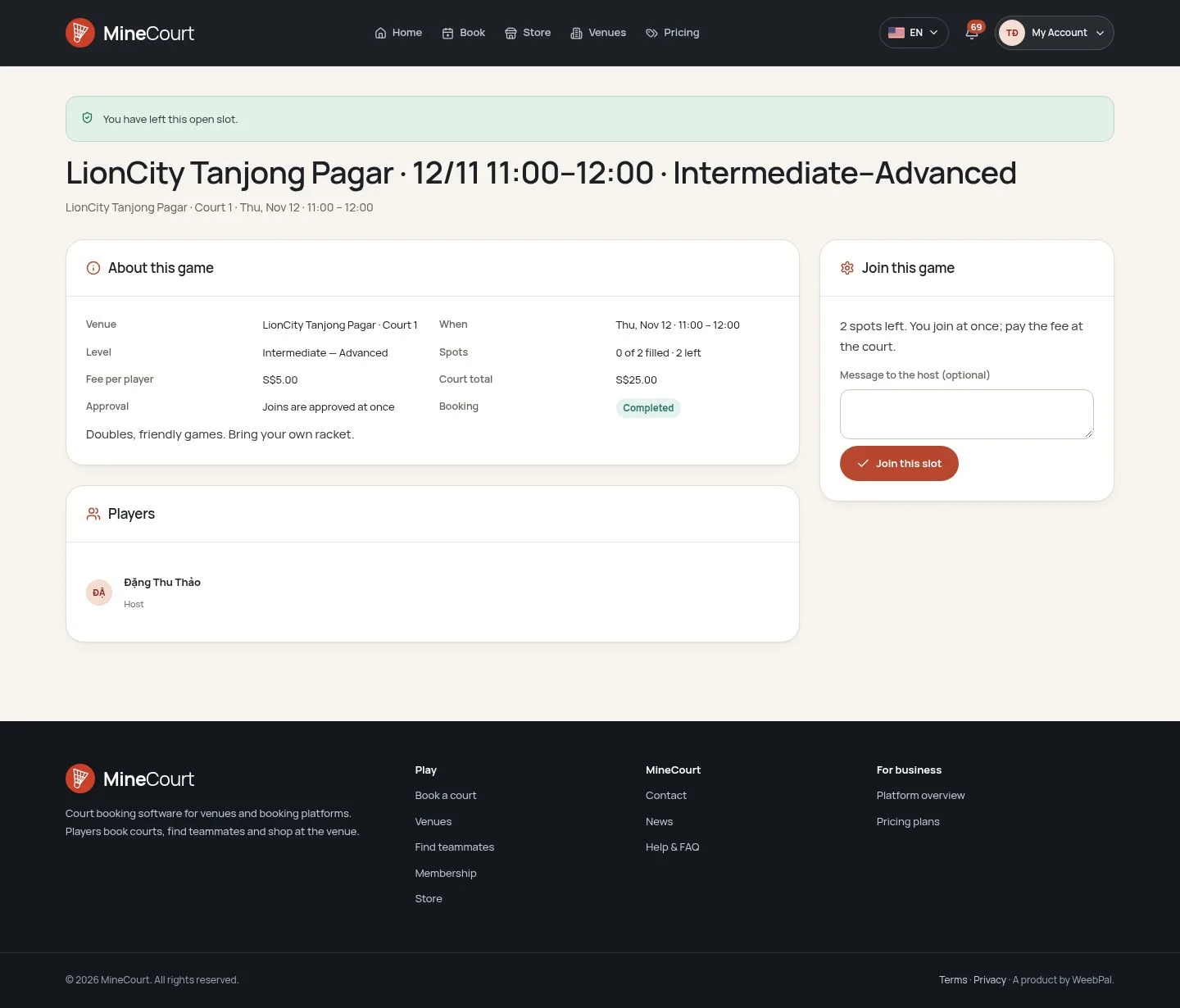
  1. Leave this game, before the start; the slot comes back.

Enlarge, then scroll

Open illustrated screen ↗Full image ↗

Player · Open slots09

My Open Slots

Player

My Open Slots

10Step 10 of 13

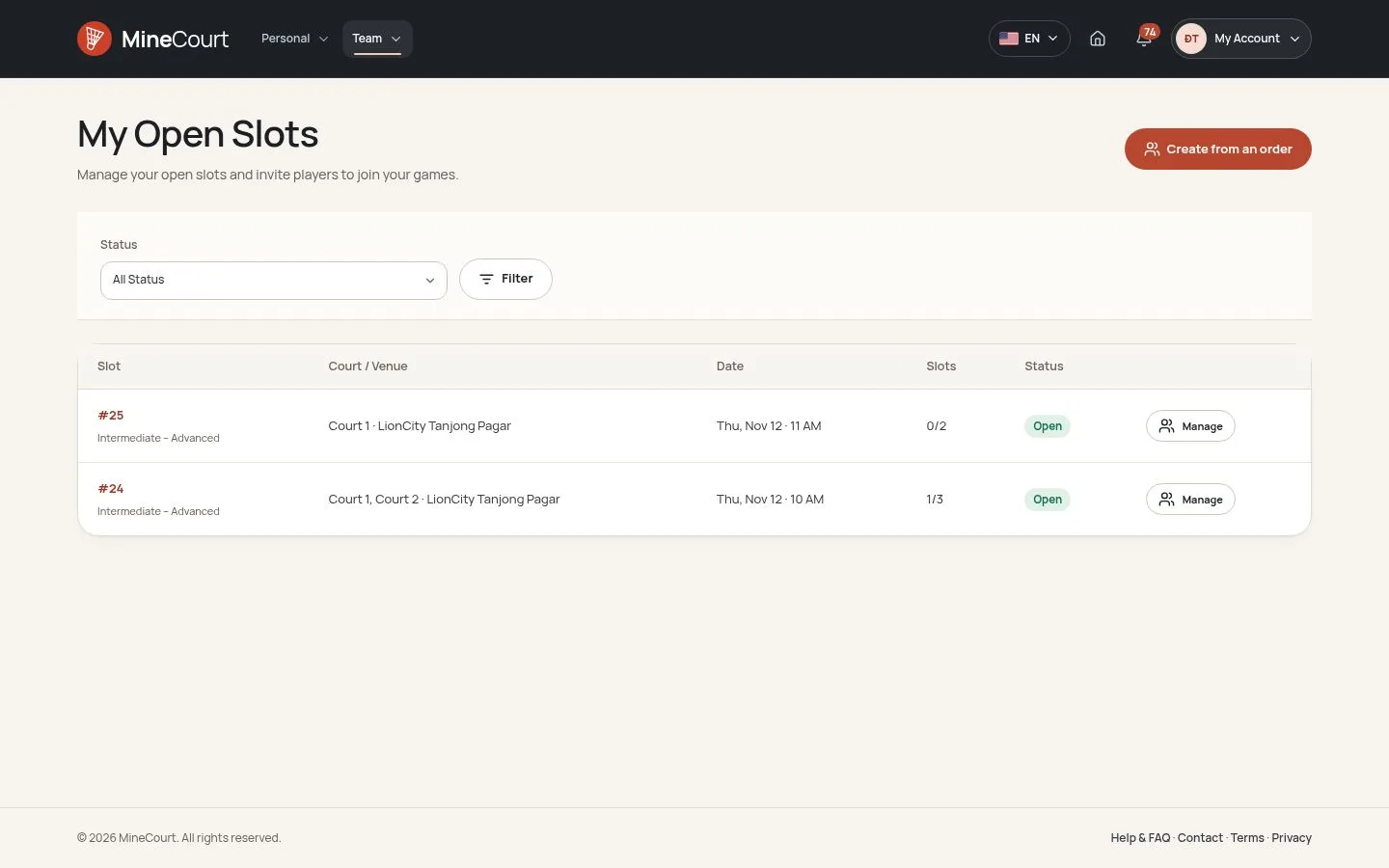
  1. My Open Slots for the host, My Participations for the player.

Open illustrated screen ↗Full image ↗

Player · Open slots10

After the start

Player

After the start

11Step 11 of 13

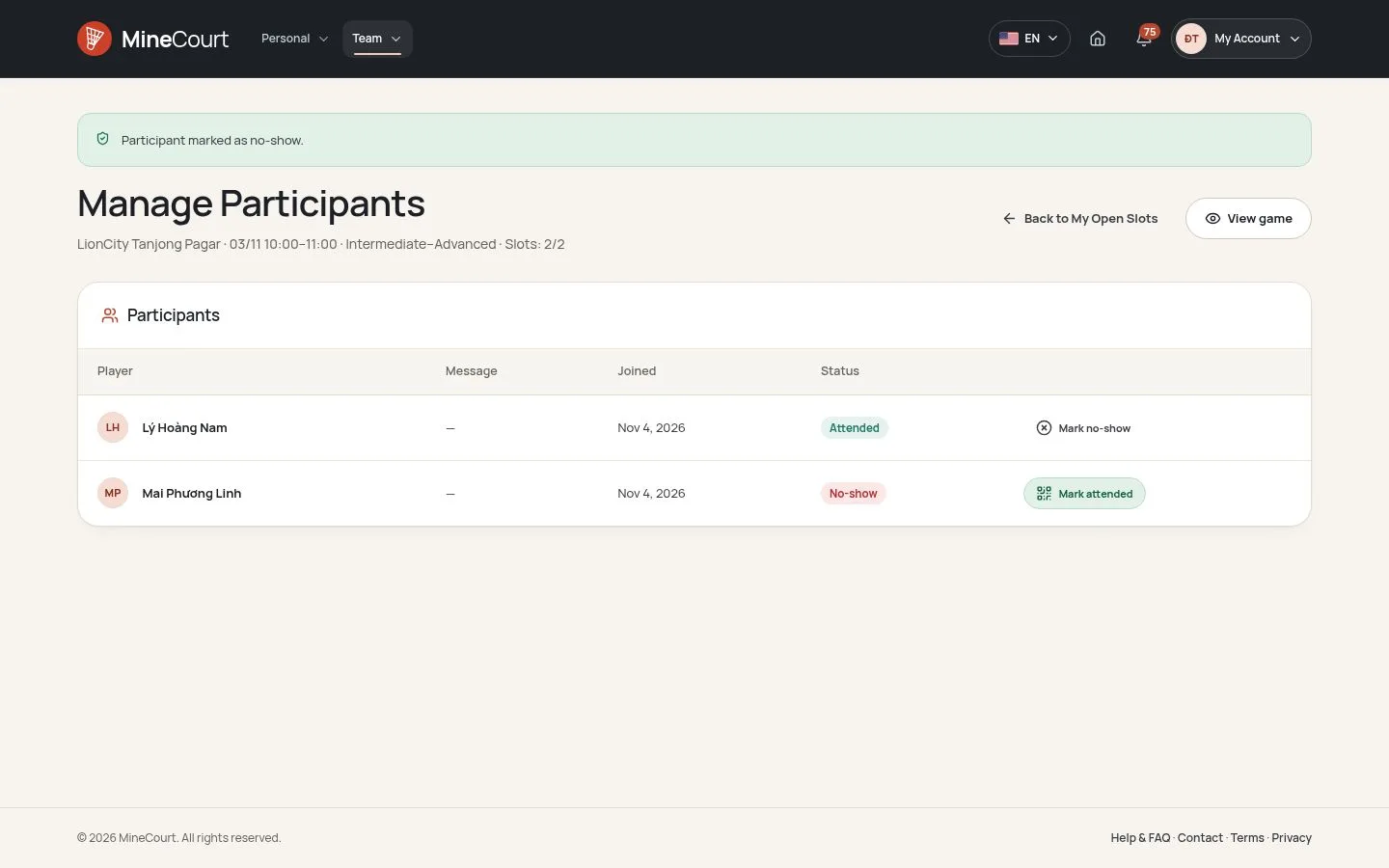
  1. At the start the open slot closes and waiting requests are declined.
  2. Mark attended and Mark no-show appear for the host.

Open illustrated screen ↗Full image ↗

Player · Open slots11

The host cancels

Player

The host cancels

12Step 12 of 13

  1. Cancelling the order closes its open slots.
  2. Waiting requests are declined; approved players are told Game cancelled.

Enlarge, then scroll

Open illustrated screen ↗Full image ↗

Player · Open slots12

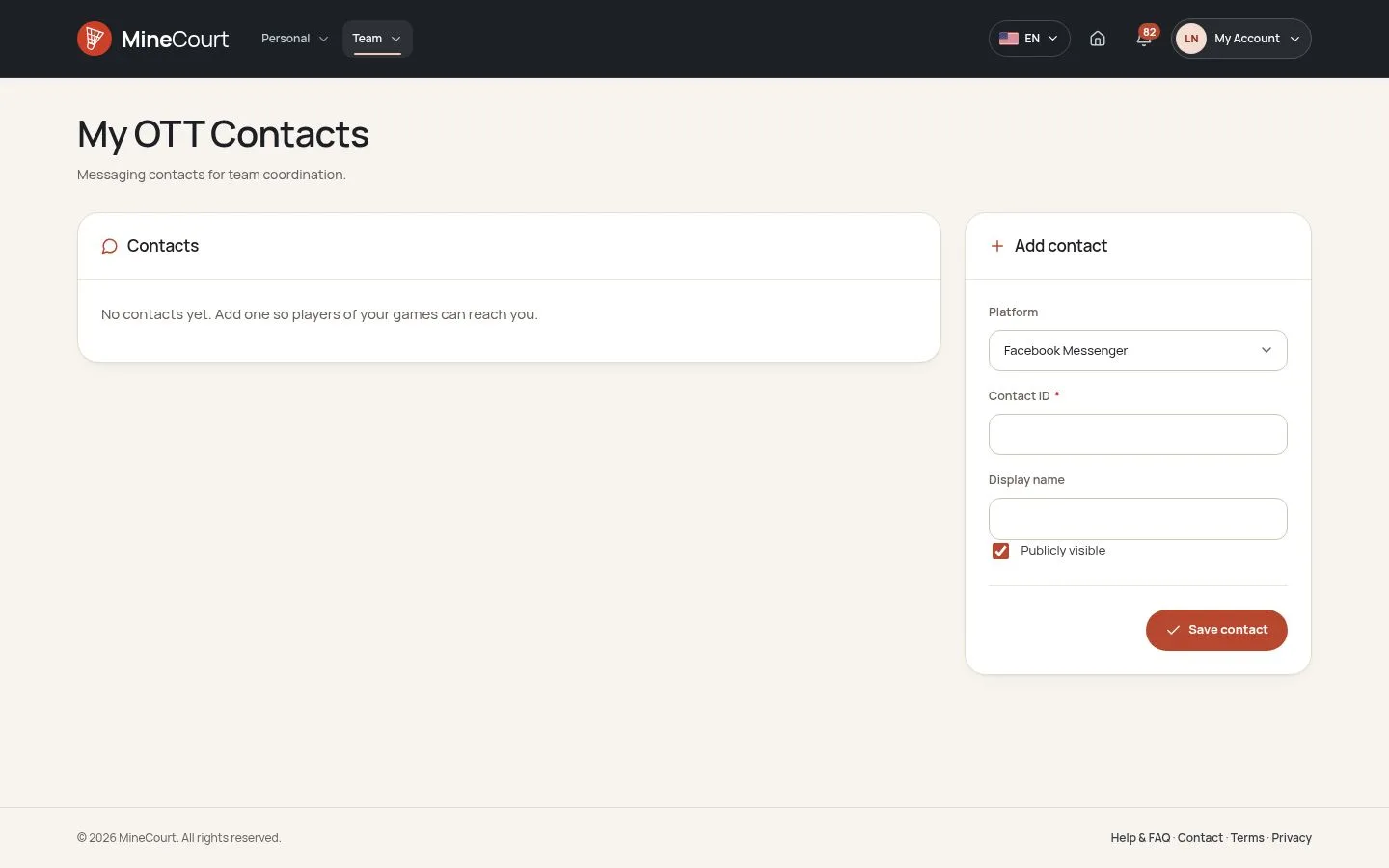
Reach each other

Player
Reach each other

13Step 13 of 13

  1. My OTT Contacts: Facebook Messenger, Telegram, Viber and Zalo, so that the host can reach the players.

Open illustrated screen ↗Full image ↗

Check

The session has more players; the host collects the fee outside the system

Player · Open slots13
1 / 14
Privacy Terms