







Store & stock

Online store, stock per venue, court delivery

  • Venue Manager account
Venue Manager

Catalogue and templates

Venue Manager

Catalogue and templates

1Step 1 of 19

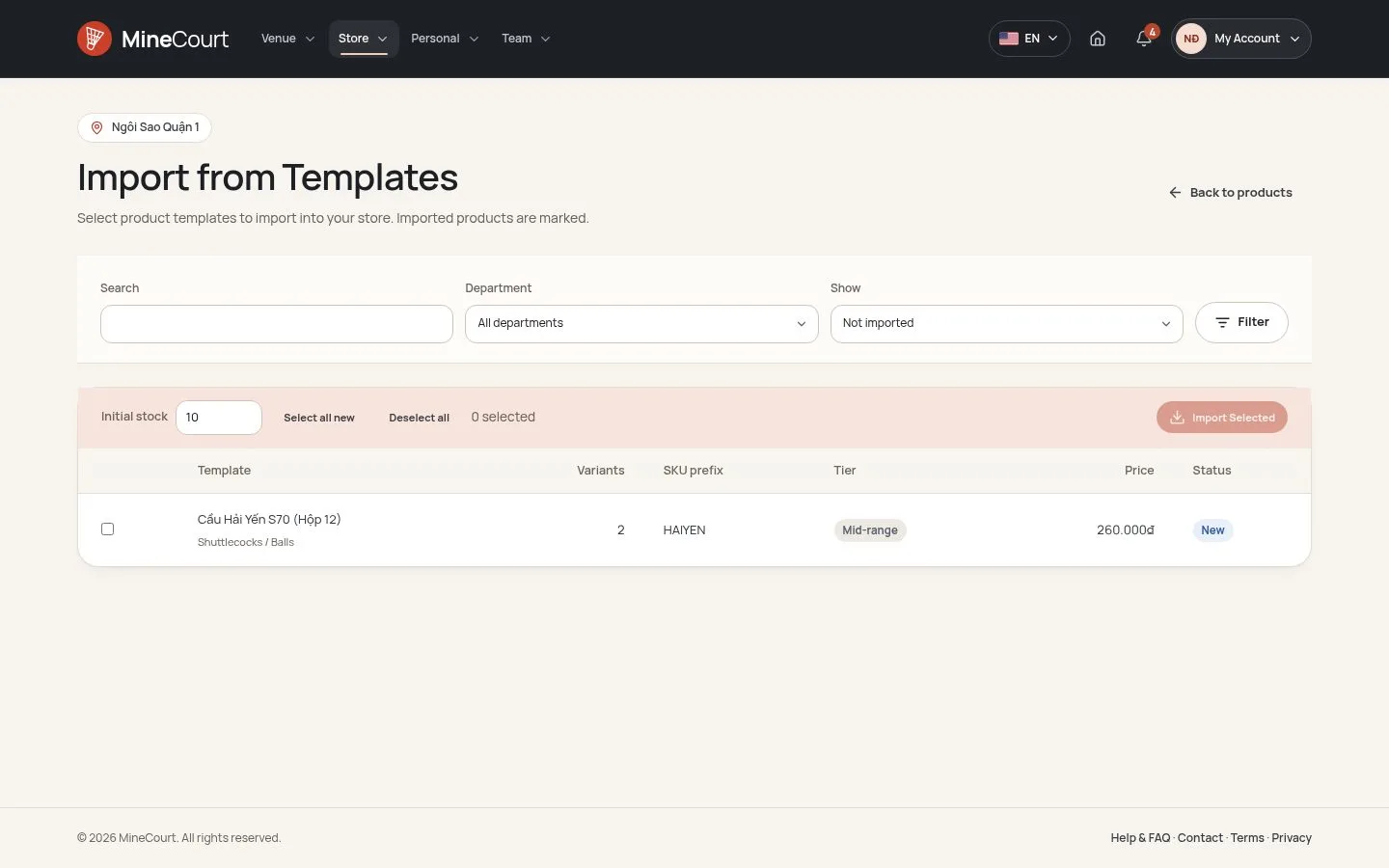
  1. Products belong to the company; stock belongs to each venue.
  2. Import from Templates: pick the templates and an Initial stock, which every venue of the company receives.

Open illustrated screen ↗Full image ↗

Venue Manager · Store & stock01

Add a product

Venue Manager

Add a product

2Step 2 of 19

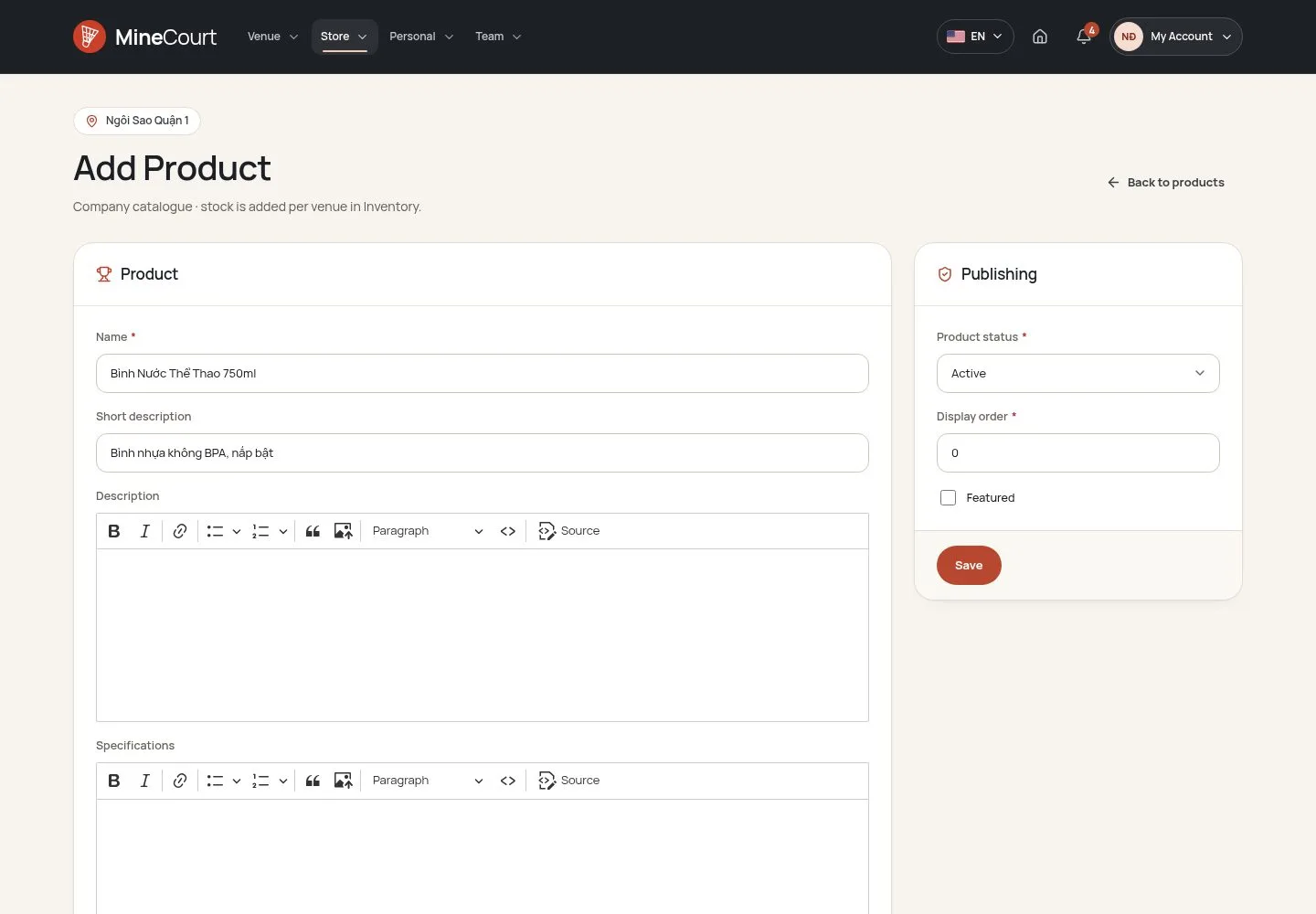
  1. Name, description, photo with alternative text, category, brand, unit, price, sale price, SKU prefix, barcode and status.
  2. The product starts with one default option.

Enlarge, then scroll

Open illustrated screen ↗Full image ↗

Venue Manager · Store & stock02

Options of a product

Venue Manager

Options of a product

3Step 3 of 19

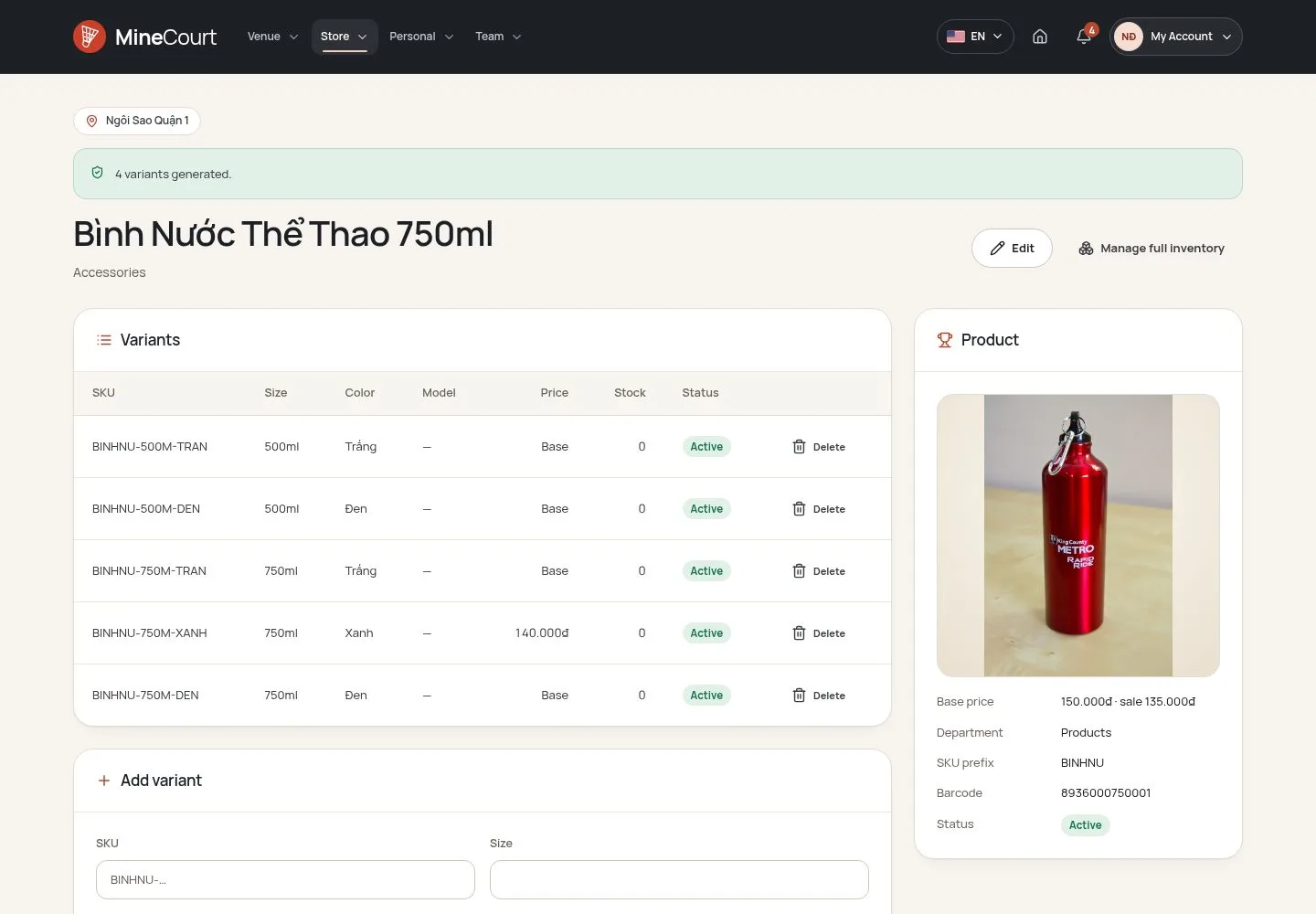
  1. Add variant: SKU, size, colour, model, own price and barcode; or Auto-generate sizes × colours.
  2. SKUs are unique within the company.
  3. Deleting a variant with orders or stock history only stops its sale.

Enlarge, then scroll

Open illustrated screen ↗Full image ↗

Venue Manager · Store & stock03

The stock log

Venue Manager

The stock log

4Step 4 of 19

  1. Inventory shows the stock of the venue.
  2. Every change is a line in the log: stock-in, sale, return, adjustment or transfer.

Enlarge, then scroll

Open illustrated screen ↗Full image ↗

Venue Manager · Store & stock04

Batch stock-in

Venue Manager

Batch stock-in

5Step 5 of 19

  1. A quantity per line and a reason.
  2. Venue Staff can do this too.

Enlarge, then scroll

Open illustrated screen ↗Full image ↗

Venue Manager · Store & stock05

Stock count

Venue Manager

Stock count

6Step 6 of 19

  1. Quick adjust: enter the number counted; the log keeps the difference.

Enlarge, then scroll

Open illustrated screen ↗Full image ↗

Venue Manager · Store & stock06

Transfer between venues

Venue Manager

Transfer between venues

7Step 7 of 19

  1. From venue, to venue, a quantity per option and a note.
  2. Out at one venue, in at the other.

For Venue Managers and above; Venue Staff have no access.

Open illustrated screen ↗Full image ↗

Venue Manager · Store & stock07

Low stock

Venue Manager

Low stock

8Step 8 of 19

  1. At its threshold (5 by default) an item gets the Low stock badge.
  2. The Venue Manager and the Company Manager are notified.

Enlarge, then scroll

Open illustrated screen ↗Full image ↗

Venue Manager · Store & stock08

The store

Player

The store

9Step 9 of 19

  1. Store: choose the venue, and the court for delivery.
  2. Filter by group and category; only groups with products at the venue appear.

A guest sees Log in to buy and has no cart.

Enlarge, then scroll

Open illustrated screen ↗Full image ↗

Venue Manager · Store & stock09

An item

Player

An item

10Step 10 of 19

  1. Choose an option: price and stock follow it.

Enlarge, then scroll

Open illustrated screen ↗Full image ↗

Venue Manager · Store & stock10

Held in the cart

Player

Held in the cart

11Step 11 of 19

  1. Add to Cart takes the stock at once.
  2. Removing an item returns its stock at once.
  3. A cart left unchanged for 10 minutes is dropped and its stock returned.

Enlarge, then scroll

Open illustrated screen ↗Full image ↗

Venue Manager · Store & stock11

Store checkout

Player

Store checkout

12Step 12 of 19

  1. Pick-up venue and notes.
  2. Pay later at the counter, or Pay now by card or by bank transfer with a receipt.

An online payment not finished in 10 minutes cancels the order and returns the stock. Orders paid at the counter or by transfer wait for staff.

Enlarge, then scroll

Open illustrated screen ↗Full image ↗

Venue Manager · Store & stock12

A QR code on each court

Venue Staff

A QR code on each court

13Step 13 of 19

  1. Store → QR Codes: one code per court, with Download, Print and Print All.
  2. It opens the store for that court.

Open illustrated screen ↗Full image ↗

Venue Manager · Store & stock13

Order from the court

Player

Order from the court

14Step 14 of 19

  1. Checkout fills in Deliver to Court.
  2. The player orders without leaving the court.

Enlarge, then scroll

Open illustrated screen ↗Full image ↗

Venue Manager · Store & stock14

Store orders

Venue Staff

Store orders

15Step 15 of 19

  1. Filter by status, payment and date.
  2. An order ordered by QR says so.

Enlarge, then scroll

Open illustrated screen ↗Full image ↗

Venue Manager · Store & stock15

Hand over

Venue Staff

Hand over

16Step 16 of 19

  1. Confirm Order.
  2. Mark Paid at the counter, or Approve transfer after checking the receipt.
  3. Mark Delivered at the court, or Mark Picked Up at the counter.

Enlarge, then scroll

Open illustrated screen ↗Full image ↗

Venue Manager · Store & stock16

The player cancels

Player

The player cancels

17Step 17 of 19

  1. My Store Orders: Cancel order while it waits for payment or is confirmed.
  2. The stock comes back and what was paid is refunded.

Open illustrated screen ↗Full image ↗

Venue Manager · Store & stock17

Ask for a return

Player

Ask for a return

18Step 18 of 19

  1. After receiving the order: item, quantity and reason.

Enlarge, then scroll

Open illustrated screen ↗Full image ↗

Venue Manager · Store & stock18

Decide the return

Venue Staff

Decide the return

19Step 19 of 19

  1. Accept: quantity, back into stock or not, and the refund, filled in with the value of the items. Or Reject.
  2. A card refund runs through Stripe; a cash refund is handed over, then marked.
  3. The order shows Partly refunded or Refunded.

Enlarge, then scroll

Open illustrated screen ↗Full image ↗

Check

The order is handed over and the stock of each venue matches its stock log

Venue Manager · Store & stock19
1 / 20
Privacy Terms