





Before you start
- The original quotation is Won.
- Identify whether the change uses an existing Measured item or new scope with a new Scope key.
- Re-measuring or changing dimensions does not automatically create a Variation. Changed scope can be cut only after its Variation quotation is Customer Accepted.
Screenshots show an earlier interface. Some current actions may appear in a different place or be absent from the image.
Shared workflows
Quote for a change in scope
Send a quotation for changed scope after the original is Won, and record the customer’s decision while retaining the original quotation.
Prepare the records → follow the steps → check the outcome.
Create a draft variation quotation
Coordinator
1Step 1 / 5
Start from the original quotation accepted by the customer so the change is linked to the correct job. Check the quotation type and original quotation on the form before creating it.
- Go to Sales → Quotes, open the Won original quotation and select “New variation”.
- Check Type Variation and the Won original; enter “Scope summary”, “Quotation date”, “Valid until” and “Prepared by”, then select “Create quote”.
The Draft Variation is linked to the original quotation.
Identify the changed scope
Coordinator
2Step 2 / 5
Each variation quotation line must identify the corresponding work so the production measure can reference it. Choose an existing measured item or new scope for each change.
- Select “Add line”; use Measured item or New scope for that line, not both.
- Select “Done” for each change; complete the lines, then select “Save quote”.
Each variation line has a clear scope for the fabrication sheet to reference.
Send the variation quotation
Coordinator
3Step 3 / 5
Choose the correct recipient for the variation you have open. After a successful send, the quotation remains fixed.
- Select “Send variation” and choose Recipient.
- Check the recipient, then select “Send variation” to send it.
The Sent Variation is locked after successful delivery.
Record the customer’s acceptance
Coordinator
4Step 4 / 5
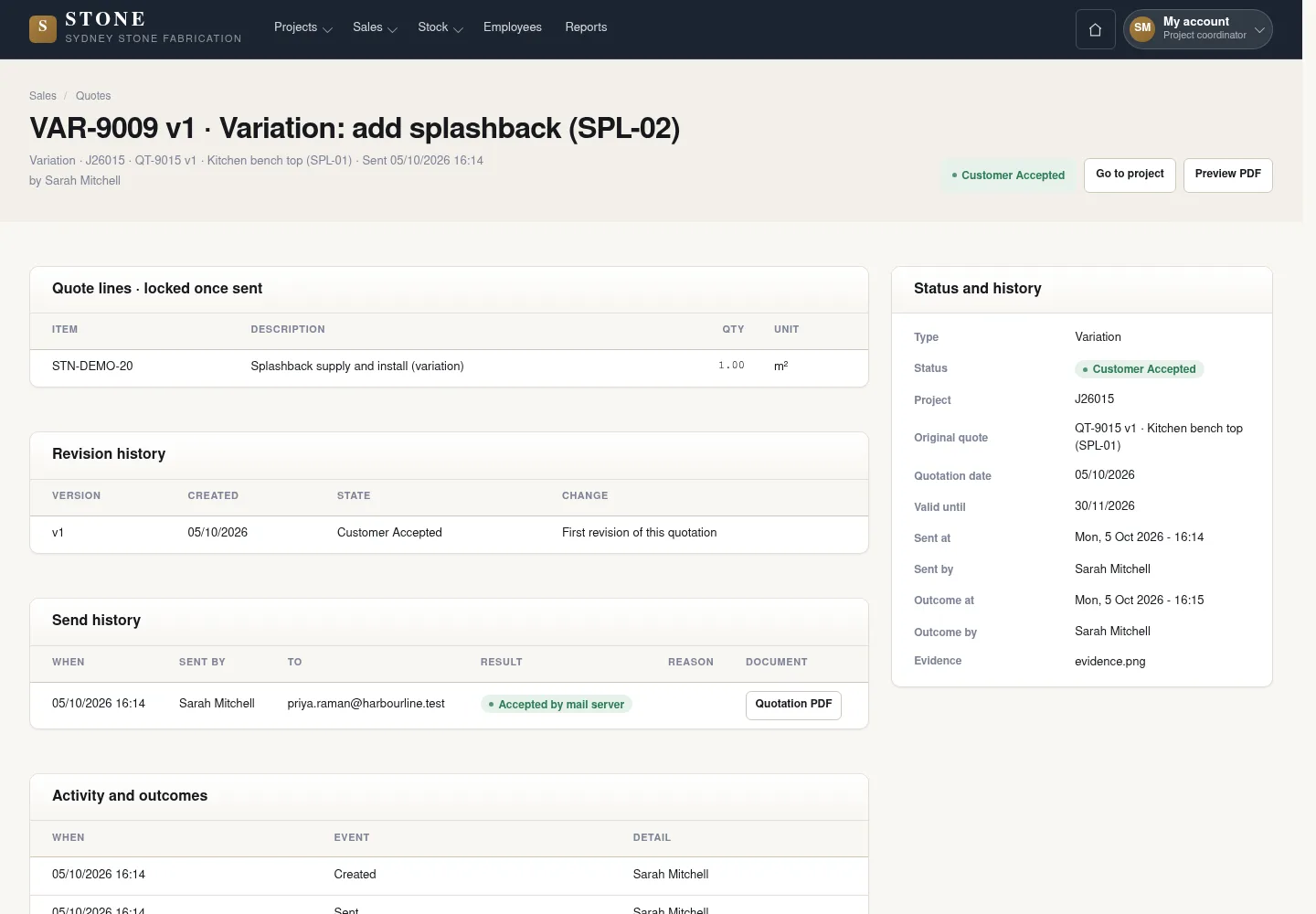
Record acceptance only when you have suitable evidence from the customer. This step confirms which changed scope was accepted for inclusion in the contract value.
- Select “Record Customer Accepted” and choose Evidence that shows the customer’s acceptance.
- Select “Record outcome” to save the result.
The value is added to the contract value once; only the mapped scope is released.
Record rejection, cancellation or expiry
Coordinator
5Step 5 / 5
If the customer does not accept the change, record the correct outcome so it remains traceable. Expiry becomes available only from the validity date.
- Choose “Record Customer Rejected”, “Record Cancelled” or “Record Expired” to match the actual outcome.
- Enter Evidence and Reason as the form requires, then select “Record outcome”.
The full outcome is retained; scope that is not accepted cannot be produced.
Complete the task
Results & checks
- Contract value = Won original + Customer Accepted variations.
- A fabrication line for this scope must choose the variation line in Quote line.
- Do not edit the original quotation to conceal a change.
Screenshots illustrate the page layout. Some show earlier controls; follow the current steps and check the result after performing the action.