





Before you start
- My account → Users & roles
- An account with only this role cannot read business records; it cannot assign Administrator or Product administrator.
Screenshots show an earlier interface. Some current actions may appear in a different place or be absent from the image.
Business admin
Manage accounts, website content and lookups
Create or edit staff accounts within your scope, update website content and manage business lookups.
Prepare the records → follow the steps → check the outcome.
Create a staff account within your scope
Business admin
1Step 1 / 5
Staff accounts receive the appropriate roles and permission to view money according to an authorised person's decision.
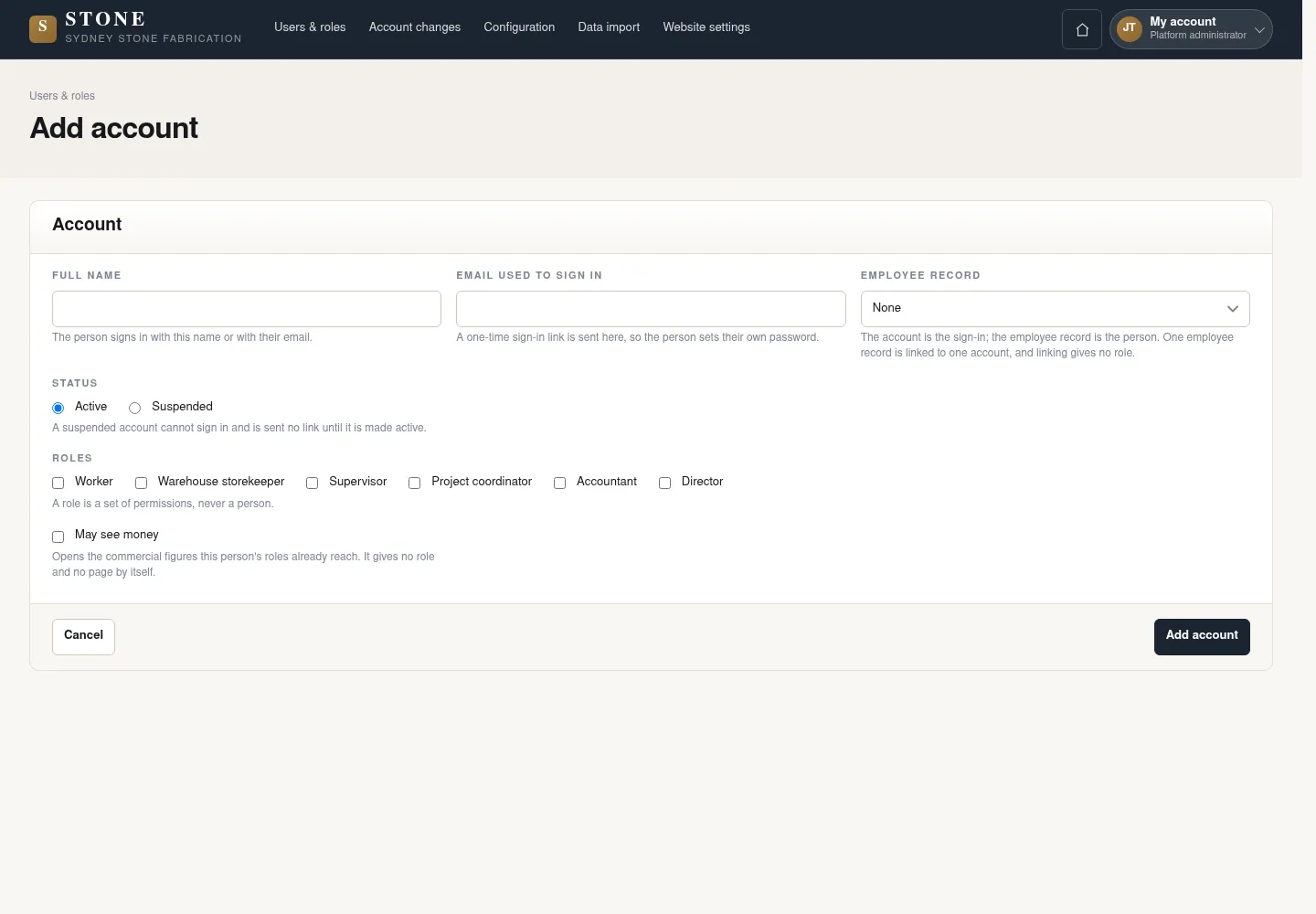
- Open Users & roles → Add account and enter name, email and Active/Suspended.
- Select the appropriate business roles and may see money; link Employee record if the form has this field.
- Review the details, then save the account.
A new account and audit changes are recorded, and a one-time sign-in link is sent to that person.
Edit an account you are allowed to manage
Business admin
2Step 2 / 5
Only accounts within your administration scope can be edited. Check the person's name before changing their status or permissions.
- Open the account from Users & roles.
- Edit name, email or status and roles/money flag within the permitted scope.
- Choose Employee record using the form, then save the changes.
Do not edit your own account here, technical accounts or accounts with the same authority; an employee link does not grant a role.
Look up account change history
Business admin
3Step 3 / 5
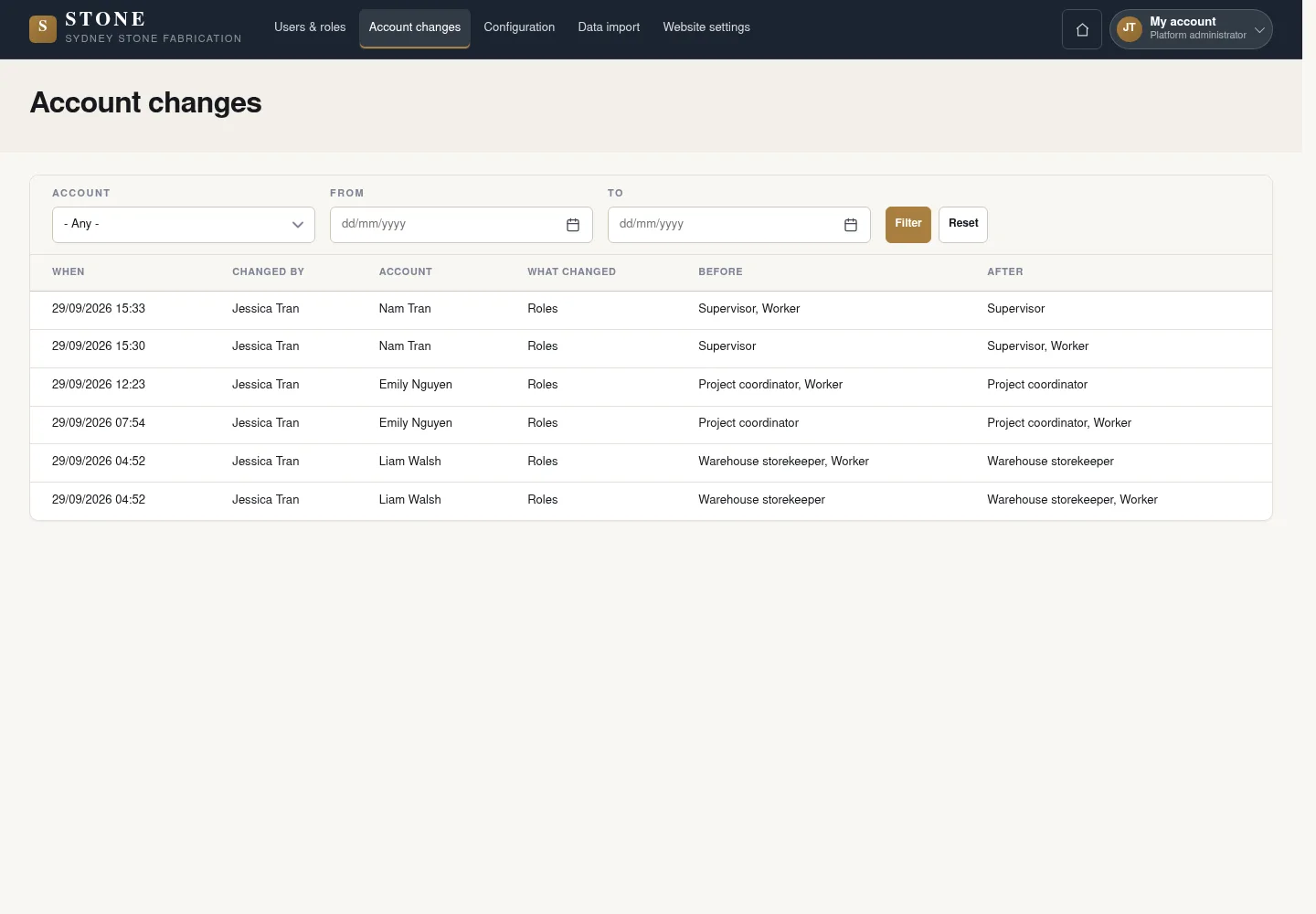
Account changes shows recorded changes, with account and date filters.
- Open Account changes.
- Choose Account and From/To, then click Filter.
- Click Reset to clear the filters.
Read-only before/after values; passwords are not exposed.
Edit website content and information
Business admin
4Step 4 / 5
Page content and shared website information are edited through the controls available to this role.
- On Website, open the Edit tab or Edit for the section to change.
- Edit the text or use Add media to replace an image, then save.
- In Website settings, check Send enquiries to, footer and header phone.
Public content updates for the section that was saved.
Manage lookups and monitor imports
Business admin
5Step 5 / 5
Use lookups according to the business owner's workflow. For this role, Data import provides monitoring information only.
- Open Configuration → Lookups and use Add lookup when you need a new list item.
- Review structure or templates according to the business owner.
- In Data import, read monitoring information only; do not run an import.
Business payloads cannot be opened; queue details may be unavailable.
Complete the task
Results & checks
- Open the related workflow below for its full conditions, responsible people and steps.
- Check your account, record code and status before taking action. Hidden money information or Unavailable does not mean the amount is 0.
Screenshots illustrate the page layout. Some show earlier controls; follow the current steps and check the result after performing the action.