





Before you start
- Identify the project, work order, receipt line or slab where the error arose.
- Have a specific reason and know what has already consumed stone, been delivered, incurred cost or been paid.
- Use the correction step of the workflow that owns the error.
Screenshots show an earlier interface. Some current actions may appear in a different place or be absent from the image.
Shared workflows
Correct errors while preserving the source history
Choose the correction appropriate to the source record, state the reason and preserve its earlier links.
Prepare the records → follow the steps → check the outcome.
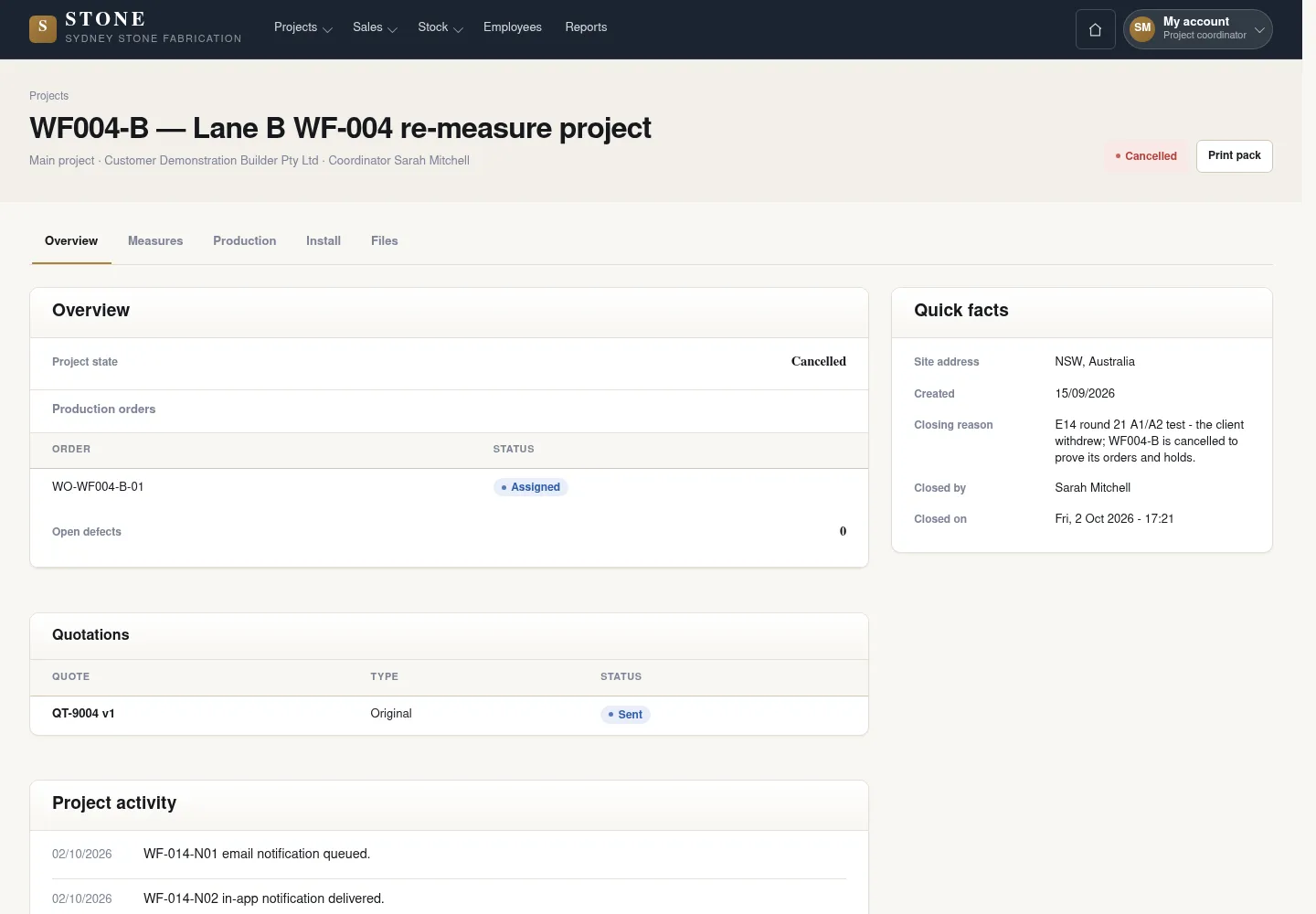
Cancel the project with a reason
Coordinator
1Step 1 / 7
Cancelling a Project keeps its earlier records. Held stone is not automatically released when the project is cancelled.
- Open the Project and select Cancel project.
- Enter the reason and confirm in the form.
- Check the warnings listing reserved and Issued slabs; cancellation releases or returns none automatically.
The Project is Cancelled. Earlier records remain; reserved slabs and returnable Issued slabs are named for separate warehouse action.
Release each held slab
Warehouse
2Step 2 / 7
Handover: Coordinator → Warehouse
Release each hold for the cancelled project separately. Do not issue stone to a Cancelled Project.
- Open each slab still held for the cancelled project.
- Select Release and enter the reason.
- Repeat for each remaining held slab, checking the result each time.
Holds are released slab by slab; cancellation does not release them automatically, and stone cannot be issued to a cancelled Project.
Return an issued slab before production starts
Warehouse
3Step 3 / 7
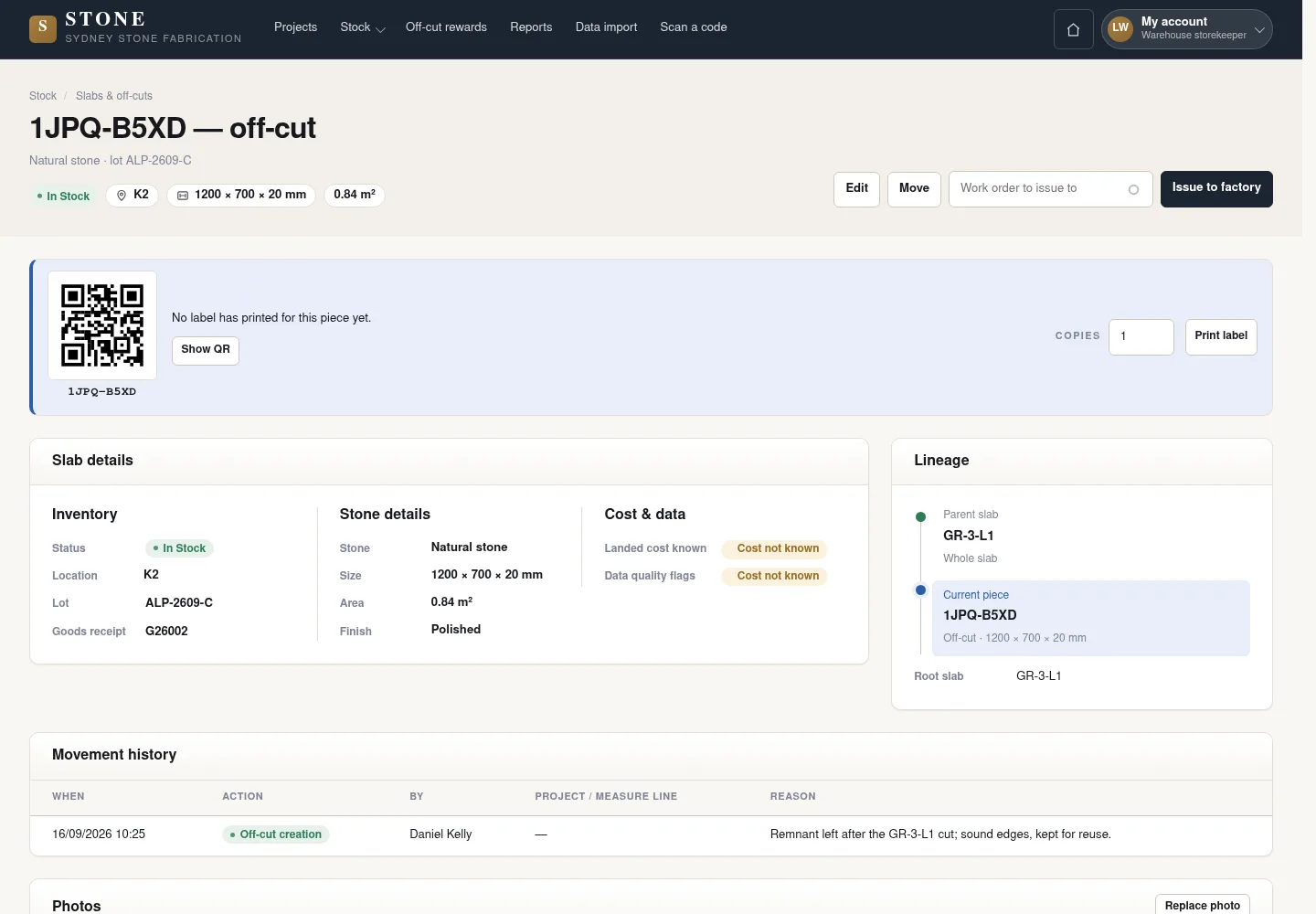
Return to store is available only while every order naming the Issued slab is Queued or Assigned.
- Open the Issued slab → Move and choose Return to store.
- Confirm every work order naming it has not started; enter a reason, no job and a date/time at or after its issue.
- Post adjustment, then open the slab’s movement history and check that it is In stock and available for a new reservation.
The earlier screenshot shows the record layout; the current action controls described here may not appear in the image. Once any order naming the slab starts, it can only be consumed; a physical yard move remains a relocation while it stays Issued.
A new movement returns the slab to In stock without changing the work order, component or cost history.
Record damage and raise linked rework
Supervisor
4Step 4 / 7
Handover: Warehouse → Supervisor
Damage needs evidence from the production stage. Rework stays linked to the failure event and original quality history.
- The Worker opens stage → Report damage and adds photographs, the stage, cause and facts.
- The Supervisor checks Quality Fail or recorded damage after Pass.
- The Supervisor uses Raise rework order to link the repair to the correct event.
Rework links to the correct event; the source and failure history remain.
Record returns, damage or loss against the right source
Warehouse
5Step 5 / 7
Handover: Supervisor → Warehouse
Supplier returns and yard damage/loss are recorded in different places. Cost lock determines which conditions apply.
- For a supplier return before cost lock, open the goods receipt → Record line exception and choose outcome Returned.
- For an In Stock slab damaged or missing in the yard, open Move and select Type Report broken or Report missing.
- Enter Date/time and the reason, then select Post adjustment; check the locked-cost conditions.
The adjustment retains history. With locked cost, Missing creates a linked loss; a received slab without locked cost is rejected.
Register found stone without a label
Warehouse
6Step 6 / 7
Unlabelled stone is registered as a new record. It does not reopen a slab already recorded as Missing.
- On desktop, open Stock adjustments → Register found stock; on a phone, use Found stone → Register found stone.
- Enter the material, dimensions, store root and photograph, then select Continue.
- Enter Where it was found and why it has no label, then select Create record and print label.
A new In Stock record has its own code; the Missing slab is not reopened.
Correct costs using a linked reversal
Accountant
7Step 7 / 7
Handover: Warehouse → Accountant
Choose an eligible cost line for reversal. Keep the original line; do not invent a loss amount when the cost is unknown.
- Open an eligible cost line that has not already been reversed.
- Use a linked reversal and record a specific reason in the form.
- Check the link between the original line and its correction.
Original retained → linked correction; unknown cost is not replaced by an invented loss amount.
Complete the task
Results & checks
- Always retain the original and linked correction.
- A found record with unknown cost may become Missing without generating a loss entry.
- Do not change dimensions, status or dates to bypass conditions.
- Return to store restores only an eligible pre-cut Issued slab. Read its return in the slab movement history; it is not listed in the limited stock-adjustment register.
Screenshots illustrate the page layout. Some show earlier controls; follow the current steps and check the result after performing the action.