





Before you start
- My account → Projects / Sales
- Cannot approve fabrication measurements, record QC, reserve/issue stock or record costs.
Screenshots show an earlier interface. Some current actions may appear in a different place or be absent from the image.
Coordinator
From customer enquiry to delivery and handover
Keep the same project code through quotations, measurements, production and delivery/installation scheduling; handle follow-up requests through the appropriate workflow.
Prepare the records → follow the steps → check the outcome.
Read enquiries from the website
Coordinator
1Step 1 / 7
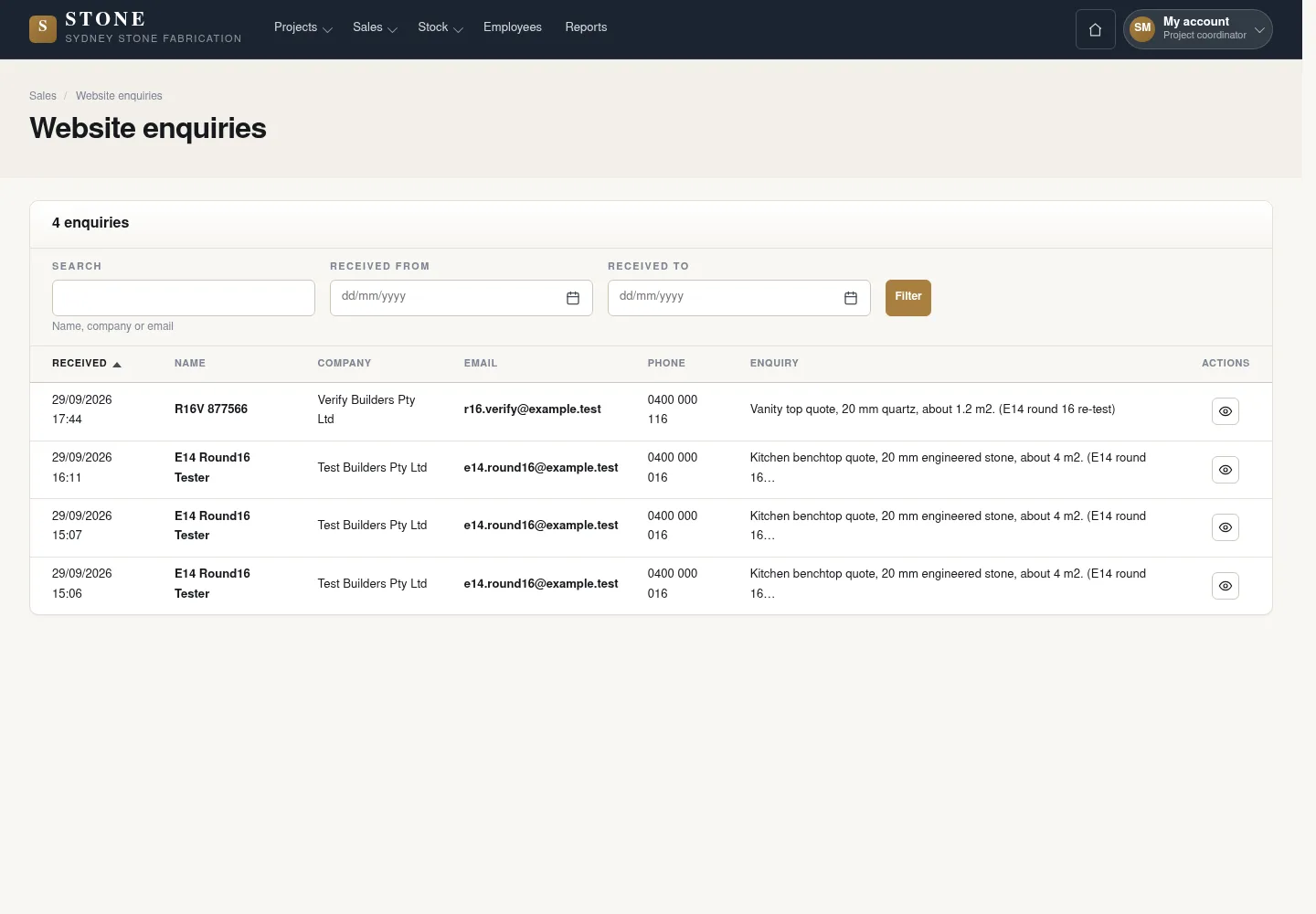
Website enquiries keeps the content customers submit. Identify the customer before taking the enquiry into the project workflow.
- Open Sales → Website enquiries and read the message.
- Confirm which customer to link.
- Create a Project through the normal workflow once you have enough information.
The enquiry is read-only; you cannot edit or delete the message.
Prepare a quotation for the same project
Coordinator
2Step 2 / 7
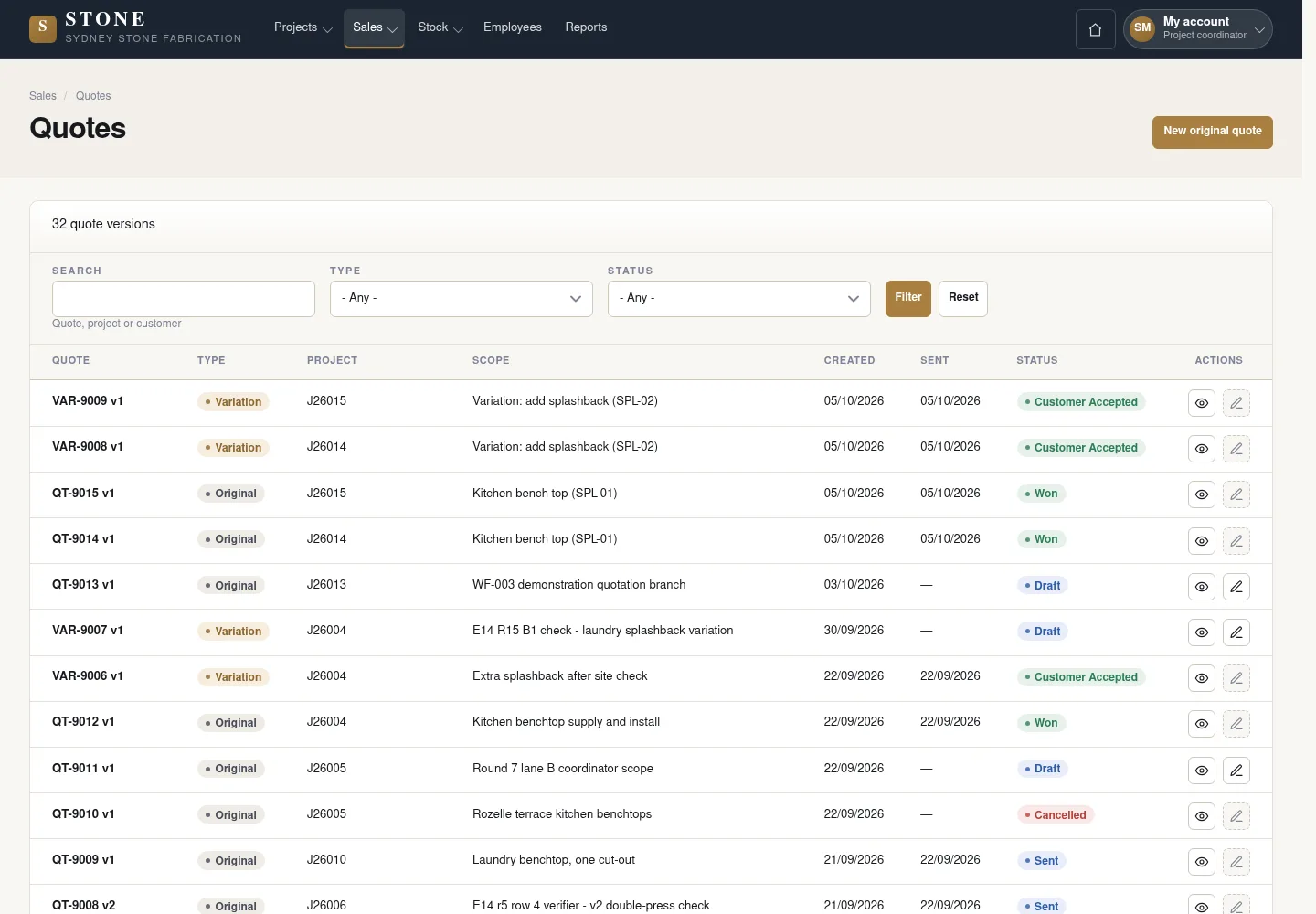
The quotation and quoting measurement share one Project code so that the records stay connected.
- Check the Project code and customer.
- Prepare and finalise the quoting measurement before sending the quotation.
- Record the quotation outcome from the actual response.
Won locks the price; use Variation for scope changes after winning.
Wait for measurement approval, then create production work
Coordinator
3Step 3 / 7
Factory work must use the exact measurement revision decided on by the Director, rather than a revision still awaiting approval.
- Submit the fabrication measurement revision and wait for the Director's approval.
- Use Move to Approved when all checks are complete.
- Create Queued work orders and keep the exact approved revision on each order.
Won does not grant permission to cut.
Schedule an install visit and prepare for handover
Coordinator
4Step 4 / 7
Delivery and installation scheduling begins when the project is Ready to Deliver. Handover also depends on the visit outcome and outstanding defects.
- In Projects, filter Ready to Deliver, then use Schedule visit.
- Monitor the customer outcome and report, and resolve all Open punch items.
- Close an eligible visit, then check the project’s handover readiness; use Close project only after the Project is Handover and its closing checks pass.
Refusal follows the signature threshold and evidence rules; handover requires project readiness and no Open defects. Payment claims do not block project work.
Do not close a project simply because a visit is scheduled or Installed.
Receive a warranty complaint or cancel a project
Coordinator
5Step 5 / 7
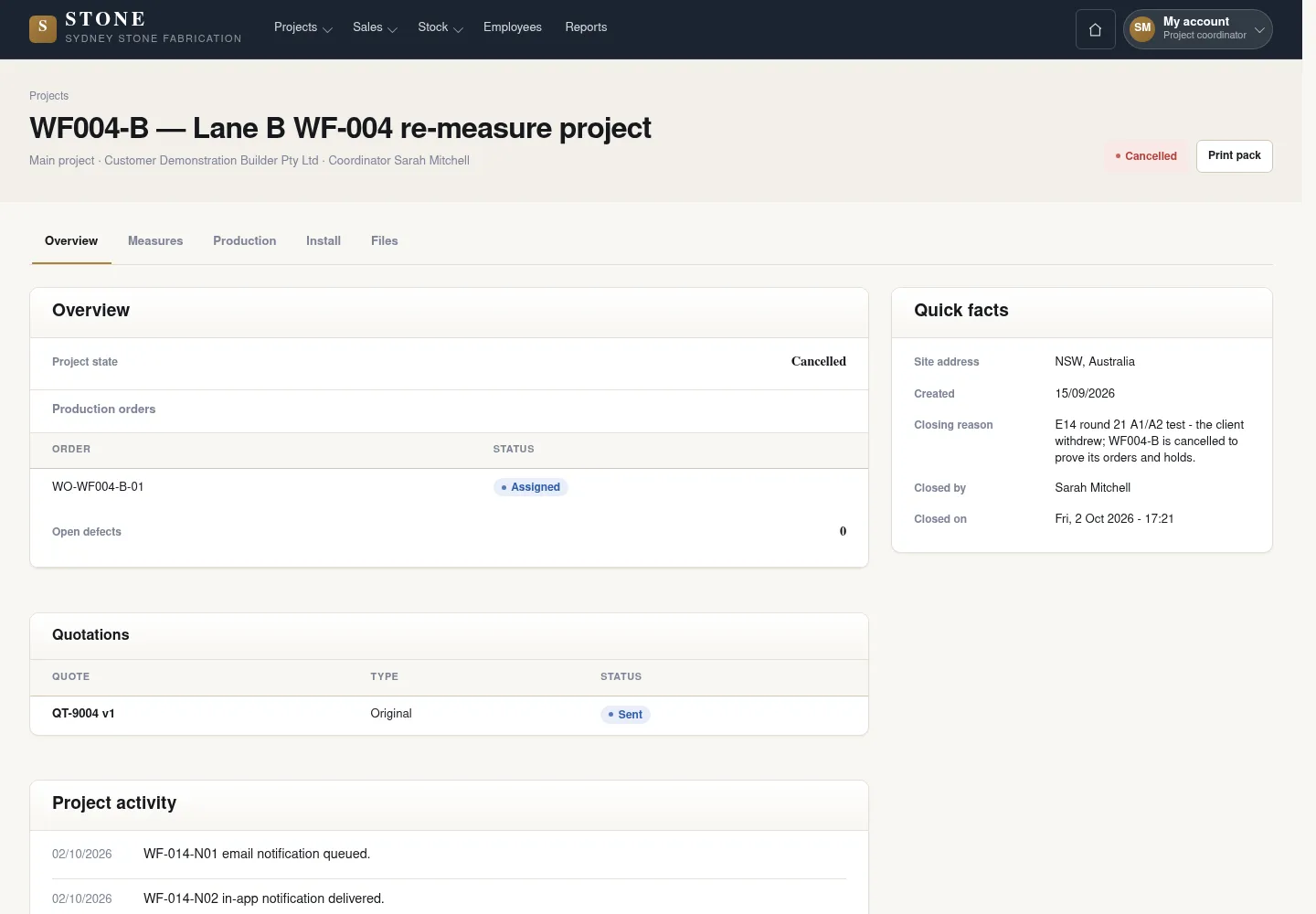
A warranty complaint must link to the original handed-over project; cancellation needs a reason and coordination to release reserved stone.
- Record warranty intake against the correct original handed-over Project.
- To cancel a project, use Cancel project and enter a reason.
- Coordinate with Warehouse to release every remaining hold for the cancelled project.
Earlier records remain unchanged.
Add a price item or a new rate
Coordinator
6Step 6 / 7
An existing rate already in use is retained; changing the price creates a new rate.
- Open Sales → Price library.
- For a new item, choose New price item; enter Item code, Description on the quote, Unit, Sell rate ex GST (AUD), the write-only Estimated cost (AUD) and Effective from, then select Create price item.
- For an existing item, choose Create new rate on the newest row; enter the dated rate details and select Create new rate. A used rate stays intact and its hidden estimated cost is inherited.
The earlier screenshot shows the record layout; the current action controls described here may not appear in the image.
The item or new rate is recorded without overwriting a used rate.
Read the reports for your work
Coordinator
7Step 7 / 7
Read the permitted contribution-margin facts; the margin view additionally requires money visibility.
- Open Reports from the available menu.
- Choose a report your role may read and check its filters, period and source records.
- Read the on-screen results; report printing and export are unavailable.
The earlier screenshot may omit the current controls or show earlier availability messages.
The report reflects permitted source records without creating a personal score or replacing the underlying history.
Complete the task
Results & checks
- Open the related workflow below for its full conditions, responsible people and steps.
- Check your account, record code and status before taking action. Hidden money information or Unavailable does not mean the amount is 0.
Screenshots illustrate the page layout. Some show earlier controls; follow the current steps and check the result after performing the action.