





Before you start
- My account → People / Money
- An account with only the Accountant role can view the Project money summary; it cannot open measurement, workshop or site details.
Screenshots show an earlier interface. Some current actions may appear in a different place or be absent from the image.
Accountant
Lock costs, approve hours and reconcile collections
Reconcile receipt costs and working hours, trace direct costs and follow payment claims through collection.
Prepare the records → follow the steps → check the outcome.
Reconcile and lock a receipt's landed cost
Accountant
1Step 1 / 6
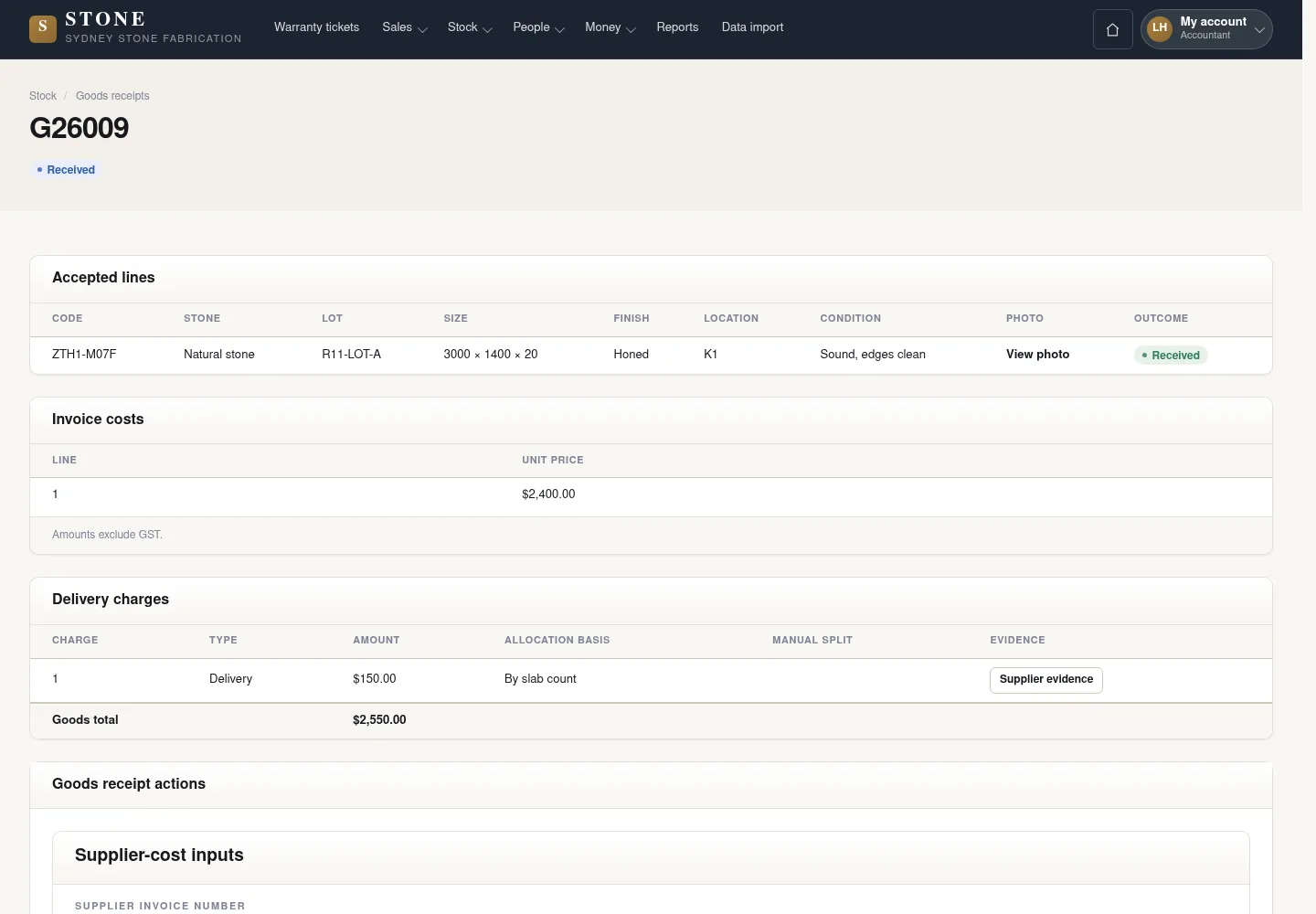
Stock notices lead to stone receipts awaiting cost information. Reconcile the documents before locking landed cost.
- From My account, open a Received receipt awaiting costs.
- Enter the invoice, each slab's unit price and the charges, then click Preview allocation.
- Check the allocation totals before clicking Lock cost.
The landed-cost snapshot is locked after review.
Approve and lock a confirmed day
Accountant
2Step 2 / 6
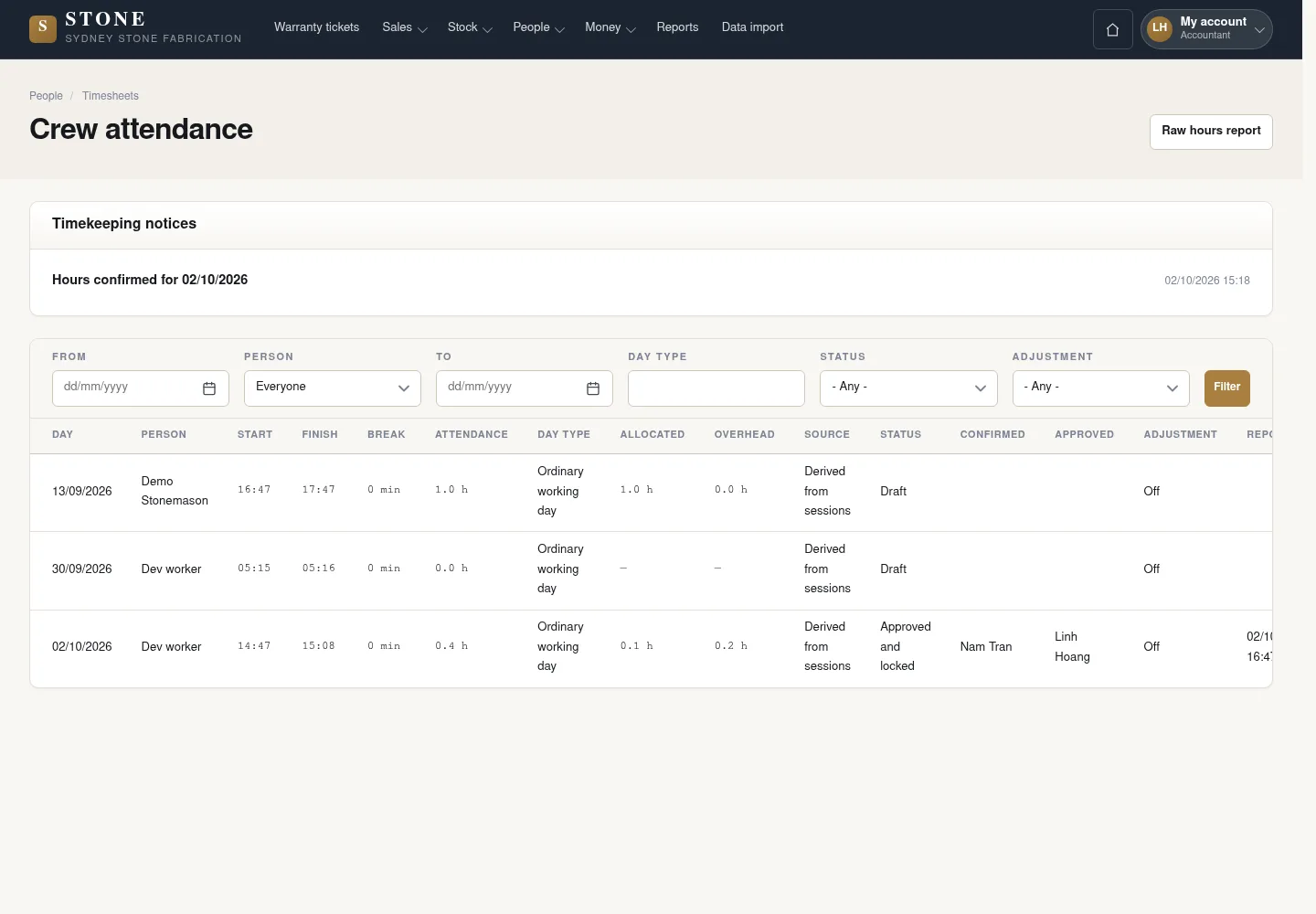
The Accountant reviews a day confirmed by the Supervisor before locking its working-hour facts.
- Open Timesheets and choose a day confirmed by the Supervisor.
- Click Review to check the facts.
- Click Approve and lock when the day is correct.
The day is locked and its labour cost has supporting facts.
Add a cost or record a reversal
Accountant
3Step 3 / 6
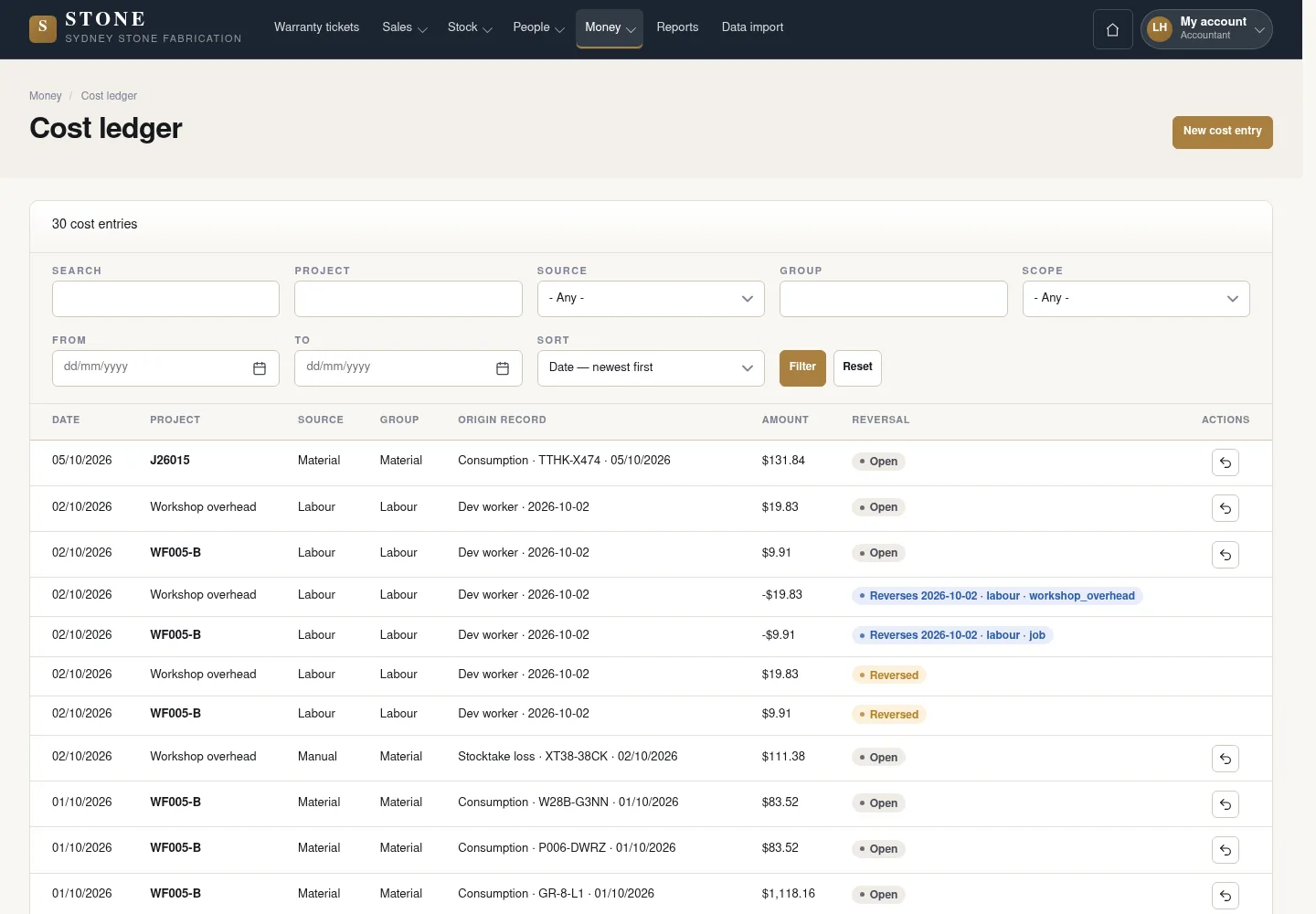
The cost ledger preserves the original entry and source. Correct errors with a linked reversal rather than overwriting history.
- Open New cost entry and enter the manual cost.
- Review the details, then use Append manual entry on the form.
- To correct an existing entry, use a linked reversal with a reason.
Do not delete a saved record.
Prepare, send and collect a payment claim
Accountant
4Step 4 / 6
Reuse the deposit claim and review the contract balance before sending. Each receipt and reversal preserves history.
- Open Payment claims and reuse the existing deposit Draft; create progress or retention release Drafts within the remaining value.
- Confirm the customer contact and payment terms, then use Send claim and read the sent document.
- Use Record receipt for actual money received; correct a wrong receipt through Reverse on its history.
The earlier screenshot shows the record layout; the current action controls described here may not appear in the image.
Sent, Part Paid or Paid reflects the net receipts; a Draft with no receipt may be cancelled with a reason.
Manage employee records and view raw hours
Accountant
5Step 5 / 6
Employee records and the raw-hours report support the business steps available to the Accountant.
- Open People → Employees and use New employee or Depart through the form.
- Open Timesheets → Raw hours report when you need to read approved working-hour facts.
Directors approve labour rates by position; do not set an hourly amount for each Employee.
Review balances, margin and reminders
Accountant
6Step 6 / 6
Read the current balances and only the personal documents your account permits.
- Open Debtors and the permitted contribution-margin report; margin also requires money visibility.
- In the permitted Employee record, read health and certificate documents and review Certificate reminders.
- Use the reminder’s current company lead time; reminders appear in the application.
The earlier screenshot shows the record layout; the current action controls described here may not appear in the image. The opening 30-day reminder lead time is a configurable implementation default awaiting the business owner’s confirmation; follow the company’s current setting.
Balances and permitted documents have one source; certificate reminders are shown in the application rather than emailed.
Complete the task
Results & checks
- Open the related workflow below for its full conditions, responsible people and steps.
- Check your account, record code and status before taking action. Hidden money information or Unavailable does not mean the amount is 0.
Screenshots illustrate the page layout. Some show earlier controls; follow the current steps and check the result after performing the action.