





Before you start
- Use Switch users only in an approved local/test environment with the feature enabled; production refuses this action.
- Use Switch users only in an approved local/test environment with the feature enabled; production refuses this action. Technical administration does not grant business-record access; switching does not bypass approvals.
Screenshots show an earlier interface. Some current actions may appear in a different place or be absent from the image.
Currently: Technical Administration is outside the business task guides. In production, the technical account lands on Administration because Switch users is disabled.
Currently: Switch users is unavailable in production. If the environment or feature policy does not allow it, the list and Switch action are refused. In an existing switched session, use Switch back to return to the support account.
Technical support
Record an issue and end the support session
In approved local/test, identify the support situation, record enough information for comparison and finish in the Administrator account.
Prepare the records → follow the steps → check the outcome.
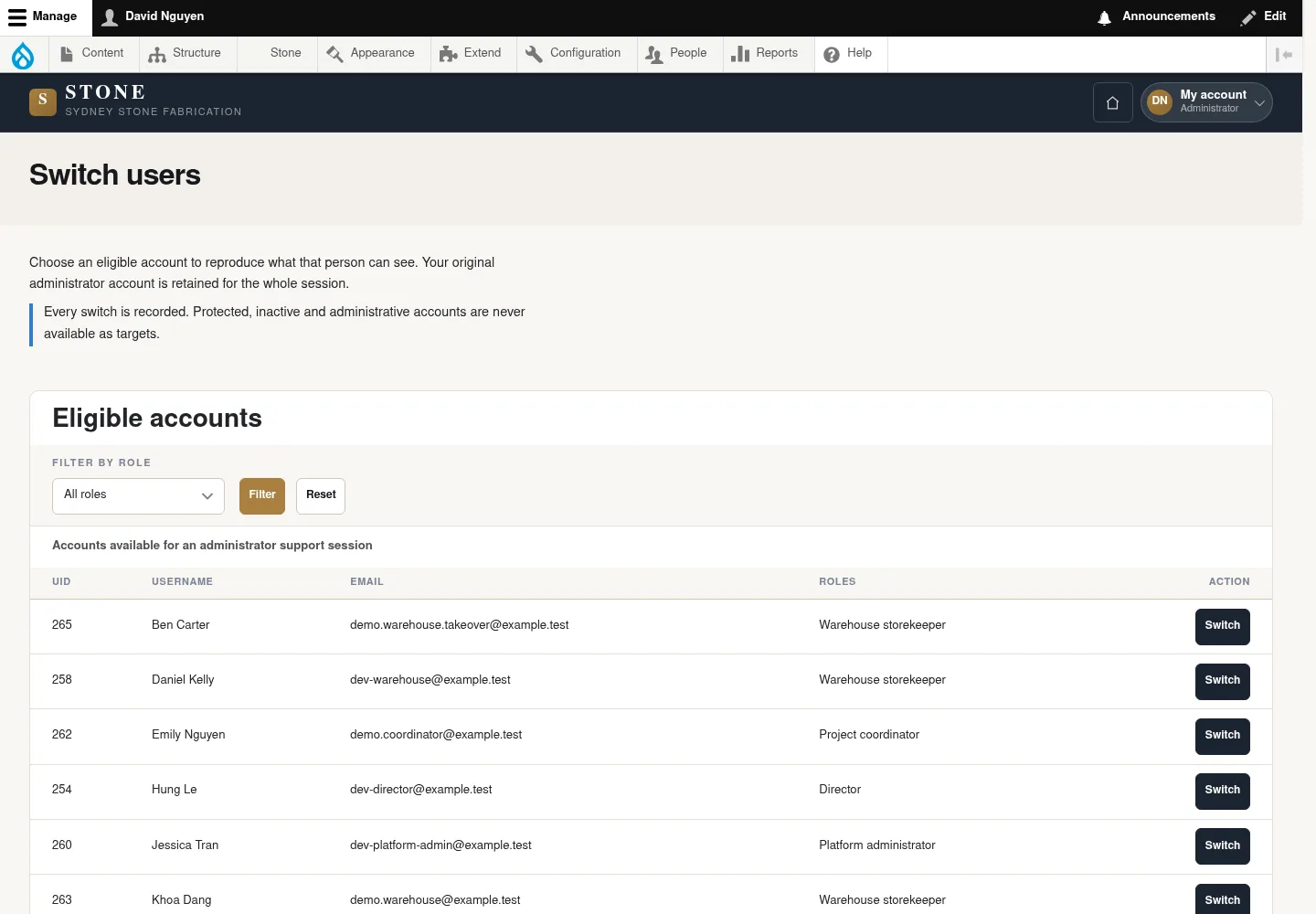
Identify what needs support
Technical support
1Step 1 / 3
Before switching accounts, identify which account, permissions or interface needs inspection.
- Identify the situation involving accounts, access or technical configuration.
- For interface inspection, use an eligible account through Switch users only in approved local/test with the feature enabled.
Support has a specific objective; this is not a daily business role.
Compare with the user's guide
Technical support
2Step 2 / 3
The guide for the account being inspected helps distinguish an action allowed by its permissions from a blocked situation.
- After using Switch, open the guide for that account's role.
- Compare the record code, status and action with the support situation.
The findings depend on the target permissions, rather than technical privileges.
Record the issue details, then return
Technical support
3Step 3 / 3
Specific details help the responsible person reproduce the issue without sharing sign-in information.
- Record the record code, a URL without tokens, the status and the exact message.
- Record the expected action for the responsible person to compare.
- Click Switch back and confirm that you have returned to Administrator.
There is enough information to diagnose the issue, and the inspection session has ended.
Complete the task
Results & checks
- Open the corresponding workflow below for its conditions, owner and each action.
- Each role checks its own account, record and status; hidden money information or Unavailable does not mean zero.
Screenshots illustrate the page layout. Some show earlier controls; follow the current steps and check the result after performing the action.