





Before you start
- The Project must be Approved or In Production.
- Identify the Latest approved measure and the Measure line to be cut.
- Have a hold reason and a future Hold expiry ready. A Cutting order can use only a slab already Reserved for that same Project.
Screenshots show an earlier interface. Some current actions may appear in a different place or be absent from the image.
Currently: There is no Project shortfall record yet. If no slab fits, leave stock unchanged and notify coordination or purchasing directly.
Currently: For a mistaken issue or cancelled job, use Return to store only before every linked work order has started; read the correction workflow for the reason and date rules.
Shared workflows
Find, reserve and issue stone to the factory
Find a slab that fits the approved measure line, reserve it for the correct Project and issue it to the correct work order.
Prepare the records → follow the steps → check the outcome.
Search against the approved measure line
Warehouse
1Step 1 / 7
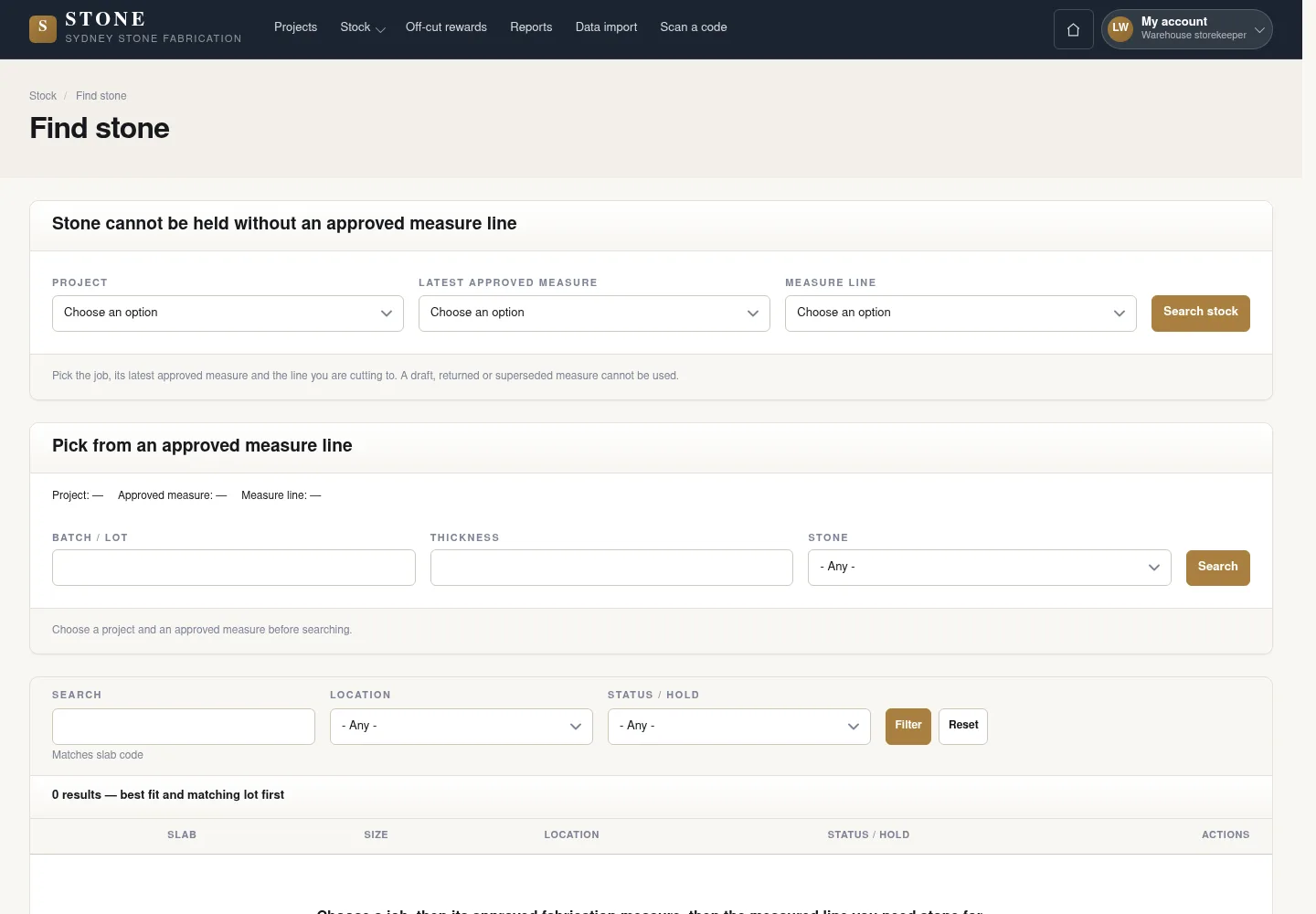
Use the correct project and measure line to find a slab for the approved scope. The search results are where you check the slab and reserve it.
- Go to Stock → Find stone; choose “Project”, “Latest approved measure” and “Measure line”.
- Select “Search stock”; check the dimensions, colour and location of the slabs in the results.
The results list suitable slabs; check their dimensions, colour and location.
Check the slab against the actual stone
Warehouse
2Step 2 / 7
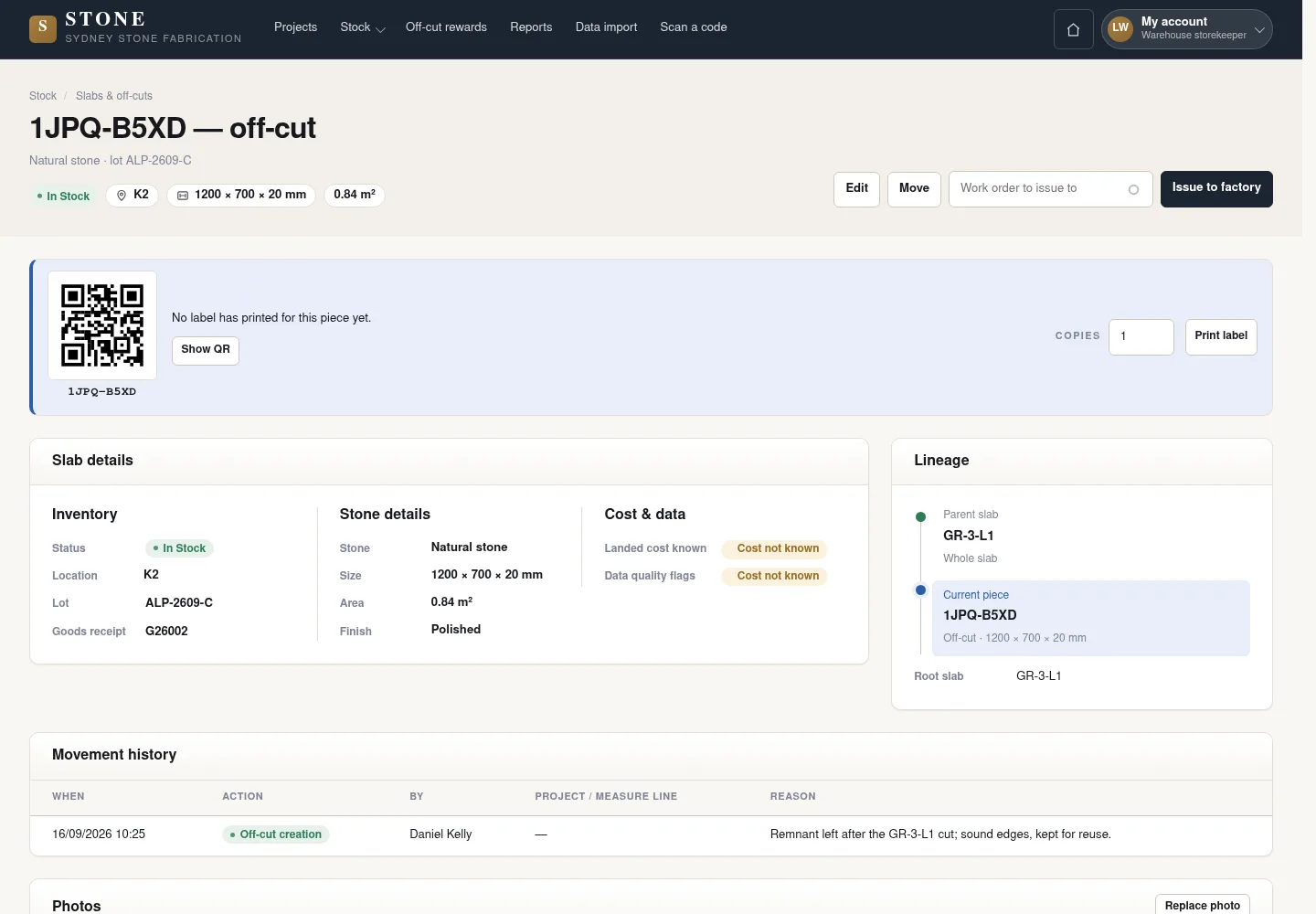
The details page helps you identify the slab by its photograph, dimensions and stock location. Check its current status before deciding to use it.
- Open the slab from the search results; review its photograph, dimensions, location, source and status.
- Compare it with the actual slab, then return to Find stone to reserve it.
You have identified the correct physical slab and its current condition.
Reserve the slab for the job
Warehouse
3Step 3 / 7
Reserving a slab sets it aside for the job for a defined period. Perform this action on the search result row.
- On the suitable slab row, select “Reserve”; enter a future “Hold expiry” and a “Hold reason”.
- Check the Project and expiry, then select “Reserve” to confirm.
The Reserve button is on the Find stone results; it is not on the slab details page.
The slab is Reserved for the correct Project, with only one live hold.
Create a cutting order for the reserved slab
Coordinator
4Step 4 / 7
Handover: Warehouse → Coordinator
The coordinator creates a cutting order against the exact approved measure revision. Its source slab must already be reserved for this job.
- When the Project is Approved, select “New work order”; when In Production, go to Work orders and select “Create queued order”.
- Choose Cutting, the exact approved measure revision and a Reserved Parent slab; check the Project, measure and slab before creating the order.
The Queued order records the correct Project, revision and parent slab.
Assign the work
Supervisor
5Step 5 / 7
Handover: Coordinator → Supervisor
The supervisor chooses the person or crew to carry out the order. The selected person must be active and suitable for the work.
- Open the order in Work orders and select “Allocate”.
- Choose an active Worker or a suitable crew to assign.
The order has an assignee; changing the assignment or returning it to the queue requires a reason.
Issue the slab to the correct order
Warehouse
6Step 6 / 7
Handover: Supervisor → Warehouse
The warehouse hands the reserved slab to the factory before the worker starts. The receiving order must record this same slab and still be queued or assigned.
- Open the slab in stock and select “Issue to factory”.
- Choose the Queued or Assigned order that records this slab; check the order and slab codes before issuing it.
The slab is Issued to the correct order, preserving traceability.
Extend or release a remaining hold
Warehouse
7Step 7 / 7
Update the hold when plans change so stock reflects the current need. To move a slab to another job, release its existing hold and reserve it again.
- To allow more time, select “Extend hold” and enter a new expiry and reason; to change the holder, select “Take over hold”.
- When the slab is no longer needed, select “Release” and enter a reason.
- To use it for another Project, “Release” the old hold, then return to Find stone to “Reserve” it for the new Project.
History retains each change; an unchanged hold is released when it expires.
Complete the task
Results & checks
- In Stock → Reserved → Issued.
- Do not issue an In Stock slab directly to a Cutting order.
Screenshots illustrate the page layout. Some show earlier controls; follow the current steps and check the result after performing the action.