





Before you start
- Check the Won original quotation and every Customer Accepted Variation to establish the contract value.
- Reuse any existing deposit claim. The company deposit percentage defaults to 50; 0 creates no Draft, and no claim blocks project work.
- The customer must have a contact with a valid email and payment terms. Ask a Director to set missing terms before sending.
- Check project retention and the remaining claimable contract value; prepare actual supplier, payment and correction facts.
Screenshots show an earlier interface. Some current actions may appear in a different place or be absent from the image.
Currently: Cancellation of a Sent claim, Refund and Credit receipts, automated chasing and accounting export are not available. Do not edit or delete receipt history.
Currently: Reports can be read on screen; report printing and export are not available.
Shared workflows
Record costs, send claims and reconcile receipts
Trace direct costs, prepare and email payment claims, record money received and check the remaining balances.
Prepare the records → follow the steps → check the outcome.
Read the source of automatic costs
Accountant
1Step 1 / 10
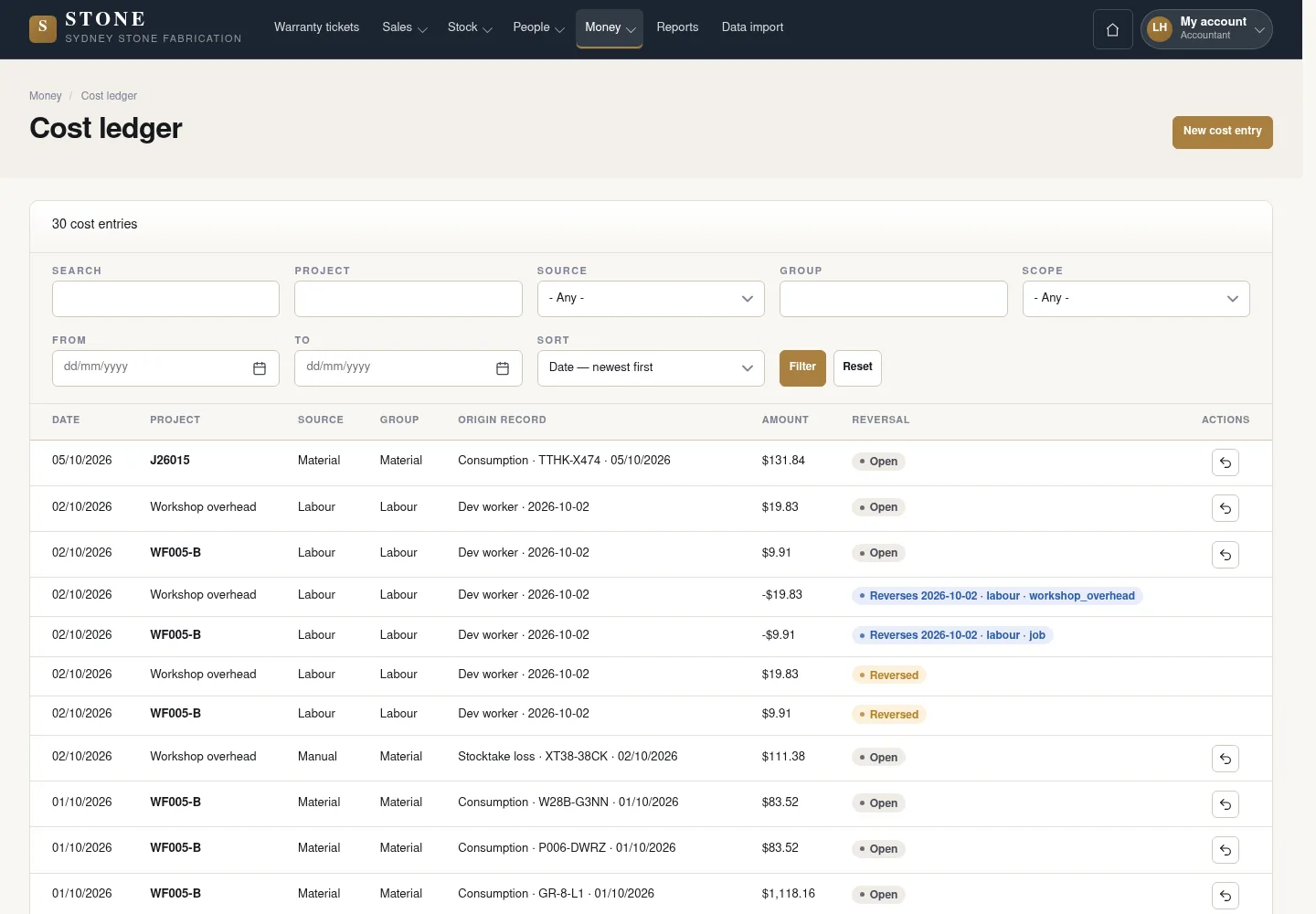
Material costs come from reconciliation; labour costs come from Approved and locked days. Check the source to avoid recording the same cost twice.
- Open Money → Cost ledger.
- Match material cost lines to reconciliation and labour cost lines to approved, locked days.
- Keep unknown information unknown; do not interpret it as zero.
Each line traces to its source; an unknown amount is not treated as zero.
Append a manual cost
Accountant
2Step 2 / 10
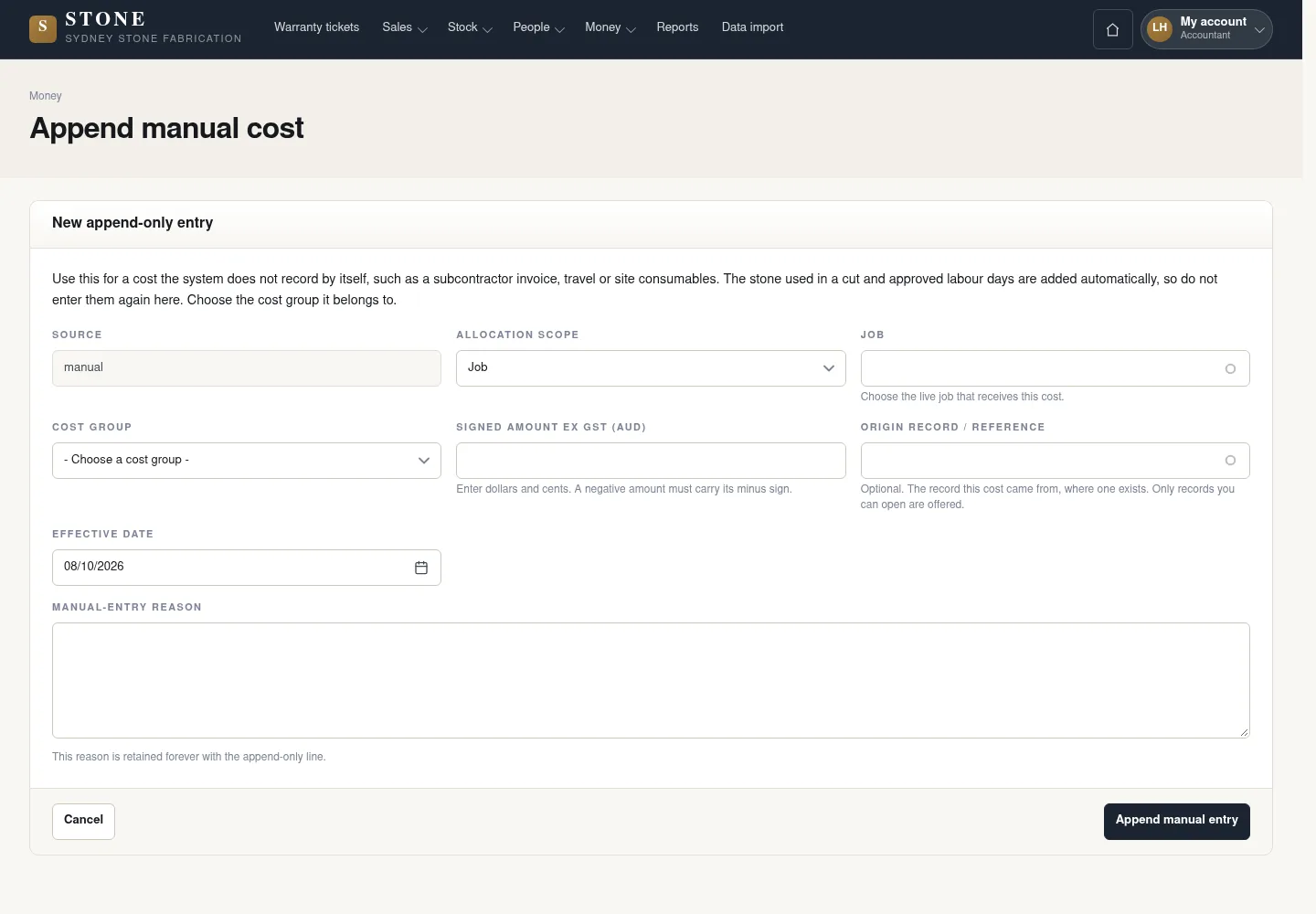
A manual cost is appended as a new line with its source and reason. The form currently has no field for attaching documents.
- Select New cost entry and enter Job, Cost group, Signed amount ex GST (AUD) and Effective date.
- Record supplier/invoice details in Manual-entry reason.
- Review the details, then select Append manual entry.
The form has no attachment field.
A new cost line is appended without editing the original line.
Review the existing Draft deposit claim
Accountant
3Step 3 / 10
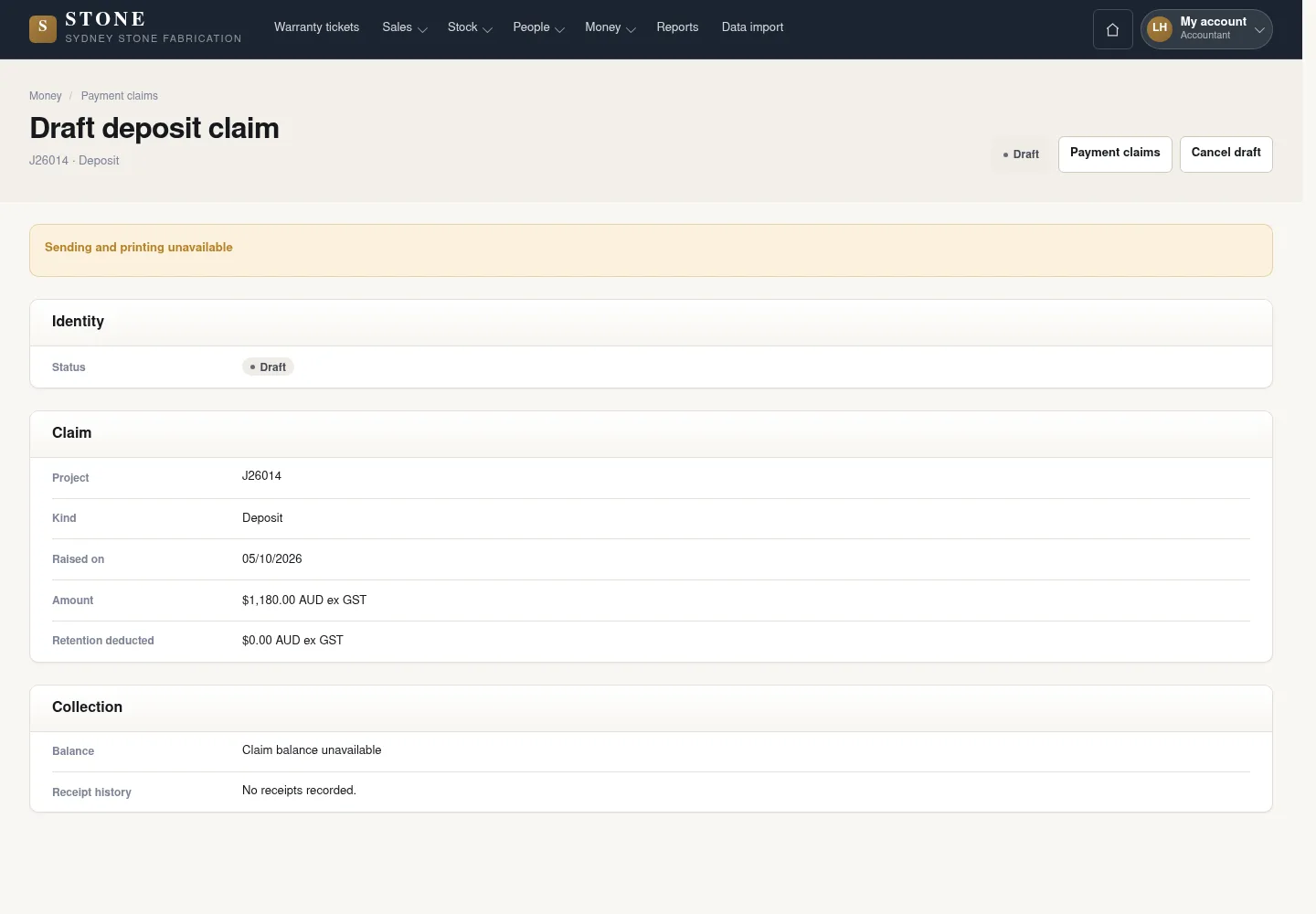
Won may create the company’s configured deposit share as a Draft. Reuse that claim and check the contract balance; 0 means no automatic Draft.
- From My account or Notifications, open Deposit claim waiting → Review deposit claim.
- Check the remaining contract value and Draft details before editing.
- Use the existing claim; do not create a duplicate deposit.
The earlier screenshot shows the record layout; the current action controls described here may not appear in the image.
The existing Draft claim is reused, avoiding a duplicate deposit.
Cancel an eligible Draft claim
Accountant
4Step 4 / 10
A Draft without a receipt may be cancelled through the provided form. The cancelled record keeps its history.
- Open a Draft with no receipt, choose Cancel draft and enter the reason.
- Confirm in the form and check the retained cancellation history.
The Cancelled claim retains its history; the record is not deleted.
Reverse an incorrect cost line
Accountant
5Step 5 / 10
A reversal retains the original cost line and links the adjustment so the total can be explained later.
- Select a cost line that has not already been reversed.
- Use Reverse and enter a specific reason.
- Check the details and confirm in the form.
The original line remains; the linked reversal makes the total traceable.
Prepare a progress or retention release claim
Accountant
6Step 6 / 10
Claim values remain within the contract and unreleased retention. A progress claim deducts the retention percentage declared on this project.
- Open Payment claims → New draft claim, choose the Project and the appropriate claim kind.
- Enter the Claim value before retention; check Retention deducted and Amount claimed.
- Save the Draft and review the remaining contract value. For retention release, claim no more than the retention still unreleased.
The earlier screenshot shows the record layout; the current action controls described here may not appear in the image.
The Draft identifies what is claimed and what is held back without duplicating the deposit.
Email the claim and open its document
Accountant
7Step 7 / 10
Sending assigns the claim number, Sent date and due date and emails the PDF to the selected customer contact.
- Open the Draft, select Send claim and choose Recipient with a valid email.
- Check the amount and customer payment terms, then confirm Send payment claim.
- Read the resulting state and warning; on a Sent, Part Paid or Paid claim, select View claim document.
The earlier screenshot shows the record layout; the current action controls described here may not appear in the image.
A successful send becomes Sent. A refused email leaves Draft; a lost mail response can leave Sent with a warning, so check the record before retrying.
Record each amount received
Accountant
8Step 8 / 10
Each payment is a new receipt row. The claim state follows its net balance.
- On a Sent or Part Paid claim, select Record receipt.
- Enter Received on, Amount (AUD ex GST) and Method; add any reconciliation note or accounting reference, then confirm Record receipt.
- Use an actual date on or after Sent and no later than today, and a positive amount no greater than the balance; check receipt history and the remaining amount.
The earlier screenshot shows the record layout; the current action controls described here may not appear in the image.
A partial receipt makes the claim Part Paid; the full net amount makes it Paid.
Reverse a wrong receipt
Accountant
9Step 9 / 10
Correct a receipt with a linked reversal; never overwrite or delete the original.
- Select Reverse on the same claim’s receipt that has not already been corrected.
- Enter the reversal date, amount up to the original receipt, Reason for the reversal and Method; confirm Record reversal.
- Read the linked reversal, adjusted balance and claim status.
The earlier screenshot shows the record layout; the current action controls described here may not appear in the image.
The original and reversal remain visible; a Paid claim may return to Part Paid or Sent.
Read customer balances and project margin
Accountant
10Step 10 / 10
Debtors groups outstanding Sent and Part Paid claims by customer. Project margin is the contract value less direct costs, including completed subcontract packages once.
- Open Money → Debtors to compare not yet due, 1–30, 31–60, 61–90 and over 90 working-day buckets.
- Check retention and the customer total before follow-up.
- On the Project overview, open Contribution margin; the Director reads by role, while Accountant and Coordinator accounts also need money visibility. Use the permitted contribution-margin report for multiple projects.
The earlier screenshot shows the record layout; the current action controls described here may not appear in the image. Due dates use Monday–Friday; there is no configured public-holiday calendar.
Outstanding balances use working-day ageing. The Director reads margin by role; permitted Accountant and Coordinator readers need money visibility.
Complete the task
Results & checks
- Claims progress from Draft to Sent, Part Paid and Paid according to the net receipts; reversals can restore an earlier balance.
- The claim PDF and email state that amounts exclude GST and that the payment claim is not a tax invoice.
- Costs and receipts retain the original entries and linked reversals; balances, retention, ageing and margin remain traceable.
Screenshots illustrate the page layout. Some show earlier controls; follow the current steps and check the result after performing the action.