





Before you start
- Worker-only account: Scan → My work on a phone, My account on a computer; accounts with multiple business roles enter My account.
- Cannot allocate work, approve measurements, record QC decisions or view money.
Screenshots show an earlier interface. Some current actions may appear in a different place or be absent from the image.
Worker
Carry out assigned work and record on-site facts
Find assigned tasks, record working time, retain off-cuts and add evidence in the workshop or on site.
Prepare the records → follow the steps → check the outcome.
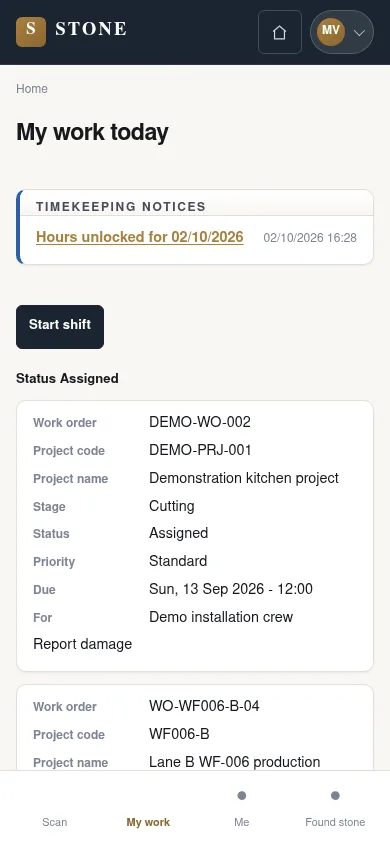

Choose a task in My work
Worker
1Step 1 / 6
My work is the entry point for tasks you are allowed to see. Select the correct task or install visit before starting.
- Open My work on a phone.
- Select the assigned work order or install visit; in the shared queue, choose a Queued task your account is allowed to take.
You see only your own work, assigned work or shared-queue work allowed by your permissions.
Start and finish your task
Worker
2Step 2 / 6
Start and Finish record the time you spend on a stage. The work must follow the approved fabrication measurement revision.
- Open Stage for your assigned task and check the work order and approved measurement revision.
- Click Start when you begin work.
- Click Finish when you finish your part of the work.
The work session records who actually did the work; it does not approve the work or record QC.
Record the start and end of your shift
Worker
3Step 3 / 6
Shift times are facts for the working day; the Supervisor then confirms them and the Accountant approves them through the workflow.
- In My work, click Start shift when your shift begins.
- Click Finish shift when your shift ends.
Attendance contains the actual facts; the Supervisor confirms them and the Accountant approves them.
Retain an off-cut or record unlabelled stone
Worker
4Step 4 / 6
Retaining an off-cut from a coded slab and registering found stone without a label are separate situations.
- For an off-cut, scan the parent slab, then open Retain off-cut.
- For a slab without a record, check that it has no label, then use Found stone.
- Record the correct code, photo and location using the form; do not reopen a slab recorded as Missing.
The child/found record has a code, photo and location; do not reopen a Missing slab.
Record installation or damage evidence
Worker
5Step 5 / 6
Record facts from the work you personally carried out. Visit status changes and rework decisions belong to authorised people.
- In Install visit, record the fields, outstanding punch items and actual signatures permitted by your role.
- If there is damage during a stage, use Report damage and record the facts.
- Leave rework decisions to the Supervisor; a Worker cannot move a visit to Delivered or Installed.
The evidence has an owner; a Worker cannot move a visit to Delivered/Installed.
Read your health file and certificate reminders
Worker
This function was added after the captured interface. Follow the current steps with the specified account; a matching screenshot has not yet been added.
6Step 6 / 6
My health file requires exactly one Employee record linked to your account. Its documents and reminders remain personal.
- Open My health file and review your permitted documents.
- Check Certificate reminders on My account or My health file.
- Arrange the relevant renewal with the responsible person; use the company’s current reminder lead time.
The earlier screenshot shows the record layout; the current action controls described here may not appear in the image. The opening 30-day reminder lead time is a configurable implementation default awaiting the business owner’s confirmation; follow the company’s current setting.
You can read your own permitted documents and in-application reminders; no reminder email is sent.
Complete the task
Results & checks
- Open the related workflow below for its full conditions, responsible people and steps.
- Check your account, record code and status before taking action. Hidden money information or Unavailable does not mean the amount is 0.
Screenshots illustrate the page layout. Some show earlier controls; follow the current steps and check the result after performing the action.