





Before you start
- My account → Stock
- Cannot lock landed cost; a slab cannot have two active reservations at the same time.
Screenshots show an earlier interface. Some current actions may appear in a different place or be absent from the image.
Warehouse
Receive, label, reserve and issue stone to the factory
Follow slabs from receipt through project reservation and factory issue, with a history of stock adjustments.
Prepare the records → follow the steps → check the outcome.
Receive each slab and print its label
Warehouse
1Step 1 / 7
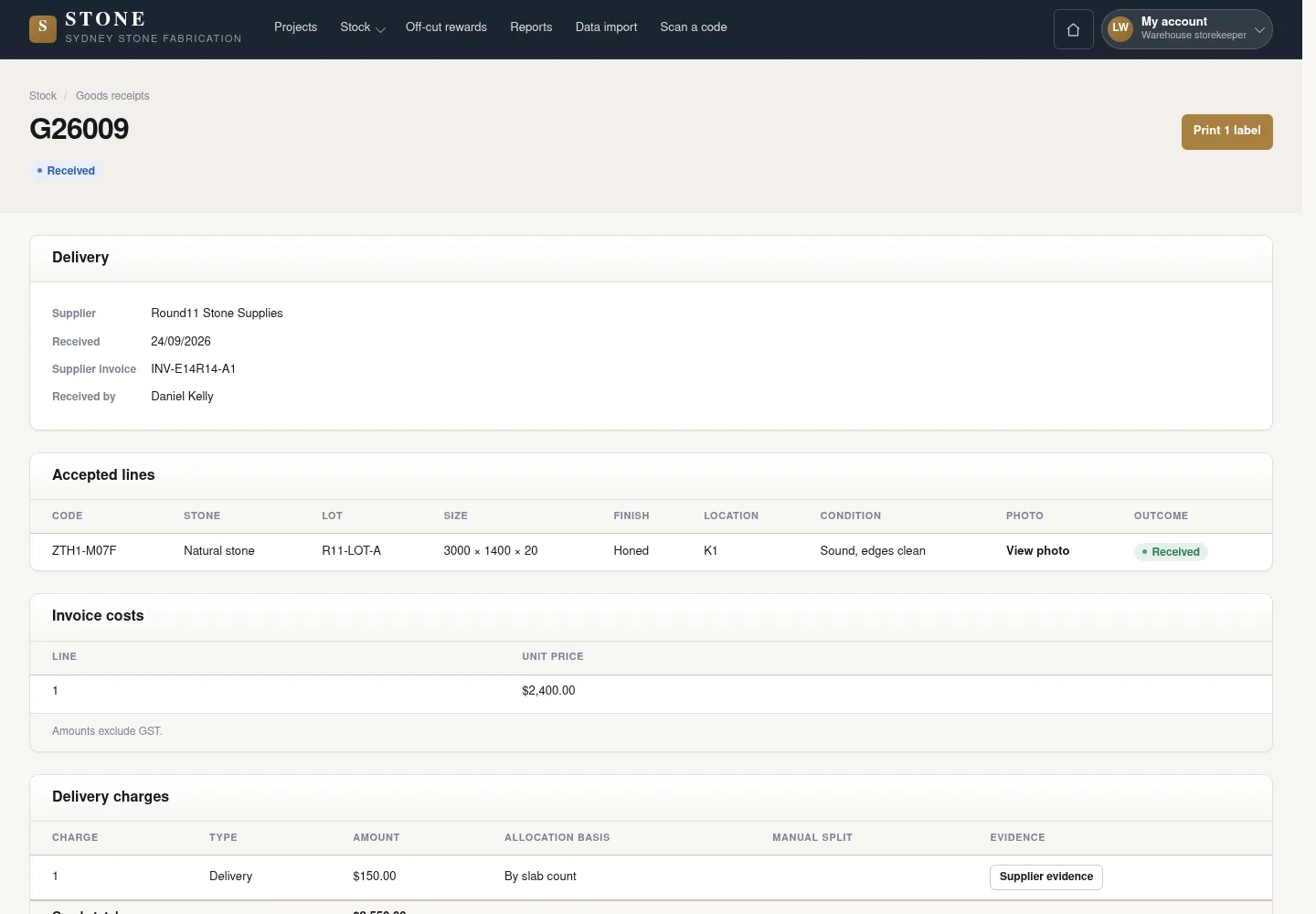
Each slab delivered to the warehouse needs a clear receipt outcome so that it is recorded correctly in stock.
- Open Goods receipts and select an outcome for each delivery line.
- For a Received slab, add a photo and its physical location, then use Mark received.
- Print labels and attach the correct code to each slab.
Physical stock matches its codes and locations.
Find and reserve stone for a project
Warehouse
2Step 2 / 7
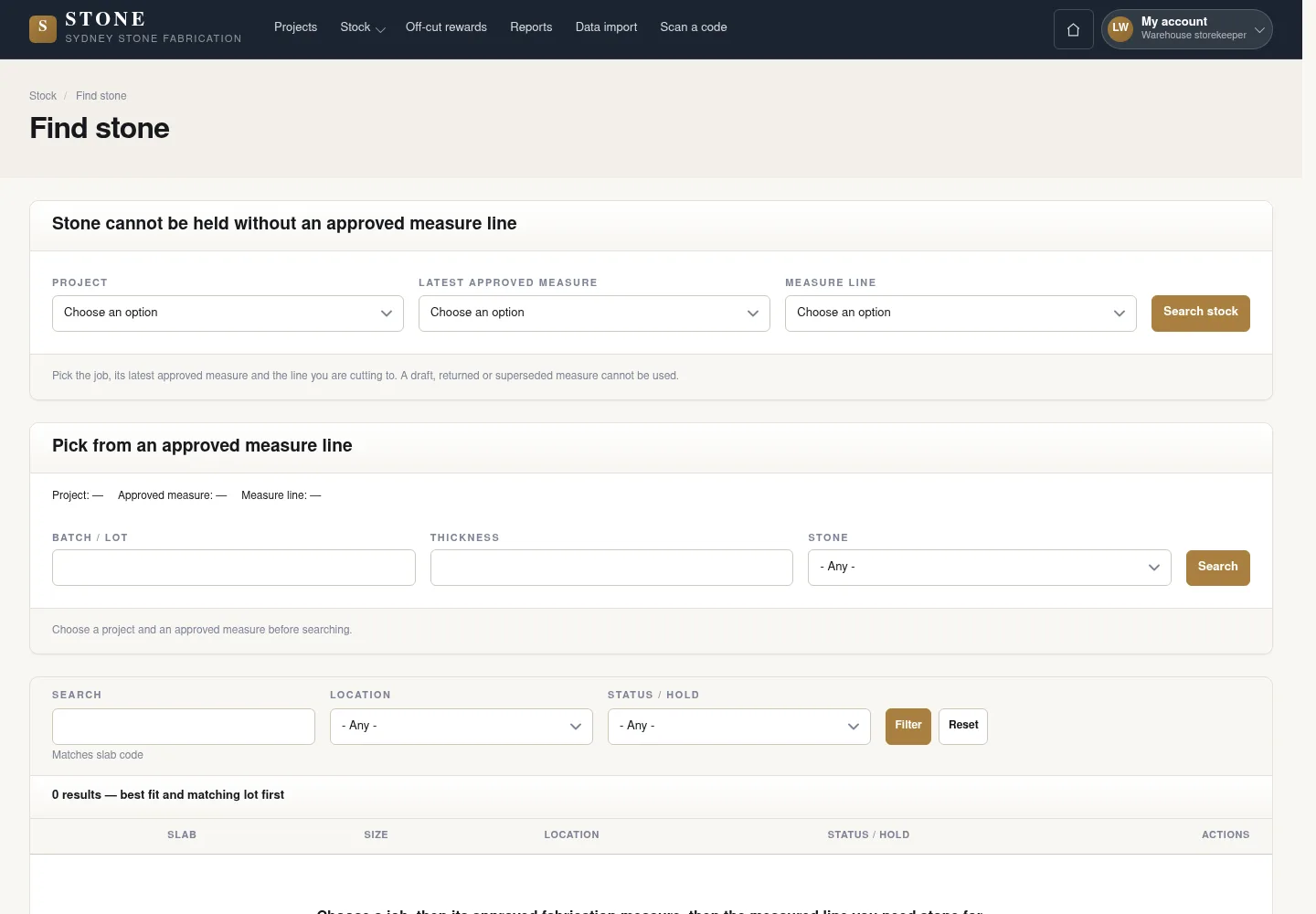
Find stone searches against a line in the approved measurement, helping you reserve the right slab for the right project.
- Open Find stone and choose Project, the approved measurement and the line that needs stone.
- Click Search stock and compare the slabs returned.
- Click Reserve on the row for the suitable slab.
A slab has one hold for one Project.
Issue stone before work starts
Warehouse
3Step 3 / 7
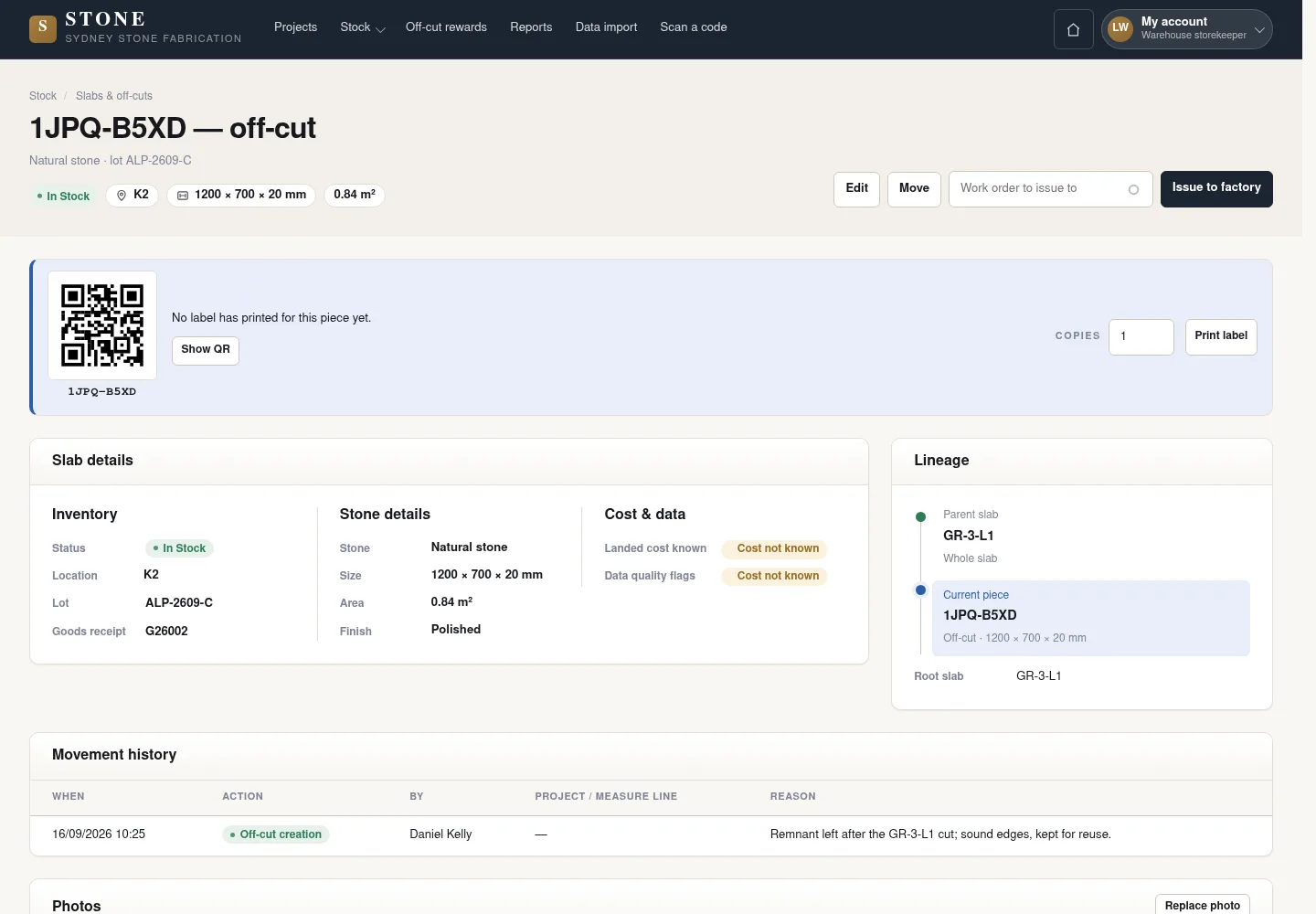
The parent slab must be issued to the work order before the Worker uses Start. Only Queued or Assigned work qualifies for this step.
- Open the record for the slab recorded as the parent on the work order.
- Check that the work order is Queued or Assigned.
- Choose Issue to factory for the correct order.
The Issued slab is linked to the correct order.
Adjust stock or register found stone
Warehouse
4Step 4 / 7
Location changes, missing stock and breakage must be recorded as adjustments with a history. Unlabelled stone is registered as a separate record.
- On the slab record, open Move to use Report missing, Report broken or the appropriate root move.
- Use Stock adjustments to read the adjustment history.
- For unlabelled stone, choose Register found stock and follow the form.
Changes have a clear reason, history and code.
Find an off-cut on a phone
Warehouse
This function was added after the captured interface. Follow the current steps with the specified account; a matching screenshot has not yet been added.
5Step 5 / 7
Find off-cut works without choosing a Project and does not create a reservation.
- Open the Find off-cut tab on your phone.
- Enter length, width and stone to search free and reserved pieces.
- Open piece to check its details. To reserve it, open Find stone, choose the approved Project, measurement sheet and line, then use Reserve on its result row.
The earlier screenshot shows the record layout; the current action controls described here may not appear in the image.
The search identifies possible pieces without reserving stock.
Return an eligible issued slab
Warehouse
6Step 6 / 7
Use a return for a mistaken issue or cancelled job only before production has begun.
- Open the Issued slab → Move → Return to store.
- Check every order naming the slab is Queued or Assigned; enter a reason and a valid date/time with no job.
- Post adjustment and inspect the slab movement history.
The earlier screenshot shows the record layout; the current action controls described here may not appear in the image.
The slab becomes In stock and can be held for another job; a started order refuses the return.
Read the reports for your work
Warehouse
7Step 7 / 7
Read stock, off-cut availability and reuse totals; reward amounts stay hidden.
- Open Reports from the available menu.
- Choose a report your role may read and check its filters, period and source records.
- Read the on-screen results; report printing and export are unavailable.
The earlier screenshot may omit the current controls or show earlier availability messages.
The report reflects permitted source records without creating a personal score or replacing the underlying history.
Complete the task
Results & checks
- Open the related workflow below for its full conditions, responsible people and steps.
- Check your account, record code and status before taking action. Hidden money information or Unavailable does not mean the amount is 0.
Screenshots illustrate the page layout. Some show earlier controls; follow the current steps and check the result after performing the action.