





Before you start
- My account → People / Money
- Use your own staff account; sign in with Username/email and Password. There is currently no second-code step.
Screenshots show an earlier interface. Some current actions may appear in a different place or be absent from the image.
Accountant
Your account and ledgers to reconcile
Check your Accountant account, find the right finance list and read a cost entry's source before processing it.
Prepare the records → follow the steps → check the outcome.
Check the account you are using
Accountant
1Step 1 / 5
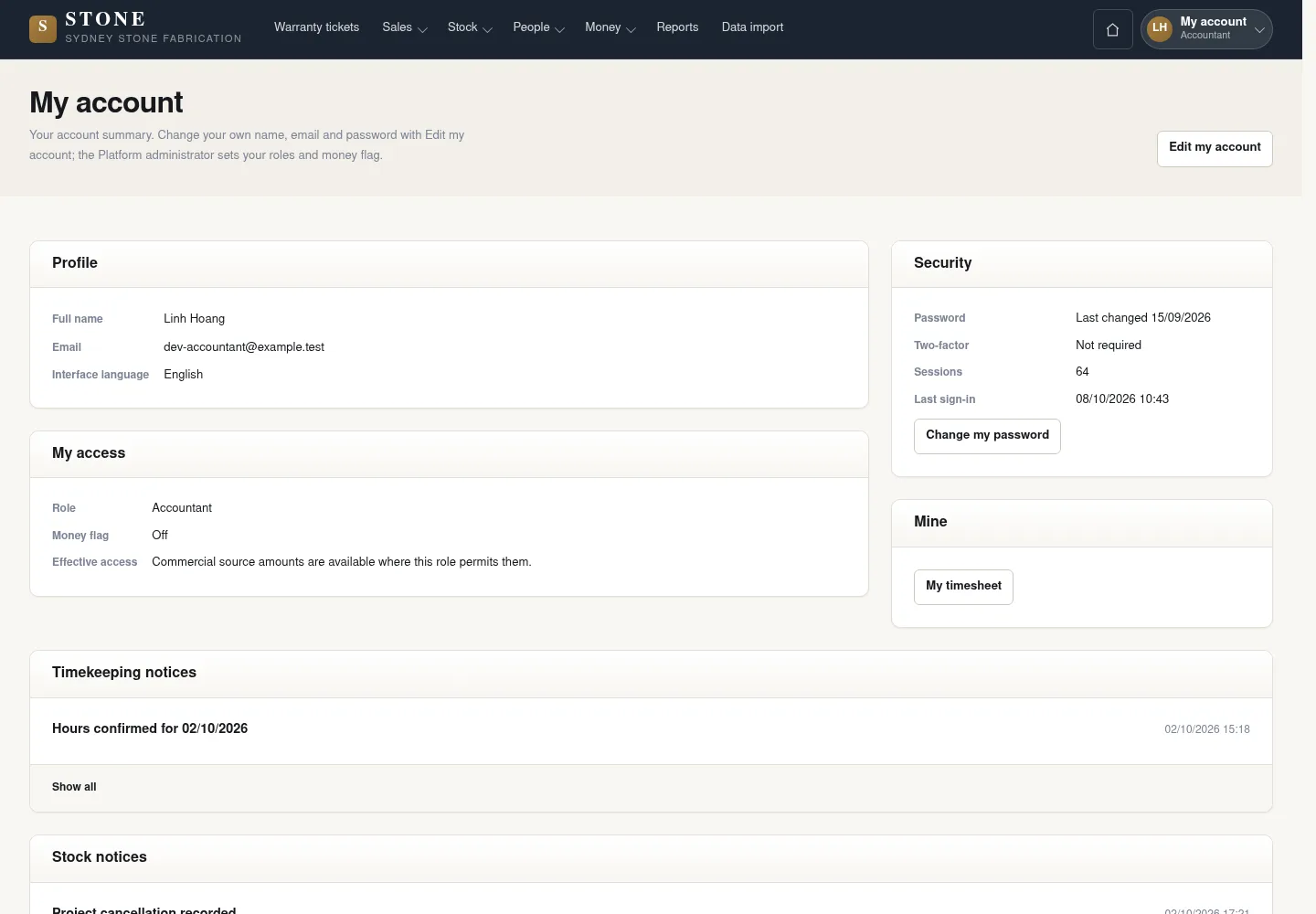
My account shows which account you are signed in to and which roles you have been given. A person can hold several business roles.
- Open My account and check the user name.
- Read the displayed roles and permissions; check that they match your responsibilities before starting work.
You know which account you are using and where to start work.
Find the right route to your work
Accountant
2Step 2 / 5
The menu displays only the sections your account can access. On a narrow screen, open Menu to see these options.
- Open the main menu; on a narrow screen, click Menu.
- Choose Money or Timesheets for the task you need to do.
- On desktop, use Website if you need to return to the public site.
The menu shows only pages that your account is allowed to open.
Check a cost entry and its source
Accountant
3Step 3 / 5
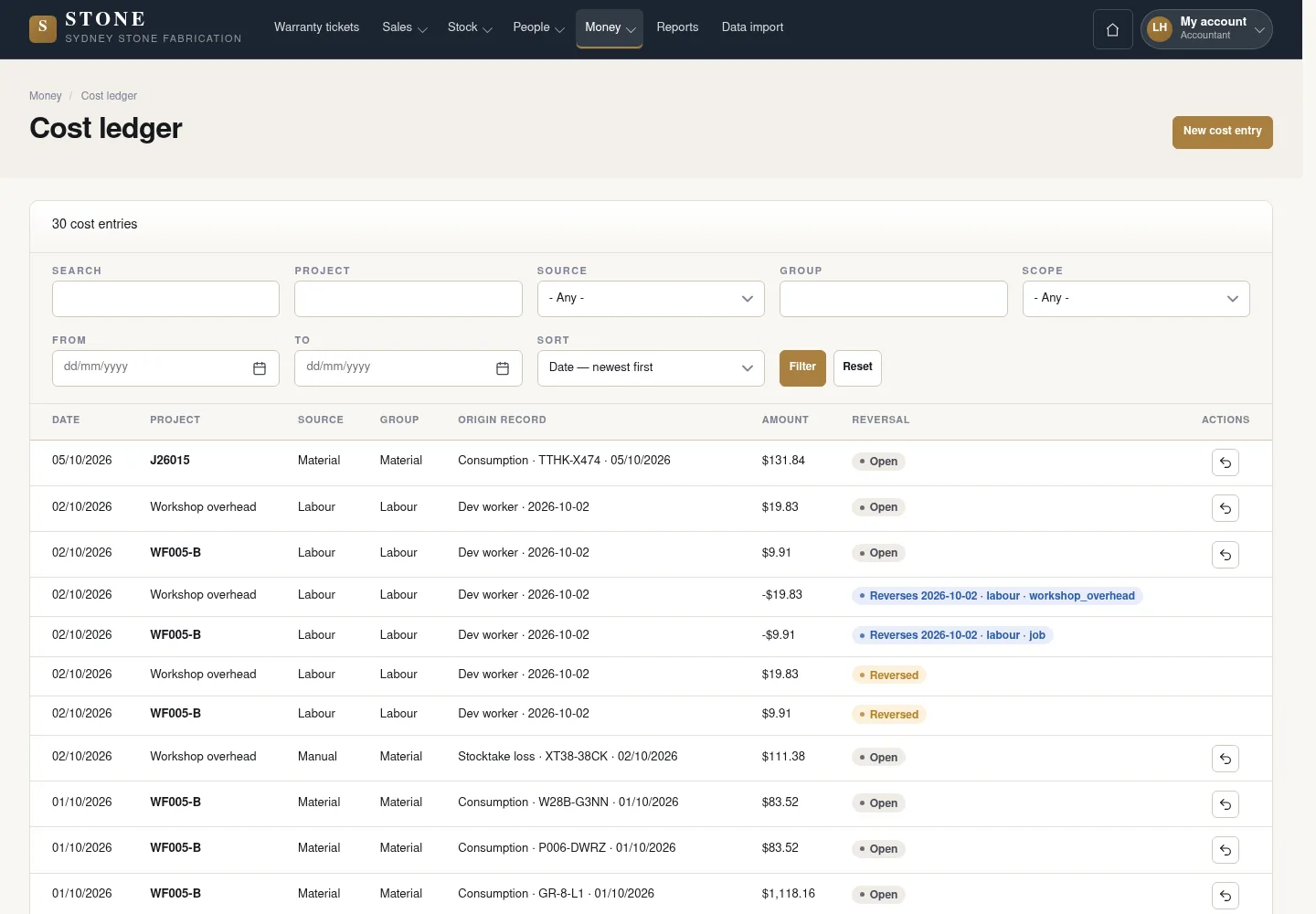
Cost ledger records cost entries and their linked sources. Checking the source helps avoid duplicate entries or changing the wrong locked entry.
- Open Money → Cost ledger.
- Select the entry to reconcile; check its project, amount and linked source record.
- Read its status and messages before adding a cost or using a reversal.
You reconcile the correct cost entry with its project and source record.
Update your details or password
Accountant
4Step 4 / 5
You can update your own account. Roles and permission to view money are managed separately by an authorised person.
- In My account, choose Edit my account or Change my password.
- When changing your email or password, enter Current password; for a password change, enter and confirm the new password.
- Check your entries, then click Save.
Your own details are updated; roles and the money flag are managed by an authorised person.
Sign out when you finish
Accountant
5Step 5 / 5
End your session when you finish, especially on a shared device in the warehouse or workshop.
- Open the My account menu.
- Choose Sign out to end your signed-in session.
The session ends; next time, sign in with your own account.
Complete the task
Results & checks
- Being able to view a record does not give you permission to change or approve it.
- If you see Access denied, read the message and use Back to My account; if your session is missing, use Log in. Do not borrow another person's account or guess a URL.
Screenshots illustrate the page layout. Some show earlier controls; follow the current steps and check the result after performing the action.