





Before you start
- Have the customer, contact, site and job requirements ready.
- Each measure line needs a Scope key to identify the work; refer to pricing in Sales → Price library.
- If assigning a Worker to capture measurements on a phone, save Measured on first. Capture assignee shows only eligible people in the crew on the selected date.
Screenshots show an earlier interface. Some current actions may appear in a different place or be absent from the image.
Shared workflows
From a customer enquiry to an agreed quotation
Create a job from the customer’s enquiry, finalise its quoting measure and record the customer’s decision under the same Project code.
Prepare the records → follow the steps → check the outcome.
Check the customer and contact
Coordinator
1Step 1 / 8
Start with the correct customer record to avoid mixing up the job, quotation or recipient. Open an existing record or create one when needed.
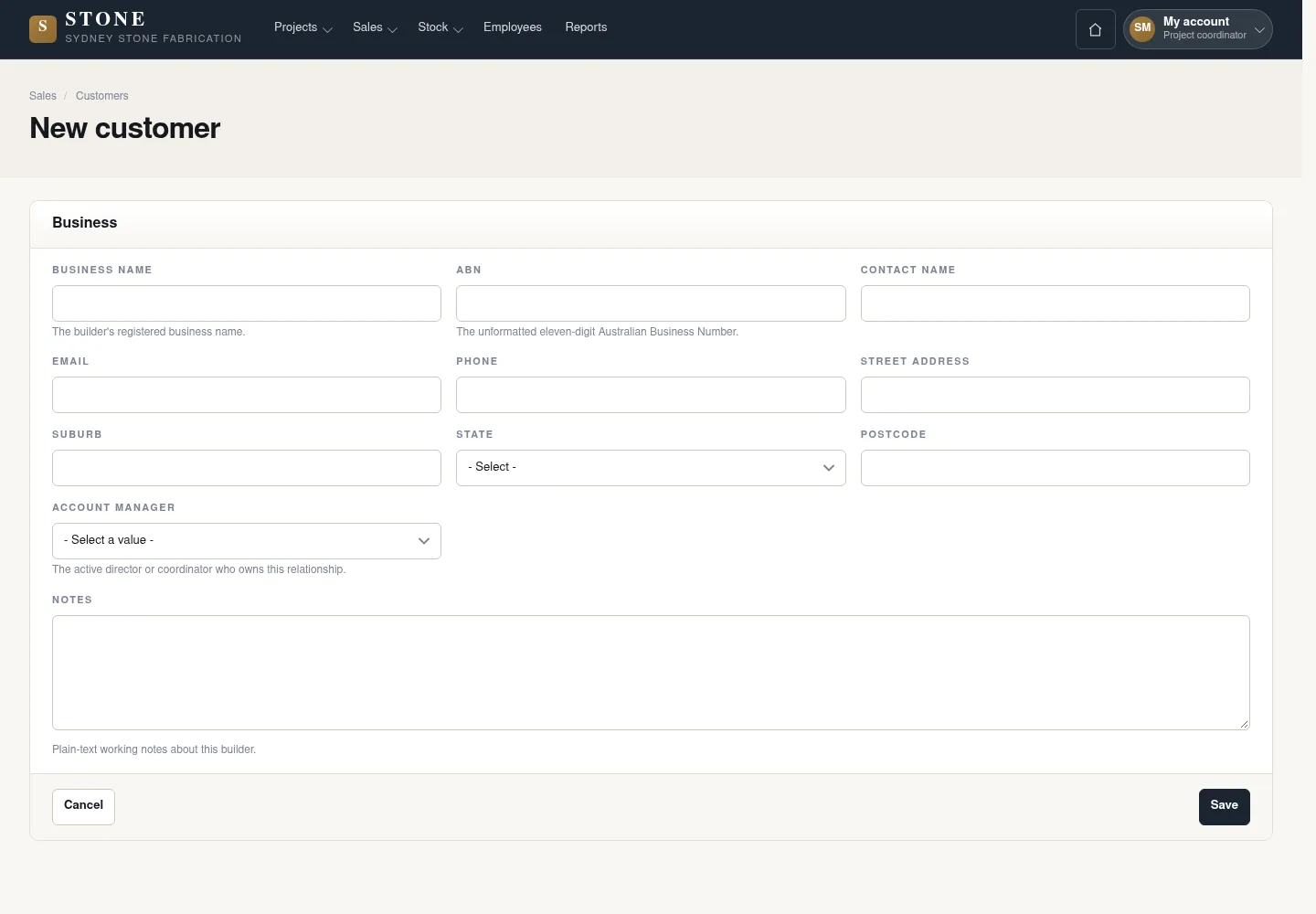
- Go to Sales → Customers; open an existing customer or select “New customer”.
- For a new customer, enter “Business name”, “ABN”, “Business address” and “Account manager”, then select “Save”.
- Select “Add contact” to add the appropriate contact for the job.
The customer and contact match the job.
Create the job record
Coordinator
2Step 2 / 8
The job record follows the work from the initial enquiry through later steps. Keep the same code as you continue with measurements and the quotation.
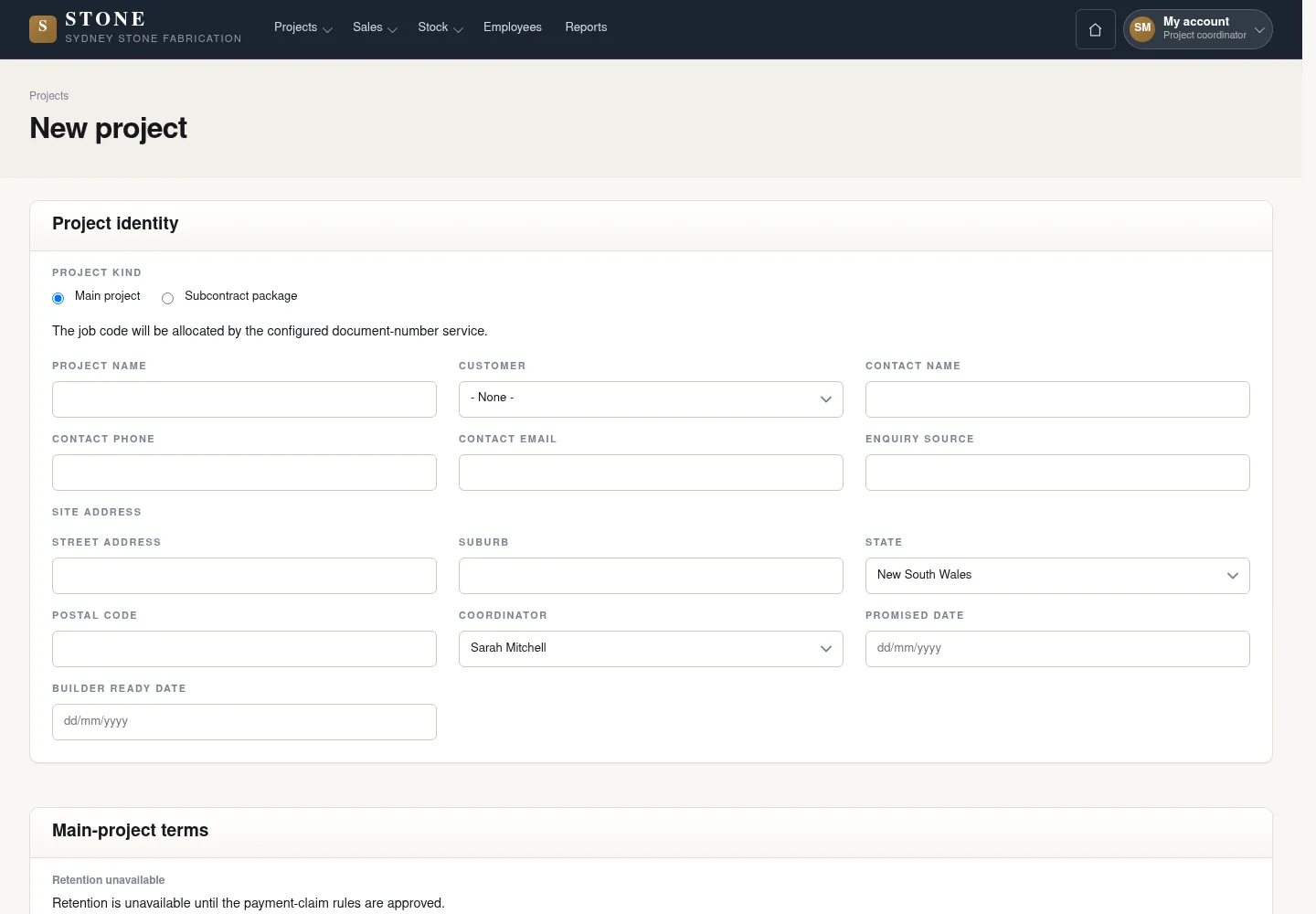
- On the customer record, select “New project”.
- Enter “Project name”, choose “Coordinator”, then select “Create main project”.
The Project opens in Enquiry; retain the same code throughout the job.
Prepare the quoting measure
Coordinator
3Step 3 / 8
The quoting measure records the source, measurer and each item of work to be priced. If assigning phone capture, save the measure date before selecting the person to capture it.
- On the Project, select “New quoting measure”; choose “Measure source”, then select “Save draft”.
- Enter “Measured on” and “Measurer”, then save; if assigning measurement capture, choose “Capture assignee” and save.
- Enter each measure line and its Scope key to identify the corresponding work.
- Take or upload site photographs for the sheet and the measured lines using the editor or assigned phone form.
The Draft records the measure source, date, measurer and a clear scope.
Finalise the quoting measure
Coordinator
4Step 4 / 8
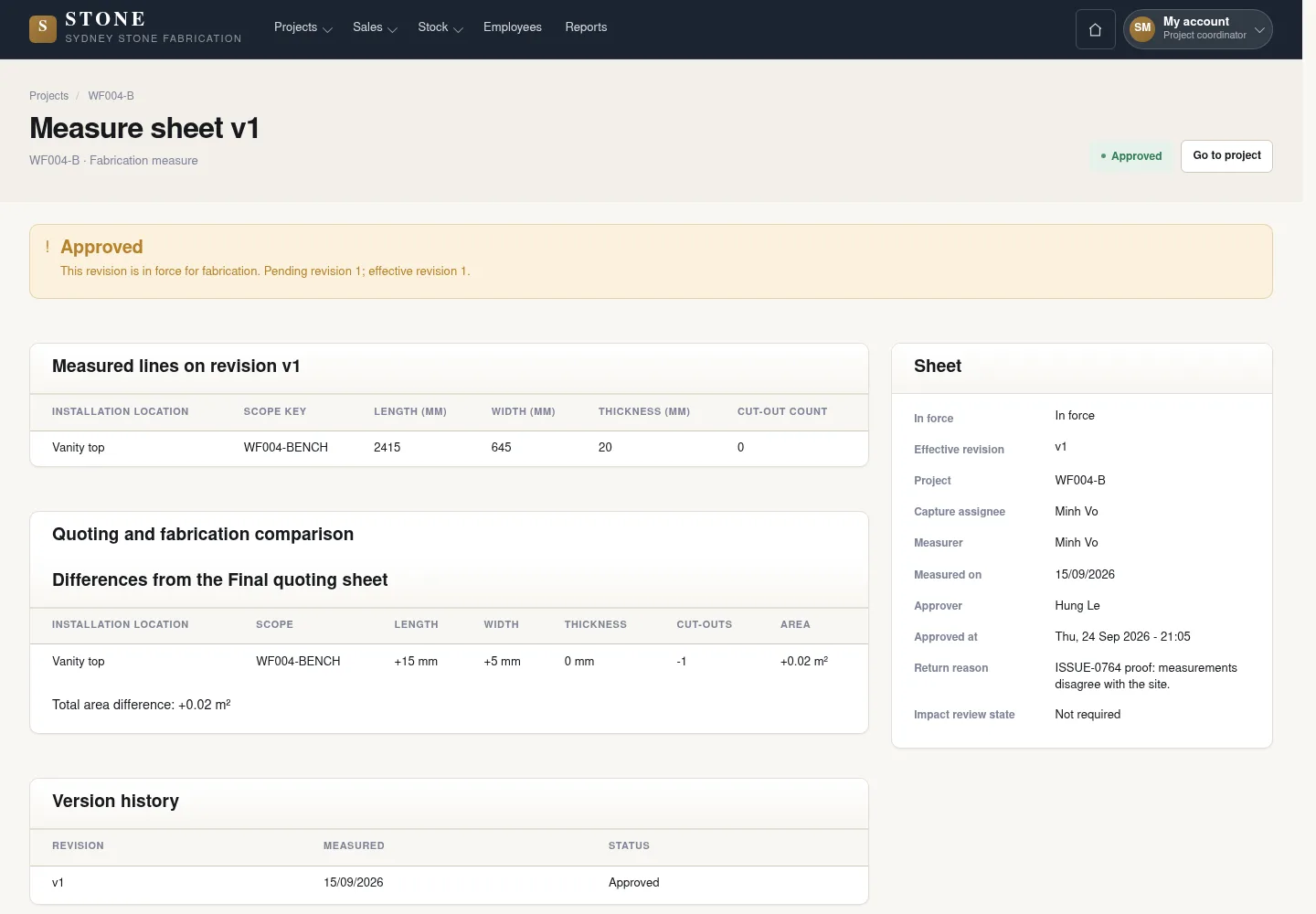
Review every line before finalising the measure. The finalised revision remains fixed as the basis for preparing the quotation.
- Check the measure lines and Scope keys on the sheet you have open.
- Select “Finalise quoting sheet”, then “Finalise”.
The Final revision is locked as the basis for the quotation.
Create the original quotation
Coordinator
5Step 5 / 8
The original quotation uses measured items or clearly identified new scope. Choose one of these two sources for each line to avoid duplicating the scope.
- On the Project, select “New original quote”; enter “Scope summary” and “Valid until”, then select “Create quote”.
- Select “Add line”; use Measured item or New scope for that line, not both, then select “Done”.
- Complete the lines, then select “Save quote”.
The Draft quotation maps to the correct scope.
Send the quotation
Coordinator
6Step 6 / 8
Check the recipient before sending the quotation you have open. After a successful send, the quotation remains fixed.
- On the quotation, select “Send quotation” and choose “Recipient”.
- Check the recipient, then select “Send quotation” to send it.
The image illustrates drafting; the original quotation outcome screen is not yet included in the screenshots. This image does not illustrate sending.
After a successful send, the quotation becomes Sent and cannot be edited directly.
Record the customer’s decision
Coordinator
7Step 7 / 8
Use the actual outcome and suitable evidence to close the sent quotation. The options have different evidence and reason requirements; expiry becomes available only from the validity date.
- On the Sent quotation, choose “Record Won”, “Record Lost”, “Record Expired” or “Record Cancelled” to match the actual outcome.
- Won requires Evidence; Lost or Cancelled require Evidence and Reason; Expired requires Reason, with optional Evidence.
- Complete the required fields, then select “Record outcome”.
Won requires evidence; Lost/Cancelled require evidence and a reason. Expired requires a reason, has optional evidence and becomes available only from Valid until. The image illustrates drafting; the original quotation outcome screen is not yet included in the screenshots. The company deposit percentage defaults to 50 and may be set from 0 to 100. No project step depends on a payment claim, including when Draft creation fails.
Won moves the Project to Measuring. The configured deposit share may create or reuse one Draft claim; a zero share creates none. A Lost, Expired or Cancelled original moves the Project to Lost.
Choose how to quote again
Coordinator
8Step 8 / 8
The next step depends on status: revise a sent quotation, or quote again on a new job after an unsuccessful or expired original. After the customer accepts the original quotation, scope changes must use a variation quotation.
- If the quotation is still Sent and needs a change, select “Create revision”, then “Save new Draft revision”.
- If the original is Lost or Expired and needs a new quote, select “Quote again on a new job”, then “Open the new job”.
- Check the copied measure and Draft quotation on the new job before sending.
The image illustrates drafting; the original quotation outcome screen is not yet included in the screenshots. This image does not illustrate Create revision or Quote again on a new job.
The old Sent quotation is retained. Quoting again after Lost/Expired creates a new Project for the same customer/site; after Won, use Variation only.
Complete the task
Results & checks
- Draft → Sent → Won / Lost / Expired / Cancelled.
- Won locks the price; it does not yet authorise cutting.
- A Director can perform the permitted customer/Project/quotation tasks, but cannot create, edit or finalise a measure.
- The configurable deposit Draft is a finance follow-up; it never blocks measuring, production, installation, handover or closing the job.
Screenshots illustrate the page layout. Some show earlier controls; follow the current steps and check the result after performing the action.