





Before you start
- Have the exact production measure revision in Approved or Approved with exception; its scope belongs to a Won quotation or a Customer Accepted Variation.
- A Cutting order needs a Parent slab already Reserved for the Project. The slab’s landed cost must be locked before posting cut reconciliation.
- The assignee must be an active Worker or crew on the work date. The QC checker must not have taken part in that work.
Screenshots show an earlier interface. Some current actions may appear in a different place or be absent from the image.
Shared workflows
Produce, check quality and carry out rework
Carry out approved scope, record production data and have an independent person check quality before delivery.
Prepare the records → follow the steps → check the outcome.
Choose and reserve the source slab
Warehouse
1Step 1 / 9
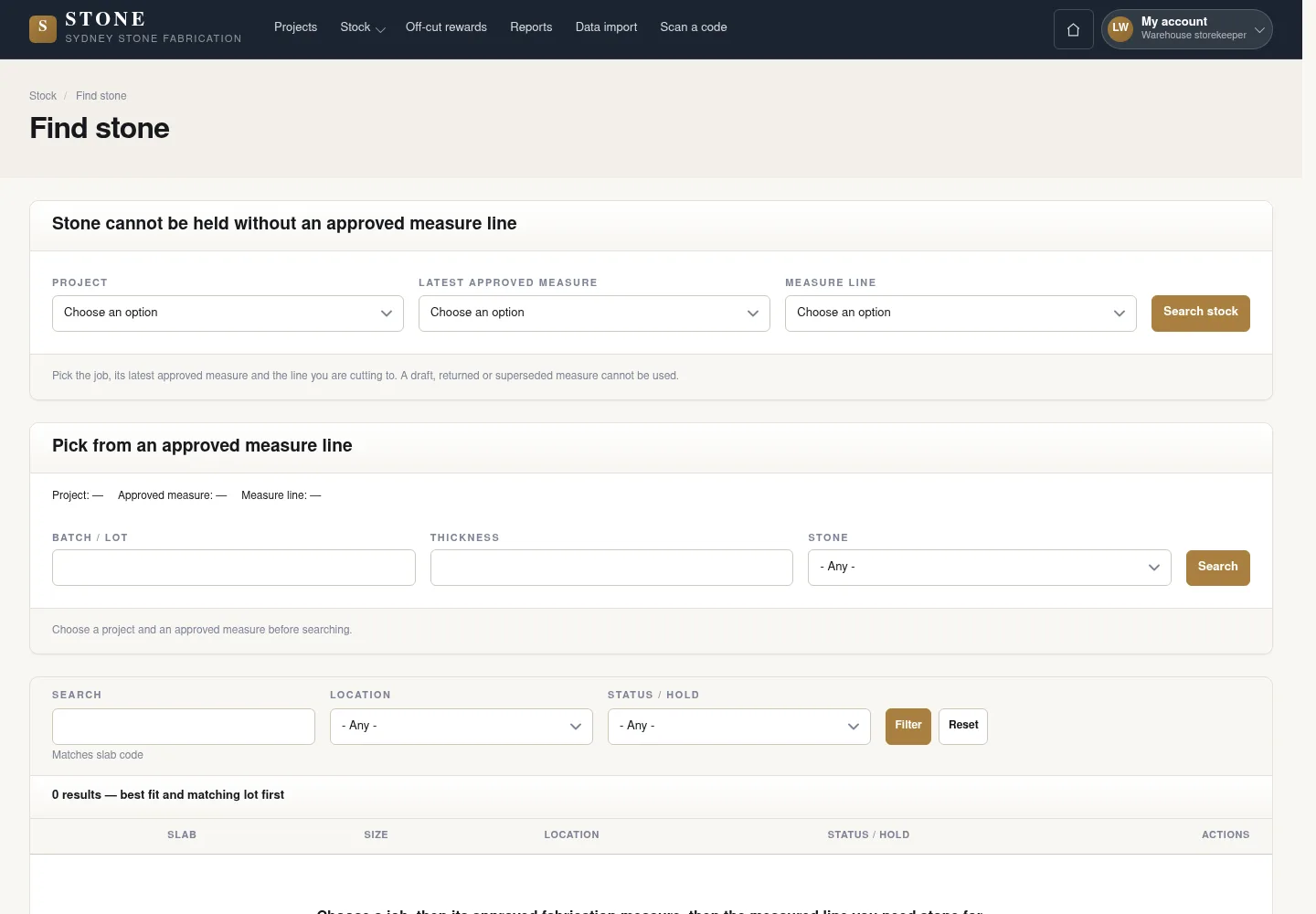
The warehouse chooses a source slab that fits the measure line and sets it aside for the job. Complete the reservation before the coordinator creates the cutting order.
- Go to Find stone and search against the correct measure line.
- Select “Reserve” for the Project; enter a reason and future expiry to hold the slab.
The parent slab is Reserved before the coordinator creates the Cutting order.
Create a queued production order
Coordinator
2Step 2 / 9
Handover: Warehouse → Coordinator
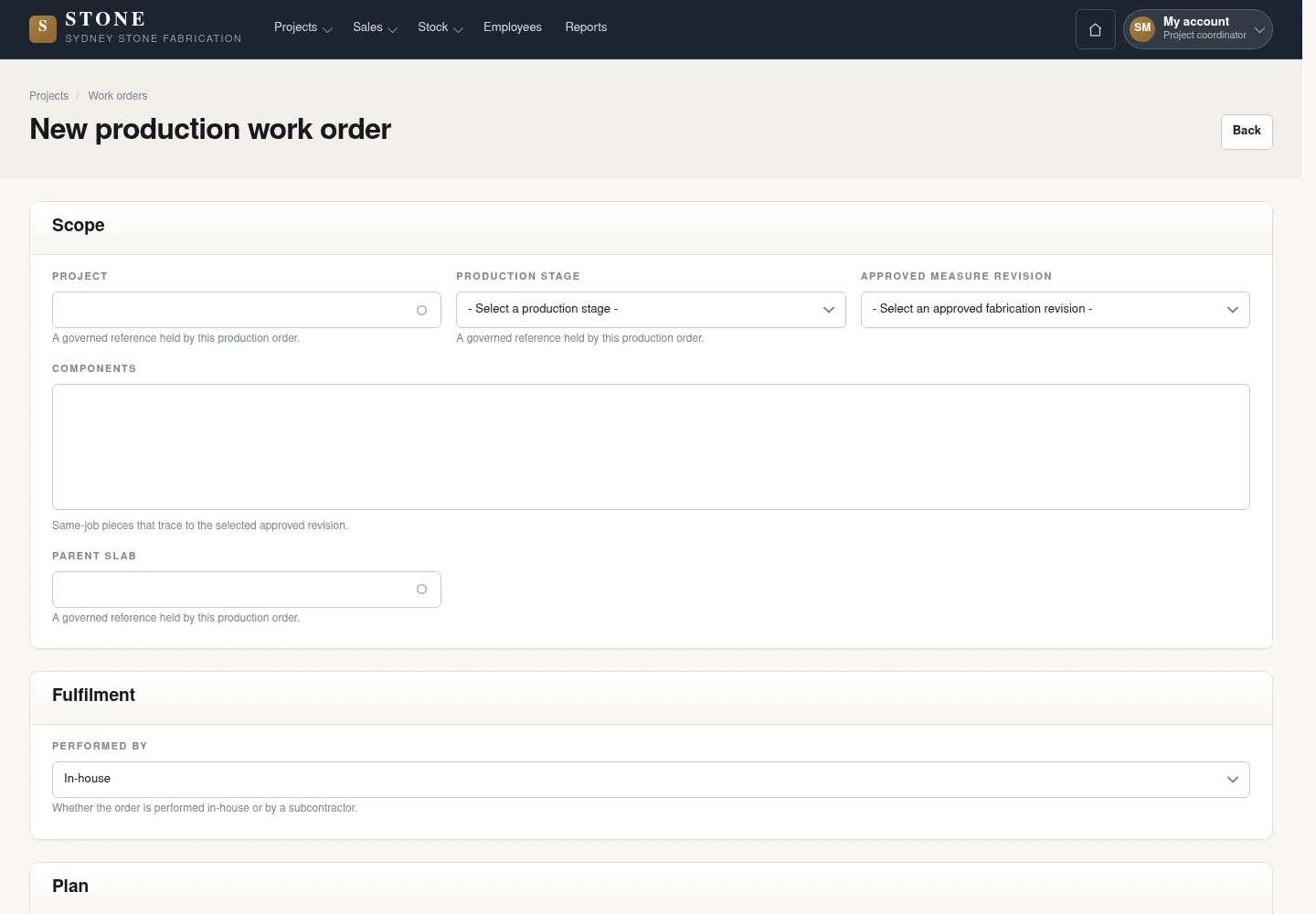
The coordinator creates the order for a stage and the exact approved measure revision. For cutting, choose the source slab reserved for this job.
- When the Project is Approved, select “New work order”; after the first order, when the Project is In Production, use Work orders → “Create queued order”.
- Choose the stage and exact approved measure revision; for Cutting, choose a Reserved Parent slab.
The Queued order carries the revision’s component rows.
Assign a worker or crew
Supervisor
3Step 3 / 9
Handover: Coordinator → Supervisor
The supervisor assigns the order to a person or crew available at the appropriate time. Explain any reassignment or return to the queue with a reason.
- On the order, select “Allocate” and choose an active Worker or suitable crew.
- If changing the assignment or returning the order to the queue, enter the required reason.
The order is Assigned to the correct team.
Issue the slab before cutting starts
Warehouse
4Step 4 / 9
Handover: Supervisor → Warehouse
The warehouse hands the source slab to the order that already identifies it. Complete the issue while the order is queued or assigned, before the worker starts.
- Open the Slab and select “Issue to factory”.
- Choose the Queued or Assigned order that records the correct source slab; check the slab and order codes before issuing it.
The parent slab is Issued; the worker starts after this step.
Start and finish your own work
Worker
5Step 5 / 9
Handover: Warehouse → Worker
Each worker records their work and time in their own session. The supervisor monitors the data; the person doing the work starts and finishes the session.
- On your assigned stage, select “Start” and carry out the work; record the actual facts as you go.
- When your part is complete, select “Finish” for your own work session.
The session records the actual worker and time; the Supervisor only monitors it.
Retain off-cuts and reconcile the cut
Worker
6Step 6 / 9
Record every useful off-cut separately while working so it is included in reconciliation data. After finishing your session, enter the dimensions of the cut components.
- For each useful off-cut, scan the source slab code, select “SAVE AND PRINT LABEL”, then select “Keep it”.
- After “Finish”, enter each component’s dimensions on the stage.
- Select “Post cut reconciliation” to post reconciliation using the saved data.
Reconciliation counts only retained off-cuts; when all checks pass, the parent is Consumed and one material-cost line is added.
Review the data and close the stage
Supervisor
7Step 7 / 9
Handover: Worker → Supervisor
The supervisor reviews the actual data before moving the order to quality control. A cutting stage needs cut reconciliation before it can be closed.
- Review the recorded facts and, for Cutting, check that cut reconciliation is present.
- Select “Close stage”.
The order is Pending QC, ready for an independent check.
Record the quality result
Supervisor
8Step 8 / 9
A supervisor who did not take part in the work carries out the independent check. Photographs and a note explain the basis for passing or failing it.
- Open “Quality control” and choose “Record quality pass” or “Record quality failure”.
- Add photographs and a note of at least 10 characters, then select “Record quality result”.
Pass records the check result. Fail does not automatically create rework.
Create a rework order after a failure
Supervisor
9Step 9 / 9
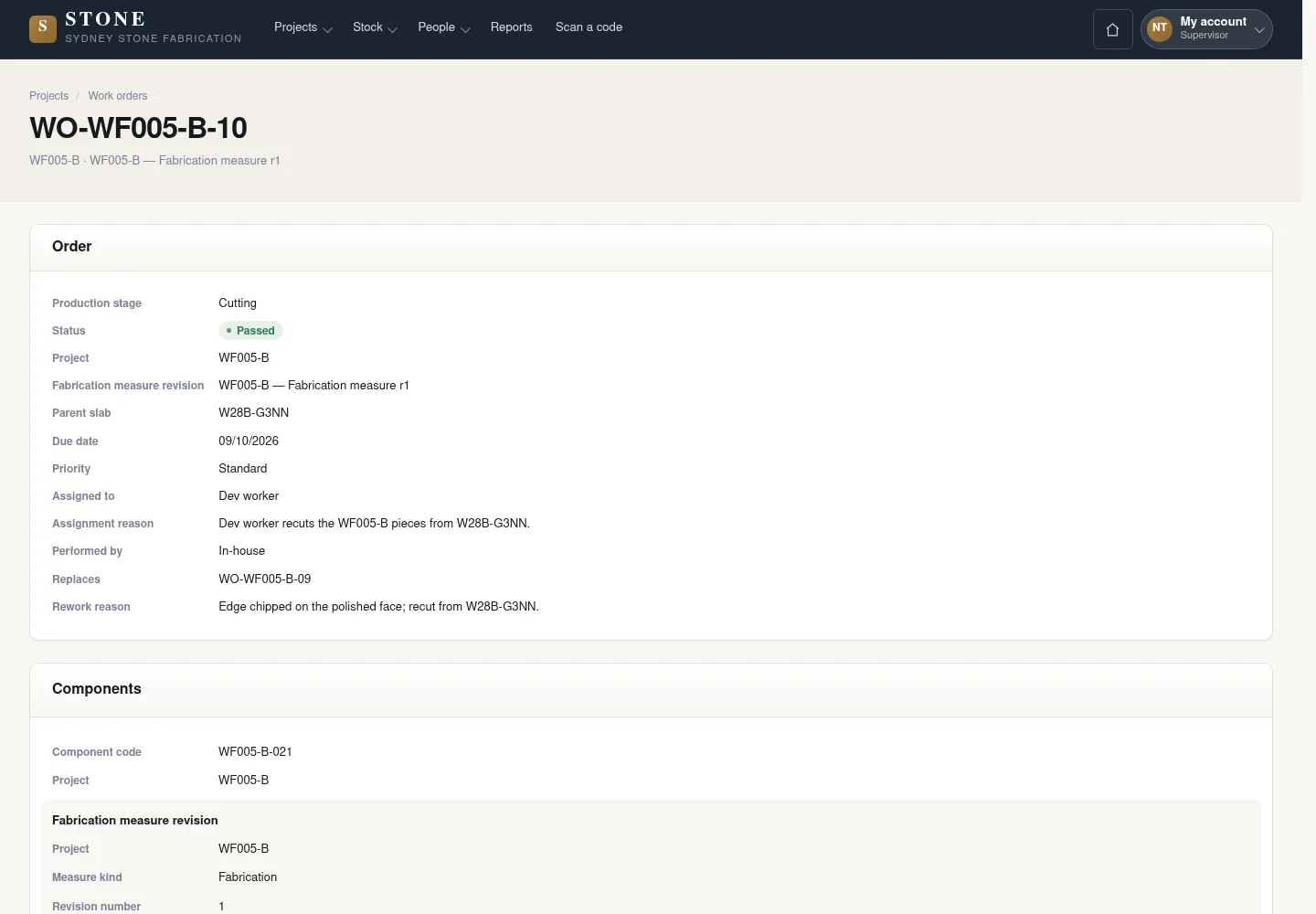
A failed result needs a separate rework order to track the next work. If another cut is required, have a reserved slab ready before creating the order.
- After a failure, if rework is Cutting, check that a suitable Reserved slab is available.
- Select “Raise rework order” to create a rework order linked to the source order.
A linked Queued order is created; the source order becomes Failed and retains its history.
Complete the task
Results & checks
- Queued → Assigned → In progress → Pending QC → Passed / Failed.
- The Project becomes Ready to Deliver only when all required orders, rework and components are complete.
- If no independent checker is available, leave it Pending QC; do not check your own work.
Screenshots illustrate the page layout. Some show earlier controls; follow the current steps and check the result after performing the action.