





Before you start
- Check your contact details before sending; staff must use their assigned account.
Screenshots show an earlier interface. Some current actions may appear in a different place or be absent from the image.
Visitor
Send an enquiry or sign in as staff
Use Contact to describe your needs; staff with an account can sign in and reset their password when needed.
Prepare the records → follow the steps → check the outcome.
Prepare your enquiry
Visitor
1Step 1 / 4
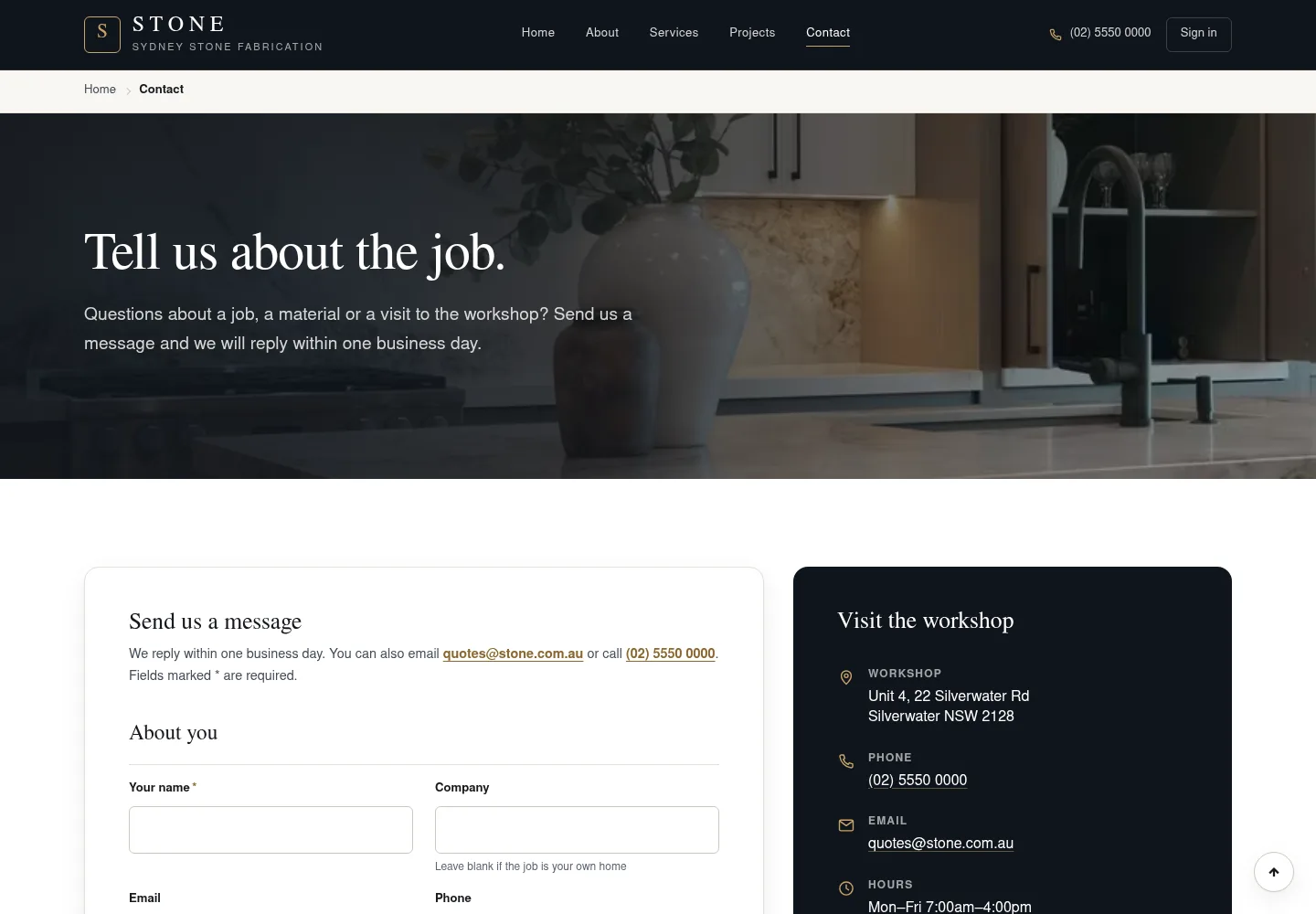
Contact collects the information SubAgent Construction needs to discuss your requirements. A clear message and correct contact details help the responsible person understand your enquiry.
- Open Contact and complete the fields required by the form.
- Use genuine contact details; describe the work you need advice on in Message.
The form screenshot was taken before submission; this guide does not send a sample enquiry.
The business has enough information to reply.
Submit the form and check the response
Visitor
2Step 2 / 4
After submitting, read the message on the form to see whether your enquiry was received or whether any fields need correction.
- Review your contact details and message, then use the submit button on Contact.
- Read the confirmation or error message; correct the fields identified by the form if needed.
The site's confirmation indicates that the enquiry was received; a screenshot of the form alone does not prove submission.
Sign in with your staff account
Visitor
3Step 3 / 4
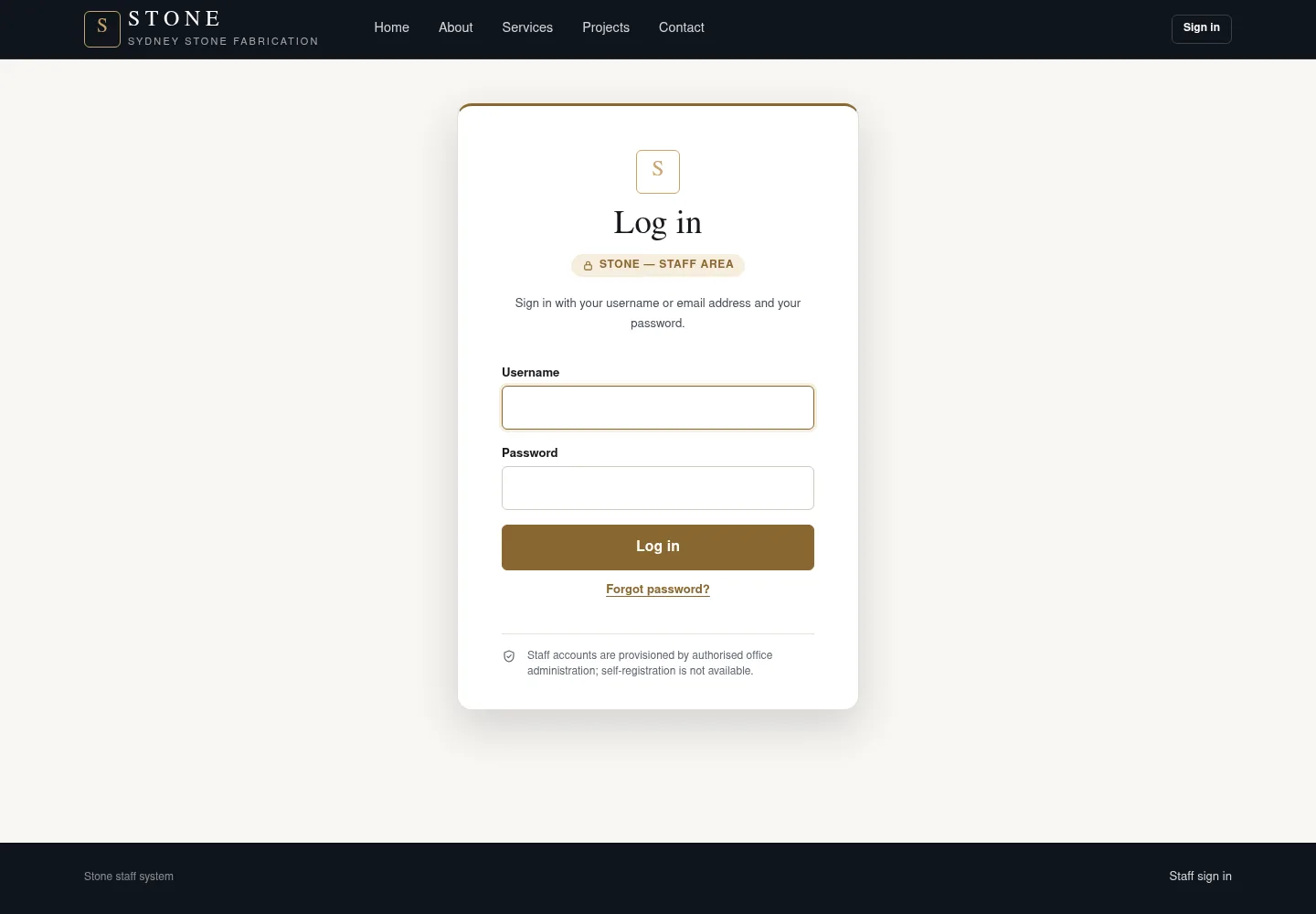
The sign-in page is for staff who have been given an account. The site currently accepts a username or email together with a password.
- From the website, choose Sign in or Staff login.
- Enter Username or email and Password, then click Log in.
The current sign-in process uses a password; no second code is required.
Staff enter My account; Worker-only accounts on phones enter Scan. Technical support enters Switch users in enabled local/test, or technical Administration in production.
Reset your password
Visitor
4Step 4 / 4
If you forget your password, use your staff account's email address to request a reset link.
- From Log in, choose Forgot password?.
- Enter Staff email and click Send reset link.
- Open the link in the email and set a new password using the form.
Check your email shows the same message whether or not the address has an account; the link can be used only once.
Complete the task
Results & checks
- You can explore the website before signing in.
- After sign-in, the header uses Open workspace.
Screenshots illustrate the page layout. Some show earlier controls; follow the current steps and check the result after performing the action.