





Before you start
- The reward tier table must be approved and in force; its approver must differ from its author.
- Retain the piece through the first job’s cut so it records the producing work order; reuse must be on another job.
- Keeping, reserving or issuing the piece alone does not earn a reward. Close the reuse stage and pass independent QC.
Screenshots show an earlier interface. Some current actions may appear in a different place or be absent from the image.
Currently: The existing reward table has no screen for preparing or editing its tiers. An unapproved table must be approved independently before qualifying reuse can produce a reward.
Currently: Record an actual external payment in SubAgent Construction; recording payment does not transfer funds. Warehouse readers cannot see reward amounts.
Shared workflows
Reuse off-cuts, approve rewards and record payment
Keep the off-cut’s origin, reuse it on another job and follow the reward from its approved table to recorded external payment.
Prepare the records → follow the steps → check the outcome.
Read the candidate reward tier revision
Director
1Step 1 / 10
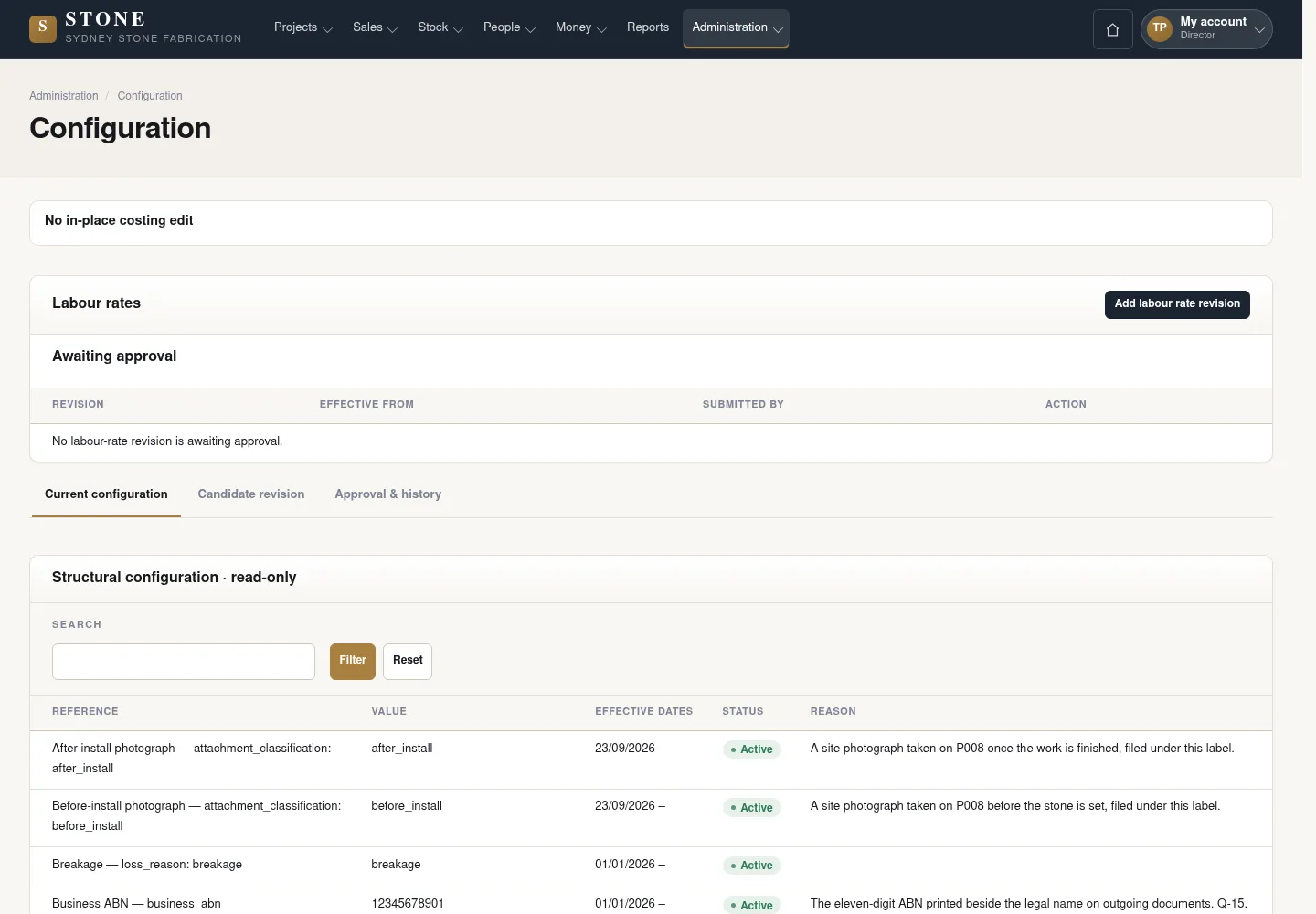
Candidate revision identifies the existing table and its author. The list is read-only; there is no screen to prepare or edit the reward tiers yet.
- Open Administration → Configuration → Candidate revision.
- Read the author, revision and state before deciding.
There is no screen to prepare/edit the reward tier table yet; only the author of a Draft sees Submit for approval.
The author, revision and state are known before the decision.
Approve independently of the author
Director
2Step 2 / 10
A Pending revision requires approval by a Director other than the author. The confirming password belongs to the approver.
- Open the Pending revision and check that you are not its author.
- Select Approve and enter your own password.
- Select Approve revision to confirm.
The revision is approved; the author cannot self-approve.
Keep an off-cut during the producing job’s cut
Worker
3Step 3 / 10
Handover: Director → Worker
A reward needs the original work-order lineage. A piece kept outside a cutting order cannot qualify for this cross-job reuse.
- During the first job’s assigned cutting work, retain the useful off-cut through the work-order keep step.
- Record its actual dimensions, photograph and location, then attach the child-code label.
- Complete the source cut reconciliation and retain the link to the producing work order.
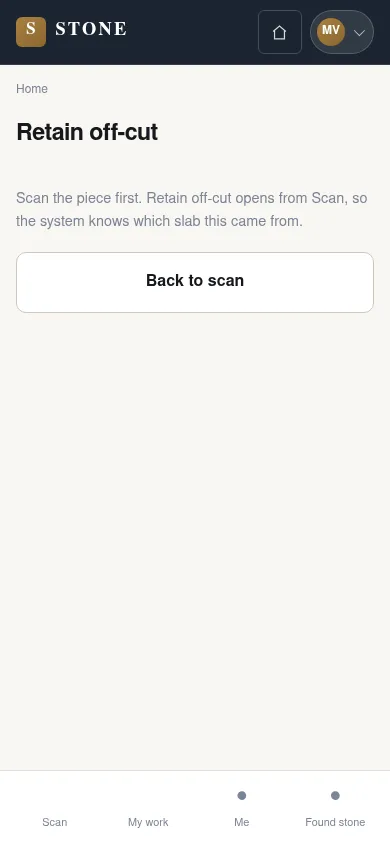
The screenshot illustrates the relevant earlier page layout; the current reward actions may be absent from the image.
The kept piece has its own stock code and the producing job/work-order lineage.
Reserve the retained piece for another job
Warehouse
4Step 4 / 10
Handover: Worker → Warehouse
The reuse must belong to a different job. Search against the second job’s approved measure.
- Open Find stone and choose the second Project, approved measurement sheet and line.
- Find the retained piece and use Reserve on its result row with a reason and future expiry.
- Ask the Coordinator to prepare the cutting order for this reserved parent piece.
The screenshot illustrates the relevant earlier page layout; the current reward actions may be absent from the image.
The off-cut is Reserved for the different job; opening a slab record or Find off-cut does not reserve it.
Create the reuse cutting order
Coordinator
5Step 5 / 10
Handover: Warehouse → Coordinator
The second job’s cutting order carries the approved measure and the reserved retained piece.
- For an Approved Project, use New work order; for an In Production Project, use Work orders → Create queued order.
- Choose Cutting, the exact approved measurement revision and the reserved off-cut as Parent slab.
- Create the Queued order and pass it to the Supervisor for allocation.
The screenshot illustrates the relevant earlier page layout; the current reward actions may be absent from the image.
The reuse order links the correct job, approved scope and retained piece.
Issue the piece to the reuse order
Warehouse
6Step 6 / 10
Handover: Coordinator → Warehouse
The receiving order must still be Queued or Assigned.
- Open the retained piece’s slab record and confirm the second job and work order.
- Check that the order is Queued or Assigned.
- Select Issue to factory for that order before cutting starts.
The screenshot illustrates the relevant earlier page layout; the current reward actions may be absent from the image.
The retained piece is Issued to the second job’s cutting order.
Complete cutting and reconciliation on the reuse job
Worker
7Step 7 / 10
Handover: Warehouse → Worker
Use the assigned order and actual cutting facts. Keeping or issuing the piece alone does not earn the reward.
- After the Supervisor allocates the work, open the assigned stage and select Start.
- Complete the work and retain every useful remaining piece; Finish your own cutting session.
- Enter component dimensions and select Post cut reconciliation once its scope, area and locked-cost checks pass.
The screenshot illustrates the relevant earlier page layout; the current reward actions may be absent from the image.
The reuse is recorded against the actual retained-piece lineage and the correct second job.
Close the stage and pass independent QC
Supervisor
8Step 8 / 10
Handover: Worker → Supervisor
The quality checker must not have participated in the source work.
- Check the completed cutting sessions and reconciliation, then use Close stage when eligible.
- Have an independent eligible Supervisor record the QC decision and evidence; a Fail follows linked rework.
- After a Pass, allow the scheduled processing to evaluate the qualifying reuse.
The screenshot illustrates the relevant earlier page layout; the current reward actions may be absent from the image.
The completed reuse with Passed QC can produce one Pending reward under the approved table.
Approve the earned reward
Director
9Step 9 / 10
Handover: Supervisor → Director
Use the reward entry’s source history to verify the qualifying reuse.
- Open Money → Off-cut rewards and select the Pending entry.
- Check the retained piece, producing job, reuse job and approved table.
- Select Approve reward and complete the form.
The earlier screenshot shows the record layout; the current action controls described here may not appear in the image.
The eligible entry is Approved, with its source and decision preserved.
Record the external reward payment
Accountant
10Step 10 / 10
Handover: Director → Accountant
Payment is recorded after the actual external payment; SubAgent Construction keeps the operational history.
- On the Approved reward entry, select Record payment.
- Enter the actual Paid on date and Pay period required by the form after external payment.
- Confirm and check the payment state and retained history.
The earlier screenshot shows the record layout; the current action controls described here may not appear in the image.
The entry records the external payment; the original reward and approval remain visible.
Complete the task
Results & checks
- A qualifying cross-job reuse produces one Pending reward after the scheduled processing runs.
- The Director approves the eligible entry; the Accountant records the external payment and retains its history.
Screenshots illustrate the page layout. Some show earlier controls; follow the current steps and check the result after performing the action.