





Before you start
- My account → Work orders
- Start/Finish are Worker actions. Do not record QC for work you participated in.
Screenshots show an earlier interface. Some current actions may appear in a different place or be absent from the image.
Supervisor
Allocate work, check quality and confirm working days
Select work to supervise, assign people, check quality independently and monitor site facts.
Prepare the records → follow the steps → check the outcome.
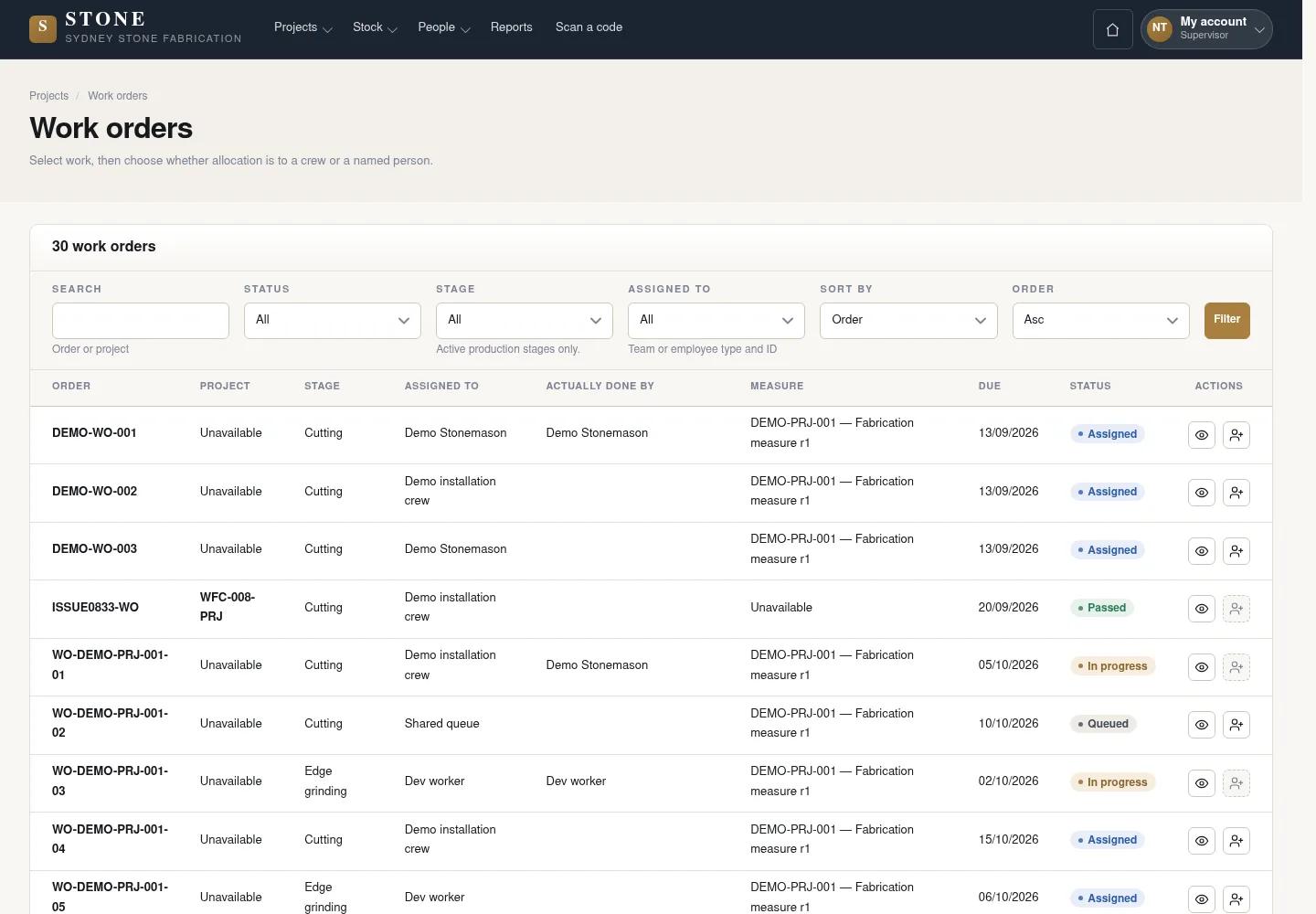
Find work awaiting allocation or QC
Supervisor
1Step 1 / 6
Status distinguishes work that needs people assigned from work whose stage is finished and awaits a quality check.
- Open Work orders.
- Filter Status to Queued when you need Allocate, or Pending QC when you need a quality check.
You find the correct order that needs a crew or checker.
Assign people and close a stage
Supervisor
2Step 2 / 6
The Supervisor assigns eligible people or crews, monitors the actual work and checks the conditions before closing a stage.
- Use Allocate to choose an active person or crew.
- Monitor Worker Start/Finish times and the facts recorded for the stage.
- Use Close stage when all checks are complete.
Workers use Start/Finish; the Supervisor does not do this on their behalf.
Use an independent quality checker
Supervisor
3Step 3 / 6
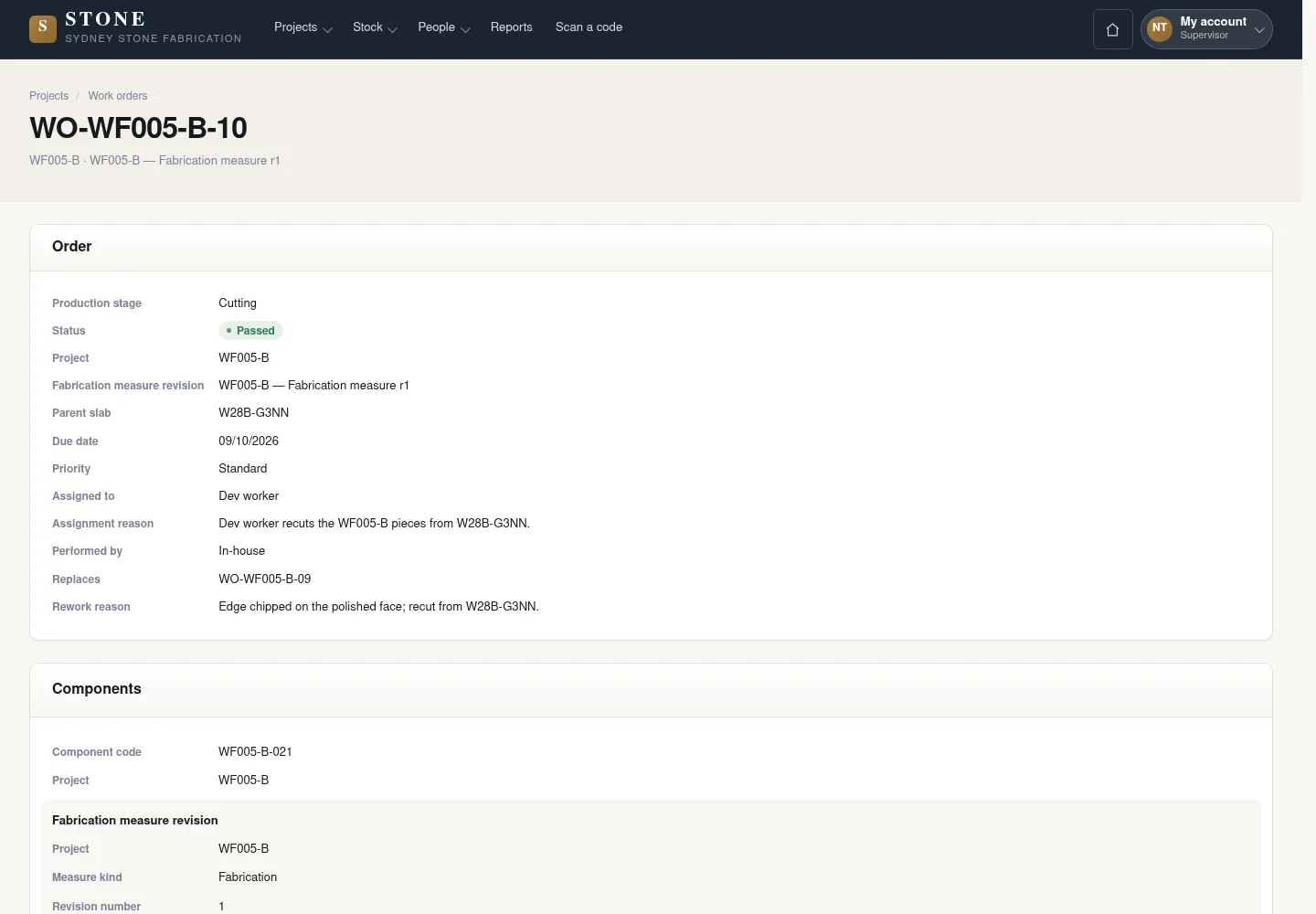
People who participated in the work cannot record its QC decision themselves. Keep photos and comments for defects so that rework links to the correct source work.
- Open Quality control for the work to inspect.
- Record Pass or Fail with a photo and comments using the form.
- For Fail, use Raise rework order to create linked rework.
The checker did not participate in the source work; history is preserved.
Monitor install visits and working days
Supervisor
4Step 4 / 6
Site facts and working hours have separate confirmation steps. Rate a day only after it is approved and locked.
- Record delivery, installation and reports within your permissions; follow the signature and refusal evidence rules.
- Open People → Timesheets to confirm or correct the working-day facts.
- Choose only an Approved and locked day when recording a rating.
Refusal follows the signature threshold and evidence rules; handover requires project readiness and no Open defects. Payment claims do not block project work.
The visit/attendance has the correct owner and evidence.
View stone to prepare for work
Supervisor
5Step 5 / 6
A Supervisor can read stock information to prepare for work within the permissions granted.
- Open Stock → Slabs & off-cuts or Find stone.
- Read the slab's dimensions, status and location; this role cannot reserve, issue or adjust stone.
Stock access is read-only, without landed cost; you cannot reserve or issue stone.
Read the reports for your work
Supervisor
6Step 6 / 6
Read the permitted damage/rework and effectiveness facts for the work you supervise.
- Open Reports from the available menu.
- Choose a report your role may read and check its filters, period and source records.
- Read the on-screen results; report printing and export are unavailable.
The earlier screenshot may omit the current controls or show earlier availability messages.
The report reflects permitted source records without creating a personal score or replacing the underlying history.
Complete the task
Results & checks
- Open the related workflow below for its full conditions, responsible people and steps.
- Check your account, record code and status before taking action. Hidden money information or Unavailable does not mean the amount is 0.
Screenshots illustrate the page layout. Some show earlier controls; follow the current steps and check the result after performing the action.