





Before you start
- Use Switch users only in an approved local/test environment with the feature enabled; production refuses this action.
- Sign in with Username/email and Password; there is currently no second-code step.
Screenshots show an earlier interface. Some current actions may appear in a different place or be absent from the image.
Currently: Switch users is unavailable in production. If the environment or feature policy does not allow it, the list and Switch action are refused. In an existing switched session, use Switch back to return to the support account.
Technical support
Switch to the account being supported and return
In approved local/test, choose the correct account to inspect, check that person's actual permissions and return to the support account when finished.
Prepare the records → follow the steps → check the outcome.
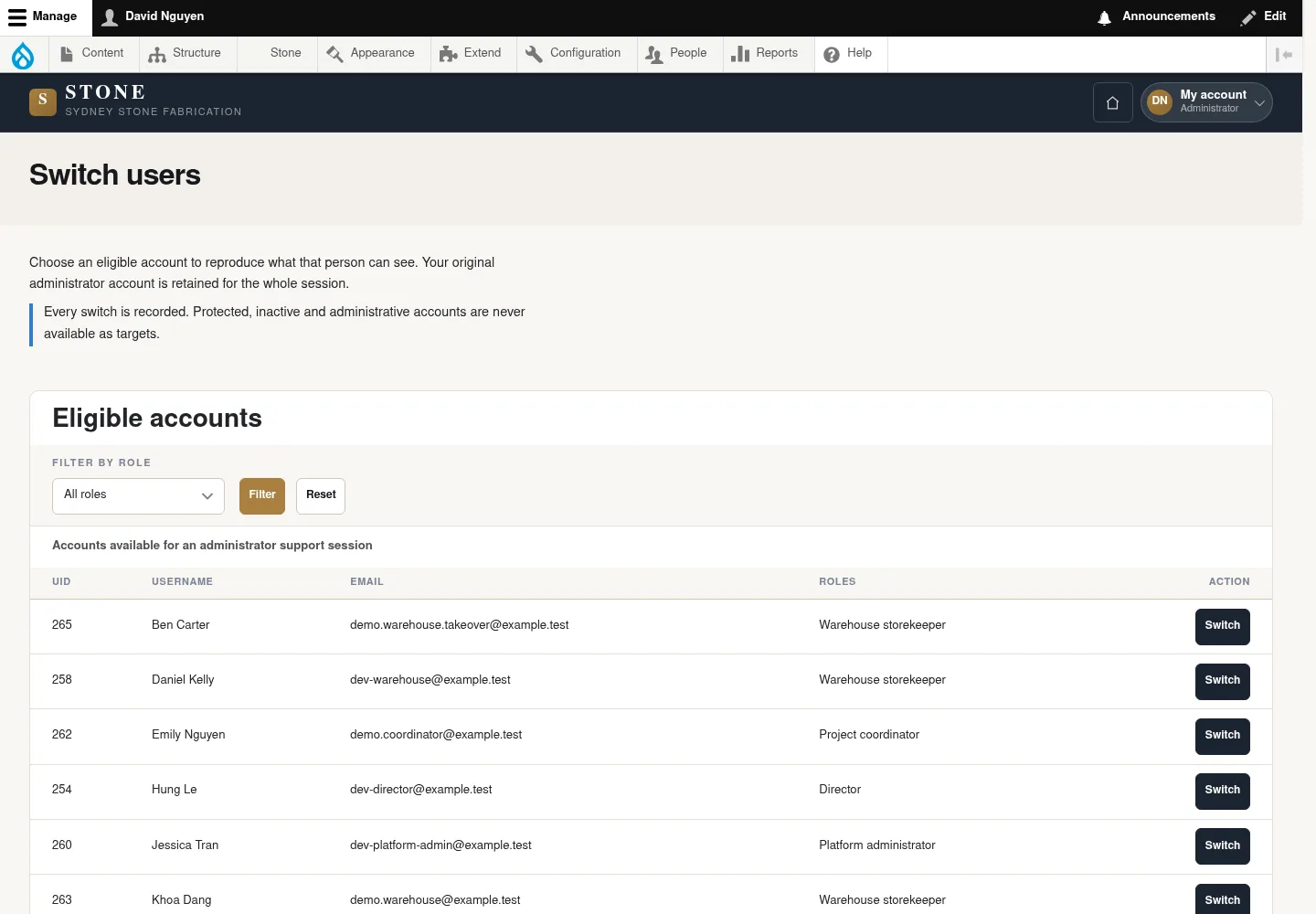
Check the support account
Technical support
1Step 1 / 4
Switch users is the support entry only in approved non-production environments with the feature enabled. The technical account does not automatically gain business authority.
- Confirm the approved local/test environment and enabled feature, then open Switch users and check the signed-in account name.
- Confirm that you are using the technical support account before selecting the person to inspect.
You know which account you are using and where to start work.
Choose the person to inspect
Technical support
2Step 2 / 4
In the approved non-production environment, the list allows switching only to eligible accounts. Choose the person matching the support situation.
- Find the account to support in Switch users.
- Check the name, roles and switching eligibility before clicking Switch.
The list contains eligible accounts; do not infer permissions from a role name alone.
Inspect the interface with the user's actual permissions
Technical support
3Step 3 / 4
After switching, inspect the interface according to that account's permissions. Use the corresponding role guide for comparison.
- Use Switch only in the approved non-production environment and within your permitted support scope.
- After switching, check the name and roles of the account you are using.
- Open the correct role guide, then compare the record, status and action relevant to the support situation.
The inspected interface uses the target account's permissions; the technical account does not operate on business records.
Return to the support account
Technical support
4Step 4 / 4
Finish the inspection before continuing technical work with the Administrator account.
- Click Switch back when you finish inspecting.
- Check the account name to confirm that you have returned to Administrator.
The switched session ends; do not leave the device signed in to another person's account.
Complete the task
Results & checks
- Being able to view a record does not give you permission to change or approve it.
- If you see Access denied, read the message and use Back to My account; if your session is missing, use Log in. Do not borrow another person's account or guess a URL.
Screenshots illustrate the page layout. Some show earlier controls; follow the current steps and check the result after performing the action.