





Before you start
- The original quotation is Won and the Project is Measuring.
- Have a Measurer, an actual Measured on date that is not in the future, and complete dimensions.
- A line for changed scope must choose the correct VAR-… in Quote line to link it to the Variation quotation.
Screenshots show an earlier interface. Some current actions may appear in a different place or be absent from the image.
Currently: There is no screen for settling open impacts yet. A Project with an open impact cannot Move to Approved; leave its status unchanged and contact the person responsible.
Shared workflows
Approve the measure used for production
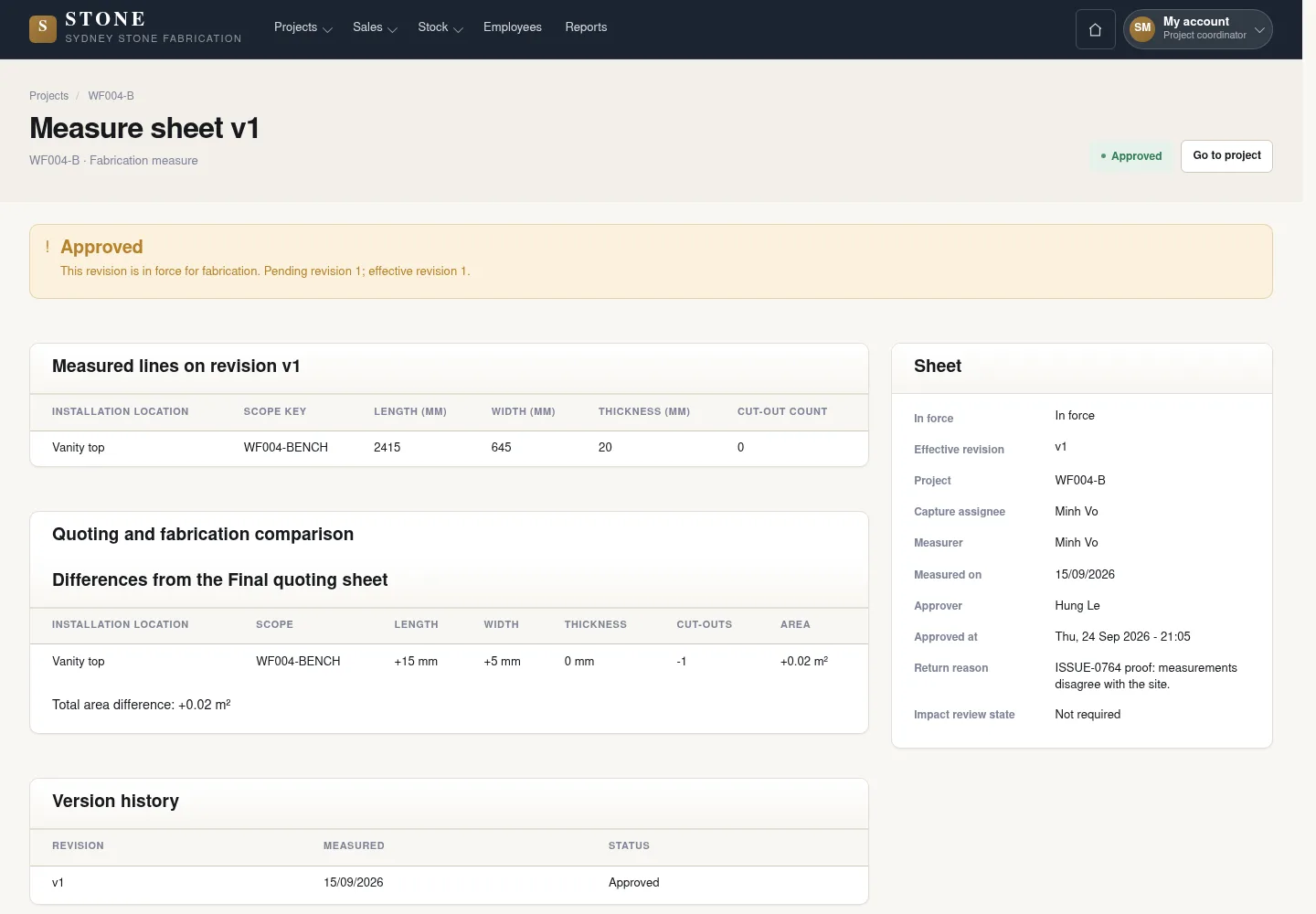
Review and approve the exact fabrication measure revision that the coordinator will use as the basis for production.
Prepare the records → follow the steps → check the outcome.
Create a draft production measure
Coordinator
1Step 1 / 5
The coordinator opens a fabrication measure and sets its measurer, date and scope. If assigning measurement capture, save the measure details before selecting the person to capture them.
- On the Project, select “New fabrication measure” to create a Draft; enter “Measured on” and “Measurer”, then select “Save draft”.
- If needed, choose “Capture assignee” and save again.
- Add the measure lines and a Scope key for each item of work.
The Draft identifies its revision, measurer and scope.
Record dimensions and site photographs
Worker
2Step 2 / 5
Handover: Coordinator → Worker
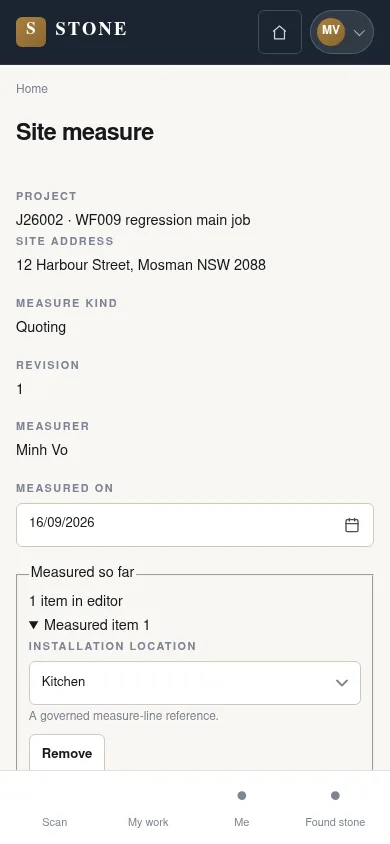
The assigned worker opens the measure on a phone and records actual measurements. Check the item being measured so the data goes into the correct assigned sheet.
- Open the measure assigned to you on your phone; check its project and measured item.
- Record the location and actual dimensions.
- Take or upload photographs for the sheet and each measured line, then save using the form.
The earlier screenshot shows the record layout; the current action controls described here may not appear in the image.
The dimensions and site photographs belong to the correct sheet and lines and are visible to permitted readers.
Submit the measure for approval
Coordinator
3Step 3 / 5
Handover: Worker → Coordinator
Check the measurements and quotation links before submitting. Changed scope must identify the corresponding variation quotation line.
- Review each line; for Variation scope, choose the correct VAR-… in “Quote line” and save.
- Select “Submit for approval”, then “Submit”.
The revision is Pending; its values are locked while awaiting a decision.
Approve or request a re-measure
Director
4Step 4 / 5
Handover: Coordinator → Director
The director decides on the exact revision awaiting approval. Record the reason for an exception or re-measure request so the coordinator understands what needs attention.
- Open the Pending revision and choose “Approve”, “Approve with exception” or “Return for re-measure” to match the decision.
- For Exception or Return, enter a reason; name the person responsible for an impact only when there is an impact to address.
If Returned, the Coordinator selects Re-measure, corrects the same sheet and submits it for approval again; a return does not require a new measure revision.
History retains the decision maker and reason. Re-measure reopens the Returned sheet as Draft on the same measure revision, retaining the return reason.
Move the job to Approved
Coordinator
5Step 5 / 5
Handover: Director → Coordinator
Approving the measure and changing the job status are separate actions. The coordinator moves the job only when the exact revision has been approved and no unresolved impact remains.
- Check that the exact measure revision is approved and the Project has no open impact.
- On the Project, select “Move to Approved” and confirm.
The Project is Approved; subsequent orders must record that exact approved revision.
Complete the task
Results & checks
- Draft → Pending → Approved / Approved with exception or Returned.
- A previously approved revision becomes Superseded only when the next revision is approved.
- Approving the sheet does not automatically move the Project to Approved.
Screenshots illustrate the page layout. Some show earlier controls; follow the current steps and check the result after performing the action.