





Before you start
- Have the supplier details, delivery date and actual slab count ready to create the goods receipt.
- Record an outcome for every row: Received, Returned or Broken. A Received slab needs a photograph and the correct K1/K2 Initial location.
- The accountant needs the invoice number, a Unit price (AUD) greater than 0, and supporting documents for each charge; choose how each charge is allocated through Allocation basis.
Screenshots show an earlier interface. Some current actions may appear in a different place or be absent from the image.
Shared workflows
Receive stone and lock purchase costs
Record a stone delivery, create a code for each slab received into stock, and lock purchase costs for the warehouse and accountant to track.
Prepare the records → follow the steps → check the outcome.
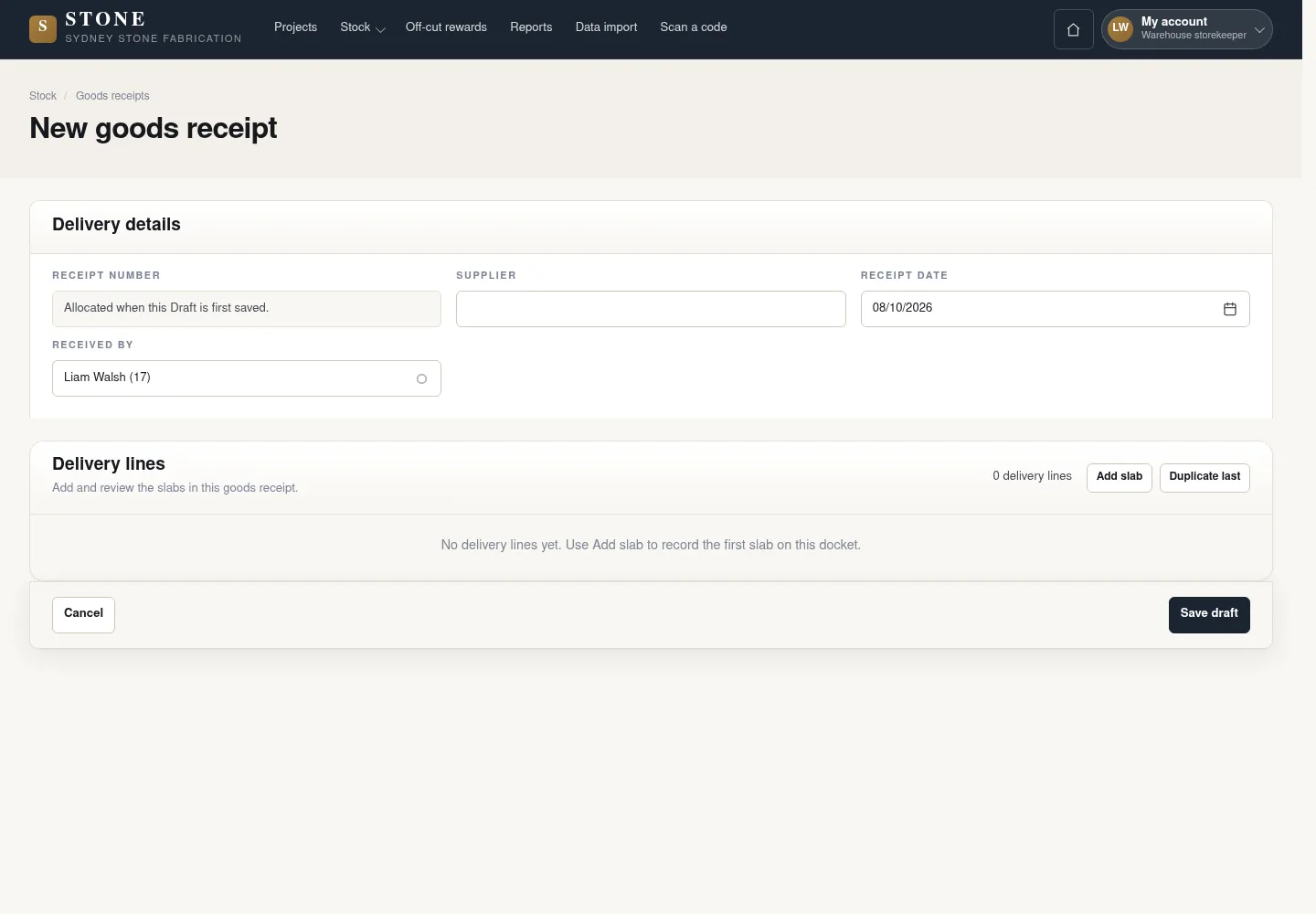
Create a draft goods receipt
Warehouse
1Step 1 / 5
Start with one receipt for the delivery. Record each slab separately so its receiving outcome, stock code and later costs stay distinct.
- Go to Stock → Goods receipts and select “New goods receipt”; enter the supplier and delivery date.
- Select “Add slab” to add one row for each actual slab, then select “Save draft”.
The receipt is Draft, with a separate row for each slab.
Record each slab’s receiving outcome
Warehouse
2Step 2 / 5
Compare the receipt rows with the actual stone. The receiving outcome determines which slabs enter stock and need identification details.
- On each row, choose Received, Returned or Broken according to the actual condition.
- For a Received slab, add a photograph and choose the Initial location where the slab is placed.
Every row has an outcome; Returned/Broken slabs do not require a photograph and location as received slabs do.
Confirm receipt and attach labels
Warehouse
3Step 3 / 5
After checking every row, confirm the delivery to create the stock codes. Attach labels promptly so the next person handling the stone can identify the right slab.
- On the receipt, select “Mark received”, then “Receive” to confirm.
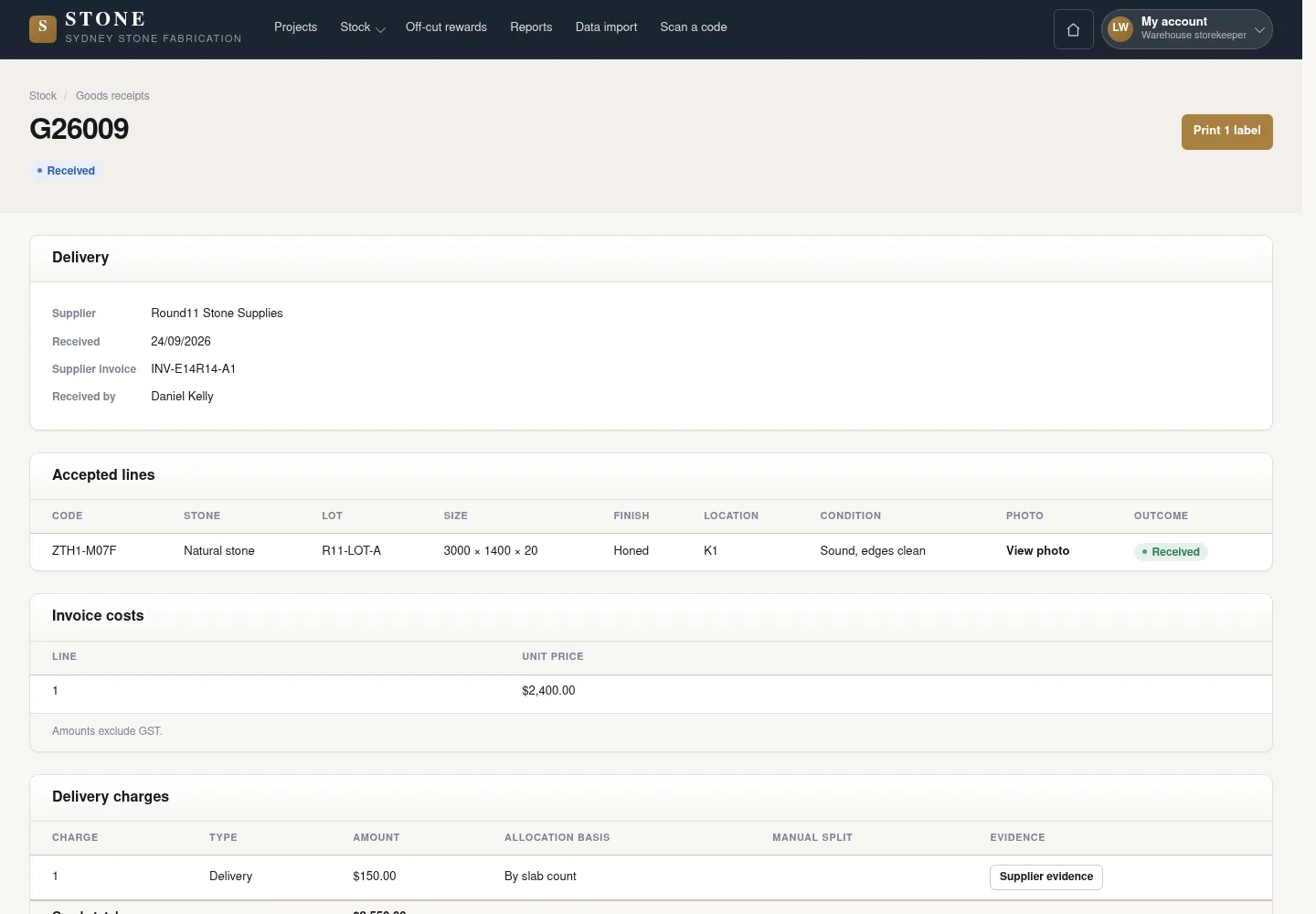
- Select “Print 1 label” to print labels; the number on the button changes with the slab count. Attach each label to the slab with the matching code.
If the printer has not responded, the labels wait in the queue. Write the code temporarily on each slab until its label prints.
The receipt is Received; received slabs have codes and are In Stock. Attach the correct label to each slab.
Enter documents, purchase prices and charges
Accountant
4Step 4 / 5
Handover: Warehouse → Accountant
The accountant enters the amounts from the delivery documents. The preview lets you check the cost allocated to each slab before locking it.
- From Stock notices on My account, open the receipt; enter “Supplier invoice number” and each slab’s “Unit price (AUD)”.
- Enter the charges with “Supplier document” and “Allocation basis”, then select “Preview allocation”.
- Compare the preview total and allocations with the invoice and supporting documents.
The preview shows the total and allocated costs for comparison with the supporting documents.
Lock the delivery costs
Accountant
5Step 5 / 5
Check the purchase costs allocated to each slab one last time before locking them. Later corrections must stay linked to the original record.
- Check the total; if a correction is needed, select “Change inputs” before locking.
- Tick the confirmation, then select “Lock cost”.
The receipt is Cost locked; each slab has a landed-cost snapshot.
Complete the task
Results & checks
- Draft → Received → Cost locked.
- An unknown cost remains unknown; do not interpret it as $0.00.
- After locking, correct costs through a linked adjustment or reversal; retain the original record.
Screenshots illustrate the page layout. Some show earlier controls; follow the current steps and check the result after performing the action.