





Before you start
- My account → Projects / Administration
- This is not an account with every operational permission; it cannot create, edit or finalise measurements.
Screenshots show an earlier interface. Some current actions may appear in a different place or be absent from the image.
Director
Approve measurements, review changes and record corrections
Review the exact measurement awaiting a decision, approve configuration independently and read change history to oversee the business.
Prepare the records → follow the steps → check the outcome.
Decide on a measurement awaiting approval
Director
1Step 1 / 7
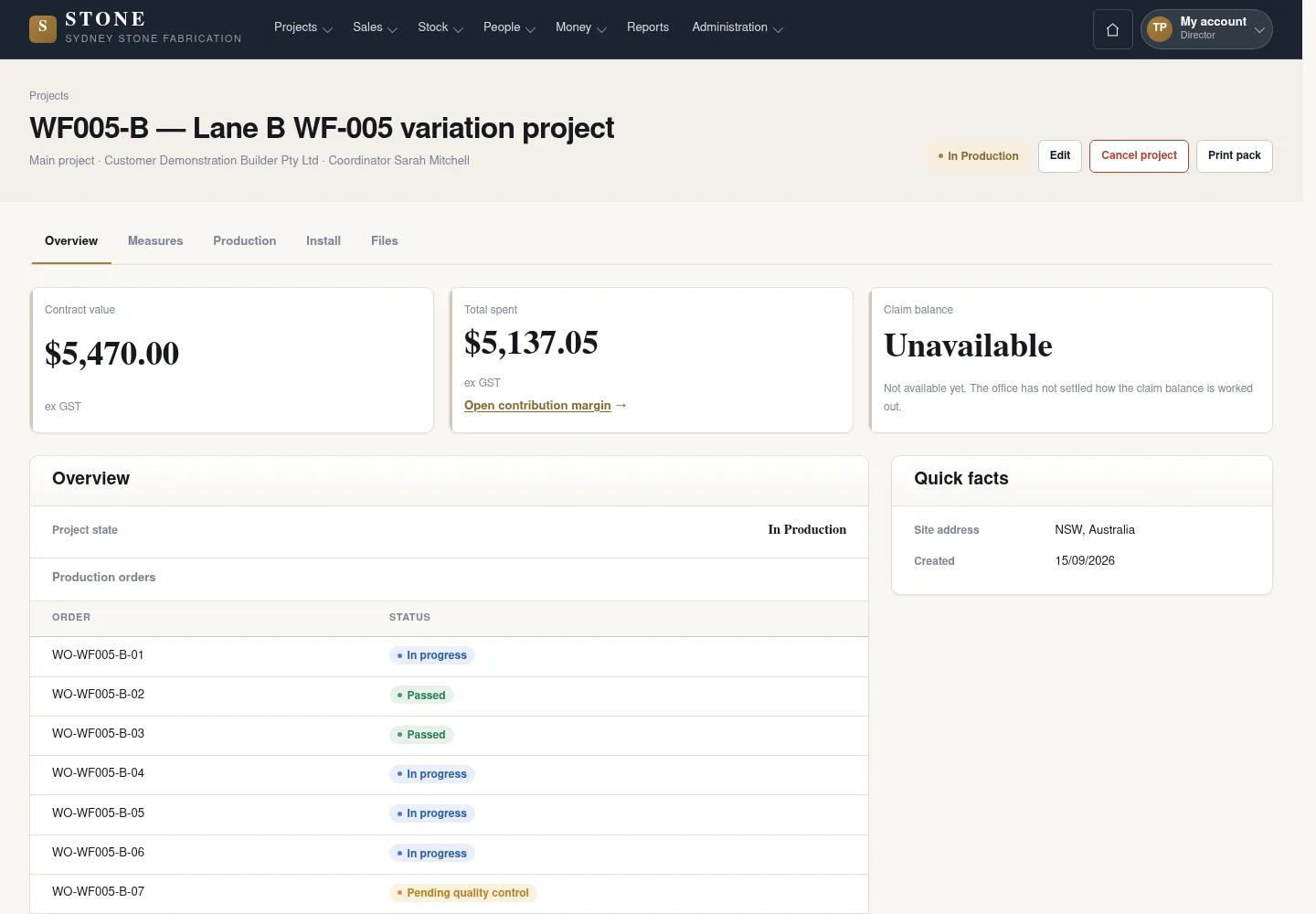
Before deciding on a Pending fabrication measurement, check its project and revision.
- In Projects, filter Measuring and open the Pending measurement to review.
- Check the facts, then choose Approve, Approve with exception or Return for re-measure.
The exact revision has a decision/reason; you do not create or finalise measurements.
Use an approver who is different from the author
Director
2Step 2 / 7
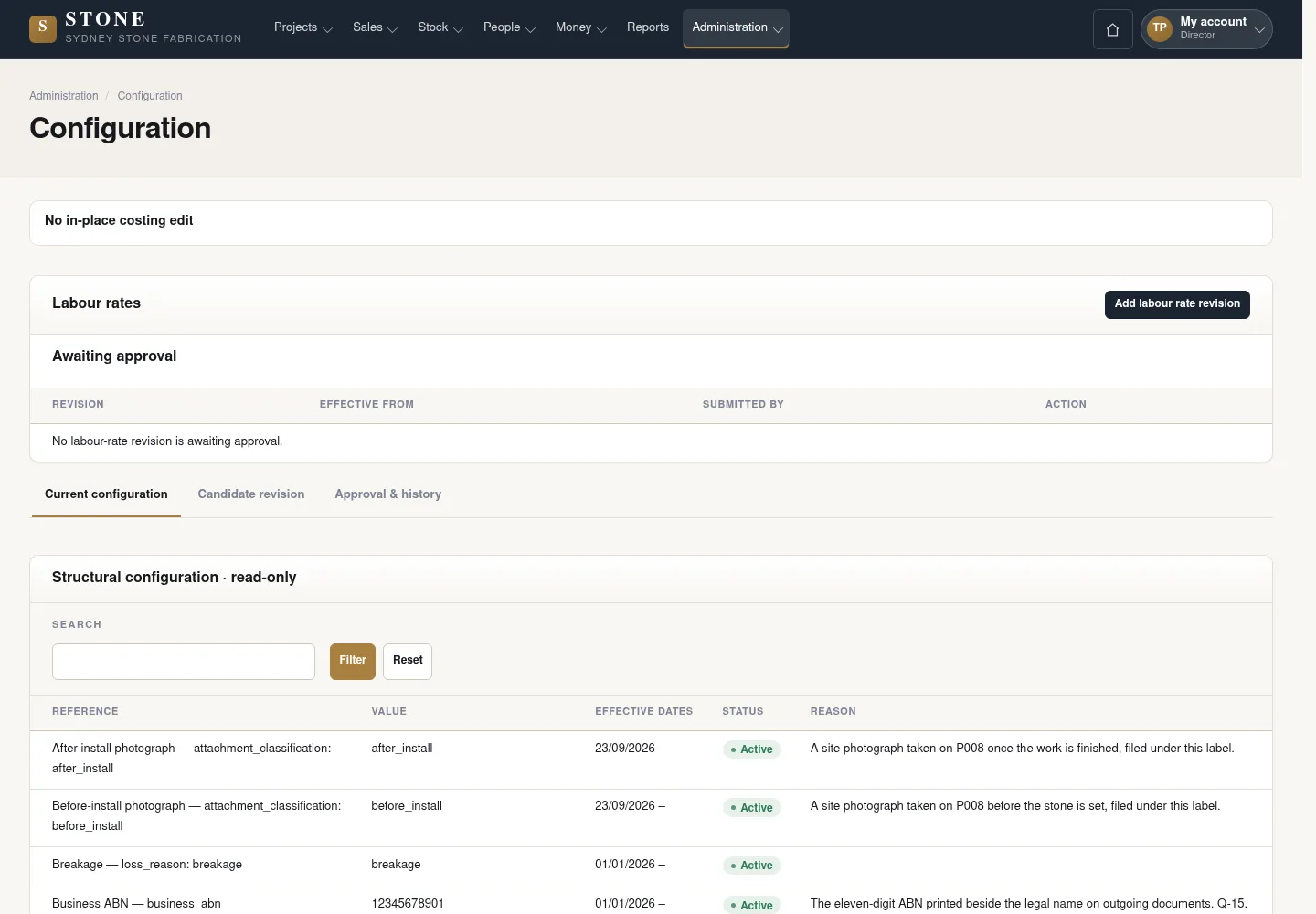
A labour-rate revision or reward table needs an approver who is independent of its author.
- Open Configuration and select an existing labour rate revision or reward table.
- Check that the approver is different from the author.
- Enter your own password to confirm approval.
Do not approve a change you created.
Read account change history
Director
3Step 3 / 7
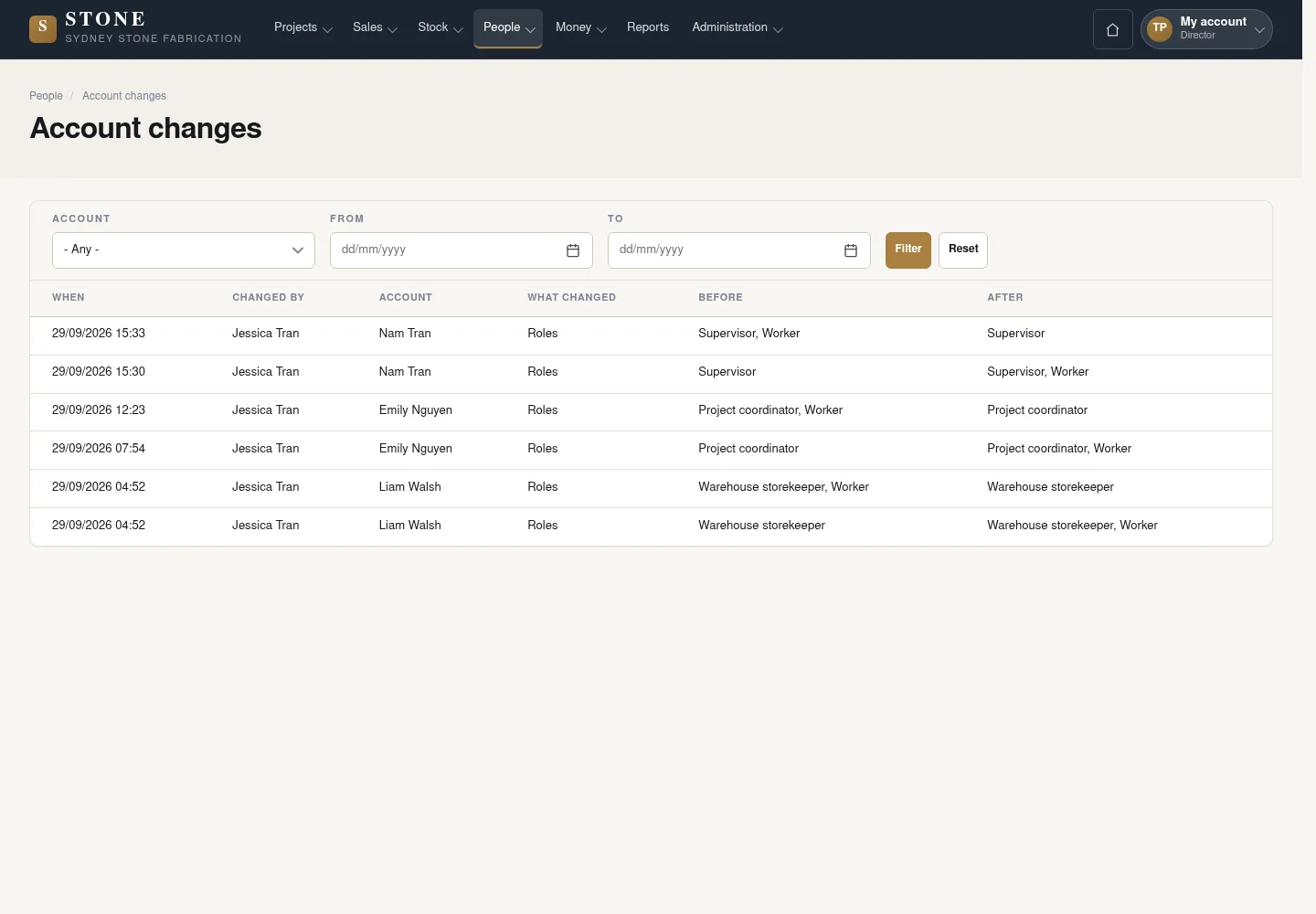
Account changes is a read-only history. Use the filters to find the account and time period you need to review.
- Open People → Account changes.
- Choose Account and From/To, then click Filter.
- Click Reset to clear the filters if needed.
Read-only: who changed what, with before/after values; password values are not shown.
Review facts and record a rating correction
Director
4Step 4 / 7
The Director reads the facts their permissions allow. A Locked rating is corrected through a new record with a reason.
- Read the business records within your permissions.
- For a Locked rating that needs correction, click View to open Record correction.
- Enter a reason, then click Record correction; preserve the original rating.
Broad read access does not grant every operational action.
Add a price item or a new rate
Director
5Step 5 / 7
An existing rate already in use is retained; changing the price creates a new rate.
- Open Sales → Price library.
- For a new item, choose New price item; enter Item code, Description on the quote, Unit, Sell rate ex GST (AUD), the write-only Estimated cost (AUD) and Effective from, then select Create price item.
- For an existing item, choose Create new rate on the newest row; enter the dated rate details and select Create new rate. A used rate stays intact and its hidden estimated cost is inherited.
The earlier screenshot shows the record layout; the current action controls described here may not appear in the image.
The item or new rate is recorded without overwriting a used rate.
Read margin, reports and safety facts
Director
6Step 6 / 7
Reports display results within each reader’s permissions; health documents and safety records keep their separate access rules.
- Open Reports and choose the permitted damage/rework, effectiveness, contribution-margin, debtor/retention or monthly off-cut reward report.
- Read project margin as the accepted contract value less direct costs; completed subcontract packages are counted once.
- Use the permitted Employee health documents and Safety register. Record safety severity as Low, Medium, High or Extreme; review Certificate reminders in the application.
The earlier screenshot shows the record layout; the current action controls described here may not appear in the image.
The Director reads current permitted facts. Report printing/export is unavailable, and the register does not decide legal incident tests or retention periods.
Record or correct a safety event
Director
This function was added after the captured interface. Follow the current steps with the specified account; a matching screenshot has not yet been added.
7Step 7 / 7
The safety register belongs to the Director. Health document access does not grant safety-record access.
- Open People → Safety and select Record safety event; use Edit on an existing event for a permitted correction.
- Complete Kind, Occurred at, People involved, Location, Recorded by, Severity, Description and Action taken, with actual photographs where available.
- Choose Low, Medium, High or Extreme severity and select Save. Record notification facts as applicable; the system does not decide the legal notification test.
The earlier screenshot may omit the current controls or show earlier availability messages.
The safety event is recorded. Employee document reminders are shown only for documents this reader may open.
Complete the task
Results & checks
- Open the related workflow below for its full conditions, responsible people and steps.
- Check your account, record code and status before taking action. Hidden money information or Unavailable does not mean the amount is 0.
Screenshots illustrate the page layout. Some show earlier controls; follow the current steps and check the result after performing the action.