





Before you start
- The Project is Ready to Deliver; the relevant components have Passed work orders.
- The visit date, crew and actual site details are known.
- Projects worth AUD 100,000 or more require the customer’s actual signature; a refusal cannot replace it.
Screenshots show an earlier interface. Some current actions may appear in a different place or be absent from the image.
Currently: Actual signature is required from AUD 100,000 ex GST and whenever the contract value cannot be read. Below the threshold a refusal still needs an Installed visit, no Open punch items, a reason and evidence from that visit.
Currently: Closing a visit does not automatically hand over or close the Project. Follow each record’s current readiness checks.
Shared workflows
Deliver, install and hand over the project
Record delivery, installation and the actual customer outcome; close eligible visits and hand over the ready project.
Prepare the records → follow the steps → check the outcome.
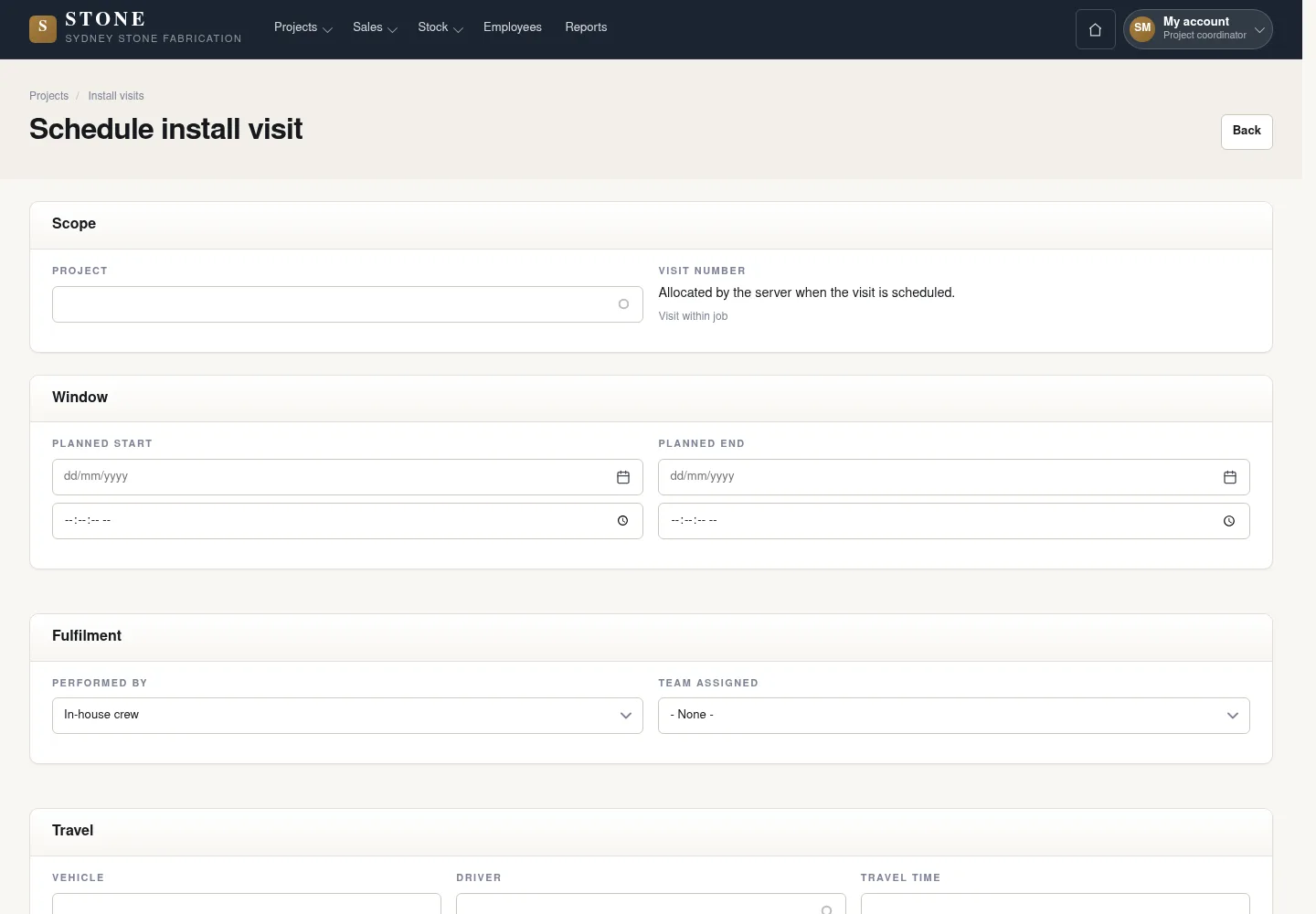
Schedule the delivery and installation visit
Coordinator
1Step 1 / 7
Use the correct project, crew and appointment date so every site step refers to the same visit.
- From Projects, open Install visits and choose Schedule a visit.
- Select the Project, crew and visit date.
- Check the visit scope, then select Schedule visit.
A Planned visit has the correct scope and crew.
Record delivery to the site
Supervisor
2Step 2 / 7
Handover: Coordinator → Supervisor
Before photographs establish the condition at delivery. A Worker may add field data but cannot change the visit status.
- Add before photographs to the correct visit.
- An authorised person selects Record the delivery once the components meet the Passed requirements.
The visit is Delivered when its components meet the Passed requirements.
Record the installation
Supervisor
3Step 3 / 7
Add photographs after installation before an authorised person confirms the installation. A Worker cannot perform this status transition.
- Add after photographs to the current visit.
- An authorised person selects Record the install.
The visit is Installed; a Worker cannot perform this transition.
Track outstanding defects
Coordinator
4Step 4 / 7
Handover: Supervisor → Coordinator
Punch items track individual defects or unfinished work from the installation. The visit cannot close while any item remains Open.
- In the visit, select Record a defect and record the facts.
- Once the defect has been repaired, select Resolve on the correct item.
- If the defect returns, select Reopen to retain its history.
Each item has a status and history; an Open item prevents closing the visit.
Record the signature or an eligible refusal
Worker
5Step 5 / 7
Handover: Coordinator → Worker
Record the actual customer outcome. A job of AUD 100,000 ex GST or more, or an unreadable contract value, requires an actual signature.
- For acceptance, enter Accepted by, obtain the actual customer signature and select Take the signature.
- For an Installed visit below AUD 100,000 with no Open punch items, record the refusal reason and select a file belonging to this visit, or Upload new file with its classification.
- Use Record a refusal on the phone; the Supervisor completes Record refused outcome on the visit. For a locked refusal control, arrange another visit and obtain the signature.
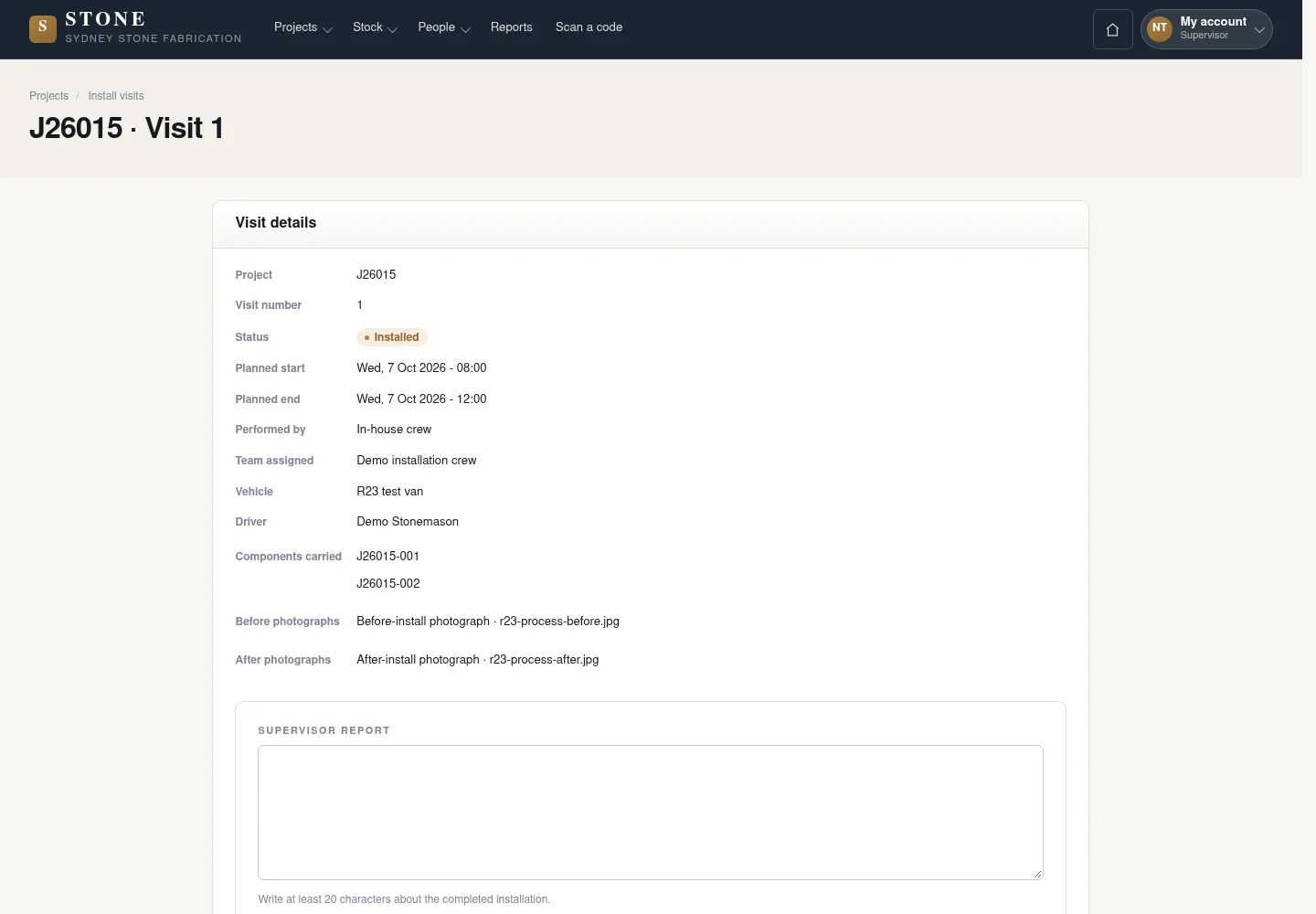
Substitute evidence cannot settle a high-value job or an unreadable contract value. Files belonging to another job are rejected. The earlier screenshot shows the record layout; the current action controls described here may not appear in the image.
Signed off records actual acceptance. An eligible refusal records its reason and evidence and can progress to Refused before closing.
Save the supervisor report
Supervisor
6Step 6 / 7
Handover: Worker → Supervisor
The report records the supervision of this visit so the person handling handover has facts to check.
- Enter a Supervisor report of at least 20 characters.
- Review the content, then select Save report.
The report is saved on the visit.
Close the visit and hand over the ready project
Coordinator
7Step 7 / 7
Handover: Supervisor → Coordinator
Close the visit after its customer outcome, report and defect checks pass. Project handover checks the whole project separately.
- Check the Signed off or Refused outcome, supervisor report and absence of Open punch items; select Close visit when eligible.
- On the Project, resolve the remaining work and delivery requirements and any Open defects, then select Move to handover when ready.
- Use Close project with a reason after the Project is Handover and its closing checks pass. A payment claim is not a prerequisite.
The earlier screenshot shows the record layout; the current action controls described here may not appear in the image.
The eligible visit is Closed; a ready Project moves to Handover and may then close after its own checks.
Complete the task
Results & checks
- Planned → Delivered → Installed → Signed off or eligible Refused → Closed; handover follows the ready Project’s own checks.
- An Open punch item prevents Close visit and Handover.
- Do not have someone else sign in place of the customer.
Screenshots illustrate the page layout. Some show earlier controls; follow the current steps and check the result after performing the action.