





Before you start
- The Employee is Employed and their position has a current approved labour rate.
- The employee belongs to the crew for the working day; business dates use Australia/Sydney.
- A Director or Accountant adds the Employee. A Director creates the labour rate for each position; another Director approves it using their own password.
Screenshots show an earlier interface. Some current actions may appear in a different place or be absent from the image.
Shared workflows
Record shifts, approve hours and rate the day
Record the actual working day, confirm it, then approve and lock the hours; preserve a history of corrections.
Prepare the records → follow the steps → check the outcome.
Record the start and end of the shift
Worker
1Step 1 / 6
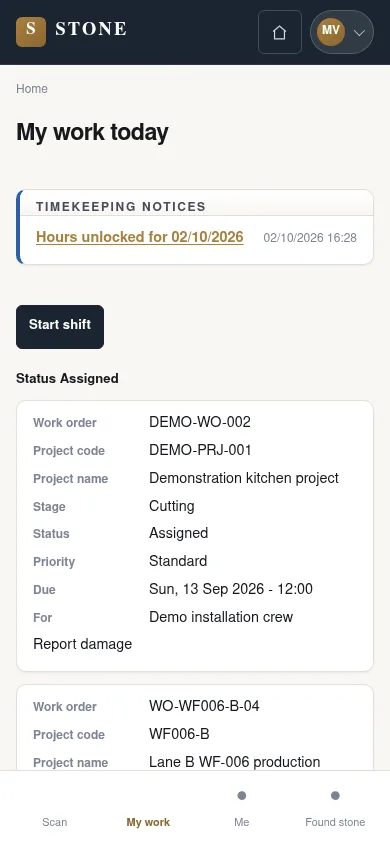
Record the actual shift times. Resolve a missing finish time using facts rather than an assumed time.
- In My work, select Start shift when the shift begins.
- Once the shift is complete, select Finish shift.
Attendance records actual times; a missing finish time is not guessed.
Review and confirm the working day
Supervisor
2Step 2 / 6
Handover: Worker → Supervisor
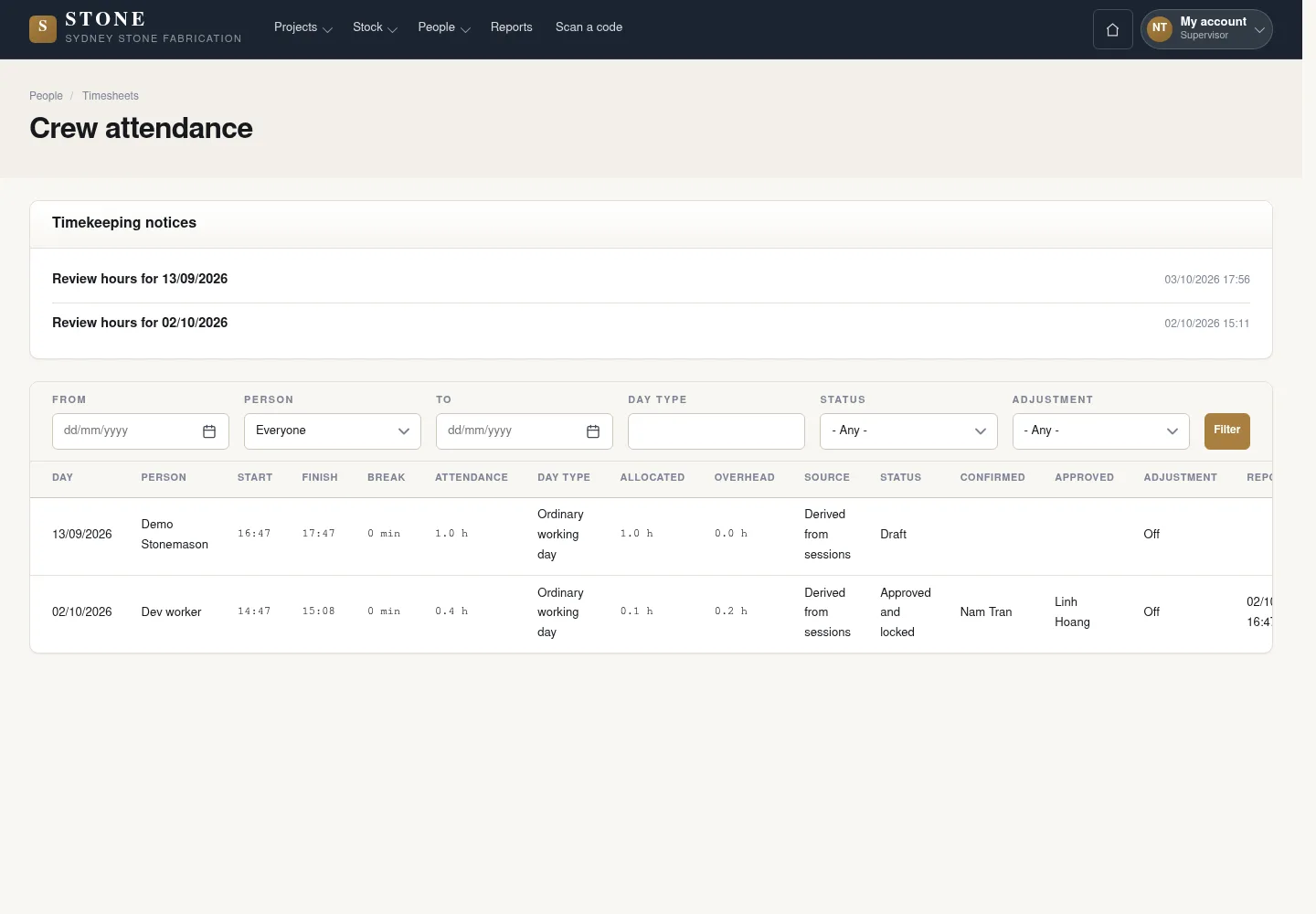
The Supervisor checks the day’s facts before passing it to the Accountant. Corrections retain a history.
- Open People → Timesheets; the page heading is Crew attendance.
- Use Correct to fix an incorrect day using actual facts.
- Use Confirm once the day is correct.
A Confirmed day has clear facts and corrections.
Approve and lock the hours
Accountant
3Step 3 / 6
Handover: Supervisor → Accountant
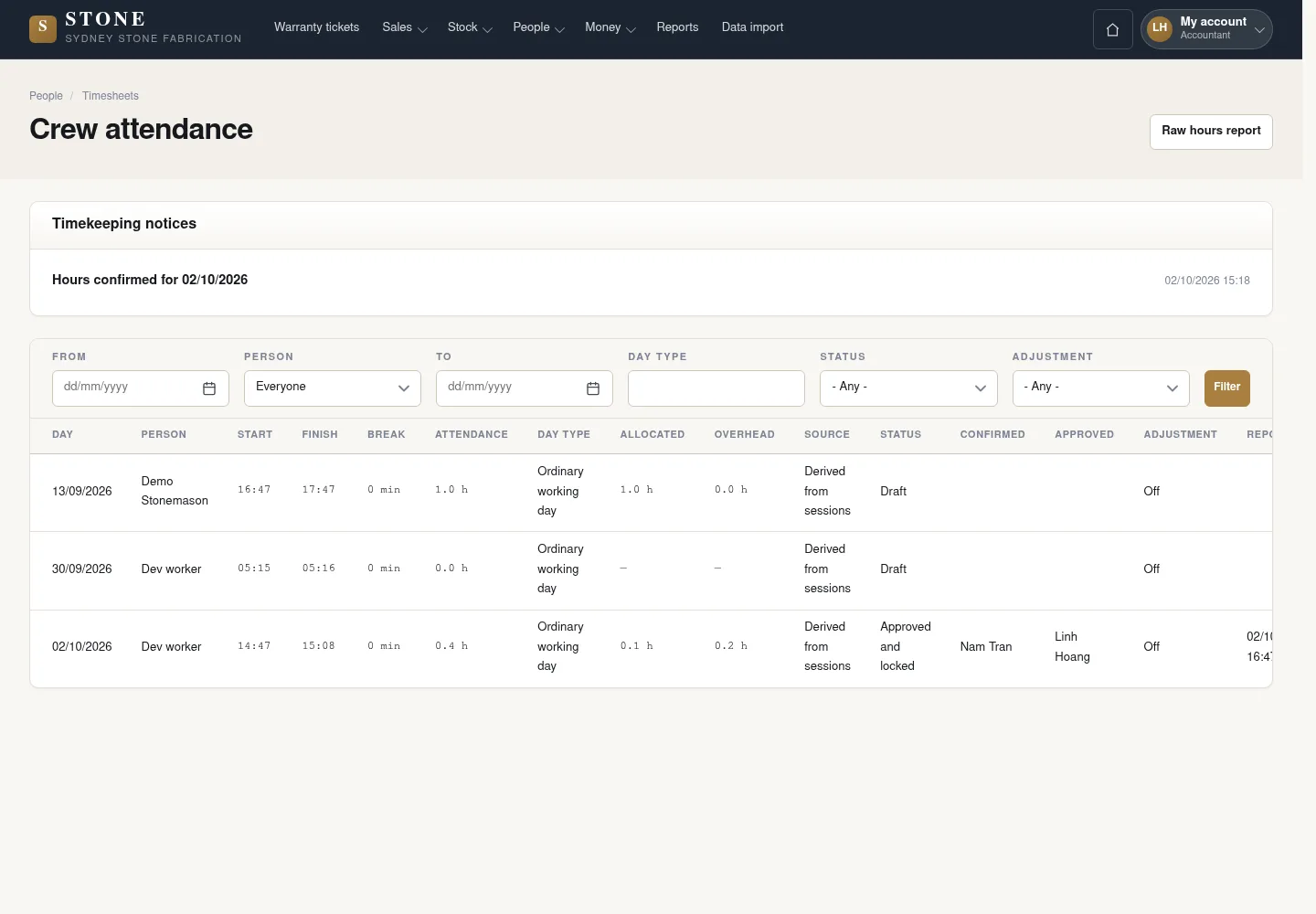
The Accountant reviews the confirmed day before locking it. Labour cost is recorded only from eligible facts.
- Open Timesheets and select Review for the day to approve.
- Check the working day’s facts.
- Select Approve and lock once all conditions are met.
The day is Approved and locked; labour cost is appended from eligible records.
Rate an approved working day
Supervisor
4Step 4 / 6
Handover: Accountant → Supervisor
Daily ratings apply only to an Approved and locked day. Record scores and notes against the correct employee or crew day.
- Open Daily ratings → Rate the day; a Supervisor on a phone uses Rate crew.
- Select an Approved and locked day.
- Enter the three scores and the note in the form.
The rating is Open, then locked by a scheduled task.
Correct a locked rating
Director
5Step 5 / 6
Handover: Supervisor → Director
The Locked rating keeps its original record; a correction is added with a reason.
- Open the Locked rating and select View to reach Record correction.
- Enter the reason for the correction.
- Select Record correction.
A correction is appended without overwriting the original rating.
Print the raw hours report
Accountant
6Step 6 / 6
Handover: Director → Accountant
Raw hours report collects Approved and locked hours for an external payroll process. SubAgent Construction does not calculate payroll in this step.
- Open Timesheets → Raw hours report.
- Open the monthly print preview and check the Approved and locked hours.
- Print the report for the external payroll process.
The hours report supports an external payroll process.
Complete the task
Results & checks
- Draft → Confirmed → Approved and locked.
- Correcting a locked day requires unlocking with a reason, a new revision and reversing cost.
- SubAgent Construction does not calculate wages, Award rates, taxes or payroll; do not invent a finish time.
Screenshots illustrate the page layout. Some show earlier controls; follow the current steps and check the result after performing the action.