





 Internal training
User guide · Student
Take a Quiz and understand Failed / Passed results
Go from Take Quiz to your saved attempts in My Quiz Results, then read the details of a failed and a passed attempt.
Answer on the Take Quiz form
Student
1Step 1 of 4
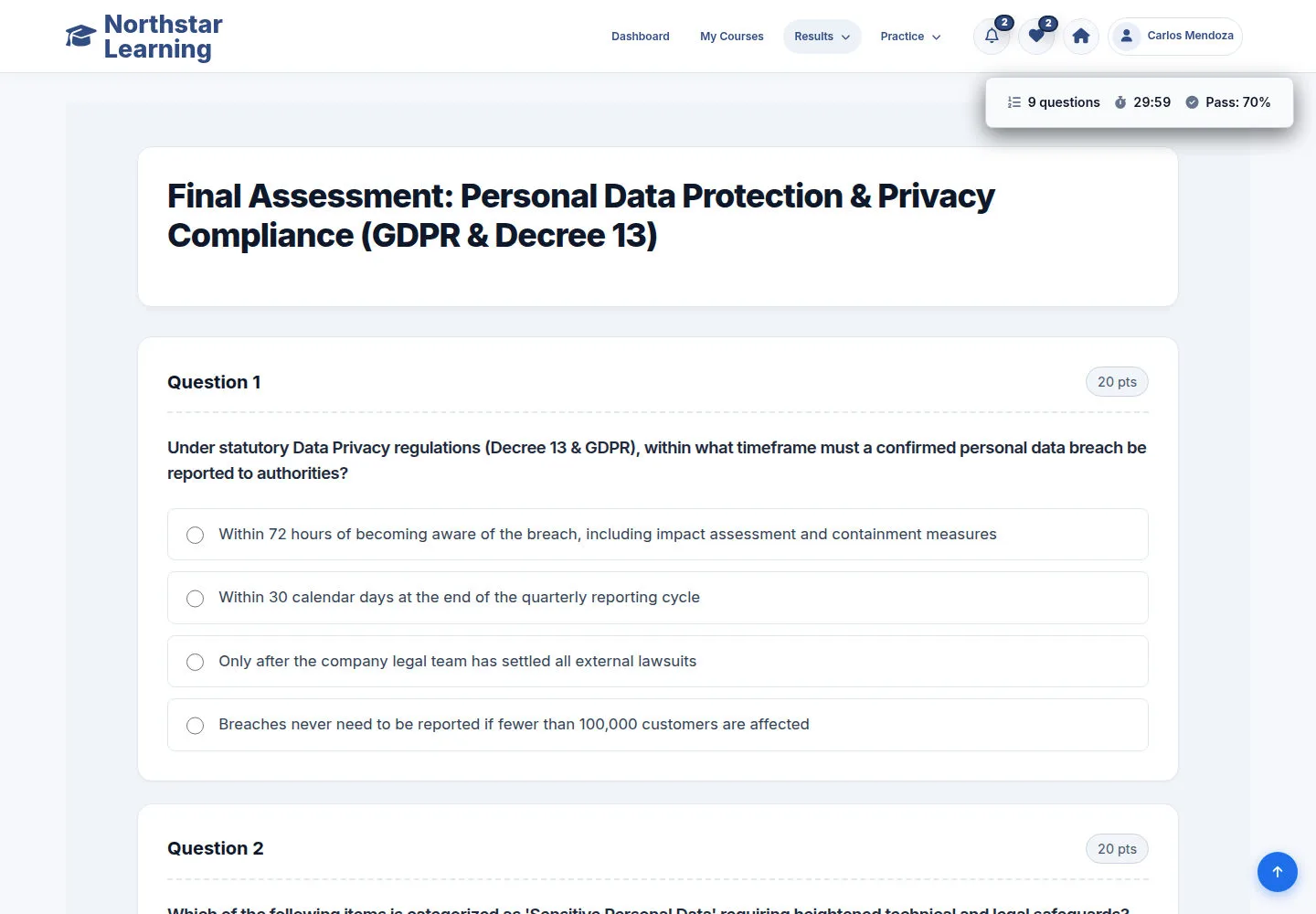
The Quiz of the Privacy course opens from its final Lesson. The bar at the top right shows the number of questions, the time left and the pass mark.
- Read each question and its points; answer with the control that matches the question type.
- Review your answers, then click Submit Final Answers at the bottom of the form.
Open on site ↗sign-inFull-page screenshot ↗
When you submit, the attempt is saved and its result page opens according to the Quiz settings.
Find your attempts in My Quiz Results
Student
2Step 2 of 4
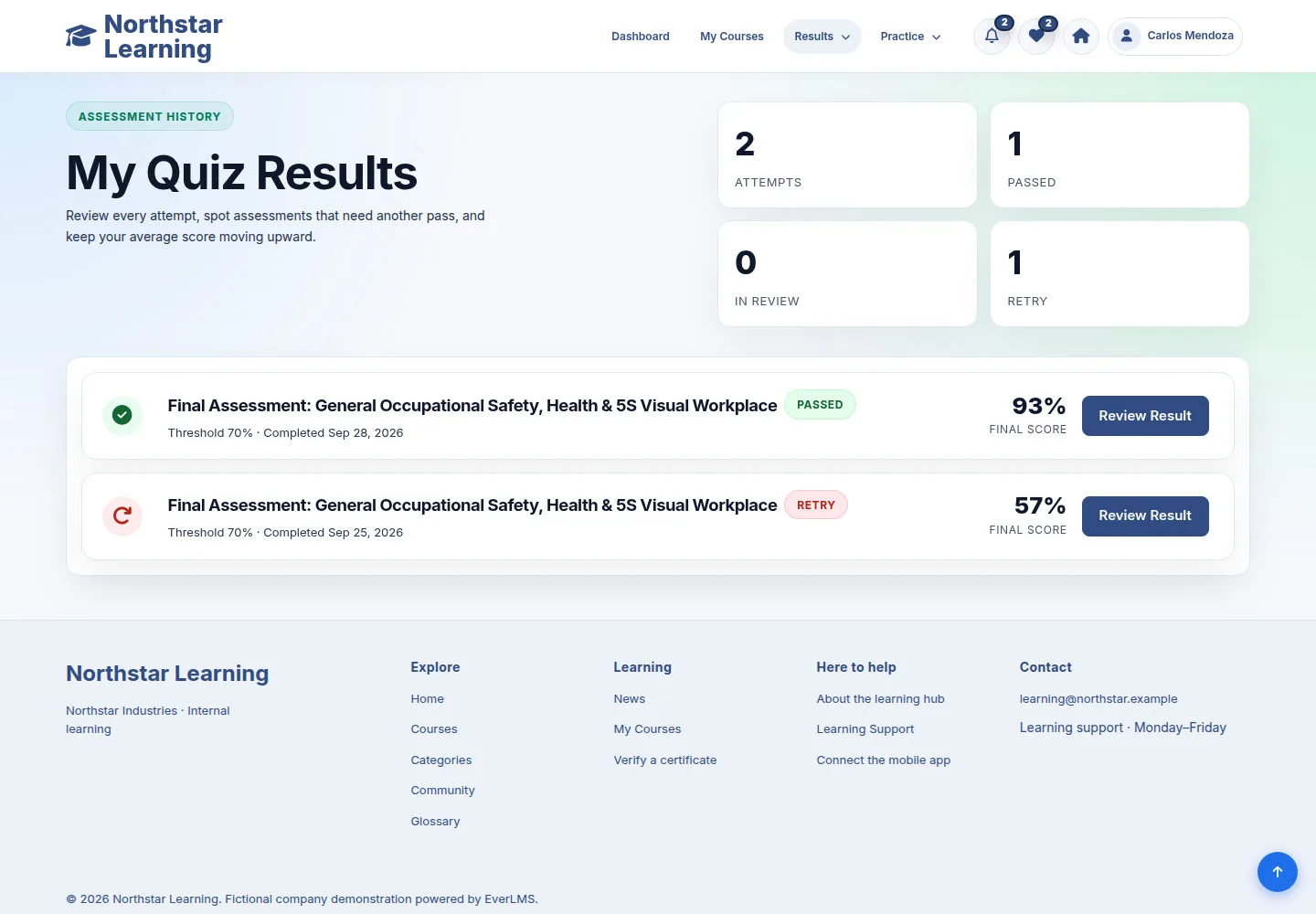
My Quiz Results lists your saved attempts and their status. Open an attempt to read its score, answers and feedback.
- Read each row: the Quiz name, PASSED or RETRY, the threshold, the date and the FINAL SCORE.
- Click Review Result on the attempt you want to read.
Open on site ↗sign-inFull-page screenshot ↗
The result page of the attempt opens.
Read a Failed result
Student
3Step 3 of 4
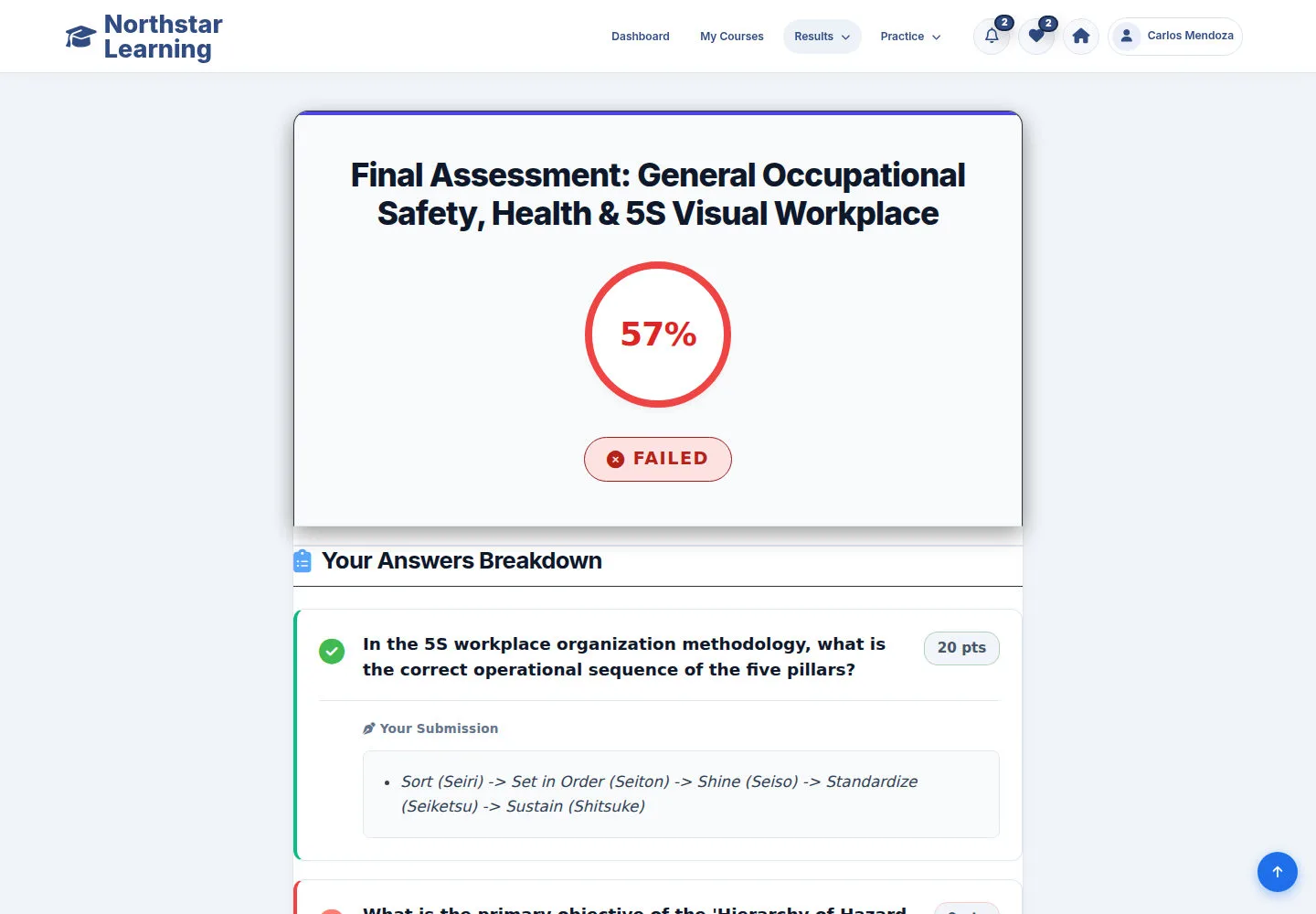
A FAILED attempt did not meet the Quiz pass threshold. Use the answer feedback to decide which topics to revisit before another attempt.
- In Your Answers Breakdown, review the points, ticks, crosses and feedback for each answer.
- Review the matching Lessons, then click Continue Learning; try again when the Quiz allows another attempt.
Open on site ↗sign-inFull-page screenshot ↗
The failed attempt stays in your history, and you know what to review before the next attempt.
Read a Passed result
Student
4Step 4 of 4
A PASSED attempt met the Quiz pass threshold. You can still review the answers and feedback to reinforce what you learned.
- Check the score and the status at the top, then the answers in Your Answers Breakdown.
- Click Continue Learning at the bottom of the page to go on with your training.
Open on site ↗sign-inFull-page screenshot ↗
You see the passed attempt. Use the next guide to find certificates already issued for your training.