





 Internal training
User guide · Content Editor
Create a Course and write its training information
Prepare the Course content, images, taxonomy and Chapter/Lesson structure.
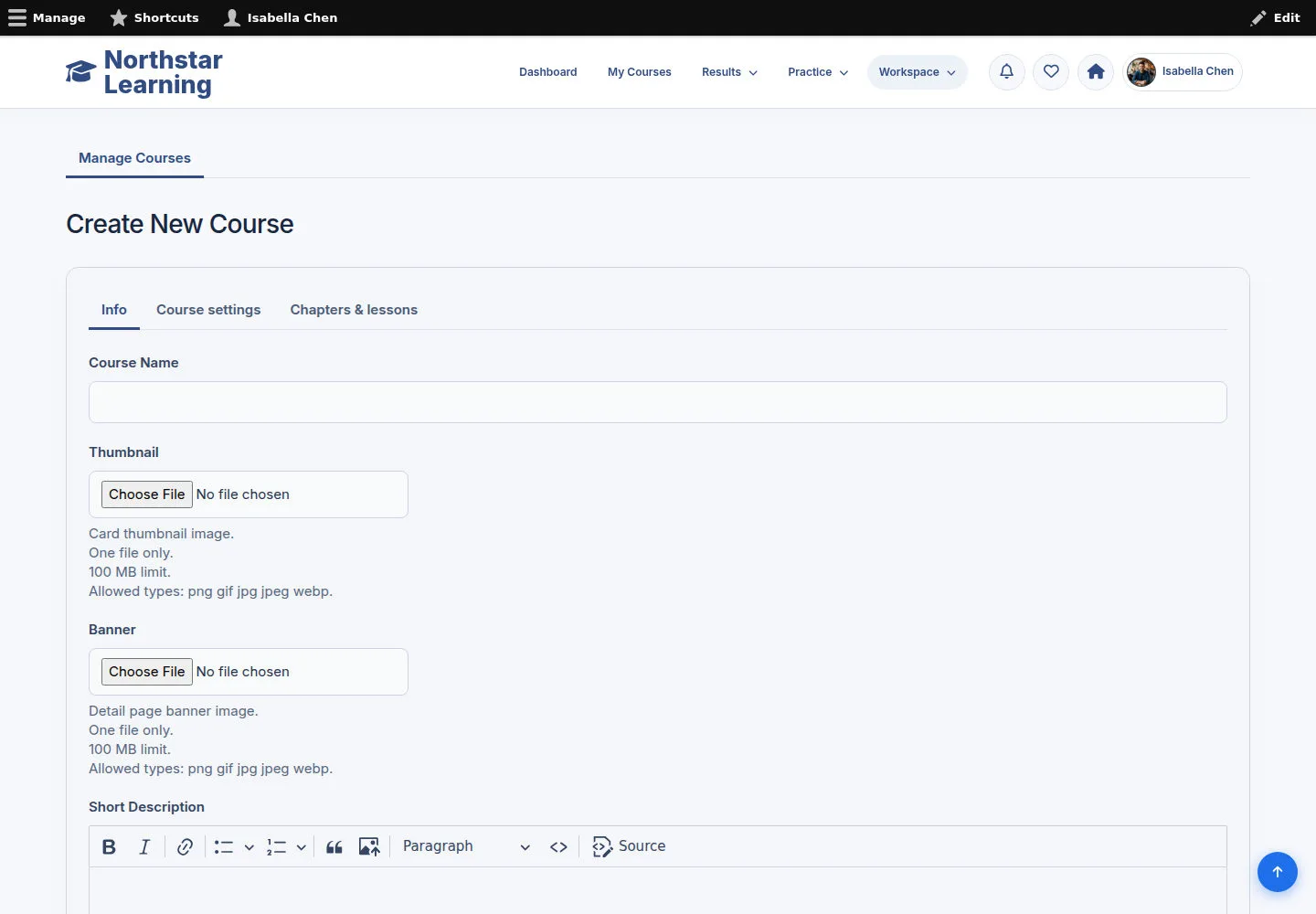
Create a Course from the Info tab
Content Editor
1Step 1 of 5
Create New Course splits authoring across the tabs.
- On Info, enter the Course Name and choose a suitable Thumbnail and Banner.
Open on site ↗sign-inFull-page screenshot ↗
The Course's identifying details are filled in on the form before saving.
Write the description, goals and audience
Content Editor
2Step 2 of 5
The description helps employees see the value of the Course.
- Write a Short Description for cards and a Description for the Course detail.
- Fill in What You’ll Learn, Prerequisites and Who This Course Is For from your training content.
Open on site ↗sign-inFull-page screenshot ↗
The Course has enough of an introduction for learners to decide and start.
Choose the Course settings
Content Editor
3Step 3 of 5
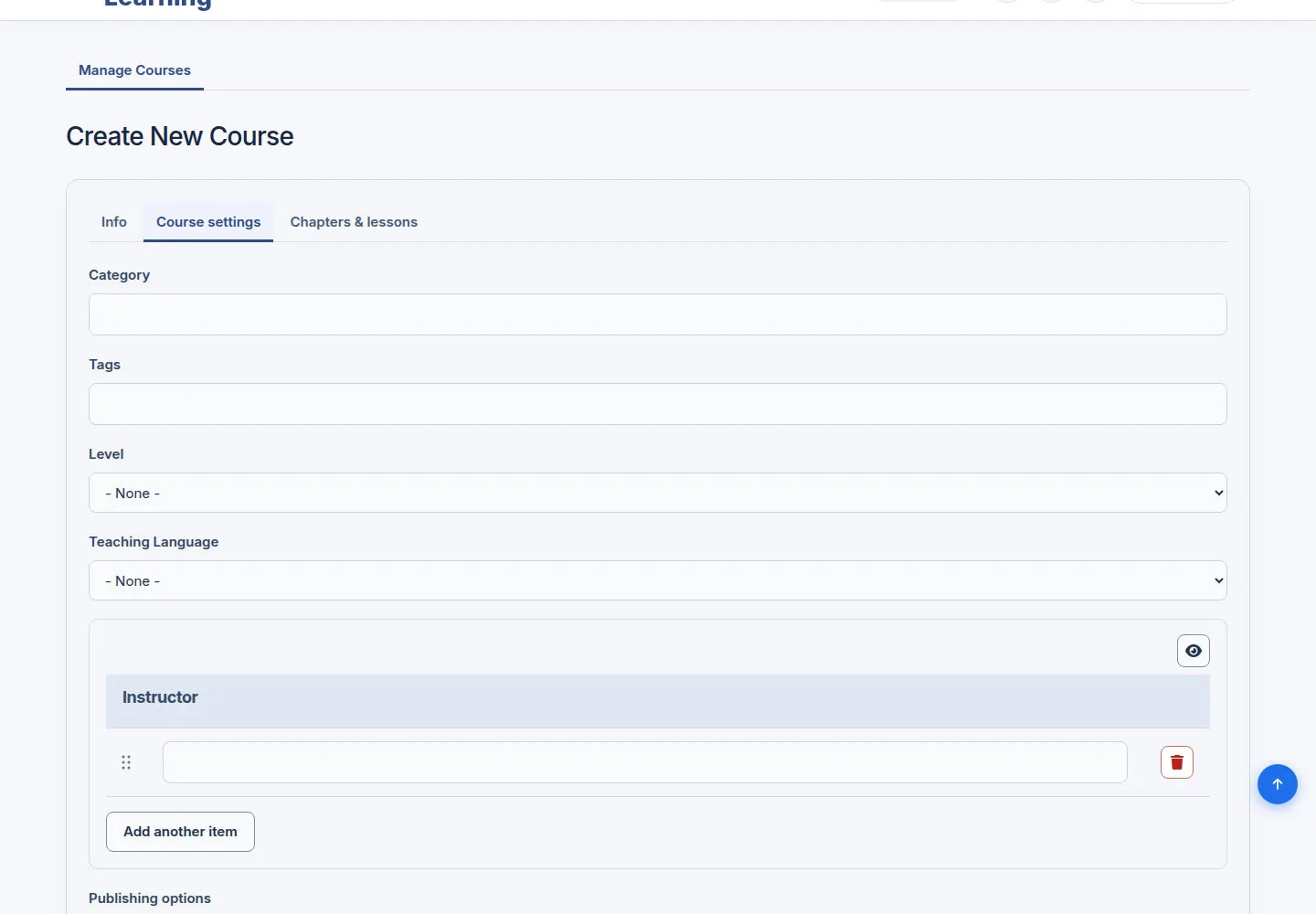
Settings hold publication, taxonomy, language and Instructor.
- Open Course settings; choose Category, Tags, Level, Teaching Language and Instructor.
- Check publication before saving; the Enterprise form has no pricing or payment step.
Open on site ↗sign-inFull-page screenshot ↗
The Course uses the classifications and author you chose.
Add Chapters, then Lessons inside each Chapter
Content Editor
4Step 4 of 5
Chapters & lessons keeps the EverLMS hierarchy.
- Open Chapters & lessons; use Add new chapter or Add chapter.
- In each Chapter, add or choose its Lessons; check the order before Save course.
Open on site ↗sign-inFull-page screenshot ↗
References run Course → Chapter → Lesson; Lessons are never attached to the Course on their own.
Review and save the Course when it is ready
Content Editor
5Step 5 of 5
Review the Course information and Curriculum before saving.
- Check Info, Course settings and Chapters & lessons.
- Use Save course when the data is complete, then check the message and the Course page after saving.
Open on site ↗sign-inFull-page screenshot ↗
The Course is saved according to your editing permissions.