





 Internal training
User guide · Manager
FAQ, News, Glossary and Home content
Edit the content that supports training and the content types used on Home.
Find FAQ items in the list
Manager
1Step 1 of 10
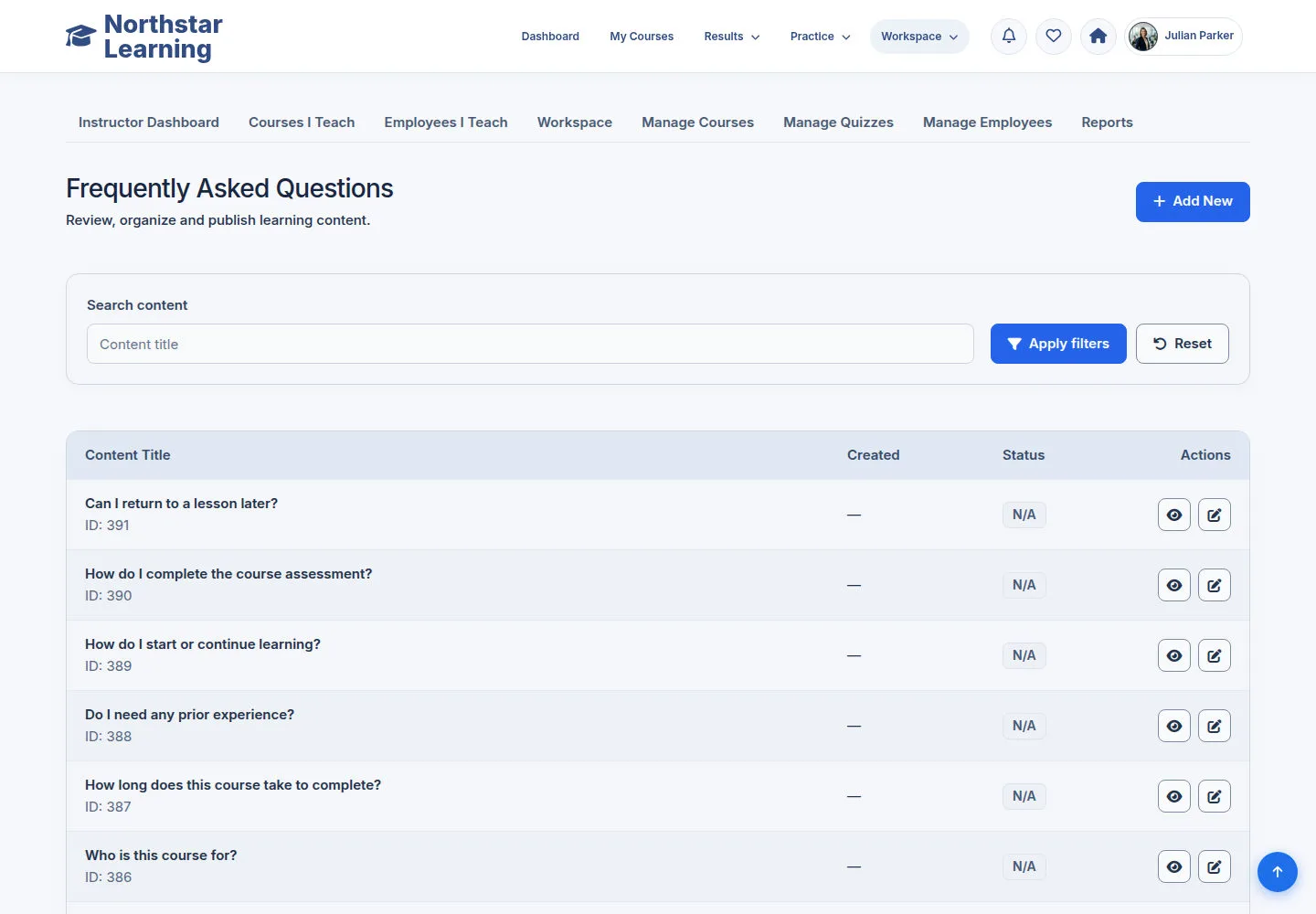
FAQ has a list and authoring actions in the Workspace content area.
- Find the record to edit; use Add to create new content or Edit to change a permitted record.
Open on site ↗sign-inFull-page screenshot ↗
You work on the right FAQ content type.
Edit FAQ and check before Save
Manager
2Step 2 of 10
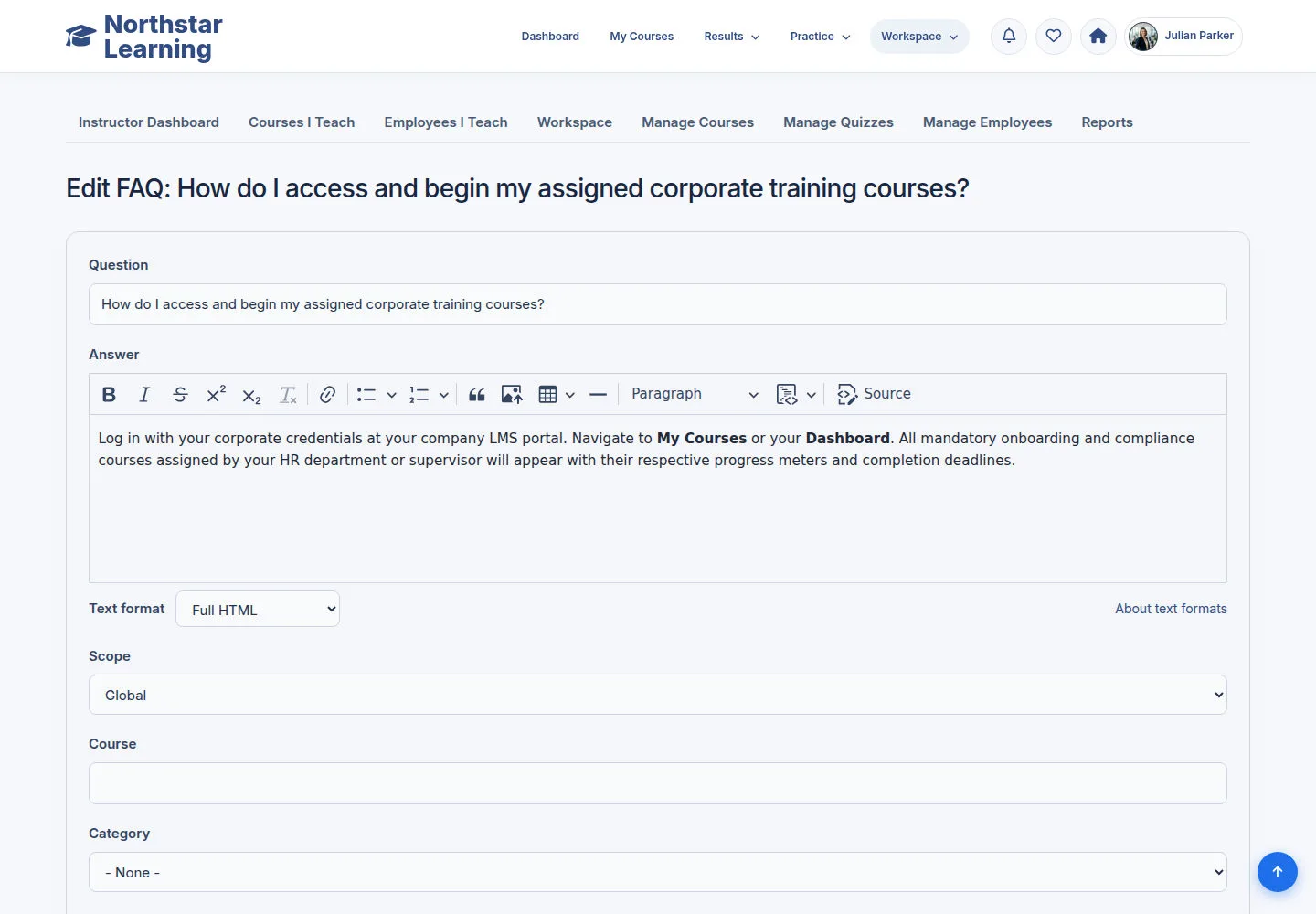
FAQ uses Question, Answer and Scope. Choose where the answer should appear and any Course or Category it relates to.
- Read the Question and Answer; check Scope, Course, Category and Weight so the question sits in the right scope.
- Check the content and scope before Save; use Cancel when no change is needed.
Open on site ↗sign-inFull-page screenshot ↗
The FAQ item is saved with your updates.
Find News items in the list
Manager
3Step 3 of 10
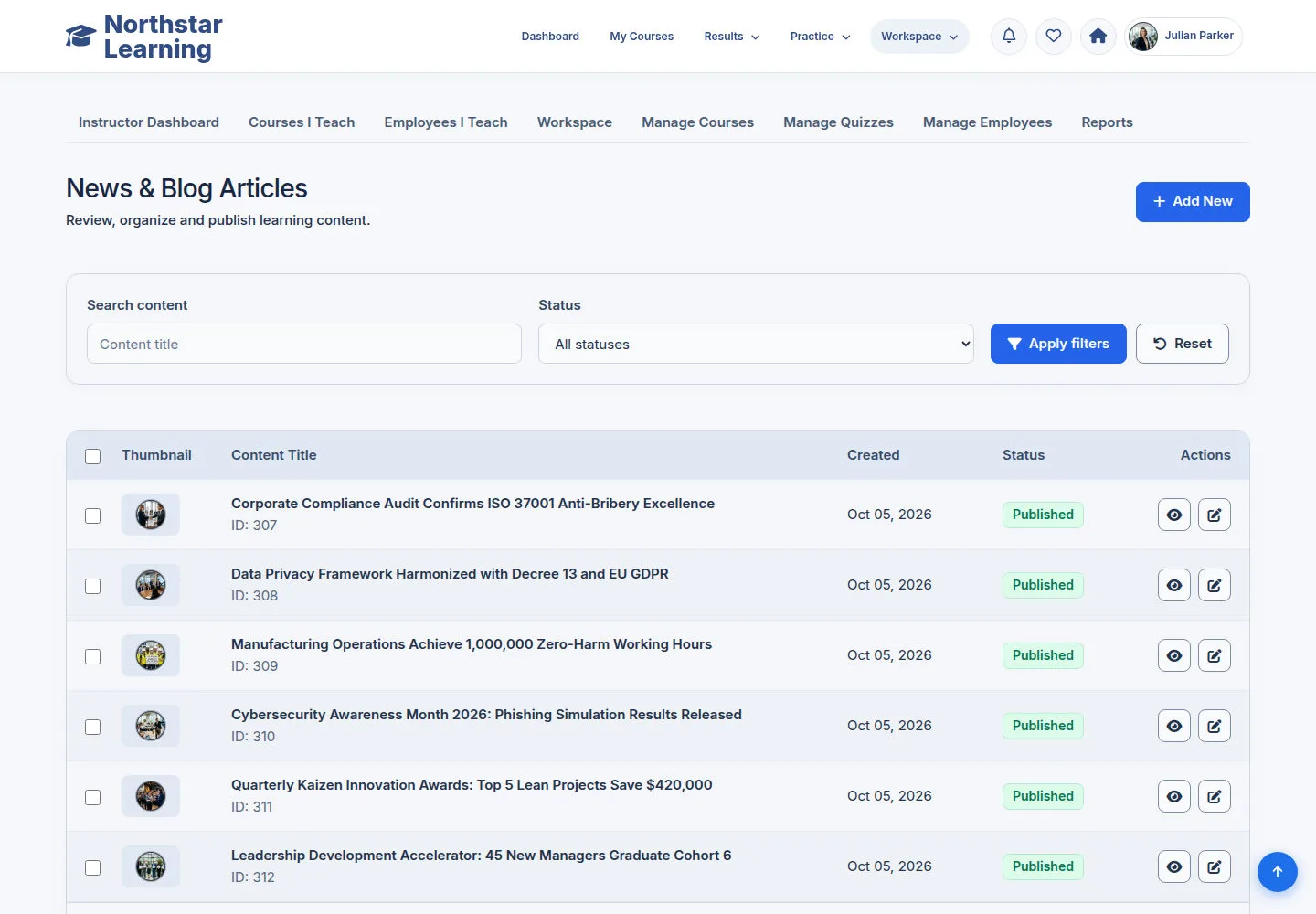
News has a list and authoring actions in the Workspace content area.
- Find the record to edit; use Add to create new content or Edit to change a permitted record.
Open on site ↗sign-inFull-page screenshot ↗
You work on the right News content type.
Edit News and check before Save
Manager
4Step 4 of 10
Update the content, artwork and publication fields shown by the editor.
- Update the title or heading, the Body and the artwork, link and reference fields shown.
- Check Published and the content before Save; use Cancel when no change is needed.
Open on site ↗sign-inFull-page screenshot ↗
The News item is saved with your updates.
Find Glossary items in the list
Manager
5Step 5 of 10
Glossary has a list and authoring actions in the Workspace content area.
- Find the record to edit; use Add to create new content or Edit to change a permitted record.
Open on site ↗sign-inFull-page screenshot ↗
You work on the right Glossary content type.
Edit Glossary and check before Save
Manager
6Step 6 of 10
Update the content, artwork and publication fields shown by the editor.
- Update the title or heading, the Body and the artwork, link and reference fields shown.
- Check Published and the content before Save; use Cancel when no change is needed.
Open on site ↗sign-inFull-page screenshot ↗
The Glossary item is saved with your updates.
Find Introduction items in the list
Manager
7Step 7 of 10
Introduction has a list and authoring actions in the Workspace content area.
- Find the record to edit; use Add to create new content or Edit to change a permitted record.
Open on site ↗sign-inFull-page screenshot ↗
You work on the right Introduction content type.
Edit Introduction and check before Save
Manager
8Step 8 of 10
Update the content, artwork and publication fields shown by the editor.
- Update the title or heading, the Body and the artwork, link and reference fields shown.
- Check Published and the content before Save; use Cancel when no change is needed.
Open on site ↗sign-inFull-page screenshot ↗
The Introduction item is saved with your updates.
Find Slideshow items in the list
Manager
9Step 9 of 10
Slideshow has a list and authoring actions in the Workspace content area.
- Find the record to edit; use Add to create new content or Edit to change a permitted record.
Open on site ↗sign-inFull-page screenshot ↗
You work on the right Slideshow content type.
Edit Slideshow and check before Save
Manager
10Step 10 of 10
Update the content, artwork and publication fields shown by the editor.
- Update the title or heading, the Body and the artwork, link and reference fields shown.
- Check Published and the content before Save; use Cancel when no change is needed.
Open on site ↗sign-inFull-page screenshot ↗
The Slideshow item is saved with your updates.