





 Internal training
User guide · Manager
Manage Quizzes and review or grade results
Go from Quiz Management to the settings, Question references and the permitted grading form.
Find an assessment in Quiz Management
Manager
1Step 1 of 6
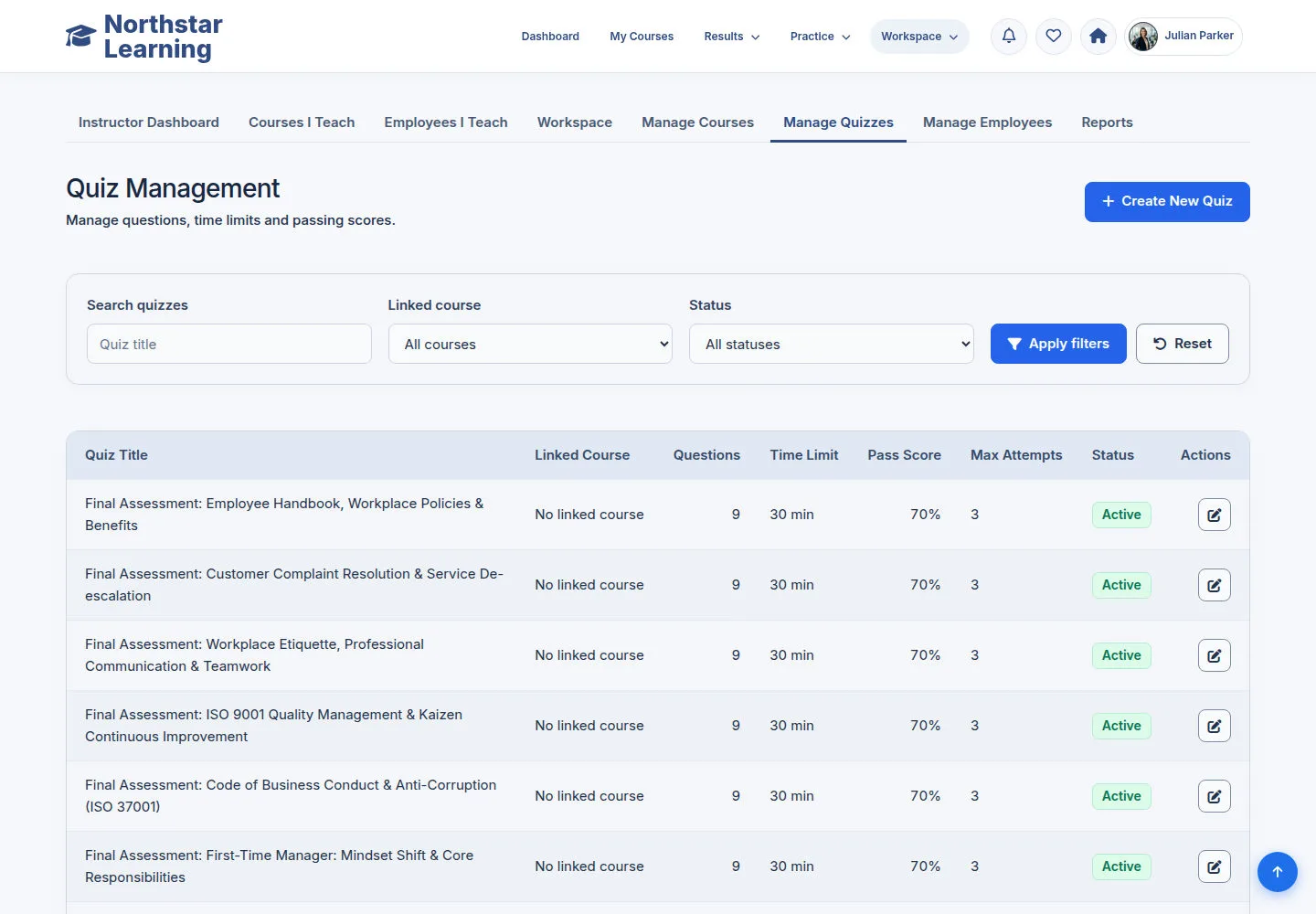
Search, Linked course and Status narrow the Quiz list.
- Search by assessment name; keep Linked course on All when a Quiz is referenced through a Lesson but its direct Course field is empty.
Open on site ↗sign-inFull-page screenshot ↗
You find the right Quiz without excluding it because of the direct Course field.
Update the Quiz Info and assessment settings
Manager
2Step 2 of 6
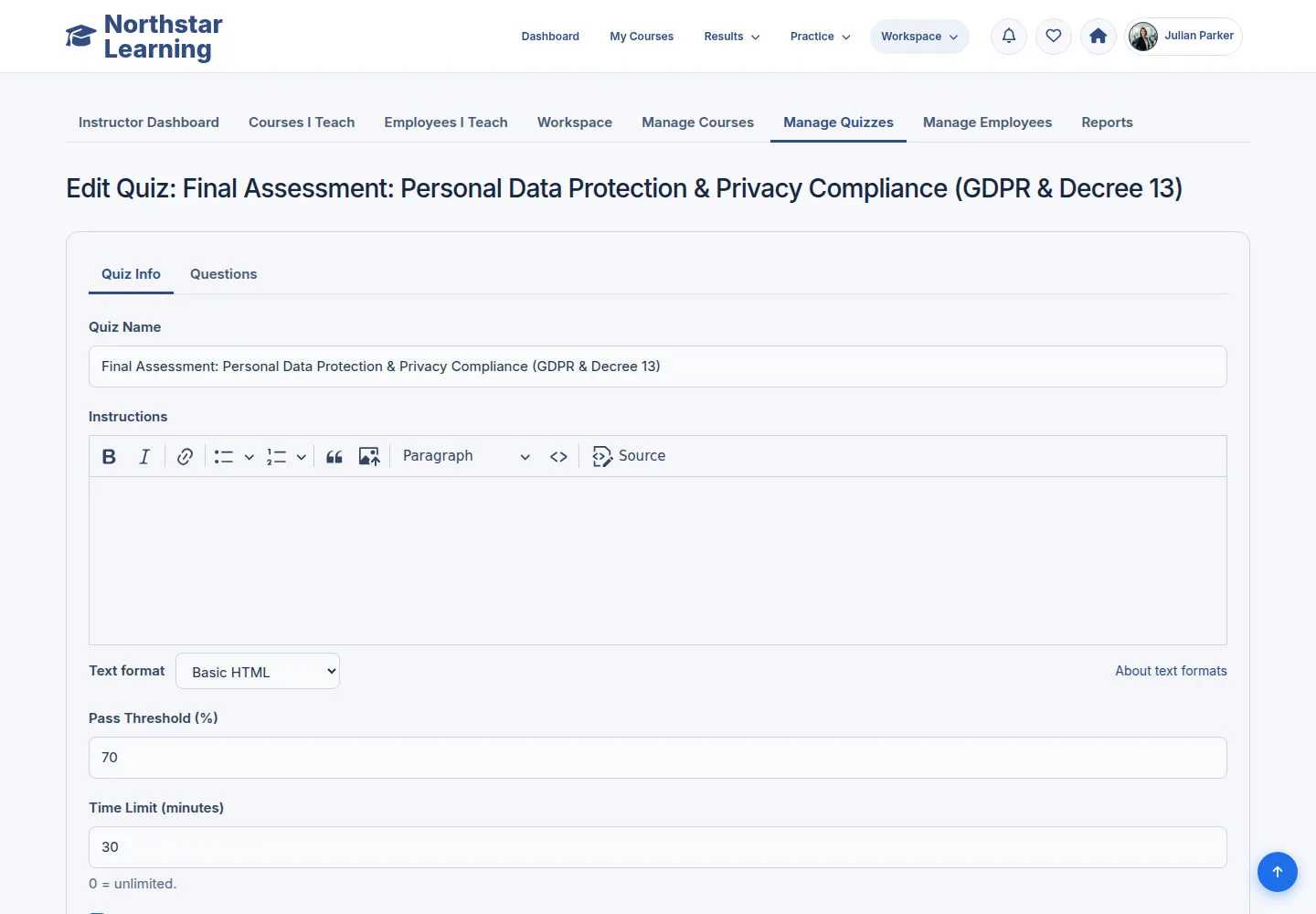
Set the instructions and assessment rules for the Quiz.
- Review the Quiz Name, Instructions, Pass Threshold, Time Limit and the settings shown.
- Update the settings for your assessment, then Save and check the confirmation.
Open on site ↗sign-inFull-page screenshot ↗
The Quiz uses the assessment settings you saved.
Manage Question references
Manager
3Step 3 of 6
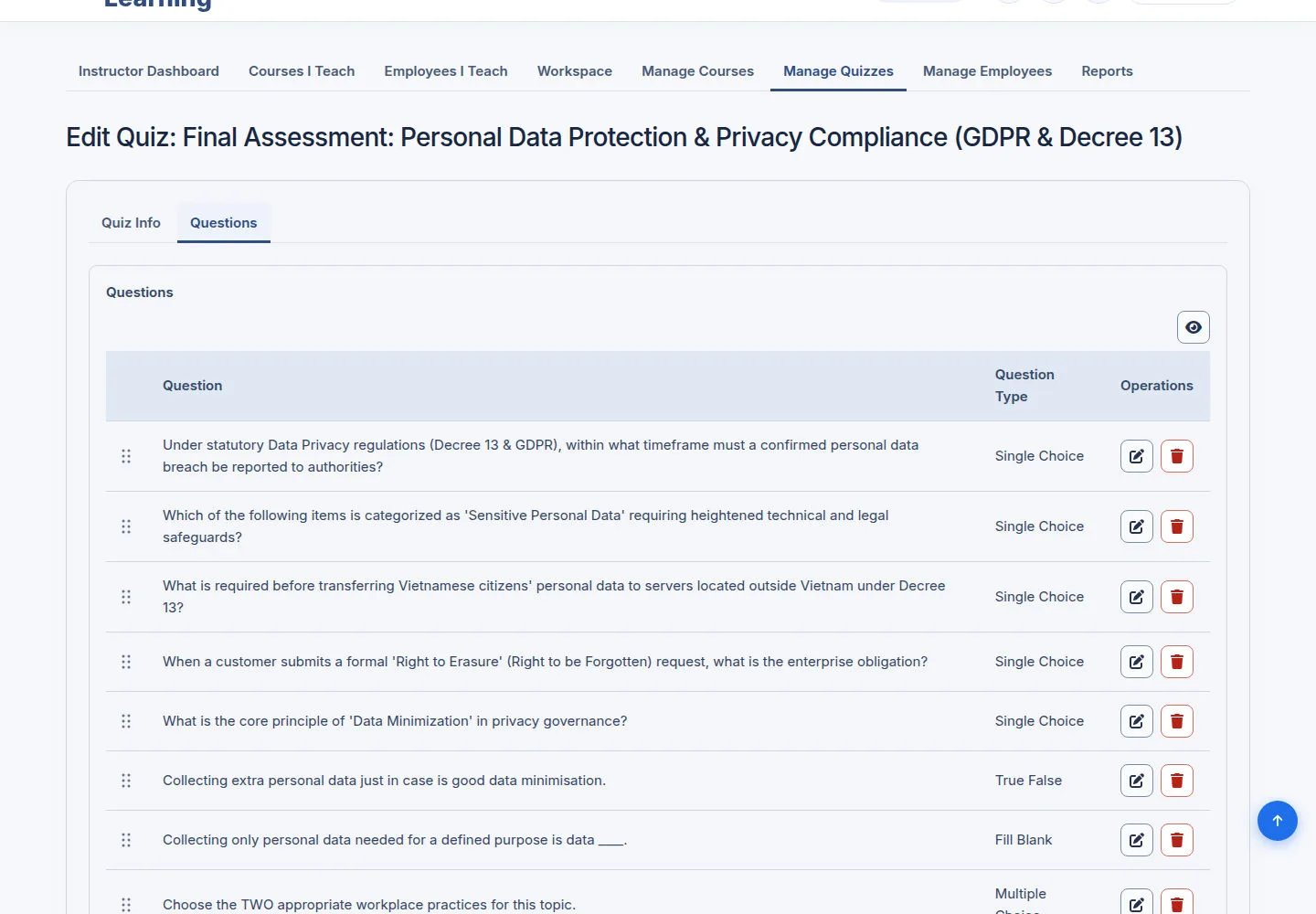
A Quiz stores references to Questions.
- Open Questions; add or choose supported questions and review their order and points.
- When you need a new question, use the form of that Question type, then choose it in the Quiz.
Open on site ↗sign-inFull-page screenshot ↗
The Question is referenced by the Quiz without breaking the Course/Chapter/Lesson structure.
Author a Question and its Choices
Manager
4Step 4 of 6
Use Single Choice when learners need to choose one correct answer.
- Enter the Question, Details, Points and Explanation; create the Choices and mark the correct answer.
- Save when the data is complete, then add the Question to the Quiz's Questions.
Open on site ↗sign-inFull-page screenshot ↗
A valid Question has choices and an answer from the form.
View a learner's saved attempt
Manager
5Step 5 of 6
The example is a learner's Failed attempt at the Final Assessment of the Occupational Safety course.
- Read the learner, the Quiz, the score and the answers you are allowed to see.
Open on site ↗sign-inFull-page screenshot ↗
You review the right learner's attempt before you act on it.
Recognise an attempt that needs no manual review
Manager
6Step 6 of 6
This attempt was graded automatically; the form shows This submission has no responses pending manual review.
- Check the learner, Quiz and status; when no responses are pending, return to the result to review it.
- For another submission with Pending Manual Review, the form shows Points awarded, Feedback to learner (optional) and Finalize grade; grade and confirm on that submission when ready.
Open on site ↗sign-inFull-page screenshot ↗
This attempt has no points or feedback fields and no Finalize grade button; they appear only on a submission with responses pending manual review.