





 Internal training
User guide · Anonymous visitor
Find a Course and understand the training
Go from the home page to a sample Course, read its lesson structure and what to know before you start.
Open Home and find the way to Courses
Anonymous visitor
1Step 1 of 6
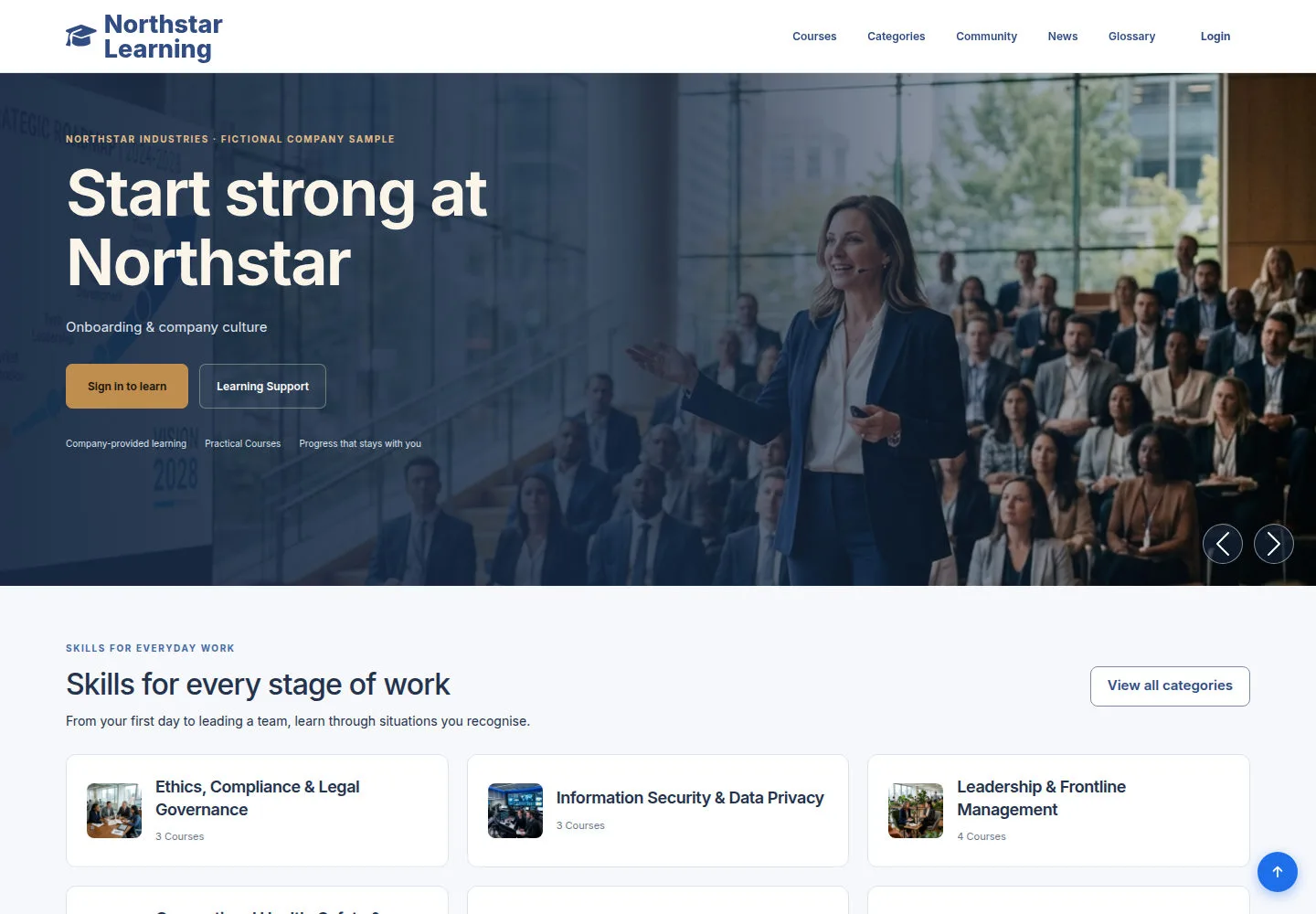
The front-end main menu leads to the Course library and public content.
- Choose Courses to find training; choose Categories if you prefer to start from a topic.
Open on site ↗Full-page screenshot ↗
You reach the library or a category without signing in.
Search the Course catalog
Anonymous visitor
2Step 2 of 6
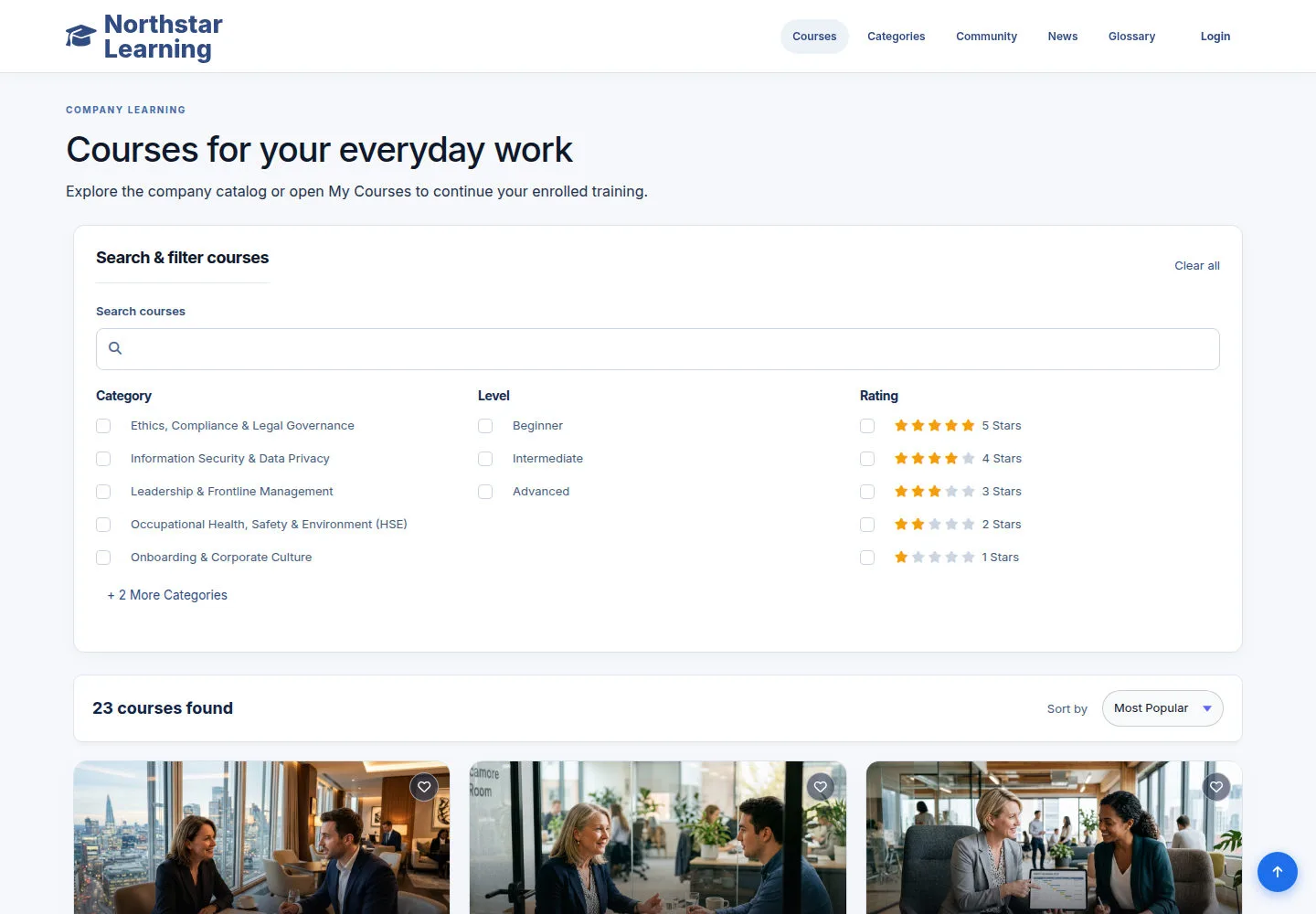
Use the work you need to learn as your keyword instead of browsing every Course.
- Type a keyword in Search; choose the available filters such as Category, Level or Rating.
- Apply the filters or choose a sort order; use Clear/Reset to search again.
Open on site ↗Full-page screenshot ↗
The list and the result count reflect the filters you chose.
Open a Category
Anonymous visitor
3Step 3 of 6
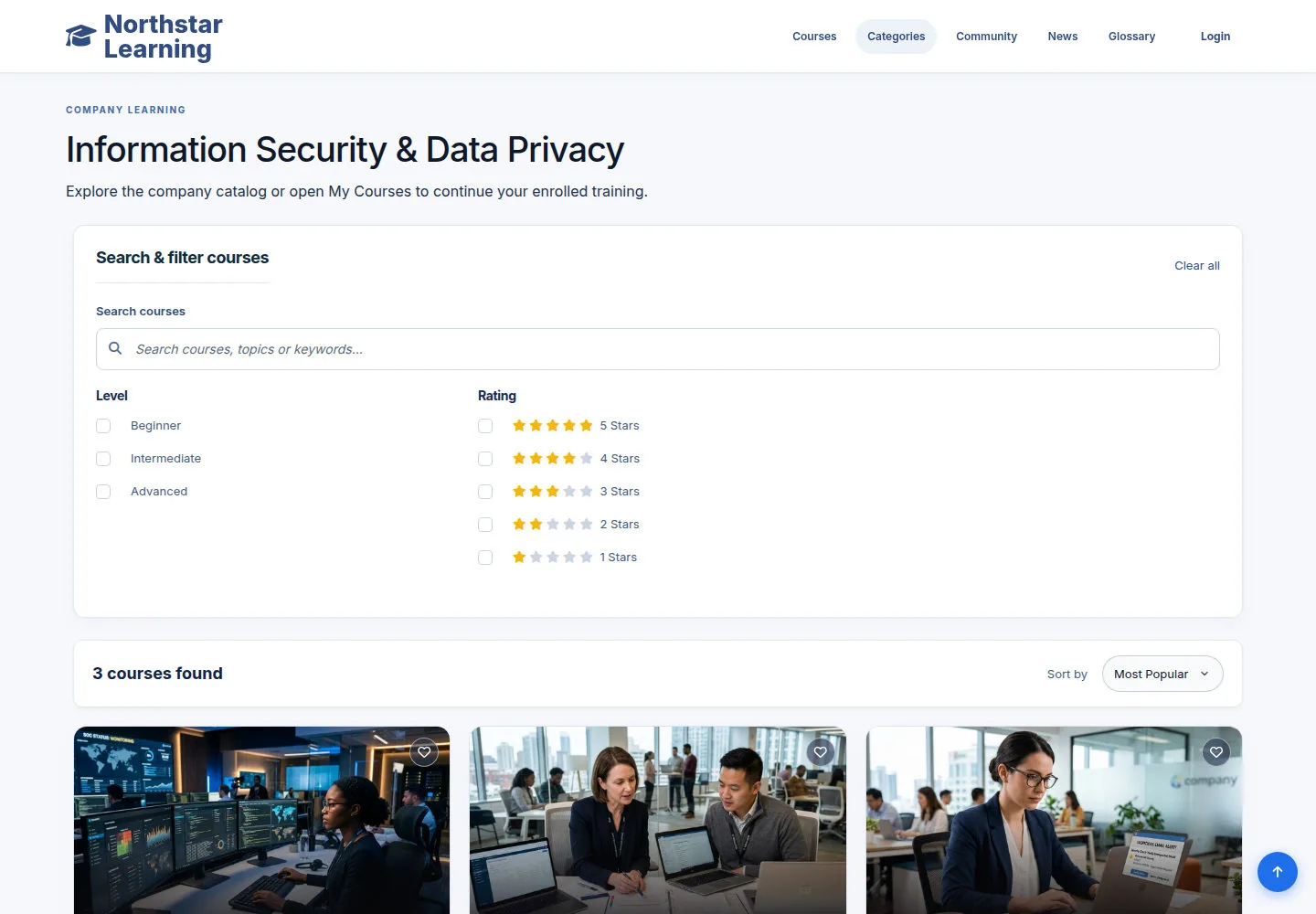
A Category groups Courses on the same topic so you can compare training goals.
- Open a Category from the list, then choose the Course you need from its results.
Open on site ↗Full-page screenshot ↗
You see the Courses in the selected Category.
Read the Course overview
Anonymous visitor
4Step 4 of 6
The sample Course, Personal Data Protection & Privacy Compliance, presents its goals and learning information.
- Read the Description, goals and audience; check the instructor details alongside.
- Choose the Curriculum tab to see the Chapter → Lesson order.
Open on site ↗Full-page screenshot ↗
You know what the Course teaches and who it is for.
See the Chapters and Lessons in the Curriculum
Anonymous visitor
5Step 5 of 6
A Course is made of Chapters; each Chapter contains its own Lessons.
- Choose Curriculum, open the Chapter you want and read the Lesson names in order.
Open on site ↗Full-page screenshot ↗
You see the Course → Chapter → Lesson structure.
Check the Instructor, Reviews and FAQ
Anonymous visitor
6Step 6 of 6
The other tabs show the author, real feedback and answers for the Course.
- Choose Instructor to see who teaches it; switch to Reviews to read ratings.
- Choose FAQ and open the question you need.
Open on site ↗Full-page screenshot ↗
Each tab shows one part of the Course: who teaches it, the learners' ratings and the answers to common questions.