





 Internal training
User guide · Administrator
Manage Certificates and the templates
Find issued certificates, prepare templates and check their layout with the Preview.
Find a record in Certificate Management
Administrator
1Step 1 of 5
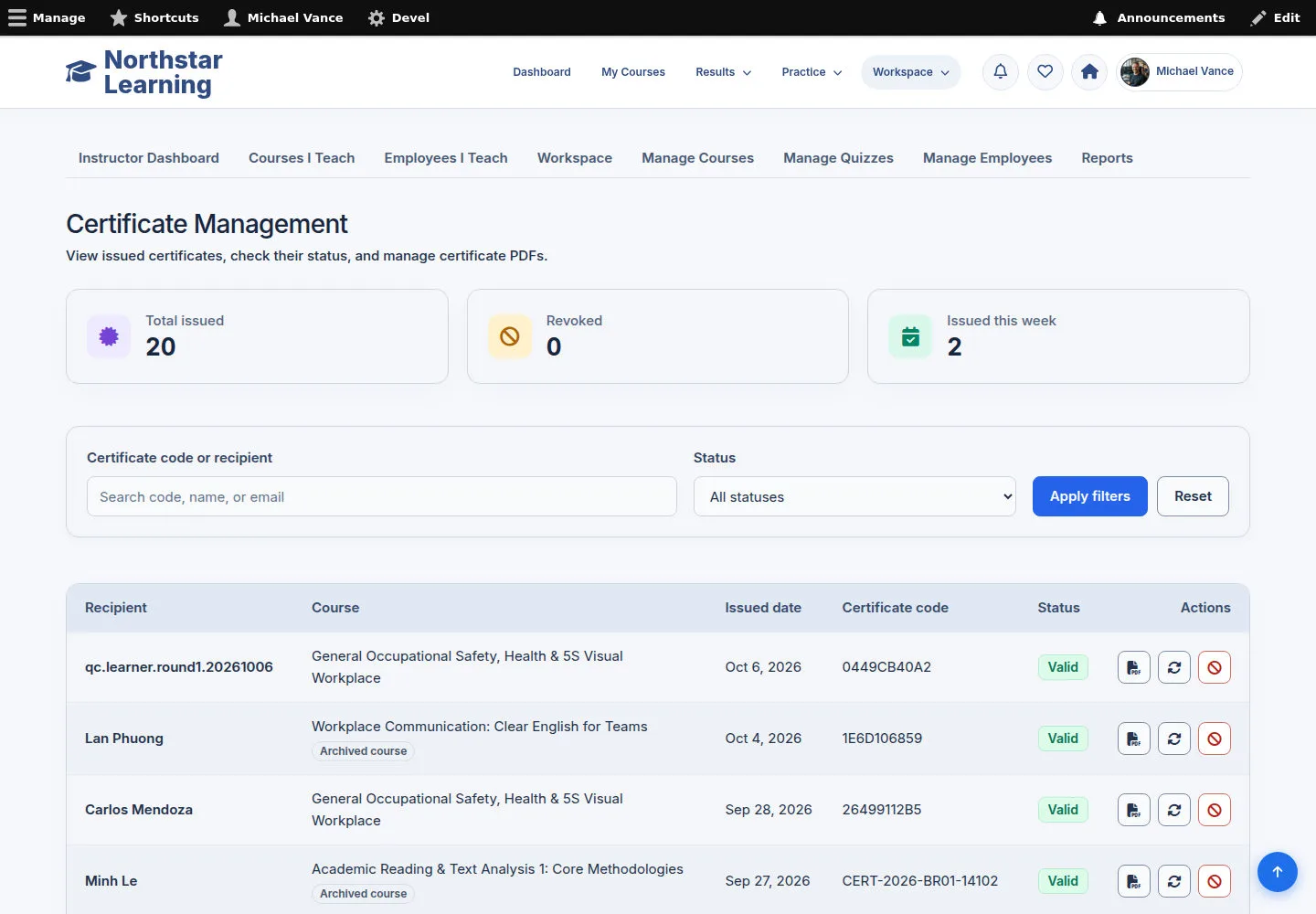
Search by code or recipient and use the valid/revoked filters.
- Check the recipient, Course and code before you download or use a management action.
Open on site ↗sign-inFull-page screenshot ↗
You choose the right saved Certificate.
Choose a Certificate Template
Administrator
2Step 2 of 5
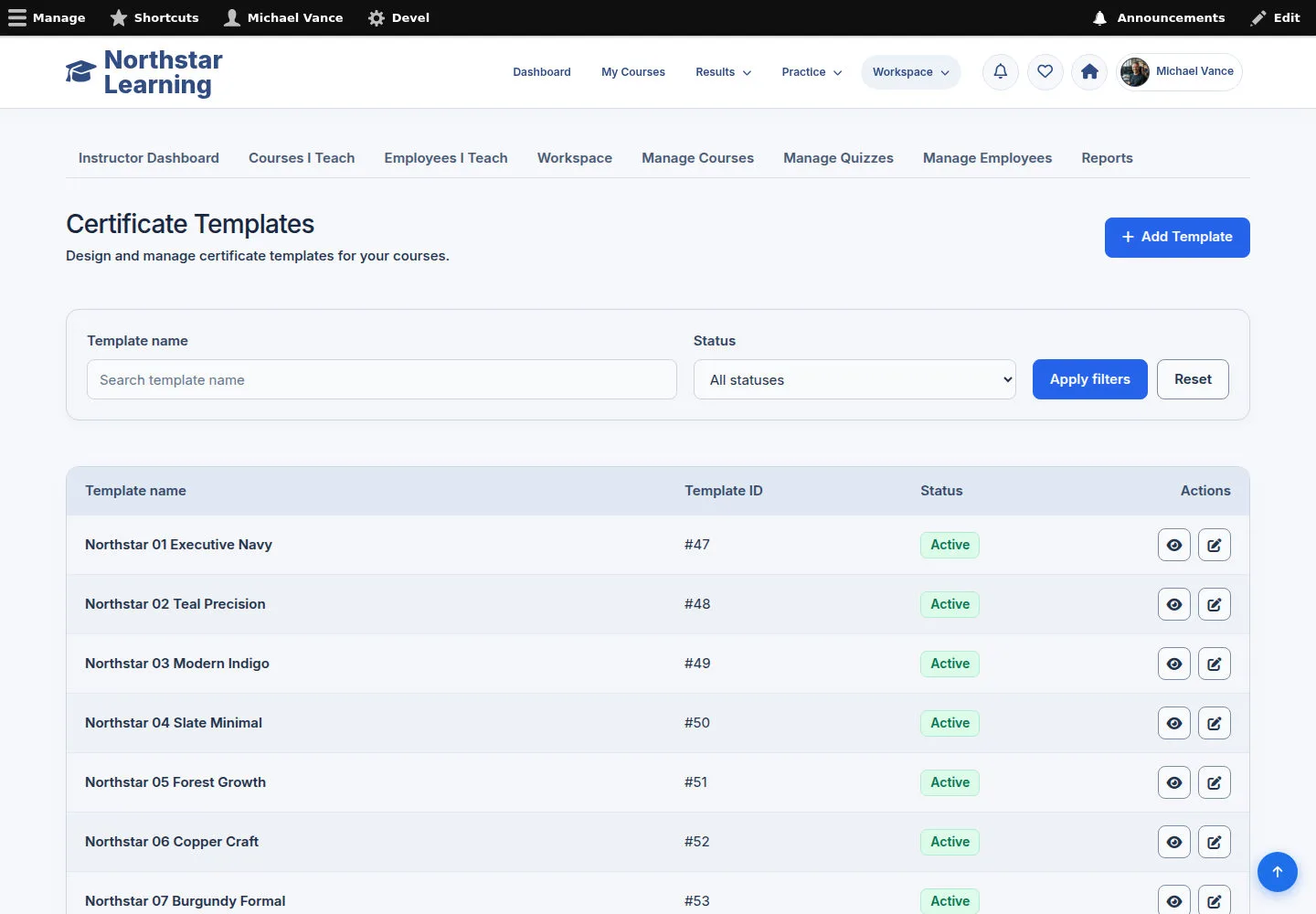
A template is the artwork and layout used by the certificate issuing mechanism.
- Read the template list and choose Edit or Preview from the actions shown.
Open on site ↗sign-inFull-page screenshot ↗
You work on the right template and do not treat a template image as an issued certificate.
Update the template and its branding assets
Administrator
3Step 3 of 5
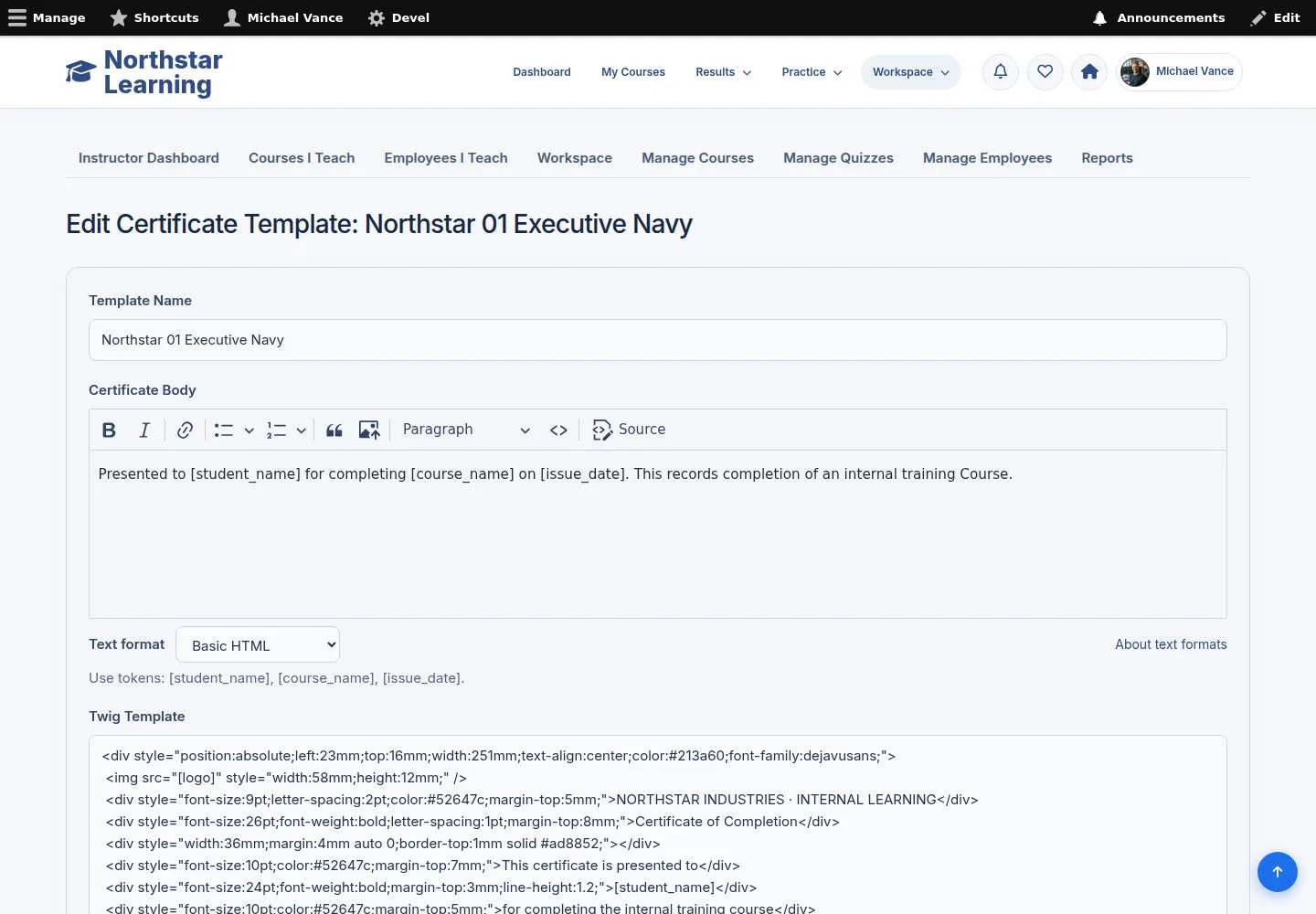
Prepare the certificate content, layout, orientation and artwork.
- Review placeholders such as [student_name], [course_name], [issue_date] and [certificate_code].
- Update the branding and layout; check Preview before saving.
Open on site ↗sign-inFull-page screenshot ↗
The saved template is ready to use for certificate generation.
Check the Preview before use
Administrator
4Step 4 of 5
Preview shows the template with sample data from the feature.
- Check the layout, logo, background and text placeholders in Preview.
Open on site ↗sign-inFull-page screenshot ↗
You confirm the template follows the current artwork and layout without issuing a Certificate to a learner.
Add a template with the form
Administrator
5Step 5 of 5
Add Certificate Template uses the fields the system supports.
- Enter the template name and content; prepare the layout, orientation and assets according to the form.
- Check Preview and Save when it is complete.
Open on site ↗sign-inFull-page screenshot ↗
A valid template is saved with the mechanism.