





 Internal training
User guide · Administrator
Manage Courses, Chapters and Lessons
Find a Course, update its information and structure, and compare the result with what learners see.
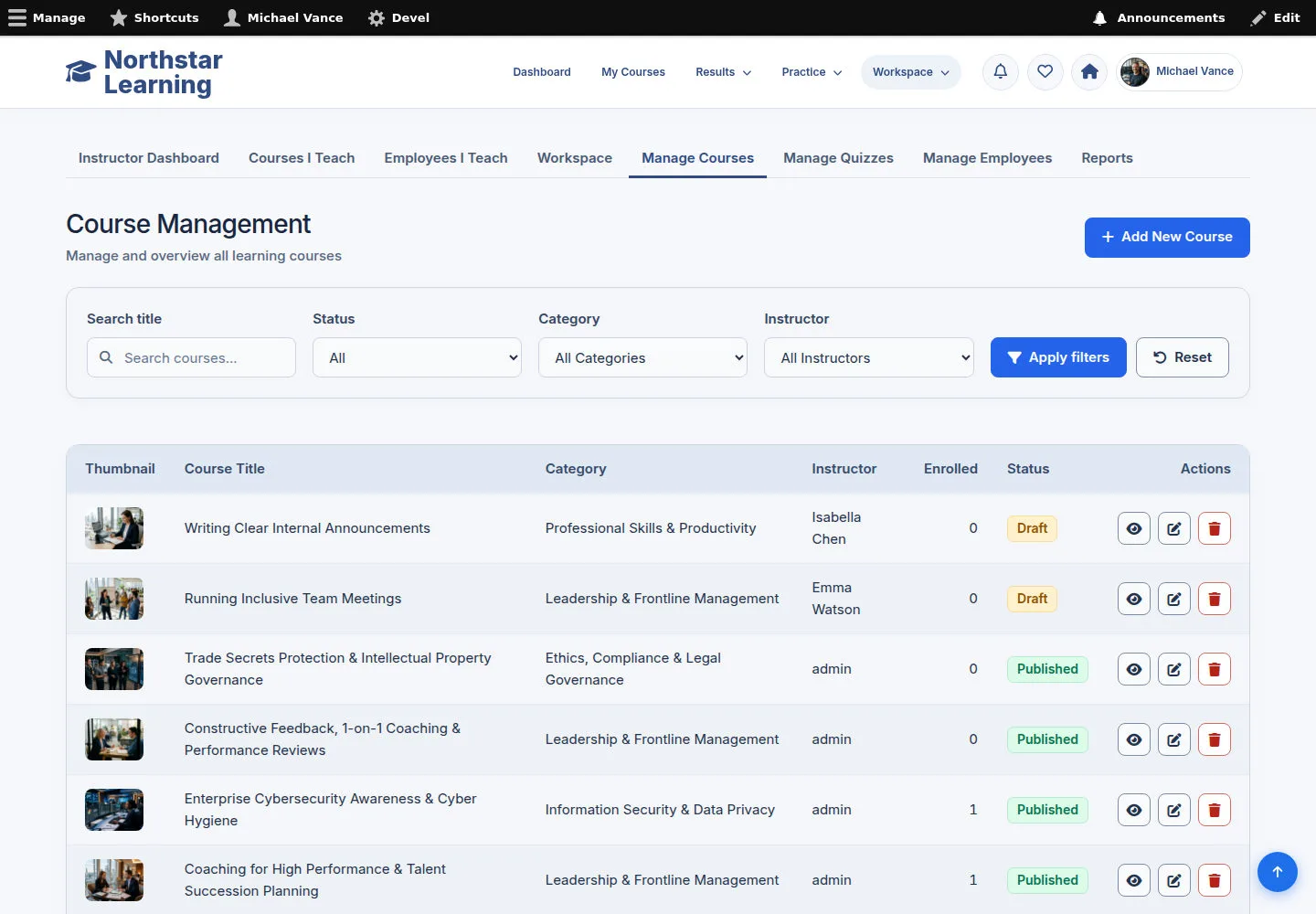
Find a Course in Course Management
Administrator
1Step 1 of 8
Use Search and the publication filter to choose the right record.
- Find the Course to manage; choose Edit or Create New Course as needed.
Open on site ↗sign-inFull-page screenshot ↗
You reach the right Course form.
Update the Course Info
Administrator
2Step 2 of 8
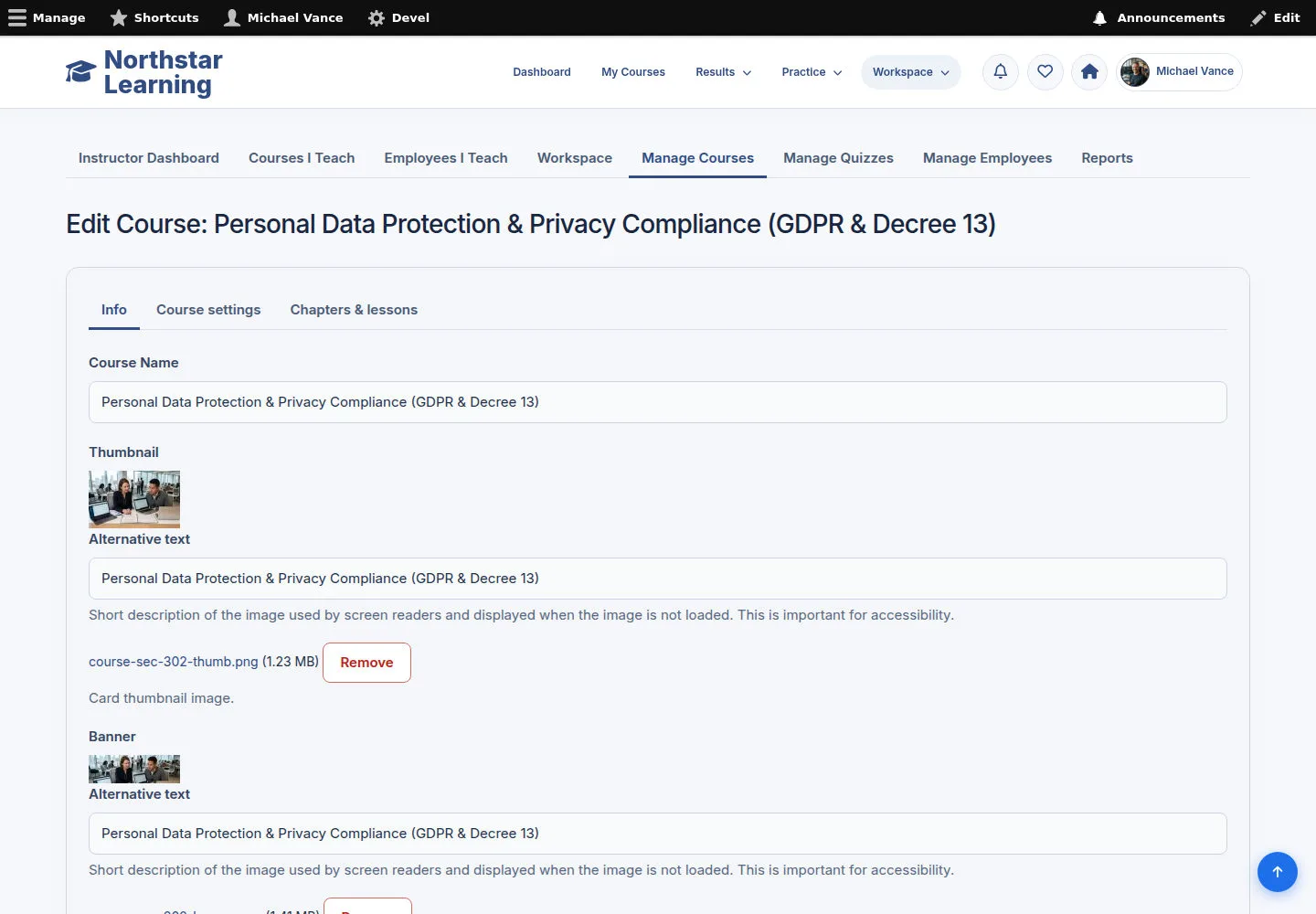
The Info tab holds the Course name, descriptions and artwork.
- Update the Course Name, Thumbnail/Banner and descriptions to reflect the training content.
Open on site ↗sign-inFull-page screenshot ↗
The introduction stays consistent with the Course being learned.
Check the Course settings
Administrator
3Step 3 of 8
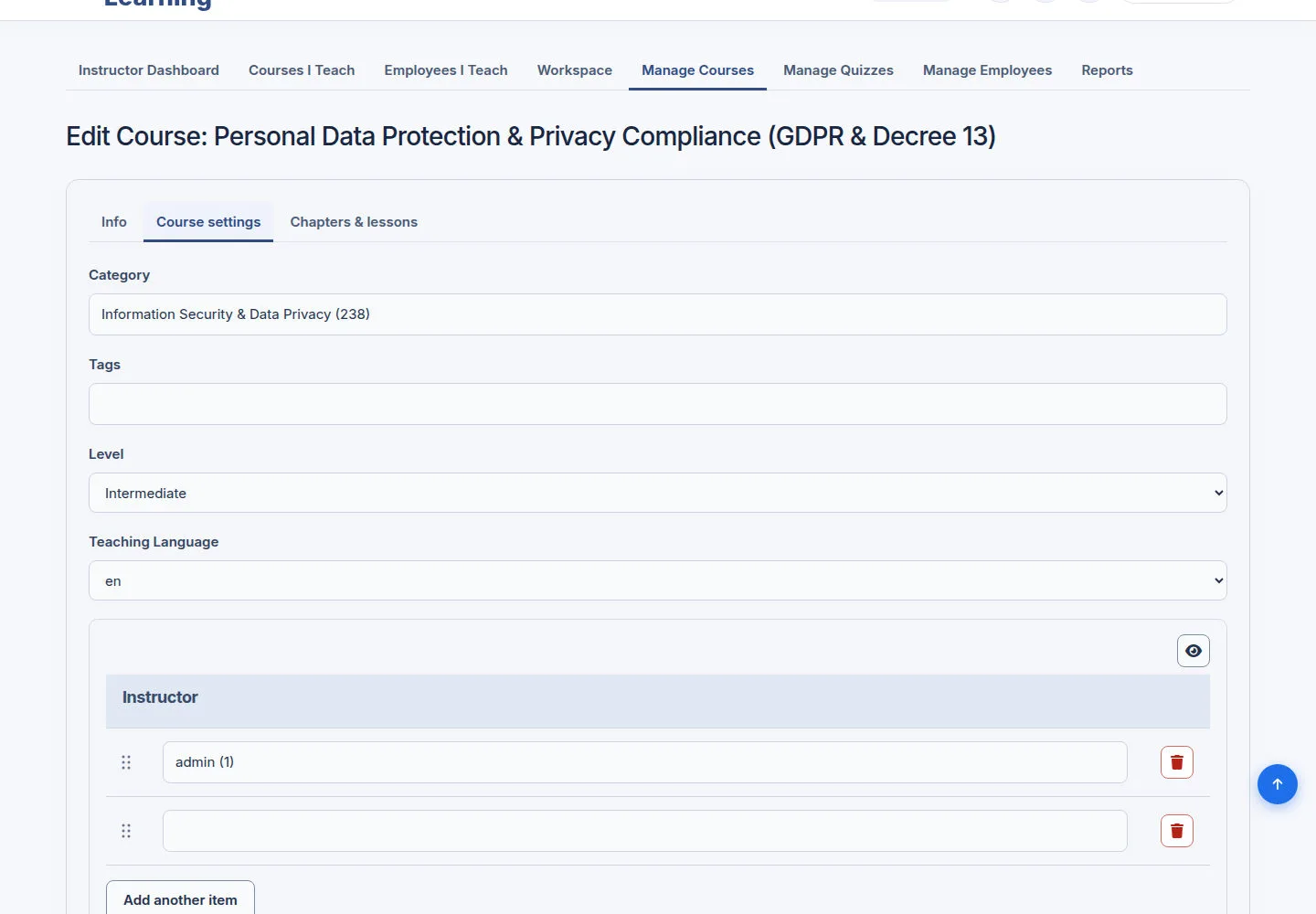
Settings hold the classification, publication and instructor.
- Open Course settings and review Category, Tags, Level, Teaching Language, Instructor and status.
- Do not use pricing or payment for internal Course assignment.
Open on site ↗sign-inFull-page screenshot ↗
The Course keeps the right metadata for its content.
Arrange Chapters and Lessons in the right structure
Administrator
4Step 4 of 8
The Curriculum is authored in the Chapters & lessons tab.
- Open Chapters & lessons; check the Chapter references and the Lessons inside each Chapter.
- Use the inline actions to edit the Curriculum, then Save course.
Open on site ↗sign-inFull-page screenshot ↗
The Course → Chapter → Lesson hierarchy is preserved.
Update a Chapter and its Lessons
Administrator
5Step 5 of 8
The Chapter editor manages the current Chapter's name and references.
- Read the name and the selected Lessons; edit the content or order with the available controls, then save when needed.
Open on site ↗sign-inFull-page screenshot ↗
The Chapter keeps its own list of Lessons.
Check the SCORM Lesson
Administrator
6Step 6 of 8
The SCORM editor shows the package and content of the sample Lesson.
- Read the Lesson Name and Type, Content, SCORM Package and other fields.
- Replace the package or content only when authoring, then save with the form.
Open on site ↗sign-inFull-page screenshot ↗
The Lesson keeps SCORM content for the selected type.
Keep the Quiz reference on the assessment Lesson
Administrator
7Step 7 of 8
A Quiz-type Lesson connects the Curriculum to the test.
- Check the Lesson Type and the Quiz field; choose the right assessment when updating.
Open on site ↗sign-inFull-page screenshot ↗
The Lesson → Quiz → Question relationship is kept.
Compare the public Course after authoring
Administrator
8Step 8 of 8
The public detail page shows how learners see the description and Curriculum.
- Open the Course detail; read the description, images and Curriculum to review the saved content.
Open on site ↗sign-inFull-page screenshot ↗
Authors see the result as it is presented on the front end.