





 Internal training
User guide · Authenticated user
Find your Notes, results and personal records
The My … pages keep your own learning records: notes, quiz results and their details, certificates, wishlist and notifications.
Find your saved notes
Authenticated user
1Step 1 of 9
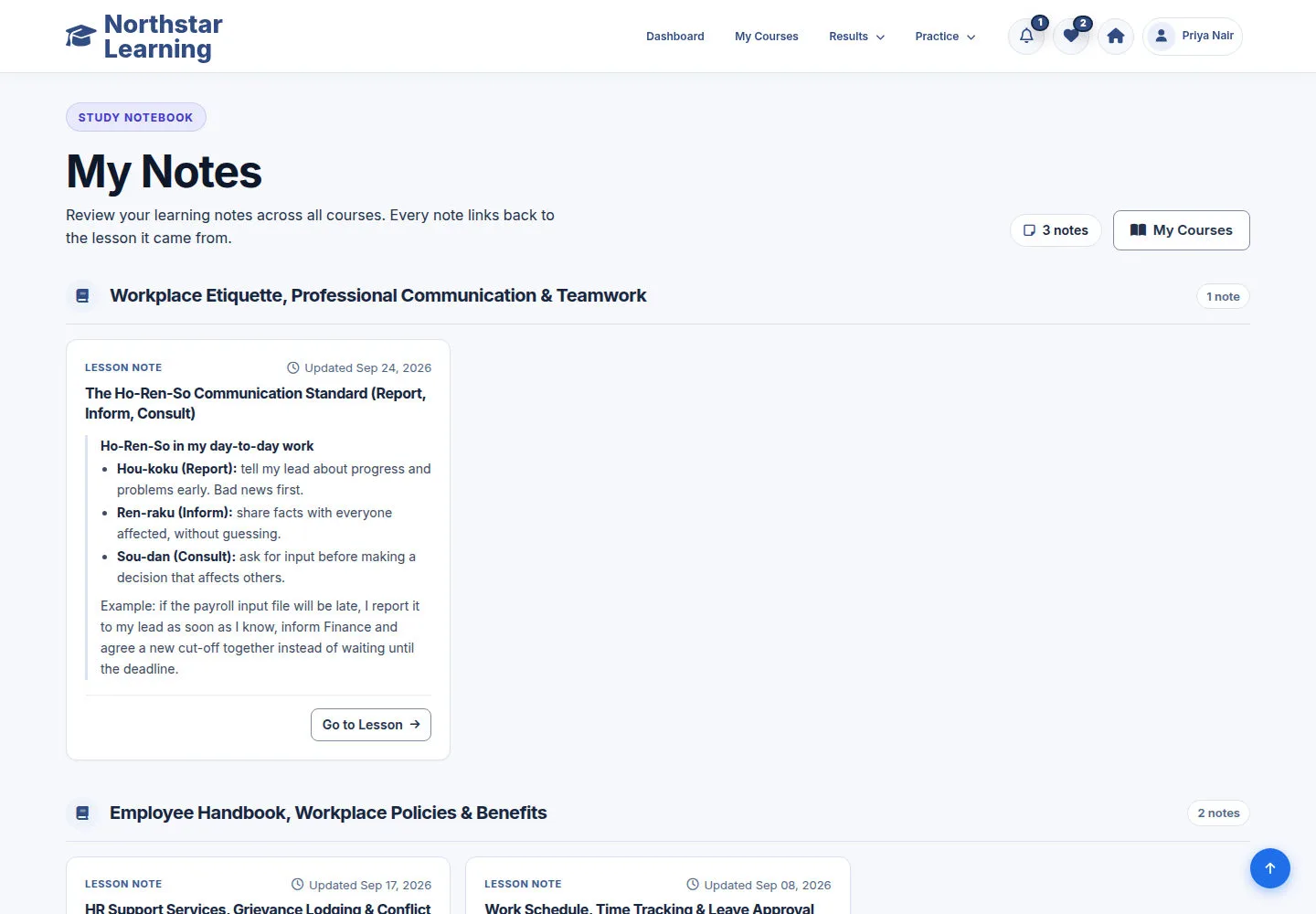
My Notes groups your notes by Course. Each card shows the Lesson, the date it was last updated and your text.
- Read a note under its Course heading; the counter at the top right shows how many notes you have.
- Click Go to Lesson to open the Lesson the note belongs to; My Courses takes you back to your Courses.
Open on site ↗sign-inFull-page screenshot ↗
You find a note and return to its Lesson in one click.
See your Quiz attempts
Authenticated user
2Step 2 of 9
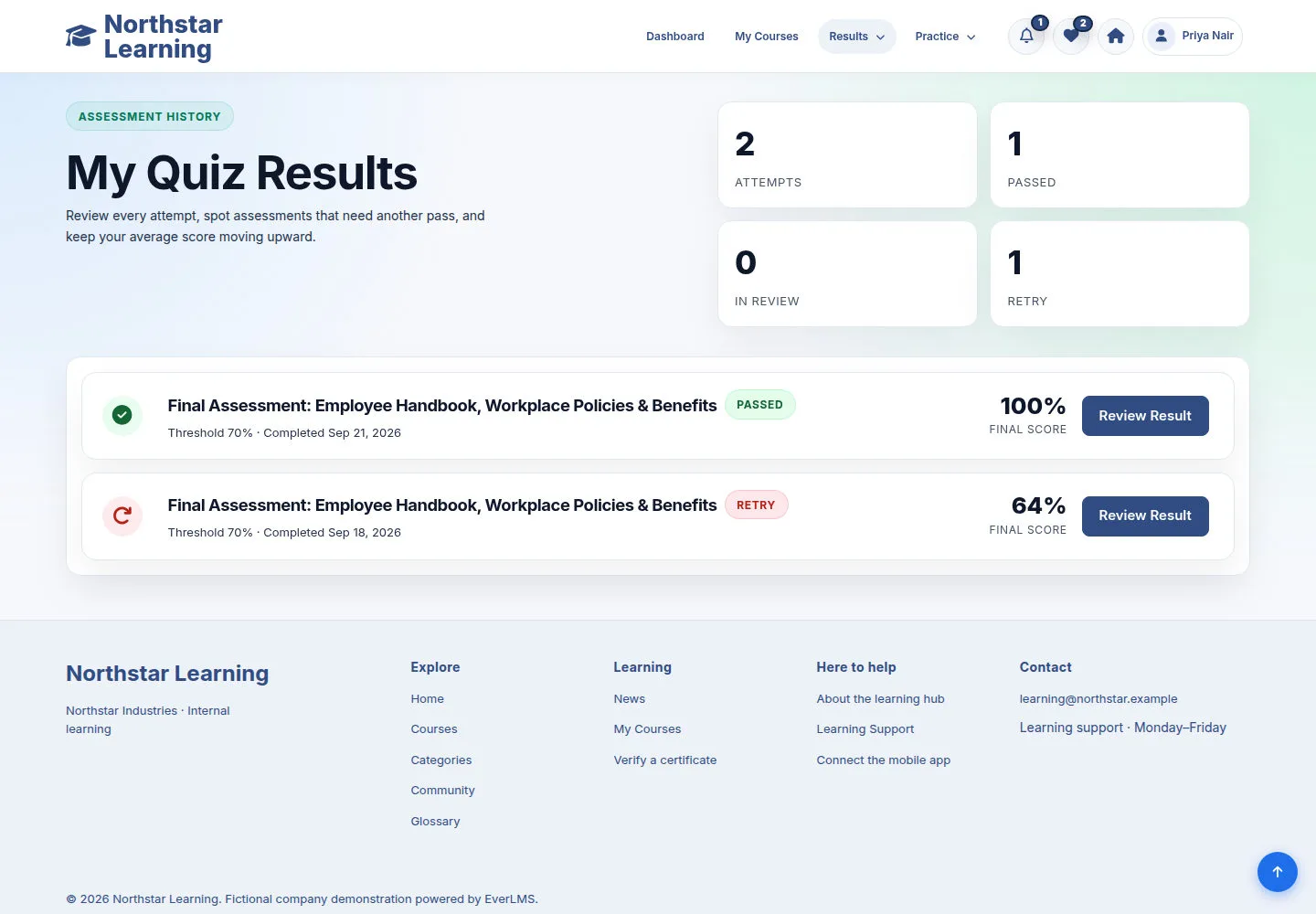
My Quiz Results counts your attempts, passes, attempts in review and retries, then lists each attempt with its status, threshold, date and final score.
- Find the assessment: PASSED marks a pass, RETRY an attempt below the pass threshold.
- Click Review Result on the attempt you want to read.
Open on site ↗sign-inFull-page screenshot ↗
The result page of that attempt opens.
Read a result's details
Authenticated user
3Step 3 of 9
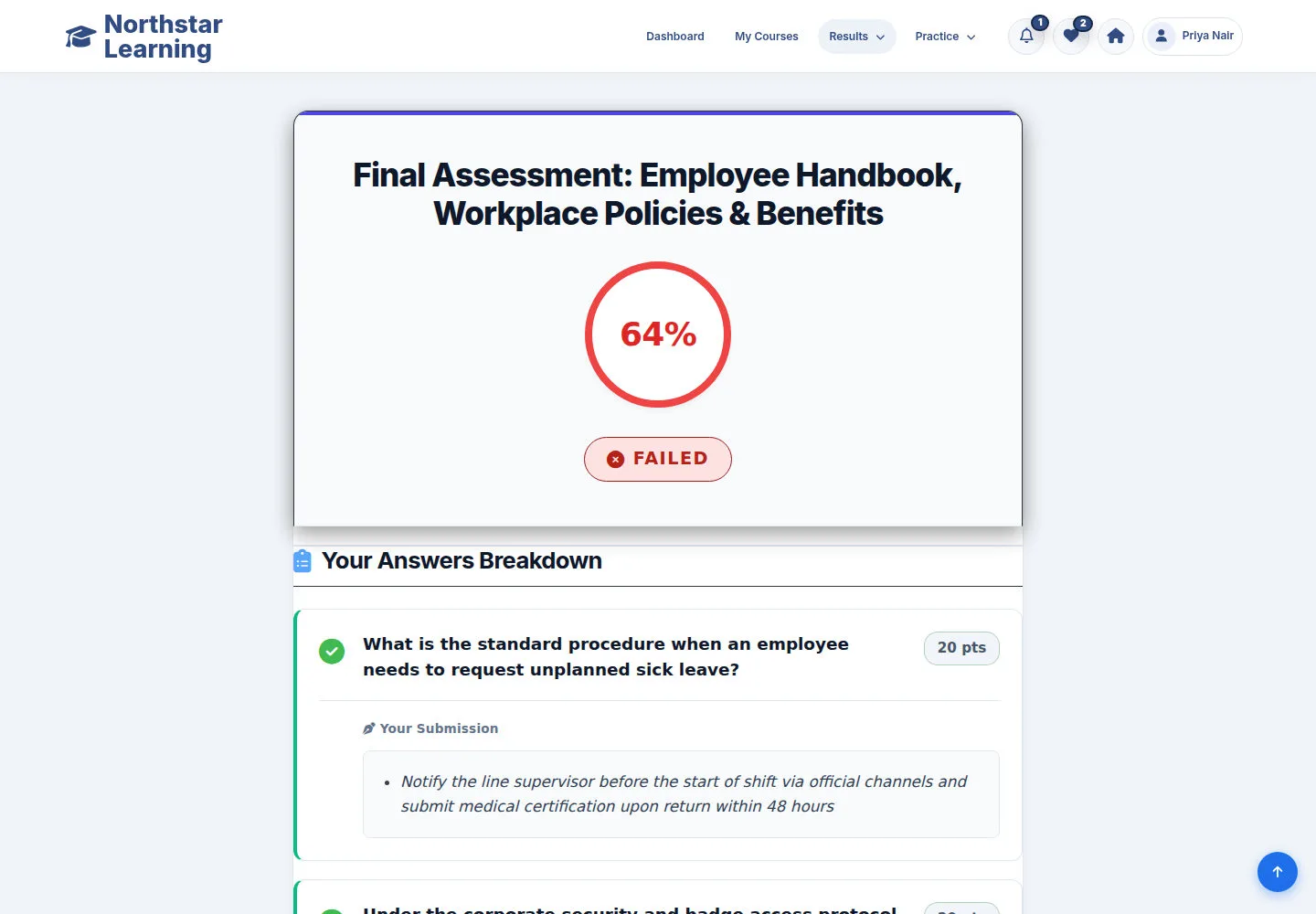
The result shows FAILED, the score and Your Answers Breakdown. Read the question feedback to understand what needs more practice.
- Review the points and feedback for each answer; the ticks and crosses help identify what to revisit.
- Review the Lessons behind the incorrect answers, then click Continue Learning at the bottom of the page.
Open on site ↗sign-inFull-page screenshot ↗
You know which answers to review before the next attempt.
Read a passed result
Authenticated user
4Step 4 of 9
The PASSED status shows that the attempt met the Quiz pass threshold. Review its answers and feedback alongside your other attempts.
- Check the score and the status at the top, then the answers below.
- Open My Certificates to find certificates already issued for your training.
Open on site ↗sign-inFull-page screenshot ↗
You see the passed attempt and know where to look for issued certificates.
Find your certificate in My Certificates
Authenticated user
5Step 5 of 9
Each certificate card shows the Course, the certificate design and its code, the issue date and the Certificate ID.
- Check the Course name and the Certificate ID.
- Click Download PDF under the card: the certificate opens in a new browser tab.
Open on site ↗sign-inFull-page screenshot ↗
The issued PDF opens in your browser's PDF viewer.
Read the certificate
Authenticated user
6Step 6 of 9
This is the certificate issued to Priya Nair for Employee Handbook, Workplace Policies & Benefits.
- Check the name, the Course, the date of completion and the Certificate ID at the bottom of the certificate.
Open on site ↗sign-inFull-page screenshot ↗
The details match the certificate card in My Certificates.
Download the PDF from the viewer
Authenticated user
7Step 7 of 9
The PDF viewer displays the certificate and provides Download and Print controls in its toolbar.
- Click the Download button, the arrow at the top right of the viewer next to Print, to save the PDF.
- Use Print to print it, or close the tab to return to My Certificates.
Other browsers show their own PDF viewer with a similar Download button.
Open on site ↗sign-inFull-page screenshot ↗
The certificate PDF is saved on your computer.
Read your Wishlist
Authenticated user
8Step 8 of 9
My Wishlist keeps Courses you saved for later. Open a Course when you are ready to learn it.
- Click View Course to open a Course and enrol when you are ready; Browse Courses opens the catalog.
- To take a Course off the list, open it and click Remove from Wishlist.
Open on site ↗sign-inFull-page screenshot ↗
You find the Courses you saved; saving a Course does not enrol you.
Read your Notifications
Authenticated user
9Step 9 of 9
Notifications lists the notices of your account, newest first; an unread notice is highlighted and marked NEW.
- Filter with All, Announcements, Community Replies, Enrollments, Quiz Results or System.
- Click a notice to follow its link, for example to My Courses or a quiz result; Settings opens your notification preferences.
Open on site ↗sign-inFull-page screenshot ↗
You see your own notices; once you have opened the page they count as read.