





 Internal training
User guide · Student
Find a Course, enrol and start learning
Find a Course in the catalog, read its Curriculum and FAQ, enrol in the confirmation dialog, then open its Lessons from the Course page or My Courses.
Find the Course to learn
Student
1Step 1 of 7
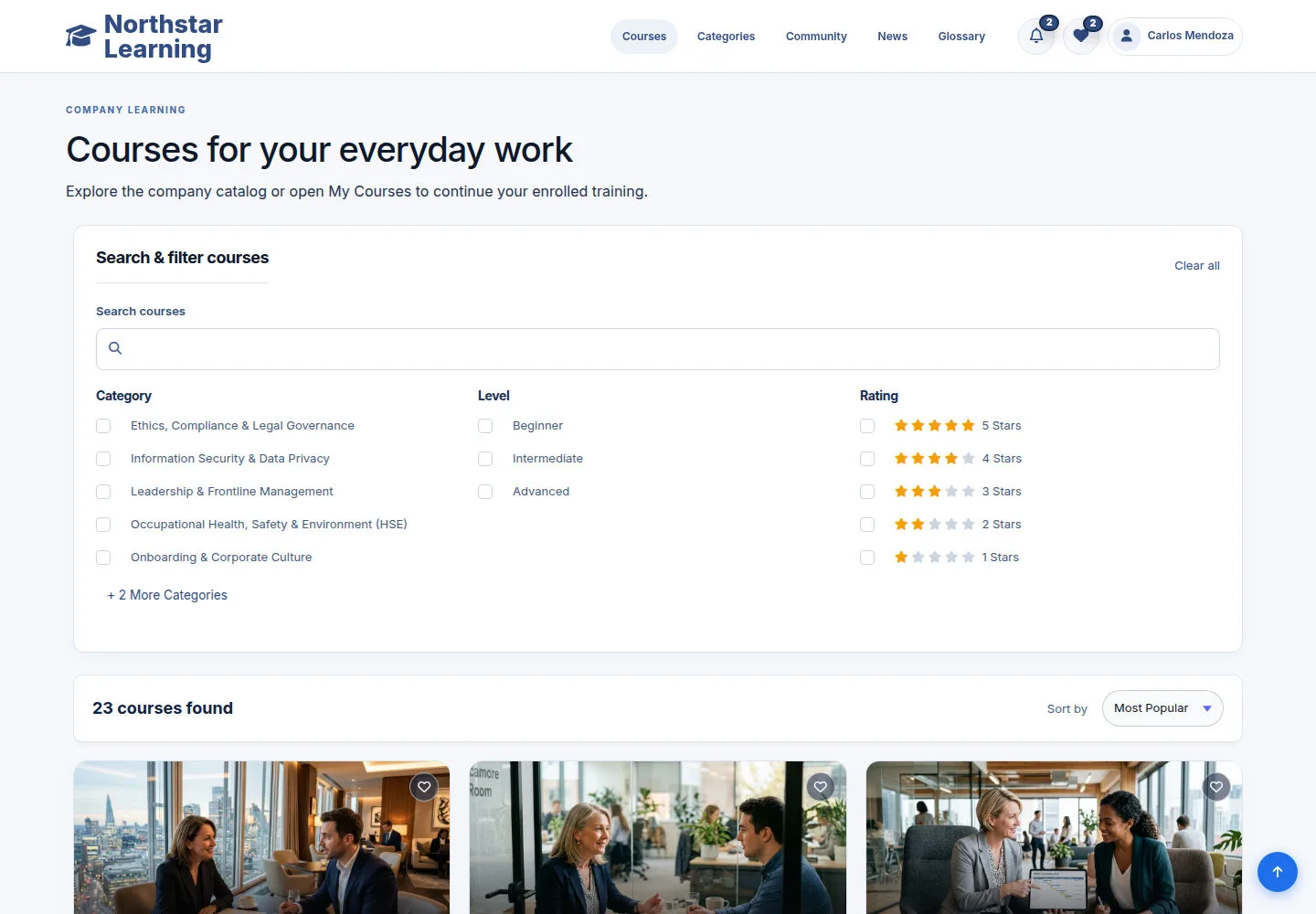
Courses is the company catalog; it shows how many Courses match your search.
- Type a keyword in Search courses or tick a Category, Level or Rating; change Sort by if needed.
- Click View Course on the Course you need; this example opens Workplace First Aid, CPR & Office Ergonomics.
Open on site ↗sign-inFull-page screenshot ↗
The Course page opens.
Read the Course goals and information
Student
2Step 2 of 7
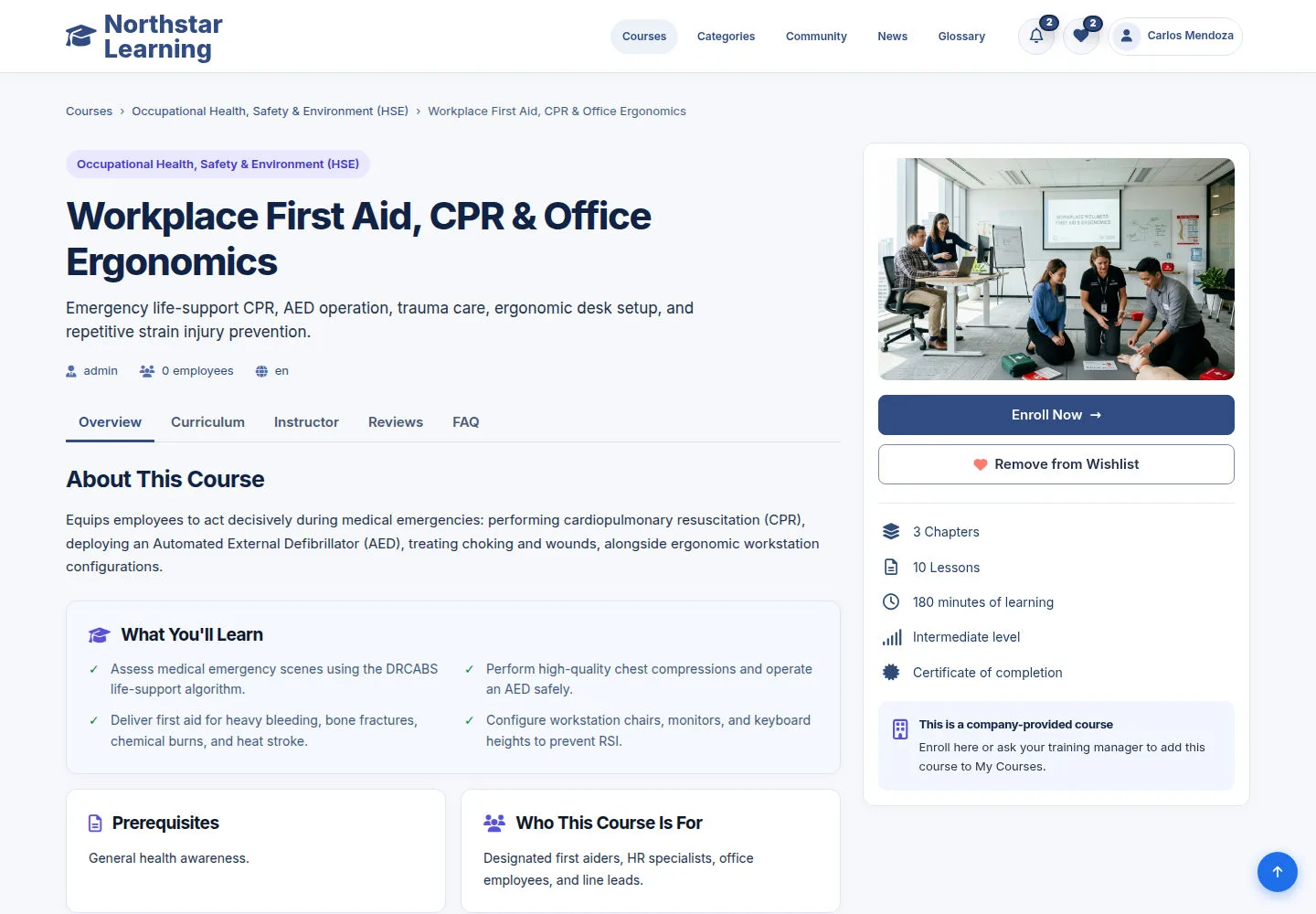
The Course page shows the description, What You'll Learn, Prerequisites and Who This Course Is For; the right column lists the Chapters, Lessons, minutes of learning, level and certificate.
- Read the Overview to check that the Course fits your work.
- Use Enroll Now to join the Course. Wishlist controls let you save it for later or remove it from your saved list.
Open on site ↗sign-inFull-page screenshot ↗
You know what the Course teaches and how long it takes.
See the Chapter → Lesson order
Student
3Step 3 of 7
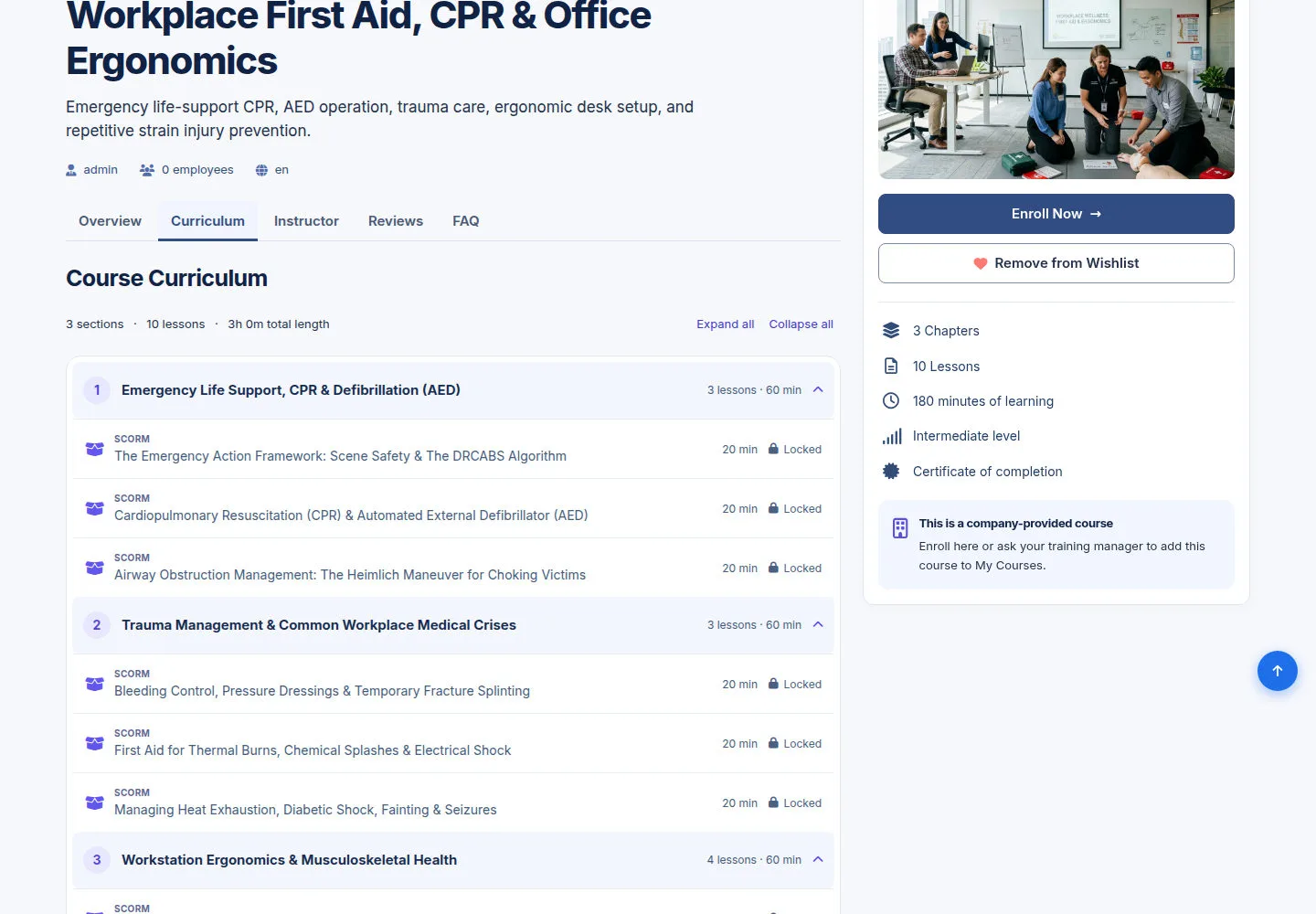
The Curriculum tab lists the Chapters in order, each with its Lessons, their type (SCORM, QUIZ) and duration.
- Click Curriculum; use Expand all or Collapse all to show or hide the Lessons.
- Until you enrol, the Lessons show Locked; the last Lesson is the final Quiz.
Open on site ↗sign-inFull-page screenshot ↗
You understand the structure: Course → Chapter → Lesson, ending with the assessment.
Read the FAQ before enrolling
Student
4Step 4 of 7
The FAQ tab answers common questions about the Course.
- Click FAQ, then a question to open its answer; Instructor and Reviews give more context.
Open on site ↗sign-inFull-page screenshot ↗
Your questions are answered before you enrol.
Click Enroll Now and confirm in the dialog
Student
5Step 5 of 7
Enroll Now does not open a new page: a dialog opens on the Course page and asks Enroll in Workplace First Aid, CPR & Office Ergonomics?.
- Read the dialog: the internal Course will appear in My Courses, and a learning record you already have keeps its progress and certificates.
- Click Enroll in course to confirm, or Cancel (or ✕) to close the dialog.
Open on site ↗sign-inFull-page screenshot ↗
After you confirm, the Course is in My Courses with Start Course.
Open your Lessons from the Course page
Student
6Step 6 of 7
After enrolment, the Course page offers a way into the lesson player. Use Continue Learning to return to a Course already in progress.
- Open the Course and click the button in the right column (Continue Learning once you have started).
- Or open My Courses and click Start Course or Continue Learning on the Course card.
Open on site ↗sign-inFull-page screenshot ↗
The lesson player opens on the first Lesson you have not completed.
Learn in the lesson player
Student
7Step 7 of 7
Continue Learning opens the next Lesson to study. The Curriculum highlights the selected Lesson within its Chapter.
- Study the content in the player; use Next → and ← Back inside the Lesson to go through its pages.
- The next guide explains the player: Mark Complete, Course progress, the sidebar, Theater Mode, Full Screen and the tabs under the Lesson.
Open on site ↗sign-inFull-page screenshot ↗
You are learning the right Lesson of the Course.