





 Internal training
User guide · Student
My Courses → Chapter → Lesson:open and learn now
This is the main way to learn: go to My Courses, choose Start, Continue or Review, learn the Lesson in the player, mark it complete and follow your Course progress.
- Sign in with a Student account that is enrolled in the Course.
- Choose a Course you are learning; its saved progress helps you resume at the right Lesson.
Go from the Dashboard to My Courses
Student
1Step 1 of 14
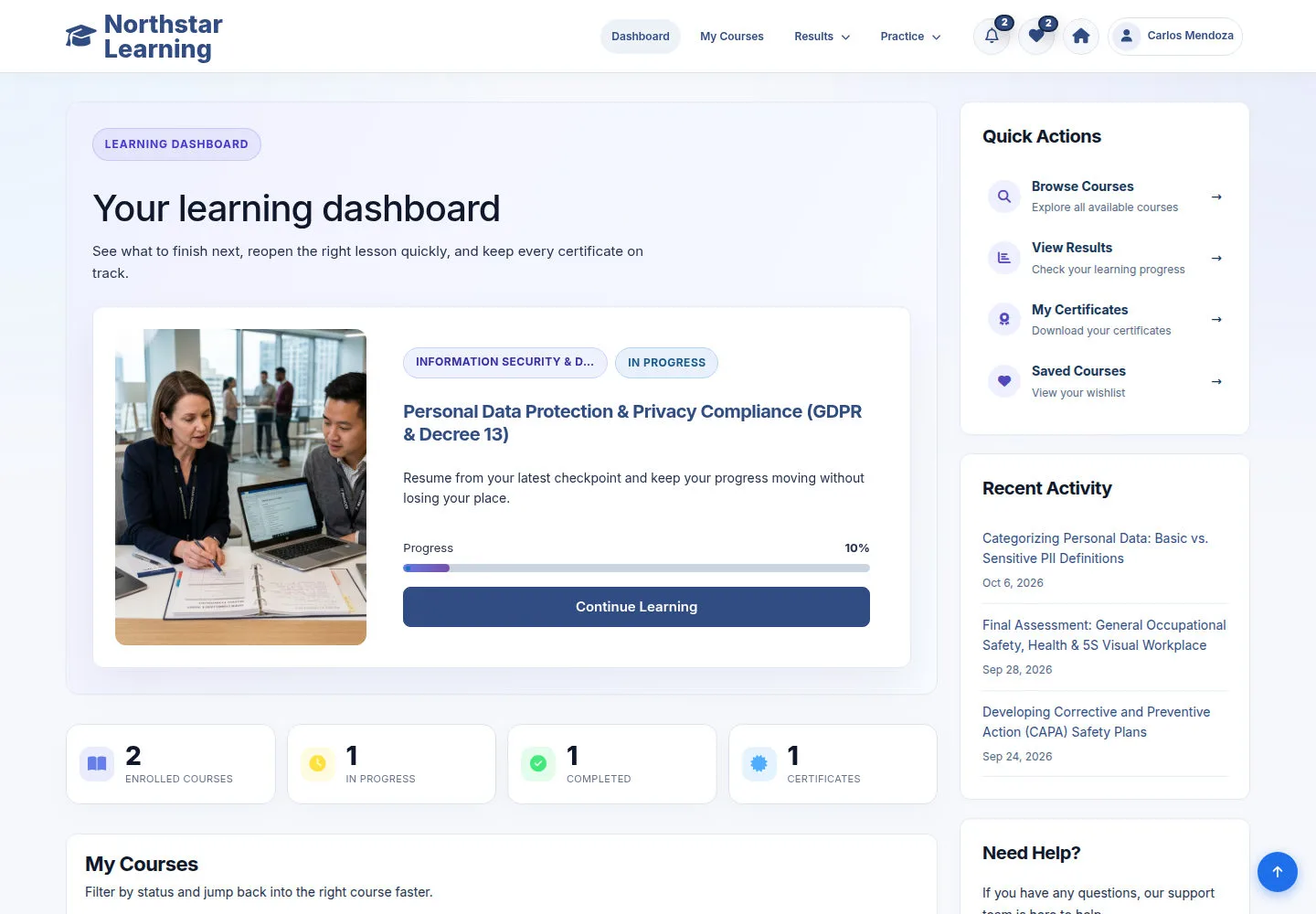
The Dashboard shows the Course you are learning with Continue Learning. Use it to return to your lessons, or open results and certificates from Quick Actions.
- Click My Courses in the top menu to see all your Courses.
- Or click Continue Learning on the Course card to go straight back to your next Lesson.
Open on site ↗sign-inFull-page screenshot ↗
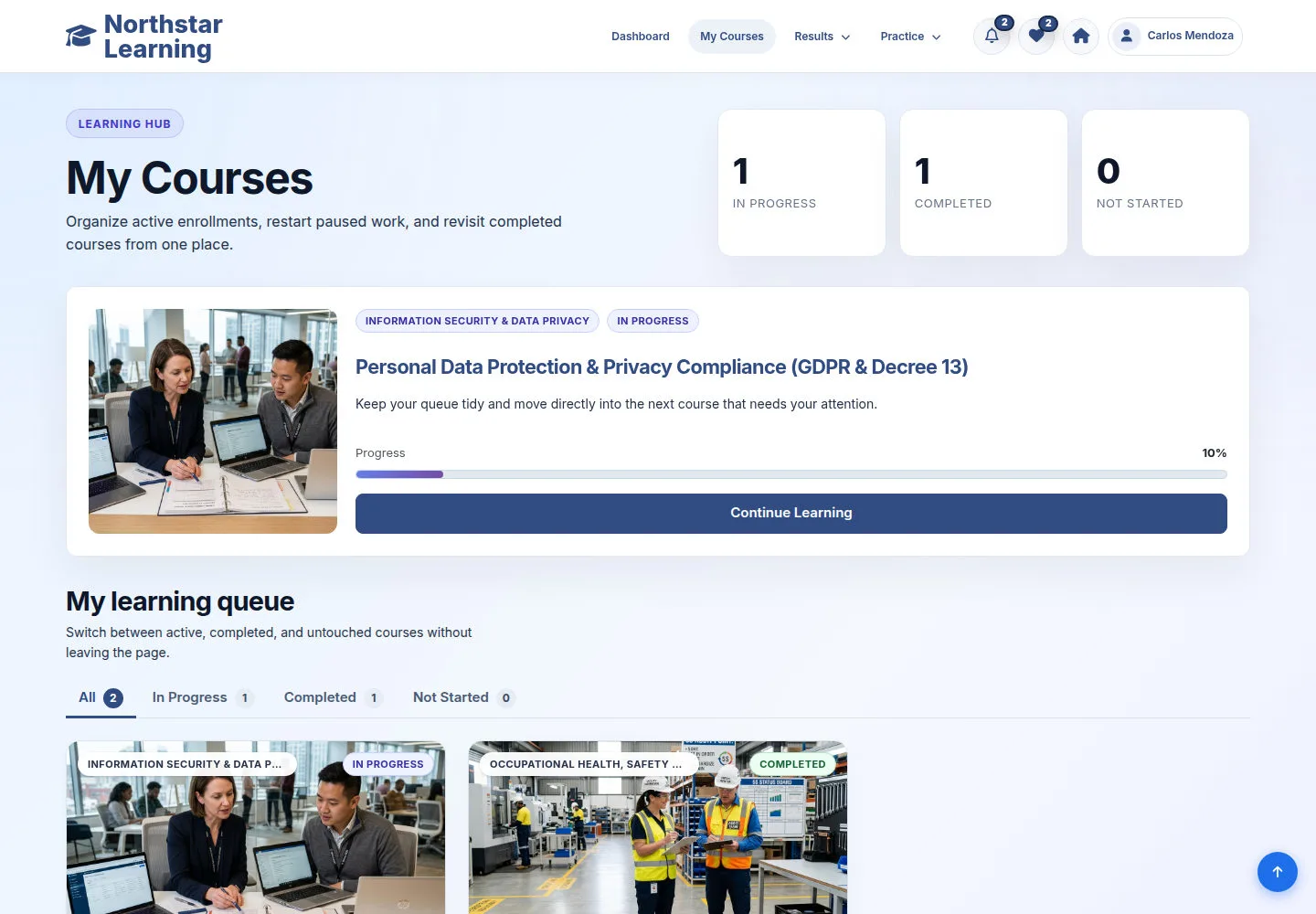
My Courses lists the Courses you enrolled in or were assigned; Continue Learning opens the lesson player.
Click Start Course or Continue Learning
Student
2Step 2 of 14
My Courses shows each Course with its status and progress. Choose Start Course, Continue Learning or Review Course according to its status.
- Click Start Course if you have not started, Continue Learning to carry on, or Review Course once you have completed the Course.
Open on site ↗sign-inFull-page screenshot ↗
The lesson player opens: this is where you learn, not the Course introduction page.
Learn the Lesson in its Chapter
Student
3Step 3 of 14
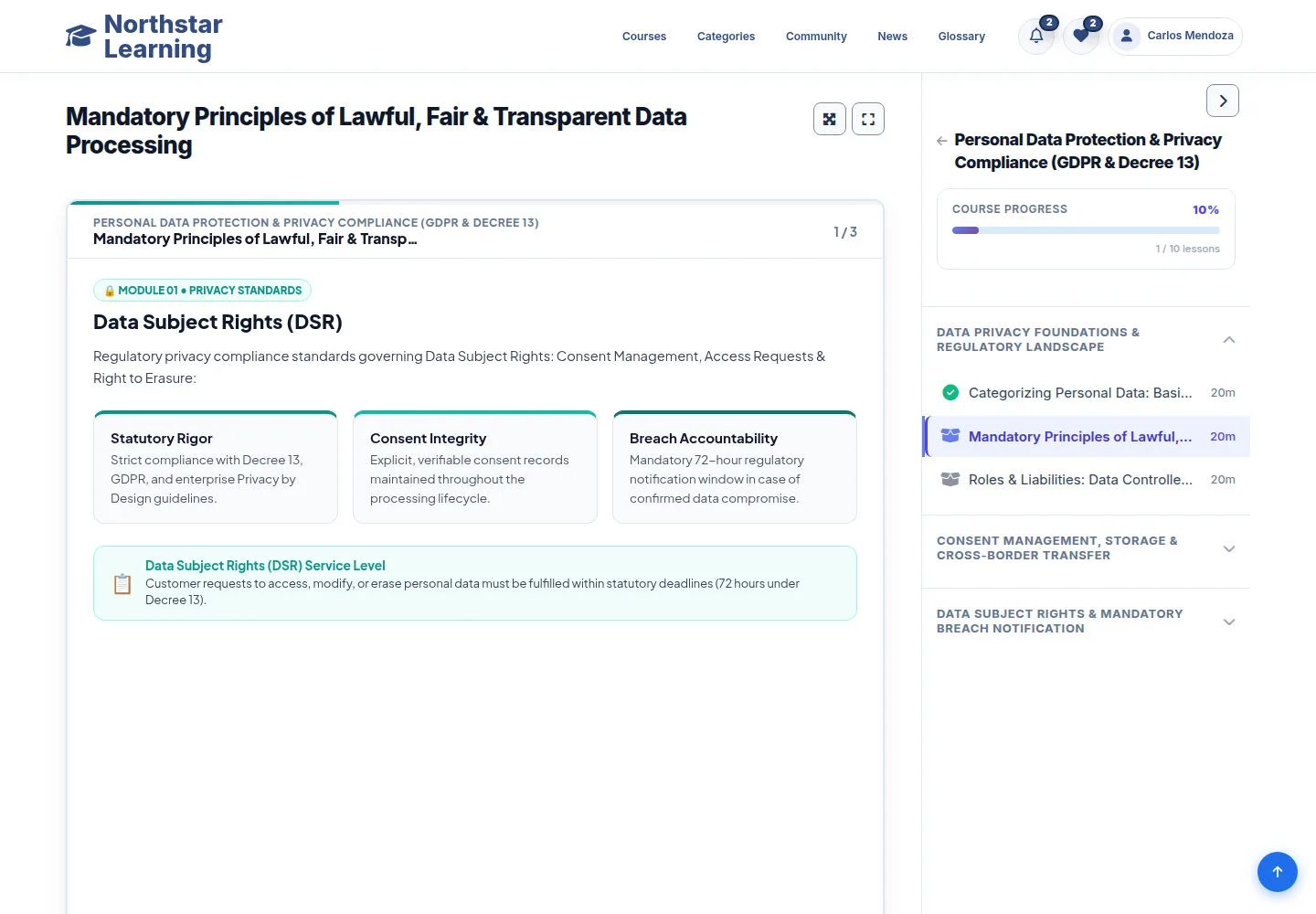
The player opens the next Lesson to learn. The sidebar on the right shows COURSE PROGRESS and the Curriculum, with the current Lesson highlighted under its Chapter.
- Study the SCORM content in the player; use Next → and ← Back inside the Lesson to go through all its pages.
- To open another Lesson, click its name in the Curriculum; a green tick marks the Lessons you have completed.
Open on site ↗sign-inFull-page screenshot ↗
You learn the selected Lesson of the right Course.
Click Mark Complete when you finish
Student
4Step 4 of 14
At the end of the Lesson, Mark Complete sits under the player, on the right of the tabs.
- When you have finished the Lesson, click Mark Complete.
- Then choose the next Lesson in the Curriculum.
Open on site ↗sign-inFull-page screenshot ↗
The Lesson is recorded as completed: the button becomes Completed! and the Lesson gets a green tick in the Curriculum, as the next step shows on a completed Lesson.
Check your Course progress
Student
5Step 5 of 14
A completed Lesson has a green tick in the Curriculum and Completed! under the player. Use these markers to recognise content you have already finished.
- Read COURSE PROGRESS at the top of the sidebar to see how much of the Course you have completed.
- Use the ticks in the Curriculum to see which Lessons are done and which one comes next.
The next steps use this completed Lesson to show the player controls and tabs.
Open on site ↗sign-inFull-page screenshot ↗
You know how far you are in the Course; the progress grows with each Lesson you mark complete.
Hide the right sidebar
Student
6Step 6 of 14
The sidebar on the right holds COURSE PROGRESS and the Curriculum. The › button at its top hides it.
- Click › at the top of the sidebar to give the Lesson the full width.
Open on site ↗sign-inFull-page screenshot ↗
The sidebar closes to a narrow strip on the right edge.
Show the sidebar again
Student
7Step 7 of 14
With the sidebar hidden, the Lesson uses the full width; the narrow strip on the right keeps the ‹ button (Show course content), which stays visible when you scroll.
- Click ‹ at the top of the narrow strip.
Open on site ↗sign-inFull-page screenshot ↗
The Course progress and the Curriculum are shown again.
Use Theater Mode to focus on the Lesson
Student
8Step 8 of 14
Theater Mode is the first of the two buttons to the right of the Lesson title. It hides the sidebar and widens the player.
- Click Theater Mode, the first button next to the title, to give the player more room.
- To show the Course progress and the Curriculum again, click ‹ on the narrow strip on the right.
Theater Mode is offered on wide screens only: on a tablet or a phone, only Full Screen appears next to the title.
Open on site ↗sign-inFull-page screenshot ↗
The player is wider; Theater Mode does not mark the Lesson as complete.
Learn in Full Screen
Student
9Step 9 of 14
Full Screen, the second button next to the title, shows the Lesson area alone on the whole screen, without the site header and the sidebar.
- Click Full Screen, the second button next to the title.
- Press Esc, or click the same button again, to leave Full Screen.
Open on site ↗sign-inFull-page screenshot ↗
The Lesson fills the screen; ← Back and Next → still move through its pages.
Download the Lesson Resources
Student
10Step 10 of 14
The Resources tab under the player lists the files attached to the Lesson under Downloadable Materials. This Lesson has a one-page quick reference, PII-classification-quick-reference.pdf.
- Click the Resources tab under the player.
- Click Download next to the file to open or save it.
Open on site ↗sign-inFull-page screenshot ↗
You have the reference material of the Lesson.
Write private notes in My Notes
Student
11Step 11 of 14
The My Notes tab keeps your personal notes for this Lesson. Use it to save the points and supporting material you want to revisit.
- Click My Notes, write or update what you want to remember and click Save Note.
- Use Attach a file when a supporting document helps; check the file types and size limit shown by the form. Delete Note removes a note you no longer need.
- Later, open the My Notes page to reread your notes.
Open on site ↗sign-inFull-page screenshot ↗
The note is saved to your account and linked to this Lesson.
Ask a question in Q&A Discussion
Student
12Step 12 of 14
Q&A Discussion is where learners discuss the Lesson that is open.
- Click Q&A Discussion and read any comments already posted on the Lesson.
- To ask something, write it in Comment under Add new comment and click Save.
Open on site ↗sign-inFull-page screenshot ↗
Your question is posted on the right Lesson.
Continue learning on your phone
Student
13Step 13 of 14
On a phone, the Lesson comes first; the Course progress and the Curriculum follow under it.
- Open My Courses on your phone and tap Continue Learning on the Course.
- Scroll down past the Lesson to the Curriculum, open the Chapter and tap the next Lesson.
Open on site ↗sign-inFull-page screenshot ↗
You learn the same Lesson, with the same tabs, on a narrow screen.
Open the final Quiz Lesson
Student
14Step 14 of 14
The last Lesson of the Course is its assessment: the player shows the Quiz name and a Take Quiz button.
- Click the assessment Lesson in the Curriculum.
- Click Take Quiz when you are ready: you are taken to the assessment page.
Open on site ↗sign-inFull-page screenshot ↗
You move from the Lesson to the Quiz form of the Course.