





 Internal training
User guide · Student
Completed Course →download and verify the Certificate
Reopen a completed Course with Review Course, open its certificate from My Certificates, download the PDF and verify a certificate by its code.
- Sign in with the account that owns the certificate you want to view. Open My Certificates to select an issued record.
Open the completed Course with Review Course
Student
1Step 1 of 5
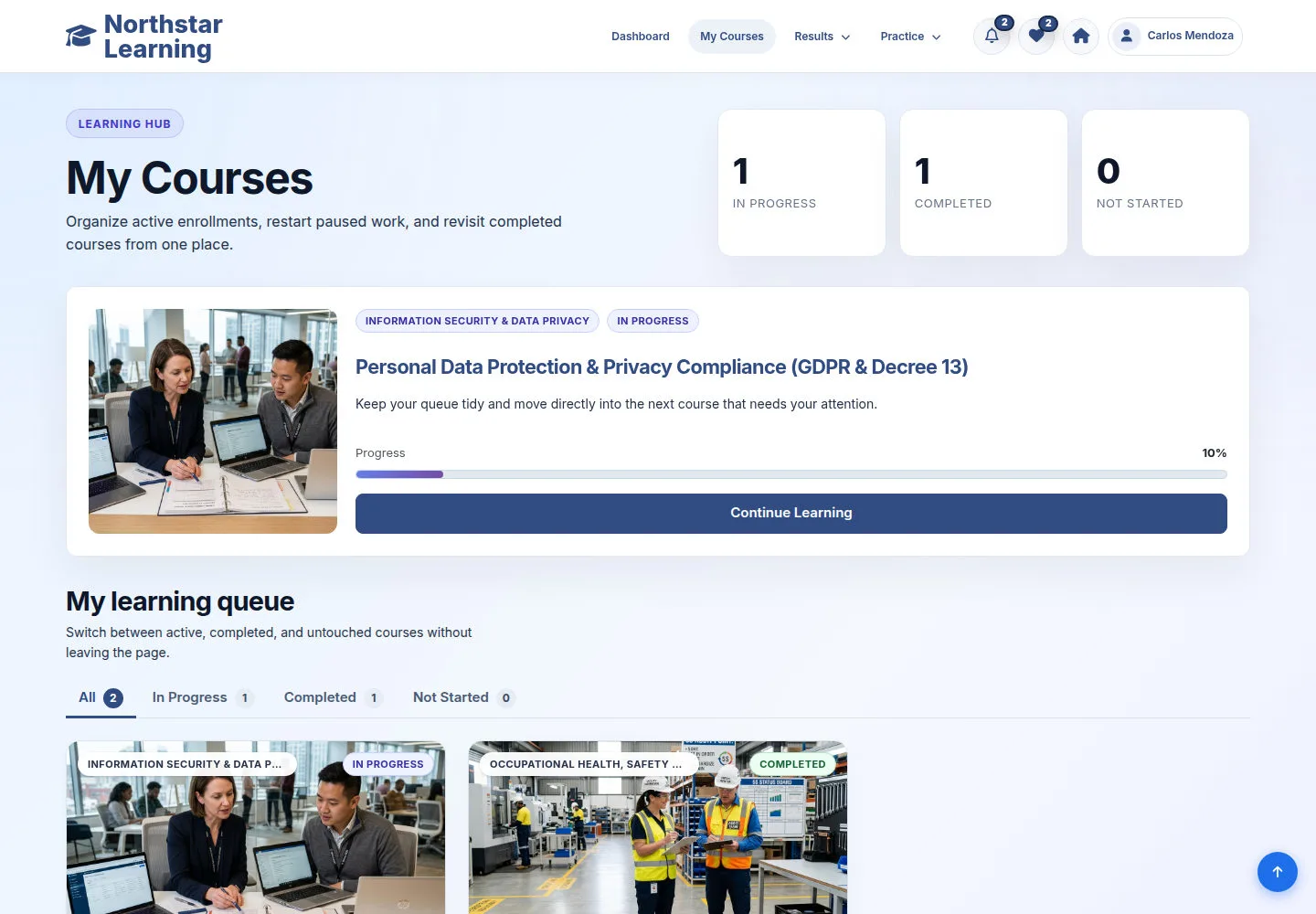
A completed Course shows COMPLETED in My Courses. Use Review Course to revisit its learning content.
- Click the Completed tab, or find the Course under All.
- Click Review Course to reopen its Lessons.
Open on site ↗sign-inFull-page screenshot ↗
You revisit the Course with its saved progress; reviewing does not reset it.
Find the Certificate and click Download PDF
Student
2Step 2 of 5
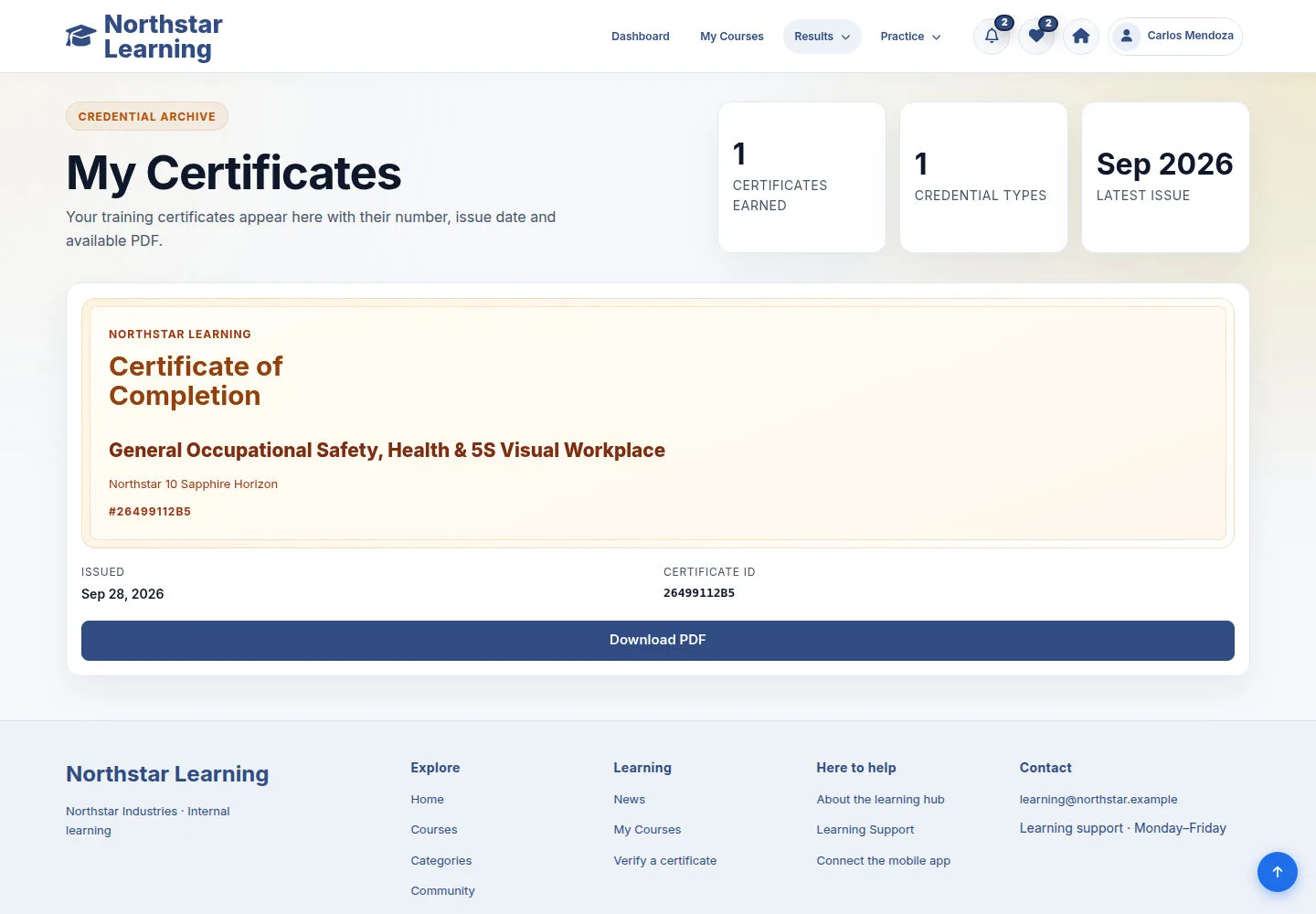
My Certificates shows the issued certificate, its Course, issue date and Certificate ID. Choose the record you want to download or share.
- Check the Course name and the Certificate ID.
- Click Download PDF: the certificate opens in a new browser tab.
Open on site ↗sign-inFull-page screenshot ↗
The issued PDF opens in your browser's PDF viewer.
Read the certificate
Student
3Step 3 of 5
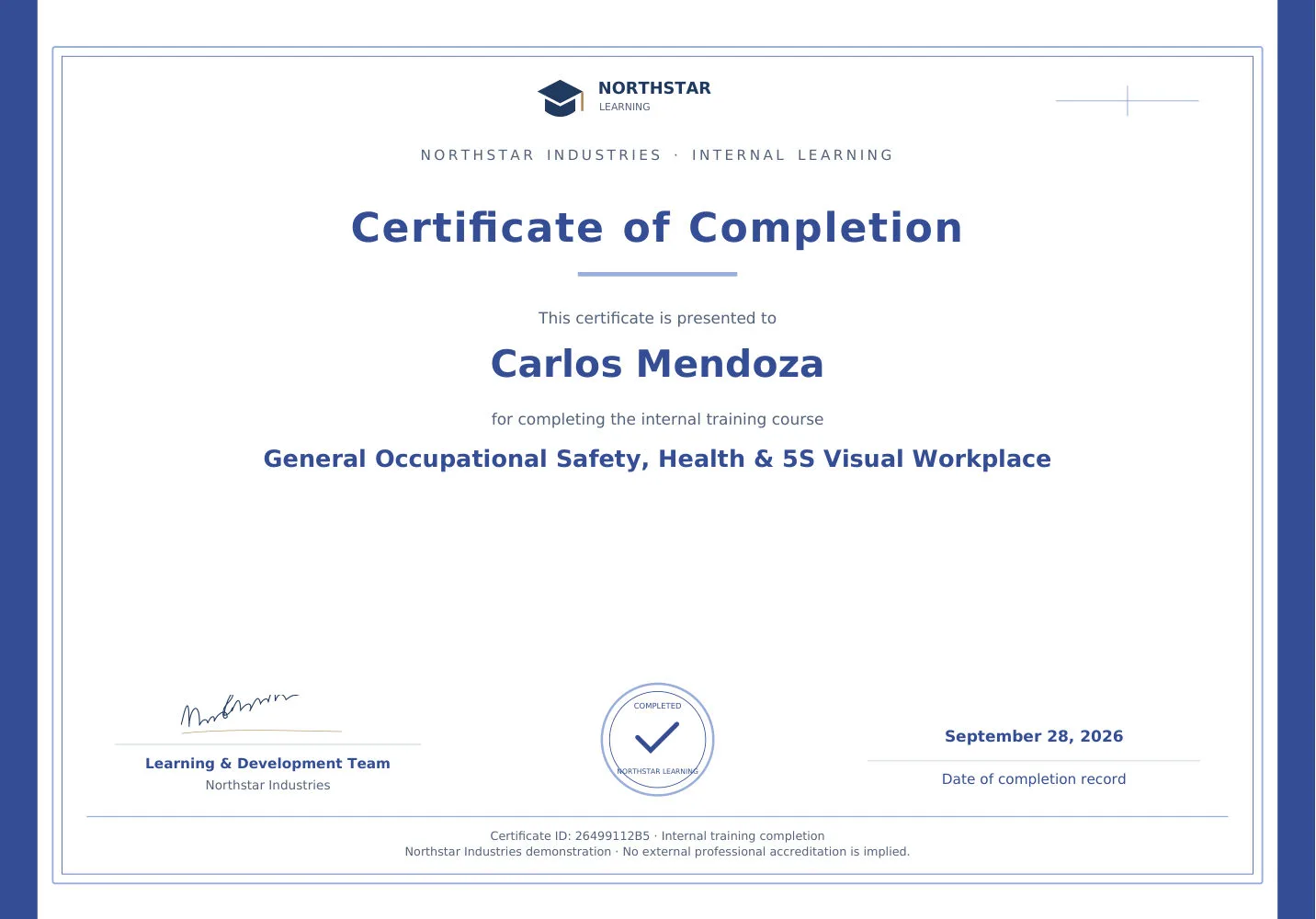
This is the certificate issued to Carlos Mendoza for General Occupational Safety, Health & 5S Visual Workplace.
- Check the learner name, Course, completion date and Certificate ID printed on the certificate.
Open on site ↗sign-inFull-page screenshot ↗
The details match the certificate in My Certificates.
Download the PDF from the viewer
Student
4Step 4 of 5
The PDF viewer displays the certificate with Download and Print controls in the toolbar.
- Click the Download button, the arrow at the top right of the viewer next to Print, to save the PDF on your computer.
- Use Print to print it, or close the tab to return to My Certificates.
Other browsers show their own PDF viewer with a similar Download button.
Open on site ↗sign-inFull-page screenshot ↗
The certificate PDF is saved and ready to share.
Verify a Certificate by its code
Student
5Step 5 of 5
The Certificate ID printed at the bottom of the certificate is the code that Verify Certificate checks.
- Open Verify a certificate in the site footer.
- Copy the Certificate ID from your certificate into Certificate Code and click Verify.
Open on site ↗sign-inFull-page screenshot ↗
You see the verification result from the site's Certificate data.