





 Internal training
User guide · Authenticated user
Read and discuss in the Community
Find a topic, read replies, use Like and Share, and post with the form.
Find a topic in the Community
Authenticated user
1Step 1 of 4
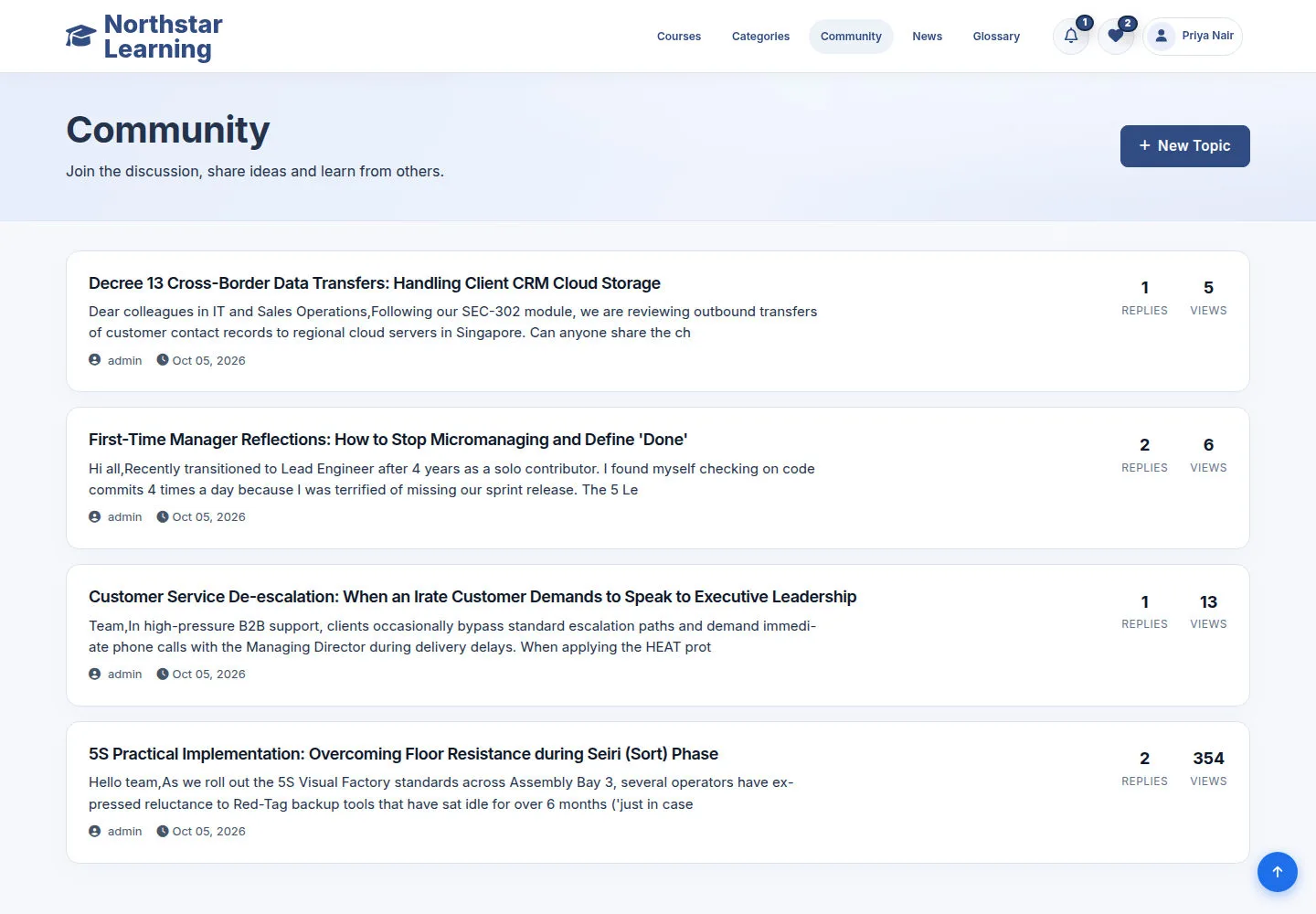
The Community gathers the discussions on the site.
- Open Community and use the filters or groups shown to choose a topic to read.
Open on site ↗sign-inFull-page screenshot ↗
You reach a topic that matches your question or what you are learning.
Read replies, Like and Share
Authenticated user
2Step 2 of 4
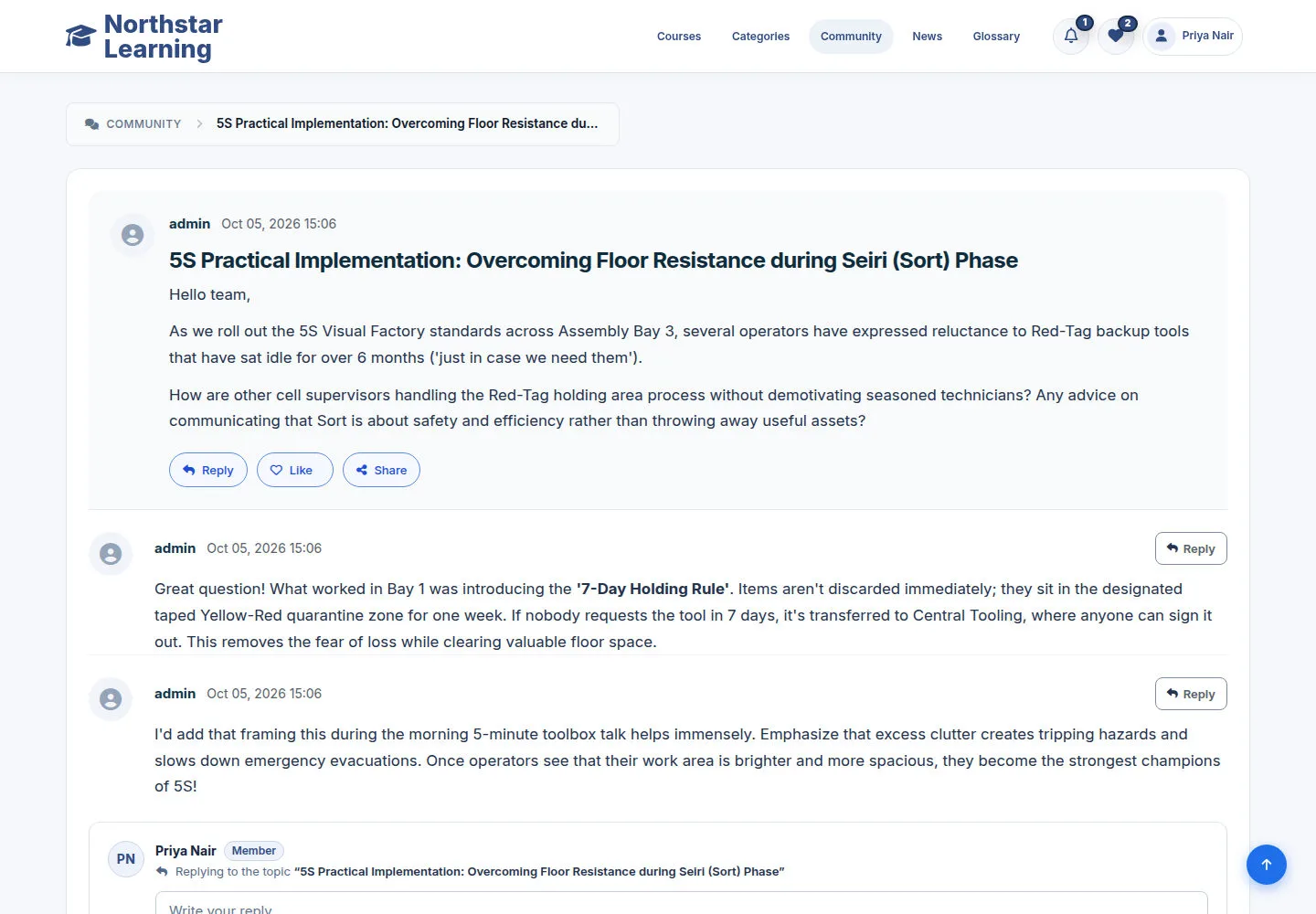
The sample topic shows its content and saved replies.
- Read the topic and replies; click Like to change your like.
- Choose Share to share or copy the topic link in your browser.
Open on site ↗sign-inFull-page screenshot ↗
Like reflects your account's state; Share uses the topic's own URL.
Start a new discussion when needed
Authenticated user
3Step 3 of 4
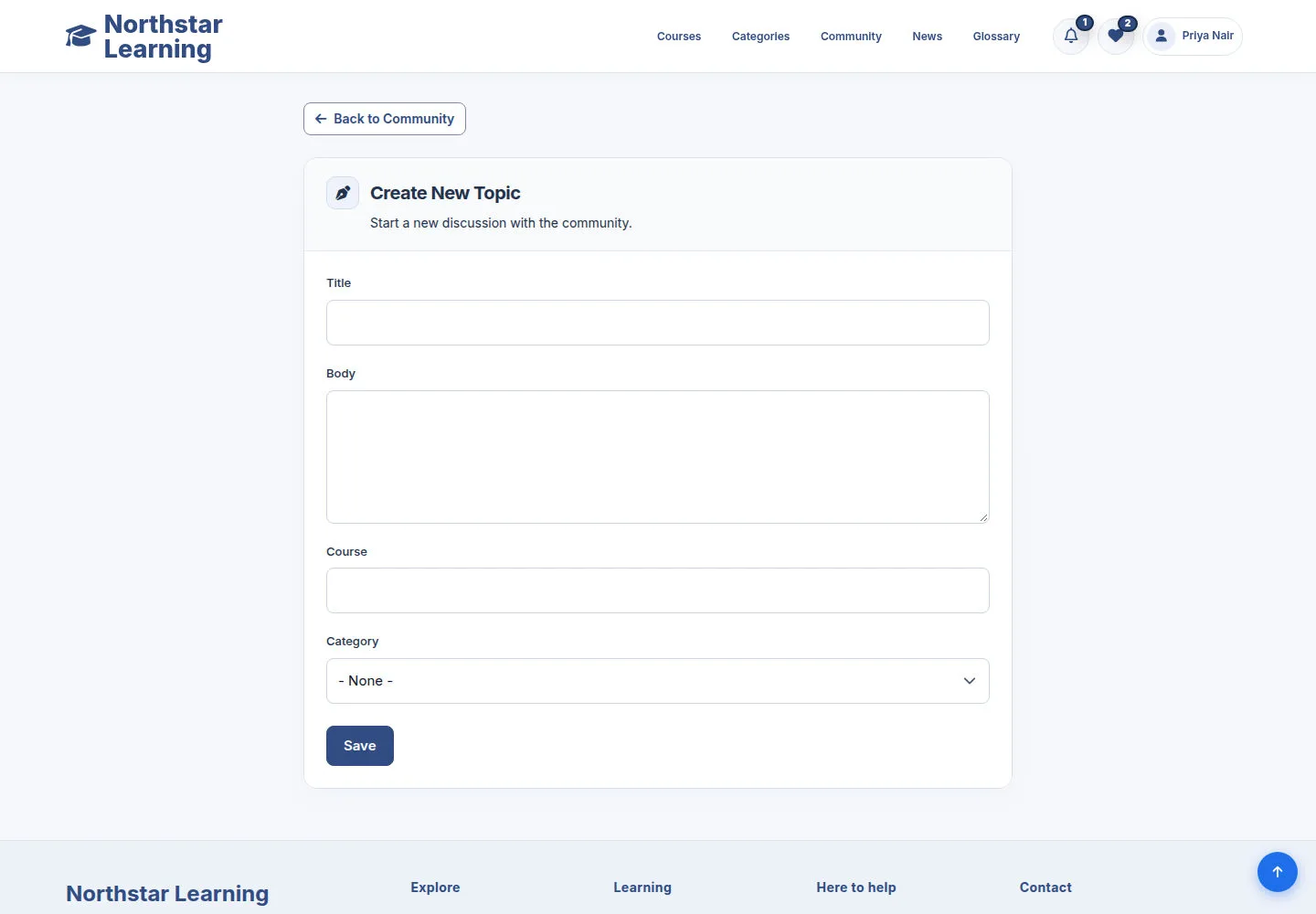
Use the New topic form to ask a clear question.
- Enter a title and content; choose a category with the field.
- Post when the title, category and message are ready.
Open on site ↗sign-inFull-page screenshot ↗
A valid topic is saved according to your account's permissions.
Reply in the right topic
Authenticated user
4Step 4 of 4
The Reply form keeps the context of the topic you opened.
- Write a reply relevant to the topic; review it and send it when ready.
Open on site ↗sign-inFull-page screenshot ↗
A valid reply is attached to the right topic.