





 Internal training
User guide · Student
Notes, discussion and personal settings
After a lesson, reread your Notes, discuss in the Community and check your account's notifications.
Reread your Notes after learning
Student
1Step 1 of 5
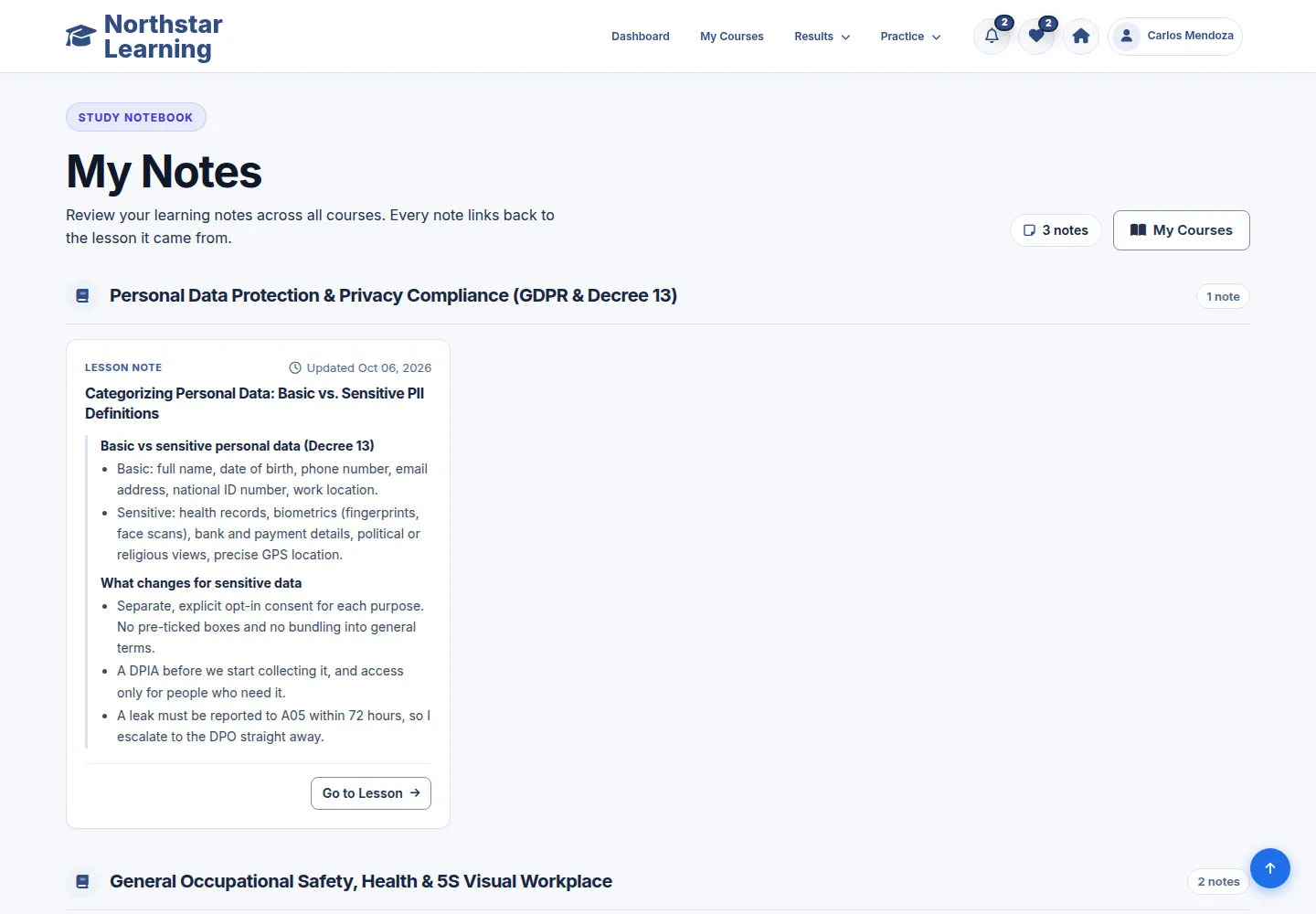
My Notes gathers the notes you have saved, grouped by Course.
- Find the note you need and click Go to Lesson to continue from that Lesson.
Open on site ↗sign-inFull-page screenshot ↗
You review what you wanted to remember and continue from the right content.
Find related discussions in the Community
Student
2Step 2 of 5
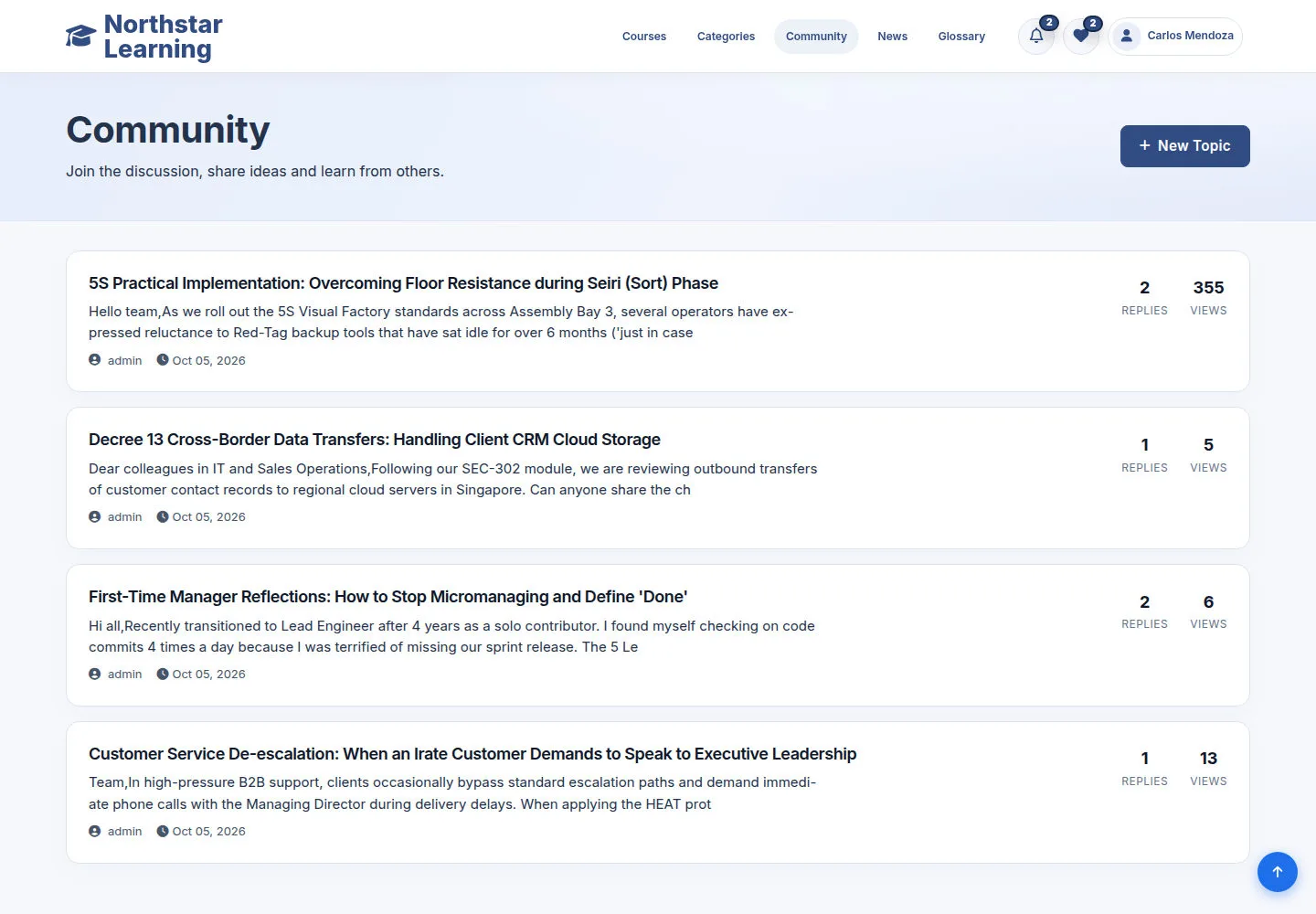
The Community is for general topics, while Q&A in the player belongs to a Lesson.
- Open the Community and choose a topic to read; use New topic when your question suits a general discussion.
Open on site ↗sign-inFull-page screenshot ↗
You choose the right place to discuss for the context.
Read a topic and join the discussion
Student
3Step 3 of 5
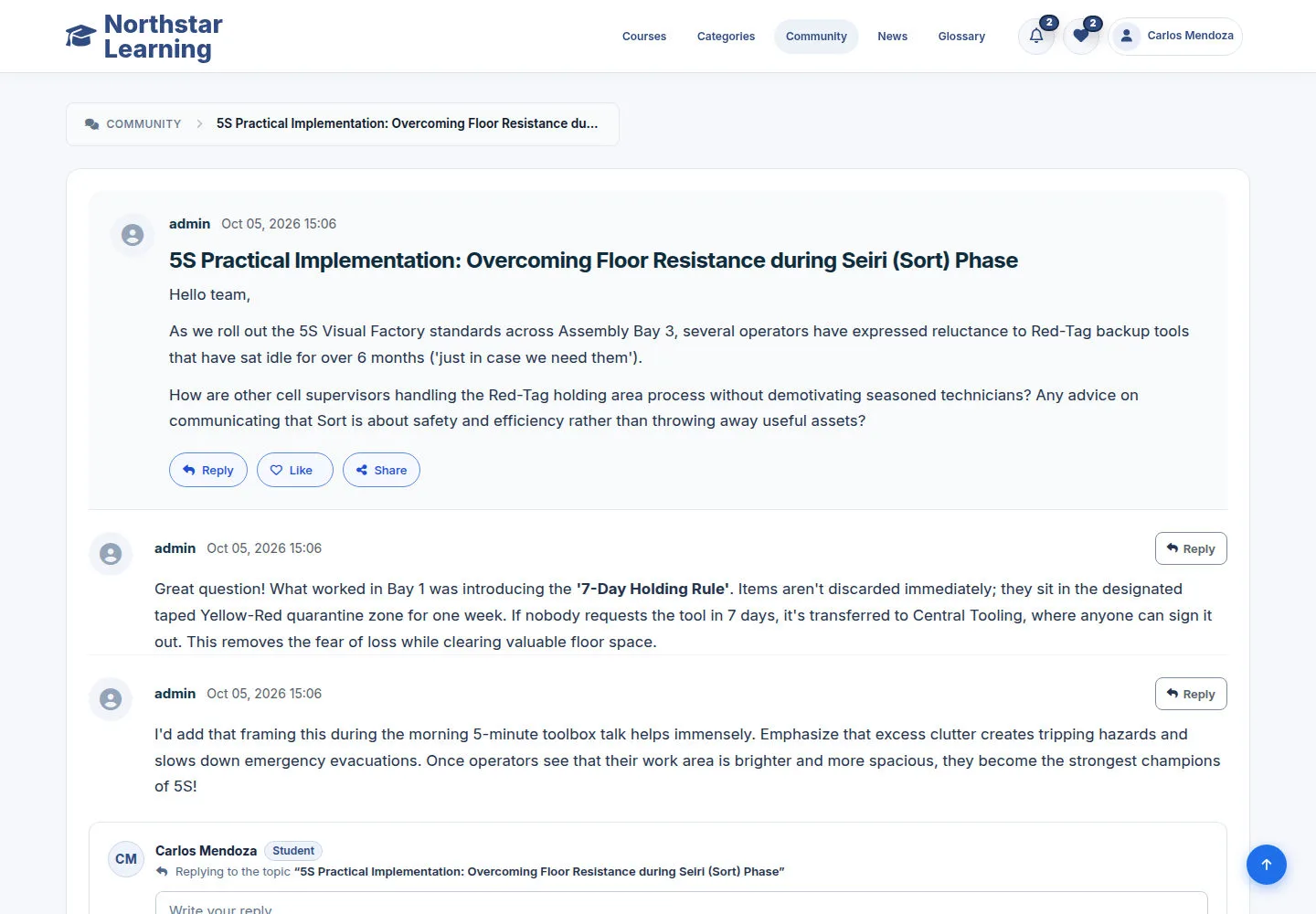
Topics have the replies, Like and Share.
- Read before replying; use Reply to send your content when ready.
- Use Like or Share when you want to mark or share the topic.
Open on site ↗sign-inFull-page screenshot ↗
Your contribution is linked to the signed-in account.
Check your Notifications
Student
4Step 4 of 5
Your account's notifications are listed here, newest first.
- Read a notification and follow its link while it is still valid.
Open on site ↗sign-inFull-page screenshot ↗
You receive your account's notifications.
Adjust your preferences
Student
5Step 5 of 5
Preferences control the available notification options.
- Choose the preferences that suit you, then save when ready.
Open on site ↗sign-inFull-page screenshot ↗
Your account keeps the options you saved with the form.