





 Internal training
User guide · Manager
Find employees and manage accounts
Search and filters help you find the right person before you read or update an account.
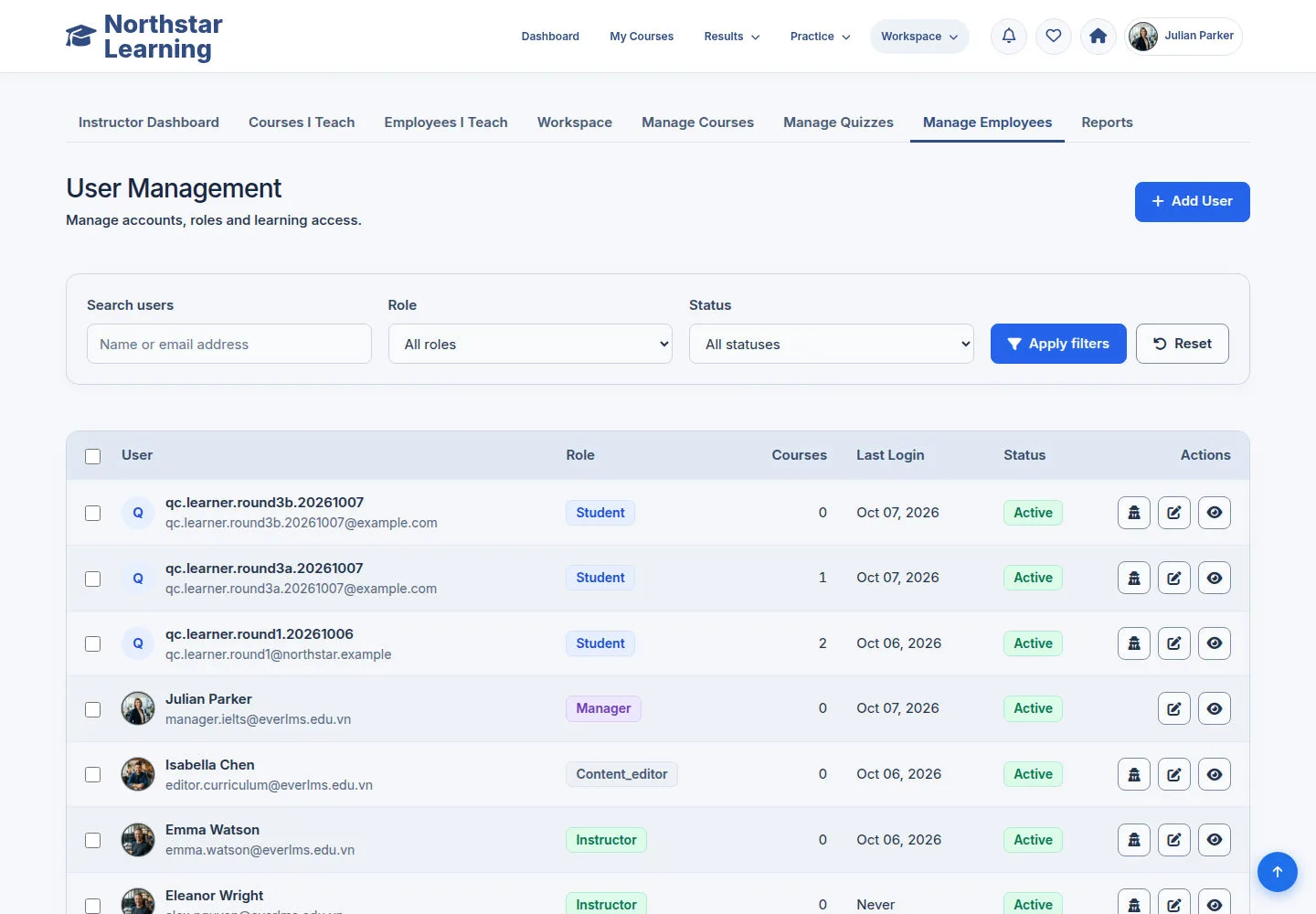

Open User Management
Manager
1Step 1 of 4
User Management lists the accounts and the actions currently allowed.
- Search by name; combine role and status to narrow the list.
Open on site ↗sign-inFull-page screenshot ↗
The list reflects the filters you chose.
Find an active employee
Manager
2Step 2 of 4
The example filter chooses Carlos, the Student role and the Active status.
- Check the name, account and status before choosing Edit or assigning a Course.
Choose the role that matches the employee's responsibilities and permitted actions.
Open on site ↗sign-inFull-page screenshot ↗
You find the employee account you need.
Create an employee account
Manager
3Step 3 of 4
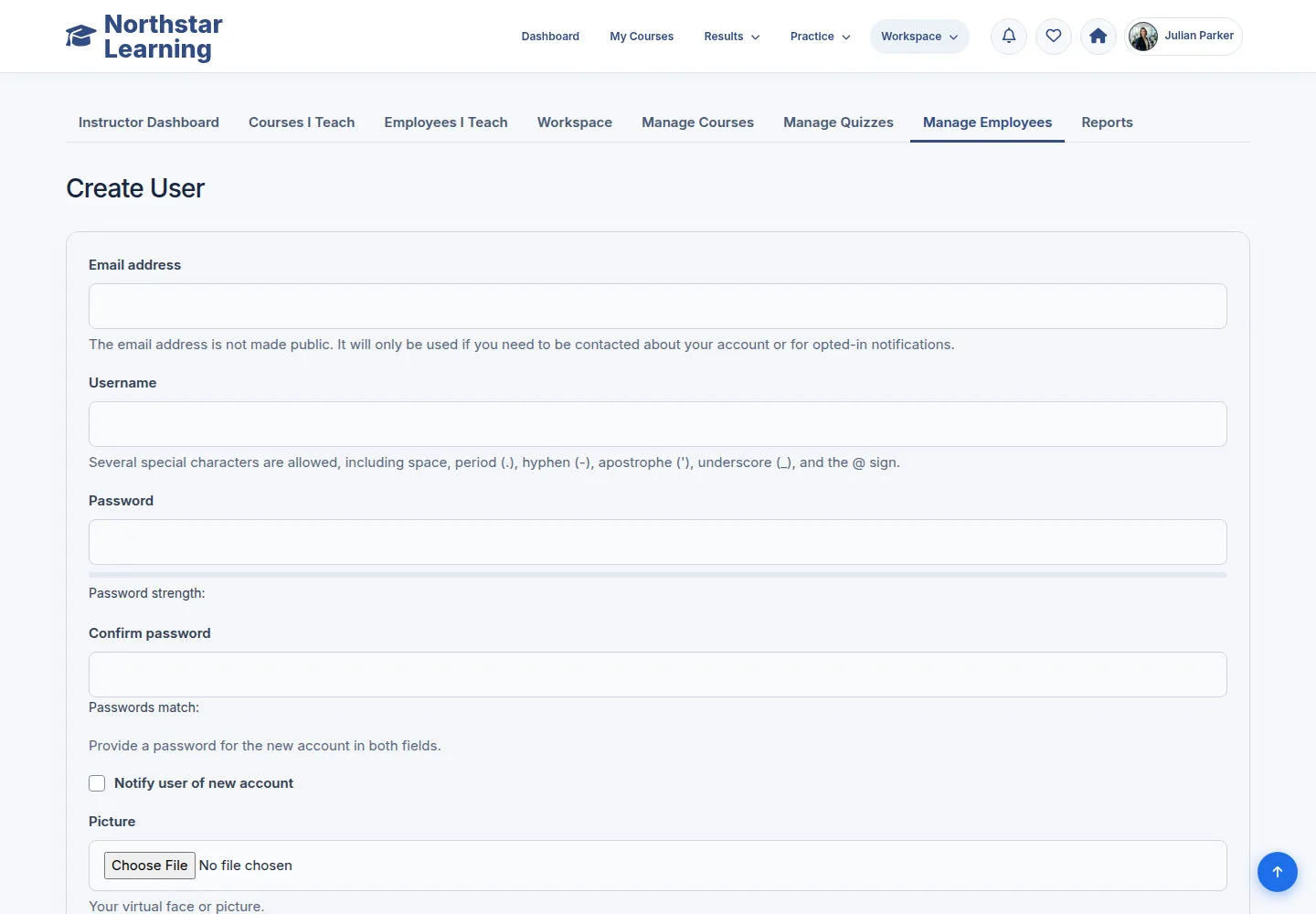
Create User uses the account fields and roles permitted on the form.
- Enter the username, email and required fields; choose the role and status that your permissions and the need allow.
- Review, then Save with the form's action when ready.
Open on site ↗sign-inFull-page screenshot ↗
A valid account is created with the form.
Update the selected employee
Manager
4Step 4 of 4
The editor opens the selected employee account.
- Check the account before editing and update the permitted fields.
- Review the role and status, save your changes and check the confirmation message.
Open on site ↗sign-inFull-page screenshot ↗
Valid information is updated for the right employee.