





 Internal training
User guide · Authenticated user
Enter the back office and update your account
Tell the front end from the back office, use the compact account menu and update the information you are allowed to change.
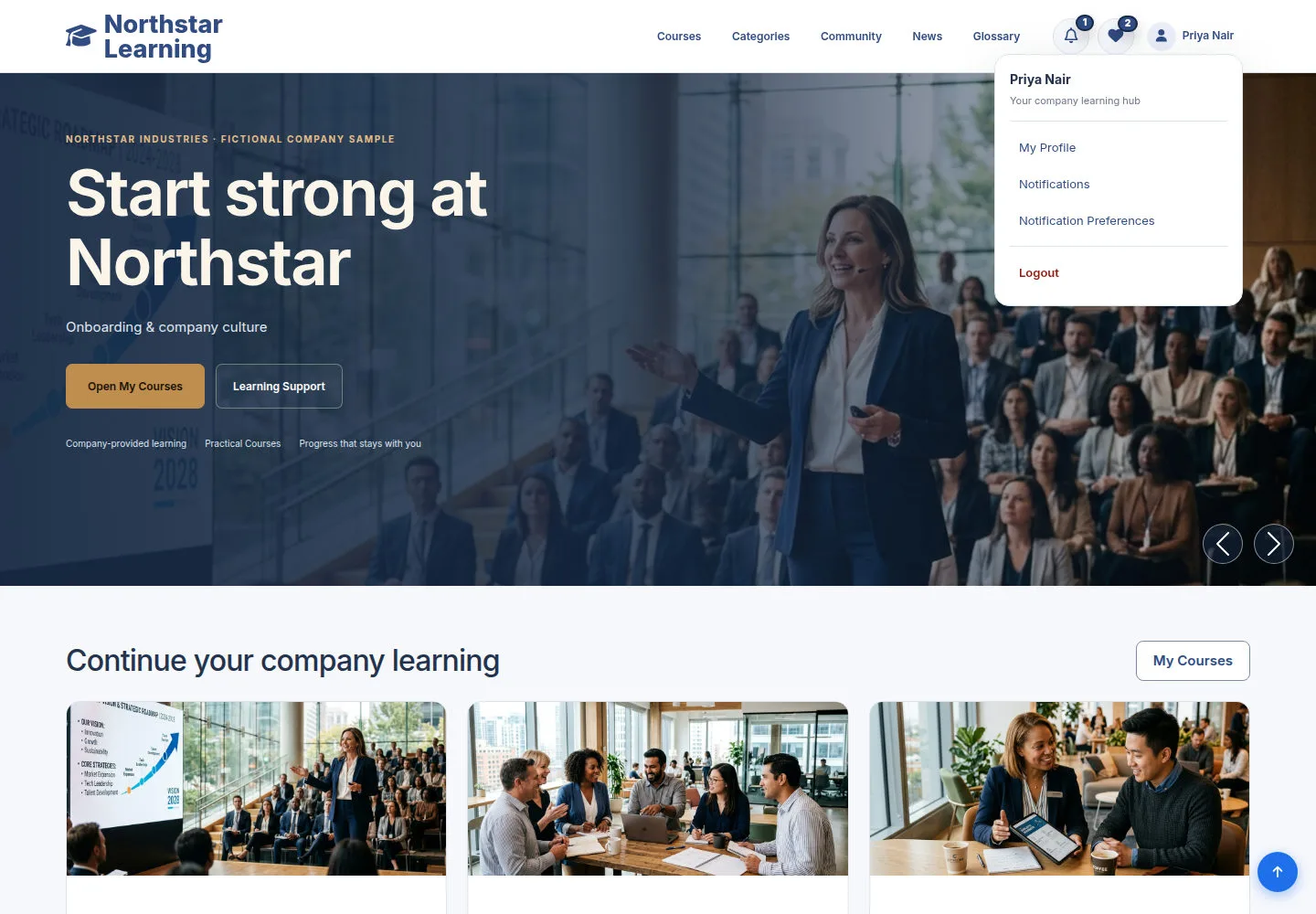
Click your name for the back office; hover for the account menu
Authenticated user
1Step 1 of 5
The header shows your user name. Clicking the name or avatar opens your work area; hovering opens a one-column account dropdown.
- Click your name to open the back office.
- On desktop, hover your name to open the dropdown: My Profile, Notifications, Notification Preferences and Logout; with a keyboard, focus your name and press ArrowDown, then Esc to close.
Open on site ↗sign-inFull-page screenshot ↗
The account menu holds account actions only; the work menu belongs to the back office.
Read the Dashboard and choose what to learn next
Authenticated user
2Step 2 of 5
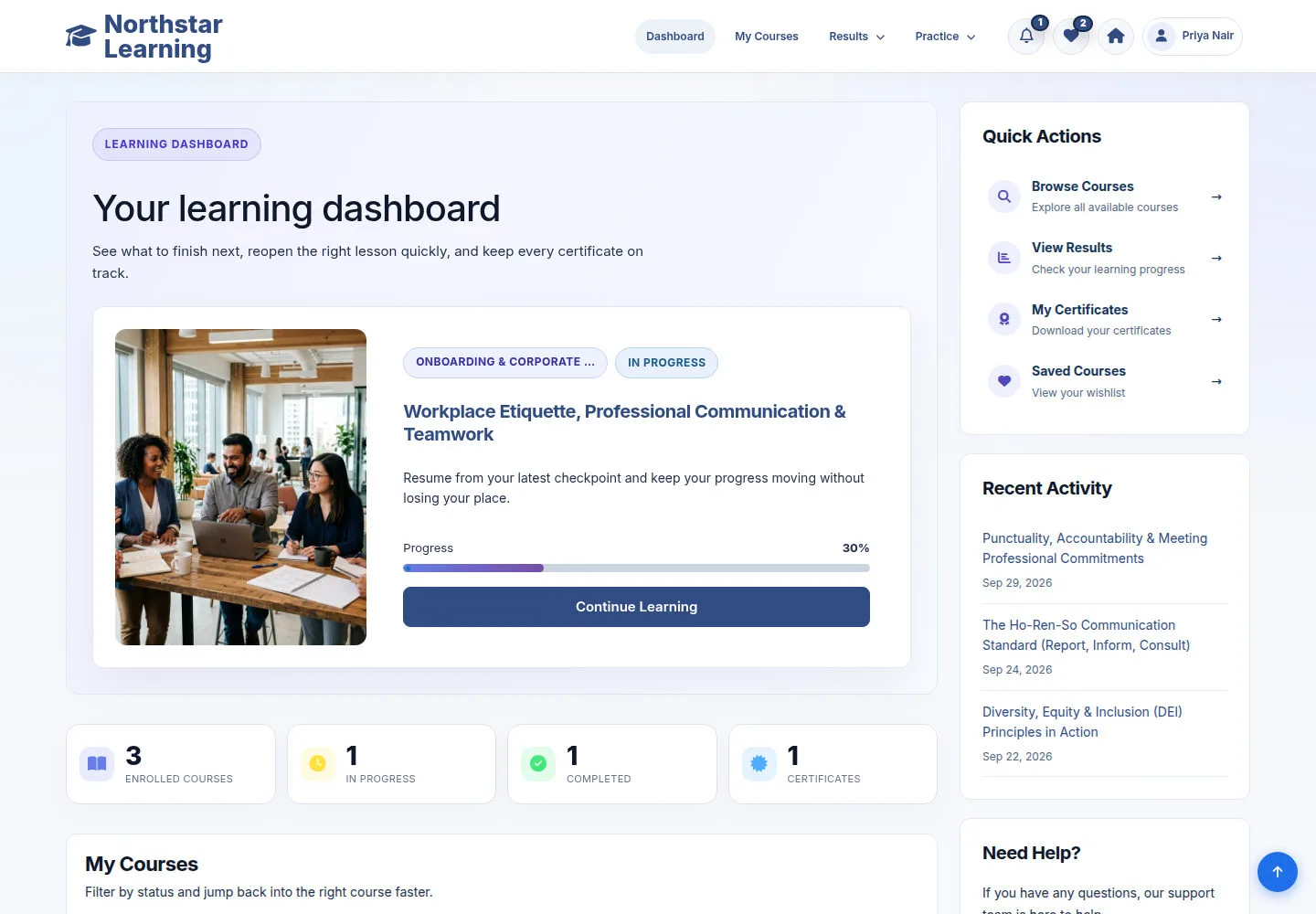
The Dashboard brings together your learning activity. Use Continue Learning to resume a Course, or Quick Actions to open results, certificates and saved Courses.
- Click Continue Learning to go back to that Course, or use My Courses in the top menu; Quick Actions lead to View Results, My Certificates and Saved Courses.
- In the back office, click the Home icon just left of your account to return to the front end.
Open on site ↗sign-inFull-page screenshot ↗
You switch areas while keeping the same session and account.
Read My Profile
Authenticated user
3Step 3 of 5
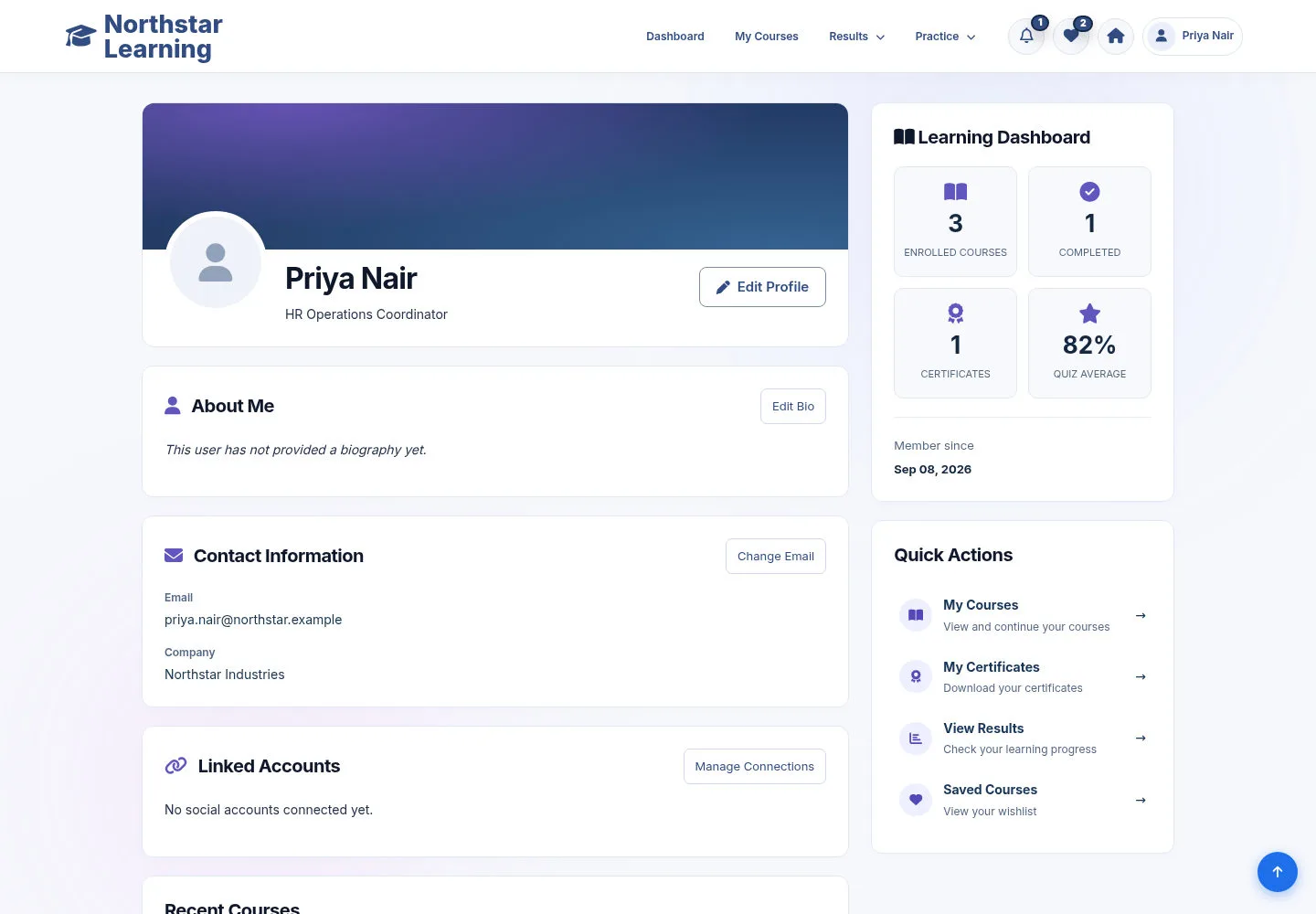
My Profile summarises your personal information and activity.
- Open My Profile, review your personal data and choose Edit/Profile settings when you want to update it.
Open on site ↗sign-inFull-page screenshot ↗
You know which information is shown for your account.
Update the profile fields you are allowed to change
Authenticated user
4Step 4 of 5
Account settings opens on its Edit tab with three parts: Profile (picture, name, job title, company, bio), Sign-in and security (email address and password) and Preferences (time zone, system notifications, preferred categories).
- Change only what you need to update; read the hint under each field.
- To change your email address or password, enter your Current password first.
- Click Save changes at the bottom of the form, or Cancel to leave it unchanged, then read the message.
Open on site ↗sign-inFull-page screenshot ↗
Valid changes are saved to your own account.
Choose your Notification preferences
Authenticated user
5Step 5 of 5
Preferences are the notification options the system supports.
- Open Notification preferences, adjust the options shown and save when needed.
Open on site ↗sign-inFull-page screenshot ↗
Your account's notifications follow the preferences.