





 Internal training
User guide · Content Editor
Write an Article and a Basic page
Use public content to guide learners and share company information.
Choose the content type to write
Content Editor
1Step 1 of 4
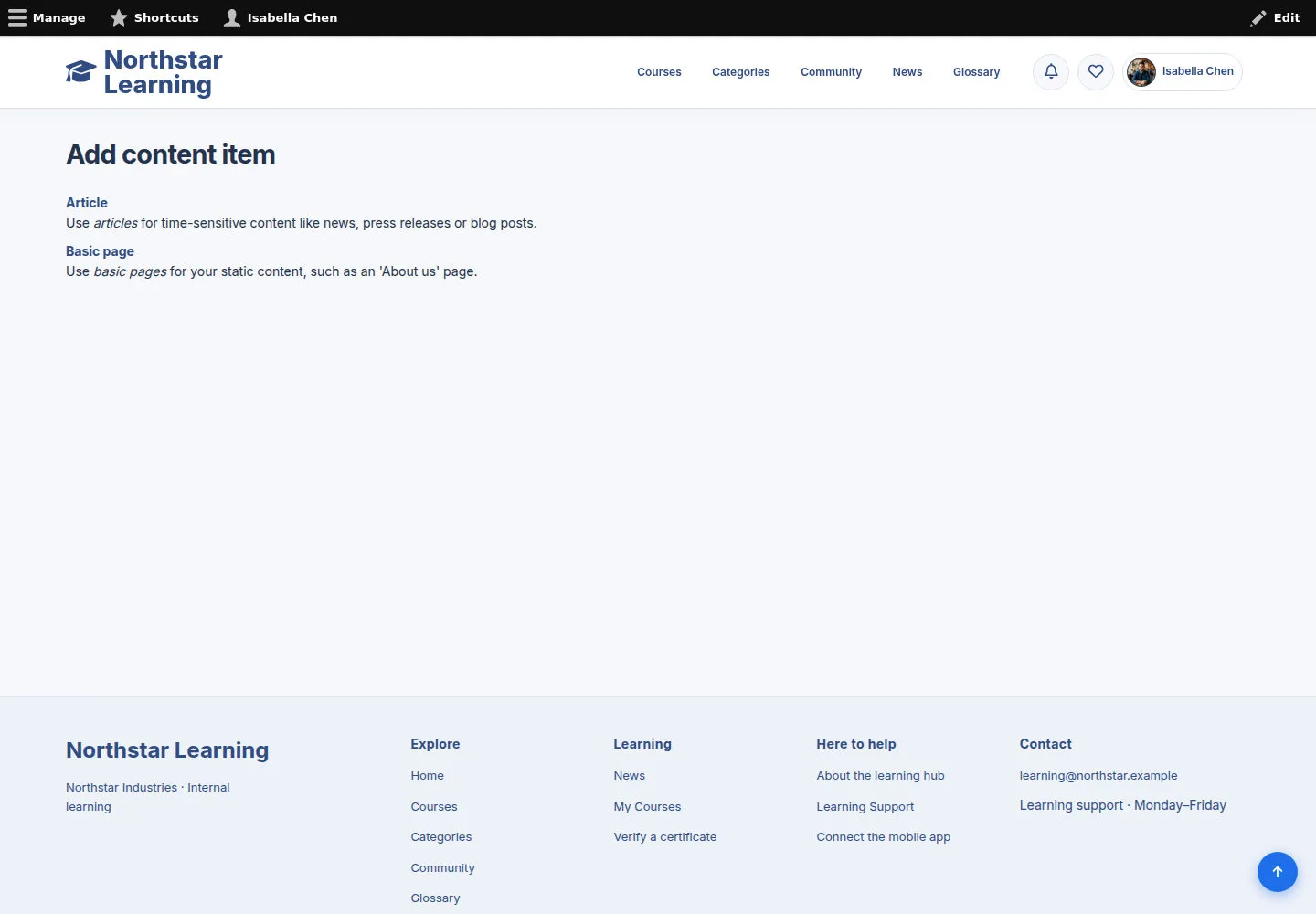
Add content lists the content types you are allowed to create.
- Choose Article for an article, or Basic page for an information page.
Open on site ↗sign-inFull-page screenshot ↗
You reach the form of the right content type.
Write the Article title, image and body
Content Editor
2Step 2 of 4
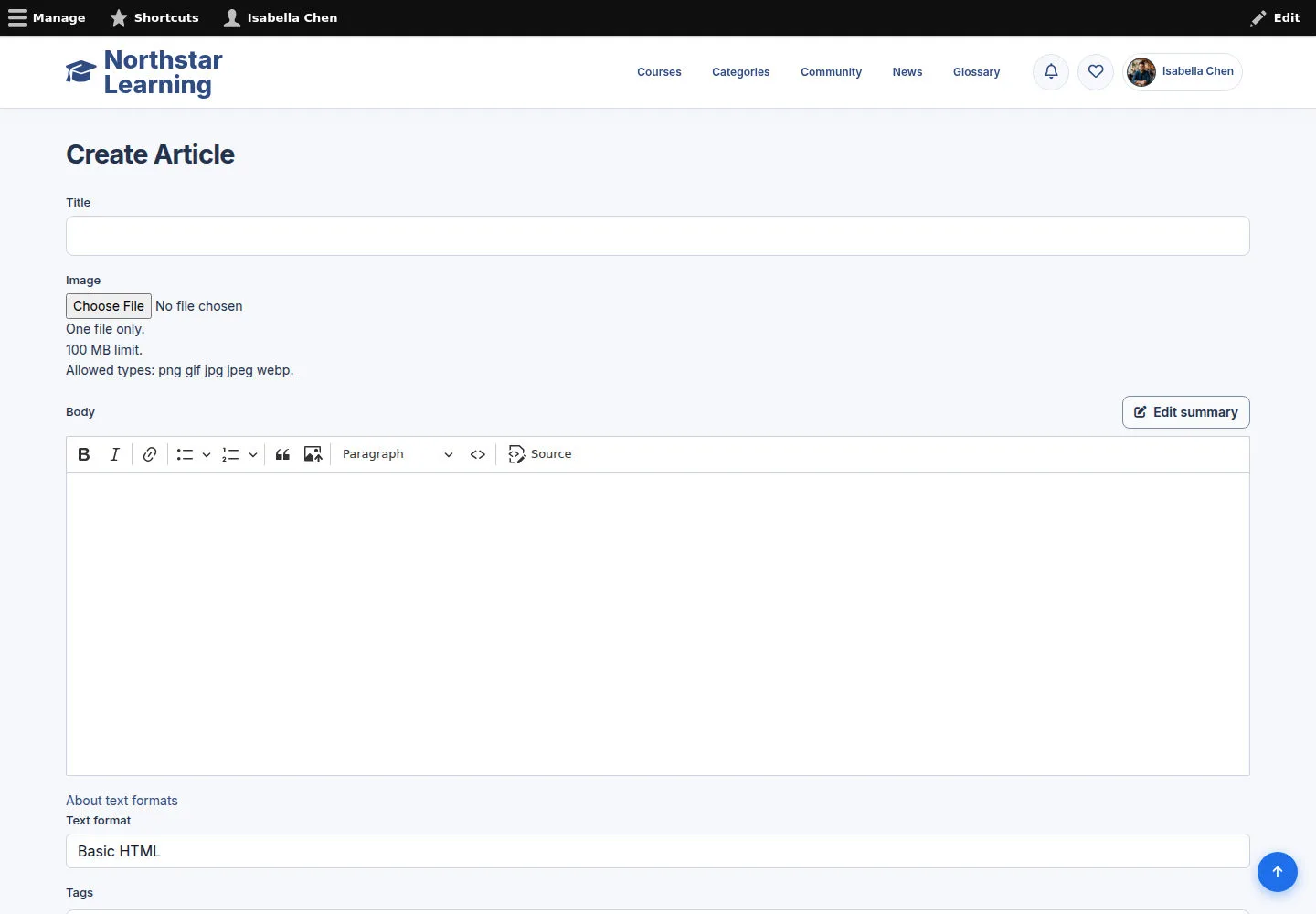
Prepare an Article with a title, image, content and Tags.
- Enter the title; choose a suitable image and fill in the alt text when the field requires it.
- Write the Body, choose Tags and check Published before saving.
Open on site ↗sign-inFull-page screenshot ↗
The Article contains the content, image and Tags you entered.
Write a clear Basic page
Content Editor
3Step 3 of 4
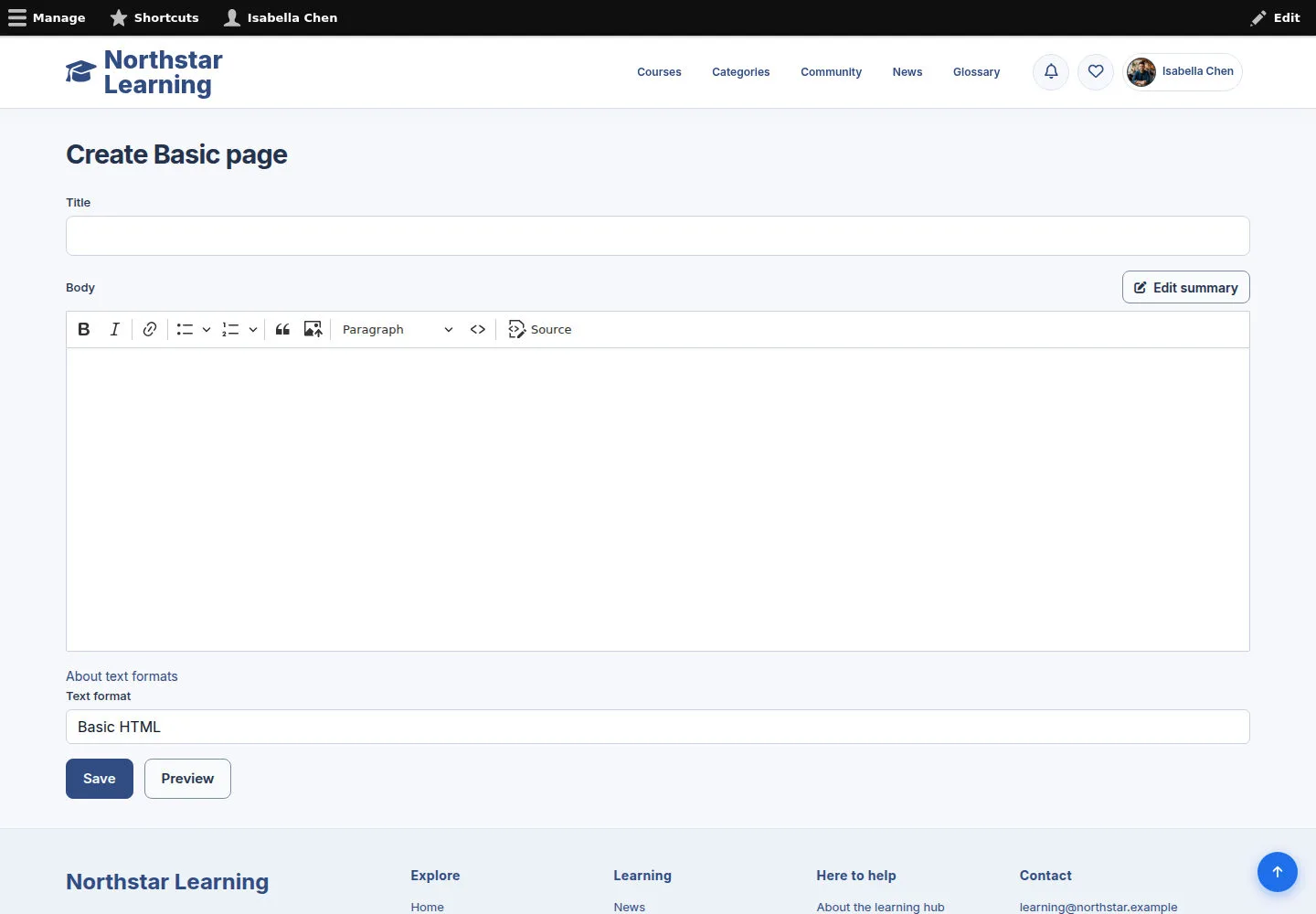
A Basic page holds fixed information published on the site.
- Enter the title and Body; choose the available editor format.
- Check publication, then Save when you are ready.
Open on site ↗sign-inFull-page screenshot ↗
The information page is saved according to the editor's permissions.
Read the editor's format help
Content Editor
4Step 4 of 4
Format help explains the markup allowed in the current editor.
- Open the format help when needed; use the supported controls and markup.
Open on site ↗sign-inFull-page screenshot ↗
Your content is written in a format the site accepts.