





 Internal training
User guide · Administrator
Workspace →internal Assign Course
Find the right back office, assign a Course to one employee and keep the learning data.
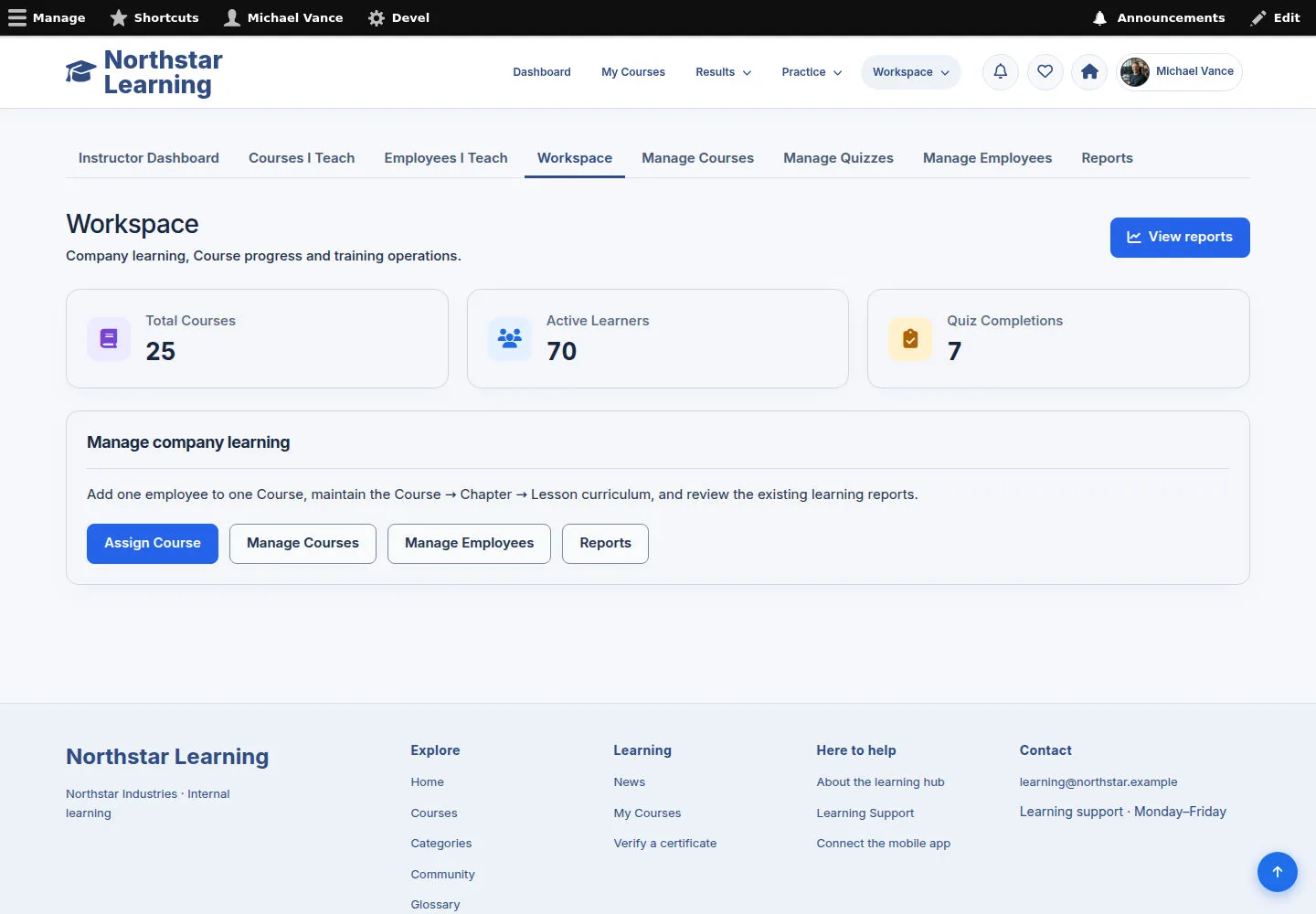
Enter the Workspace from your account name
Administrator
1Step 1 of 5
The Workspace is the back-office entry point for a permitted management account.
- Click your account name in the header and choose a feature group in the Workspace menu.
- Click the Home icon next to your account to return to the front end when needed.
Open on site ↗sign-inFull-page screenshot ↗
The back-office and front-end main menus match their context; your identity does not change.
Use the administration toolbar
Administrator
2Step 2 of 5
An Administrator with toolbar permission can open the administration tray with Manage.
- Use Manage to close or open the tray; on mobile, close it to see the content below.
- Use the Enterprise back-office menu for employee, Course and learning tasks.
Open on site ↗sign-inFull-page screenshot ↗
You can reach your work area with the toolbar open or closed.
Assign a Course to one employee
Administrator
3Step 3 of 5
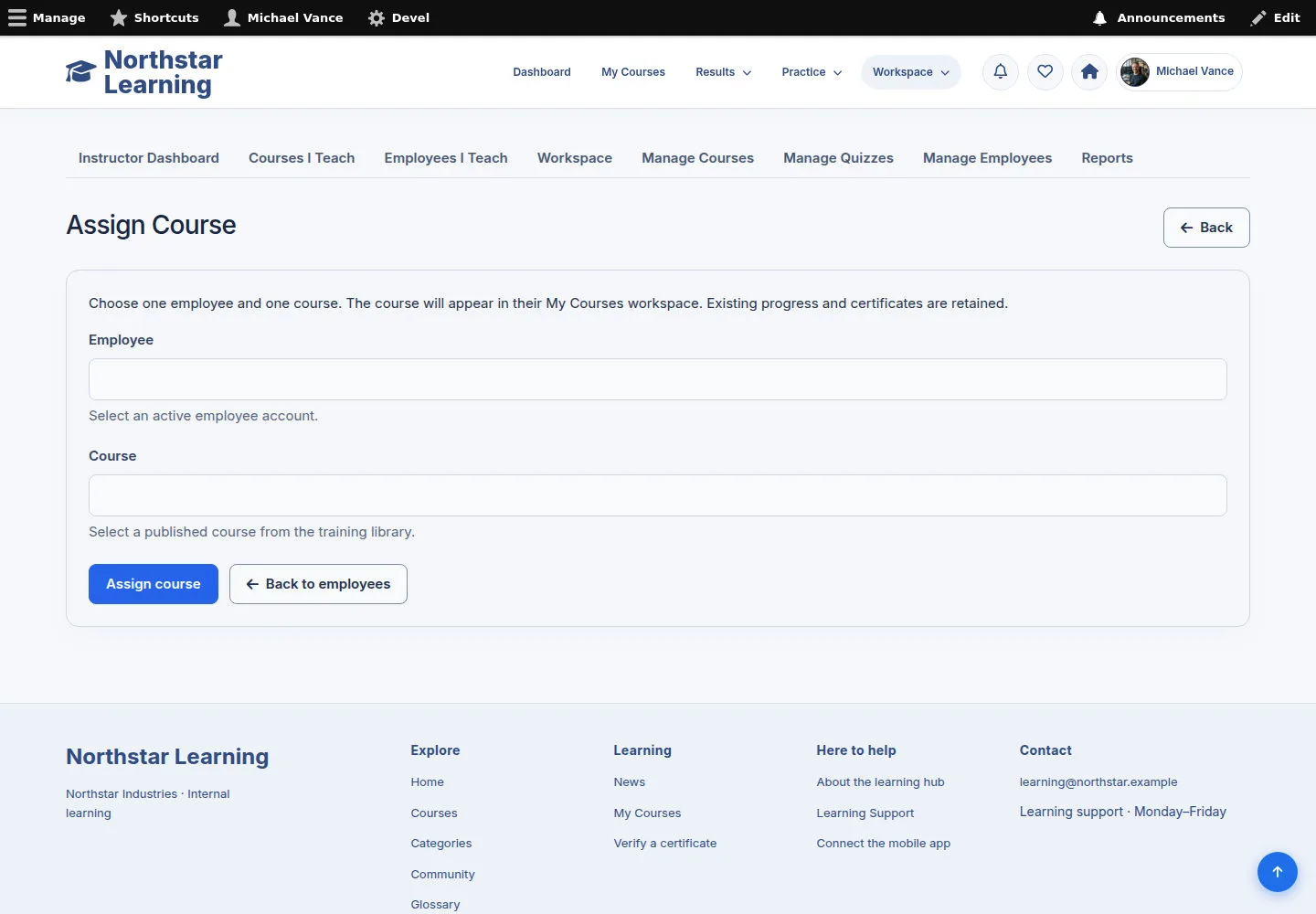
Assign Course is the internal form that assigns one published Course to one employee.
- Choose an active account in Employee and a published Course in Course with the autocomplete.
- Check that the person and the Course are right, then click Assign course when ready.
The form does not create batches, deadlines, payments or approvals. Administrator and superuser accounts are not valid employees for this form.
Open on site ↗sign-inFull-page screenshot ↗
The Course appears in the employee's My Courses; an enrolment keeps its progress and Certificate.
Check the recipient and the Course before confirming
Administrator
4Step 4 of 5
Check the selected employee and Course before confirming the assignment.
- Reread the selected employee and Course; if either is wrong, fix it before Assign course.
- If you no longer need to assign the Course, use Back to employees.
Open on site ↗sign-inFull-page screenshot ↗
You avoid wrong assignments and do not lose the history of someone who already has the Course.
Assign a Course on a phone
Administrator
5Step 5 of 5
On mobile the form keeps the two Employee and Course fields and the confirmation.
- Choose complete autocomplete values and reread them before you confirm.
Open on site ↗sign-inFull-page screenshot ↗
You use the same one-Course-to-one-employee flow on a narrow screen.