





 Internal training
User guide · Anonymous visitor
Read guidance and find support
Read company content, News and the Glossary, and find who to contact about your learning.
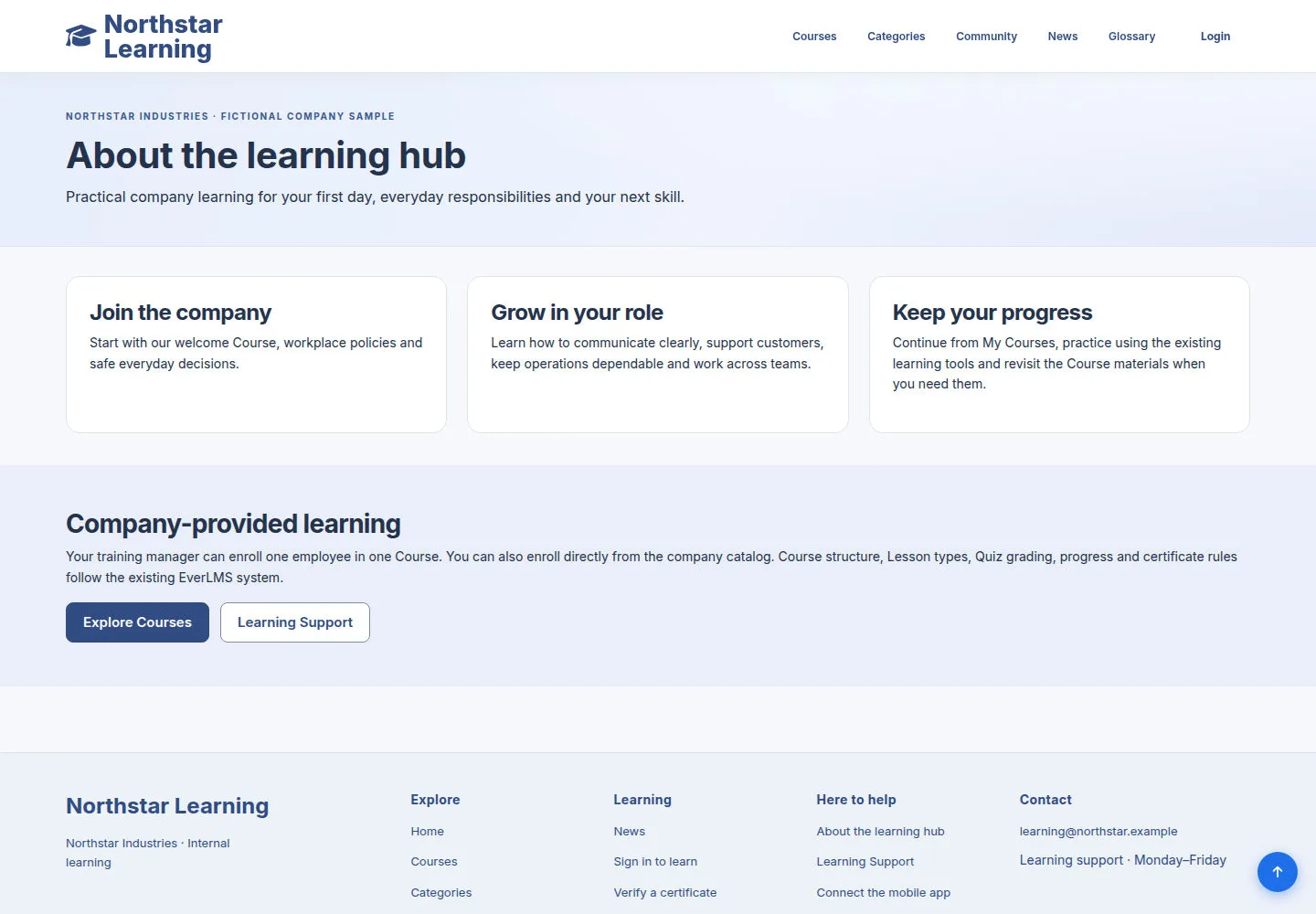
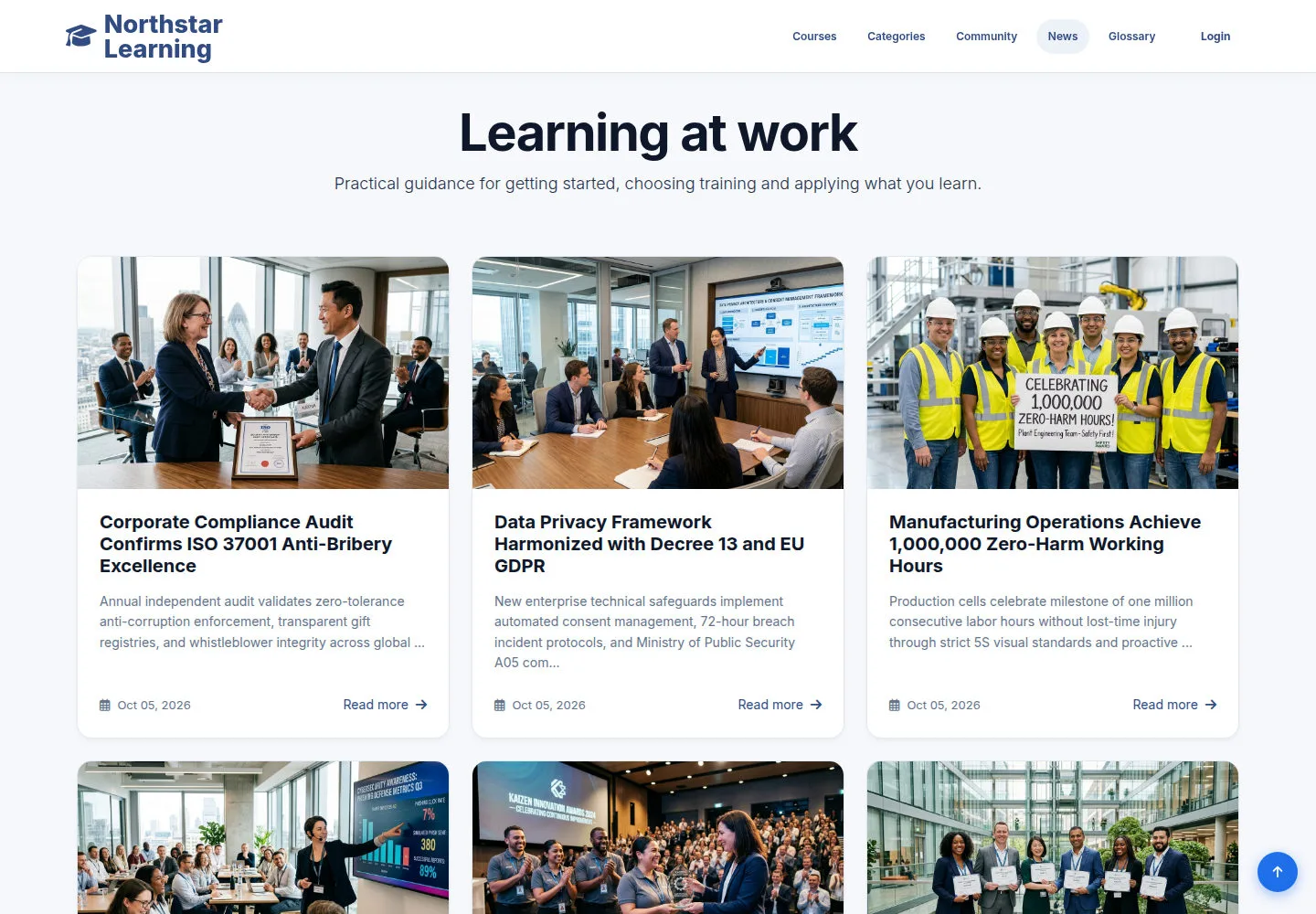

Read the About page
Anonymous visitor
1Step 1 of 5
The About page explains the information and context published on the site.
- Open About from the main menu and read the organisation's content.
Open on site ↗Full-page screenshot ↗
You understand the site's context before you start training.
Find a News article
Anonymous visitor
2Step 2 of 5
News is where you read articles and updates.
- Open News and choose an article from the list to read it in full.
Open on site ↗Full-page screenshot ↗
The article opens on its own detail page.
Read and share an article
Anonymous visitor
3Step 3 of 5
The detail page has a link back to News and share buttons.
- Read the article; use Back to News to return to the list.
- To share it, choose one of the products shown; the link uses the URL of the article you are reading.
Open on site ↗Full-page screenshot ↗
You read the right article and have a way back to the list.
Look up a term in the Glossary
Anonymous visitor
4Step 4 of 5
The Glossary explains the published terms.
- Open Glossary, use the available search controls and choose the term you want to read.
Open on site ↗Full-page screenshot ↗
You reach the definition of the term you searched for.
Contact the support team
Anonymous visitor
5Step 5 of 5
Contact shows Learning support, email, phone and hours, and the help shortcuts.
- Open Contact, use the published email or phone and describe the Course, the Lesson and the problem you have.
- To recover your account or continue learning, use the matching Reset password or My Courses shortcut.
Open on site ↗Full-page screenshot ↗
You reach the right contact with enough detail for them to understand the issue.