





 Internal training
User guide · Content Editor
Find content in Course Management
Read the library and a public Course sample to prepare consistent content.
- Sign in with a Content Editor account. Work on content you own or have permission to maintain.
Open Course Management from the back office
Content Editor
1Step 1 of 3
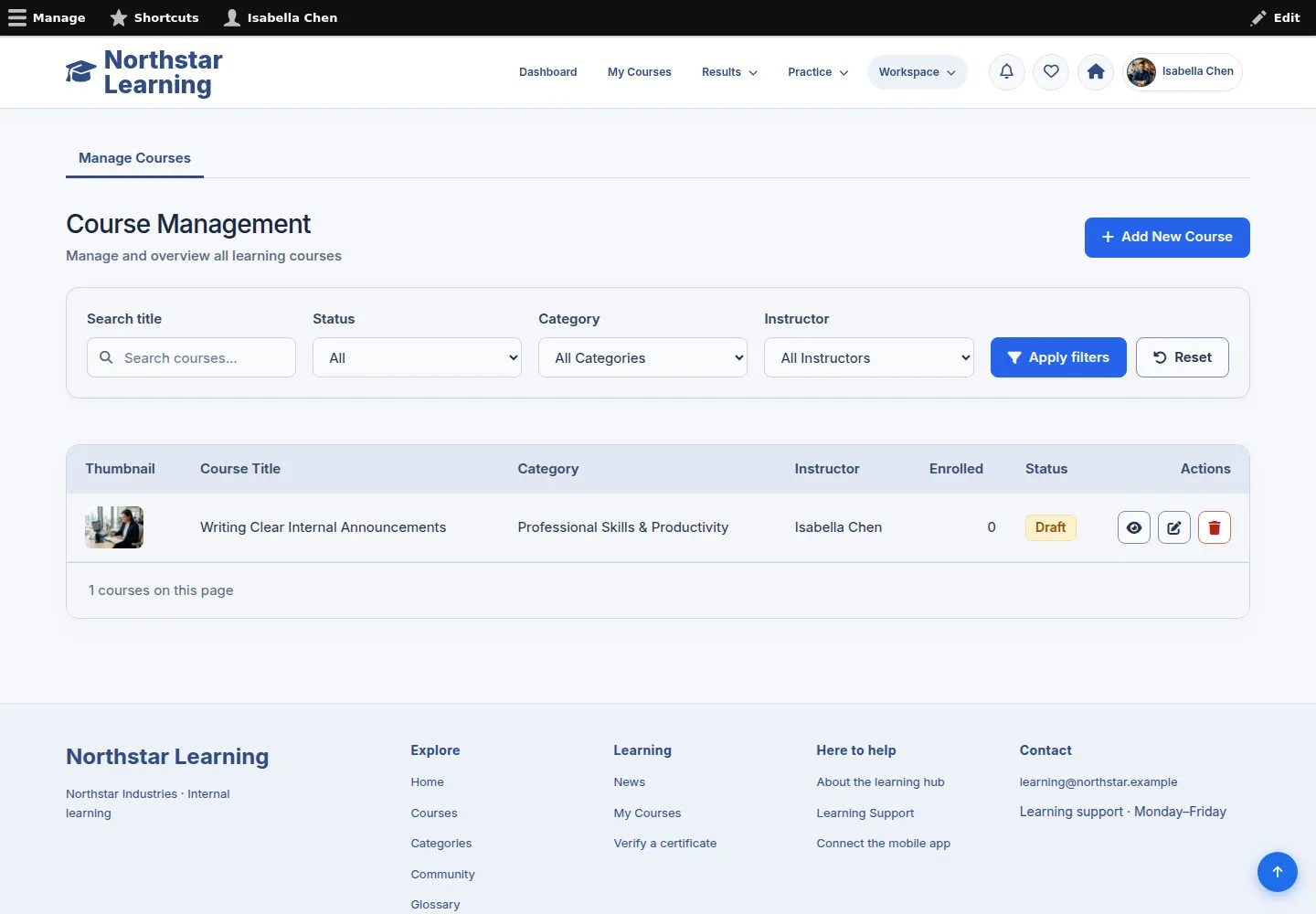
Click your account name to reach the work area you are allowed, or choose Course Management in the menu.
- Use Search and the filters to find a Course.
- Open a record you may read; use Create New Course to create content that belongs to you.
Edit content you own or have been permitted to maintain. Available editing actions depend on your account permissions.
Open on site ↗sign-inFull-page screenshot ↗
You have a way into the current authoring library.
Read a Course before authoring
Content Editor
2Step 2 of 3
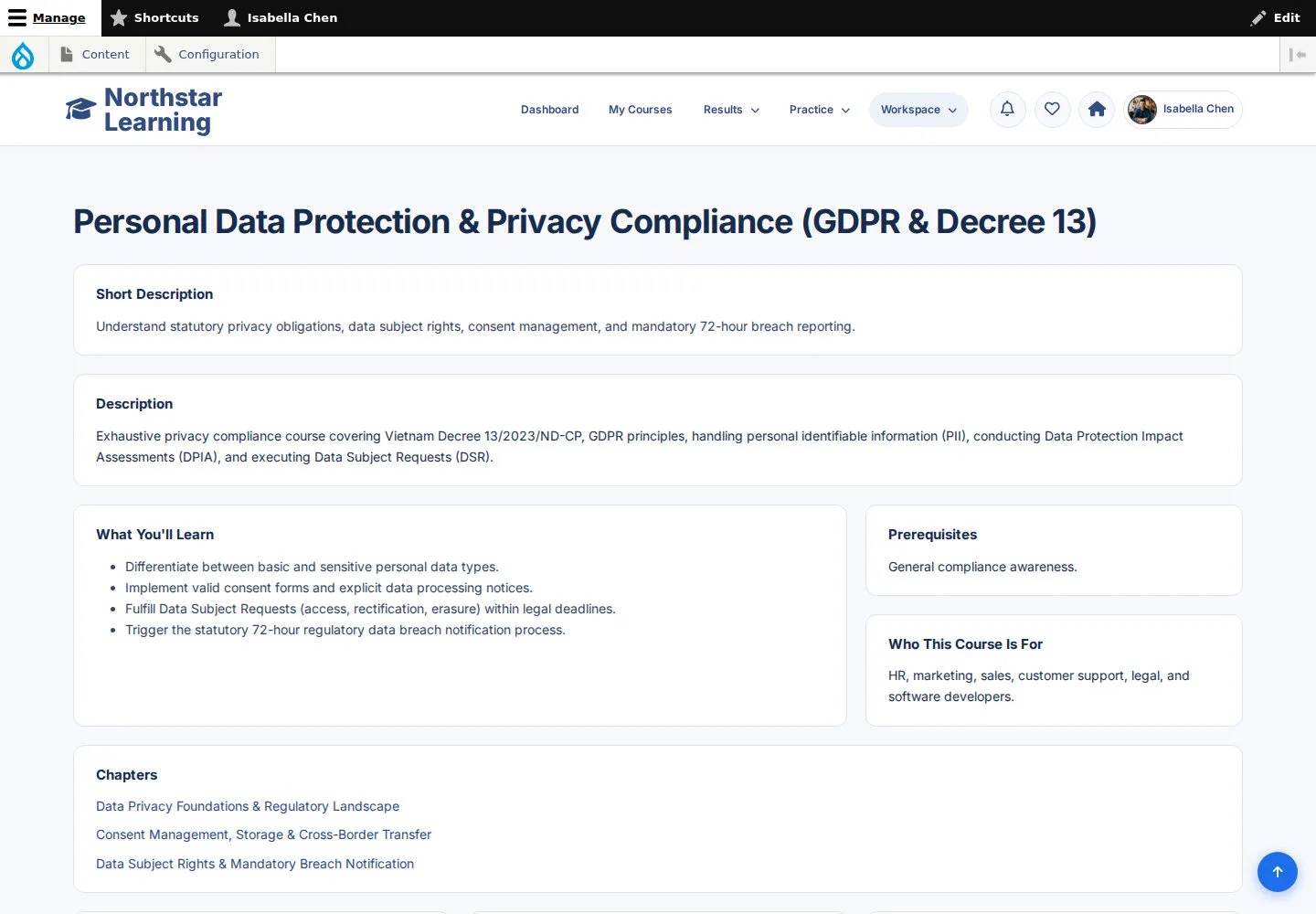
The Privacy course is the reference record for the content structure in use.
- Read the Course information and its related references before preparing a new Course.
Edit content you own or have been permitted to maintain. Available editing actions depend on your account permissions.
Open on site ↗sign-inFull-page screenshot ↗
You understand how a Course links to its Chapters.
Compare with the learner page
Content Editor
3Step 3 of 3
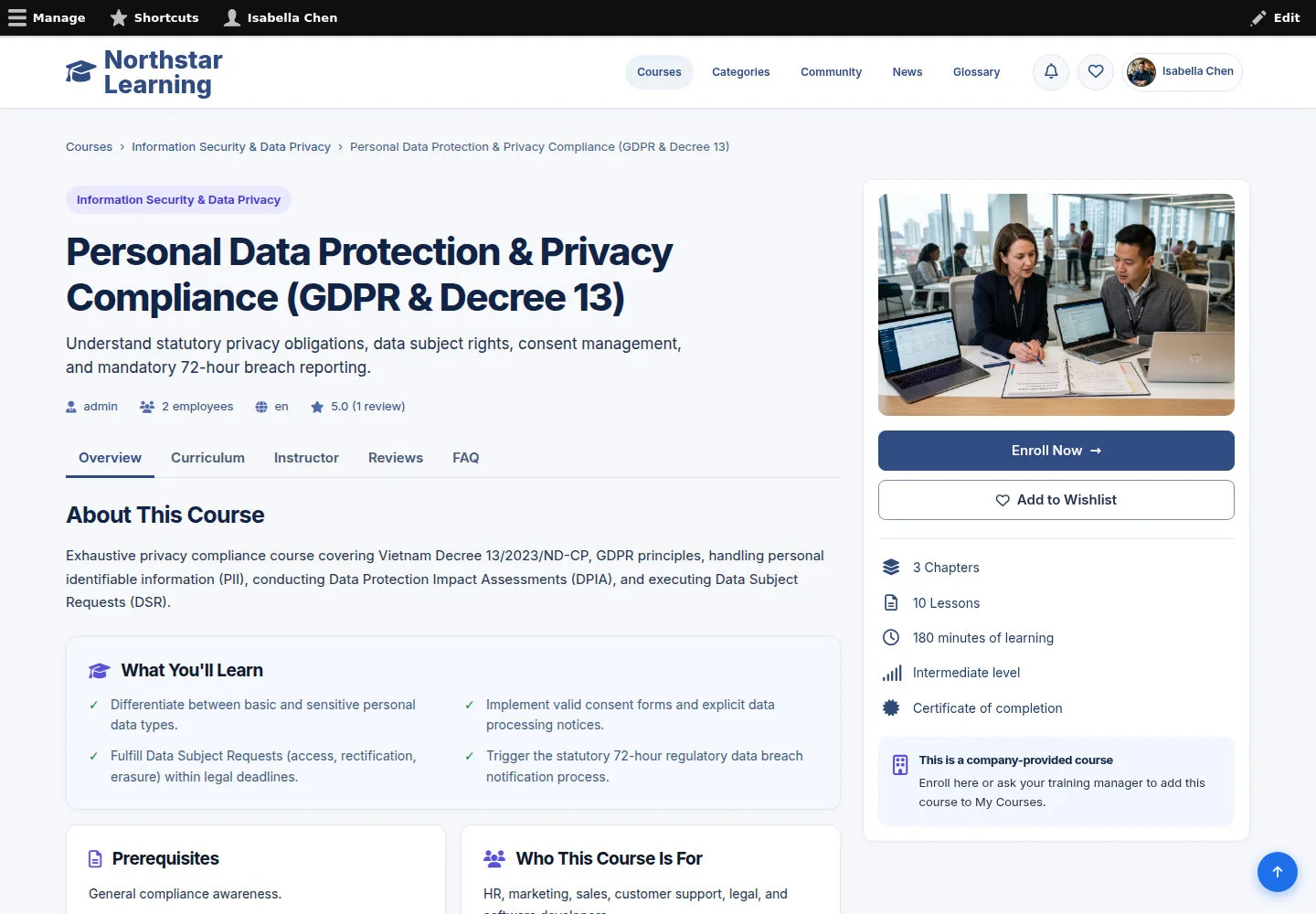
The public Course detail is where learners read the introduction and Curriculum.
- Open the public Course page; check the description, images and tabs of the published content.
Open on site ↗sign-inFull-page screenshot ↗
You understand which information learners will see.