





 Internal training
User guide · Administrator
Feedback, Reports and learner progress
Read ratings, the analytics and the activity of Courses and employees.
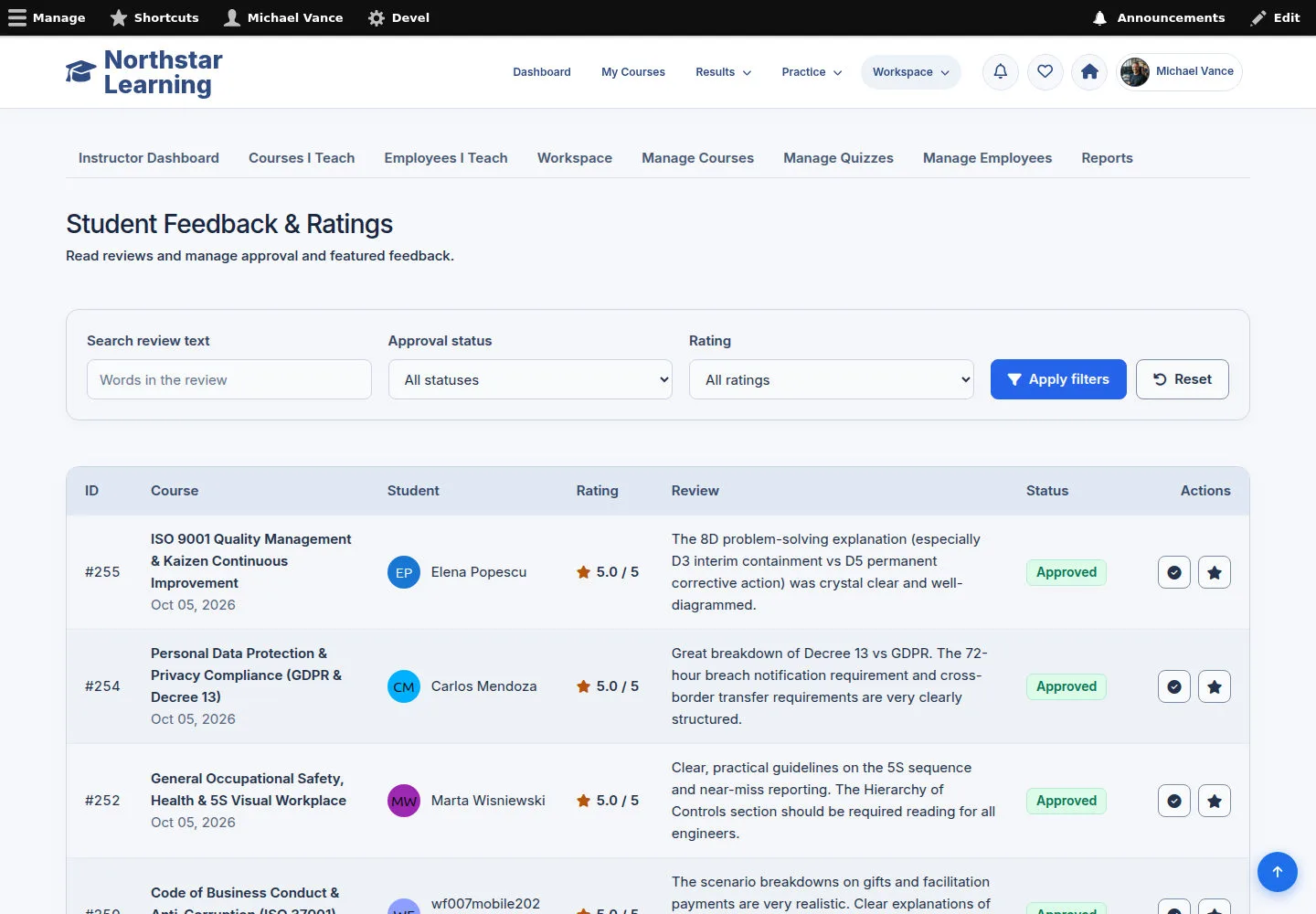
Review Student Feedback & Ratings
Administrator
1Step 1 of 8
Ratings keep the system's reviews and moderation controls.
- Use the status and score filters to find feedback; read the full review before using a permitted moderation action.
Open on site ↗sign-inFull-page screenshot ↗
You review the right content, status and score.
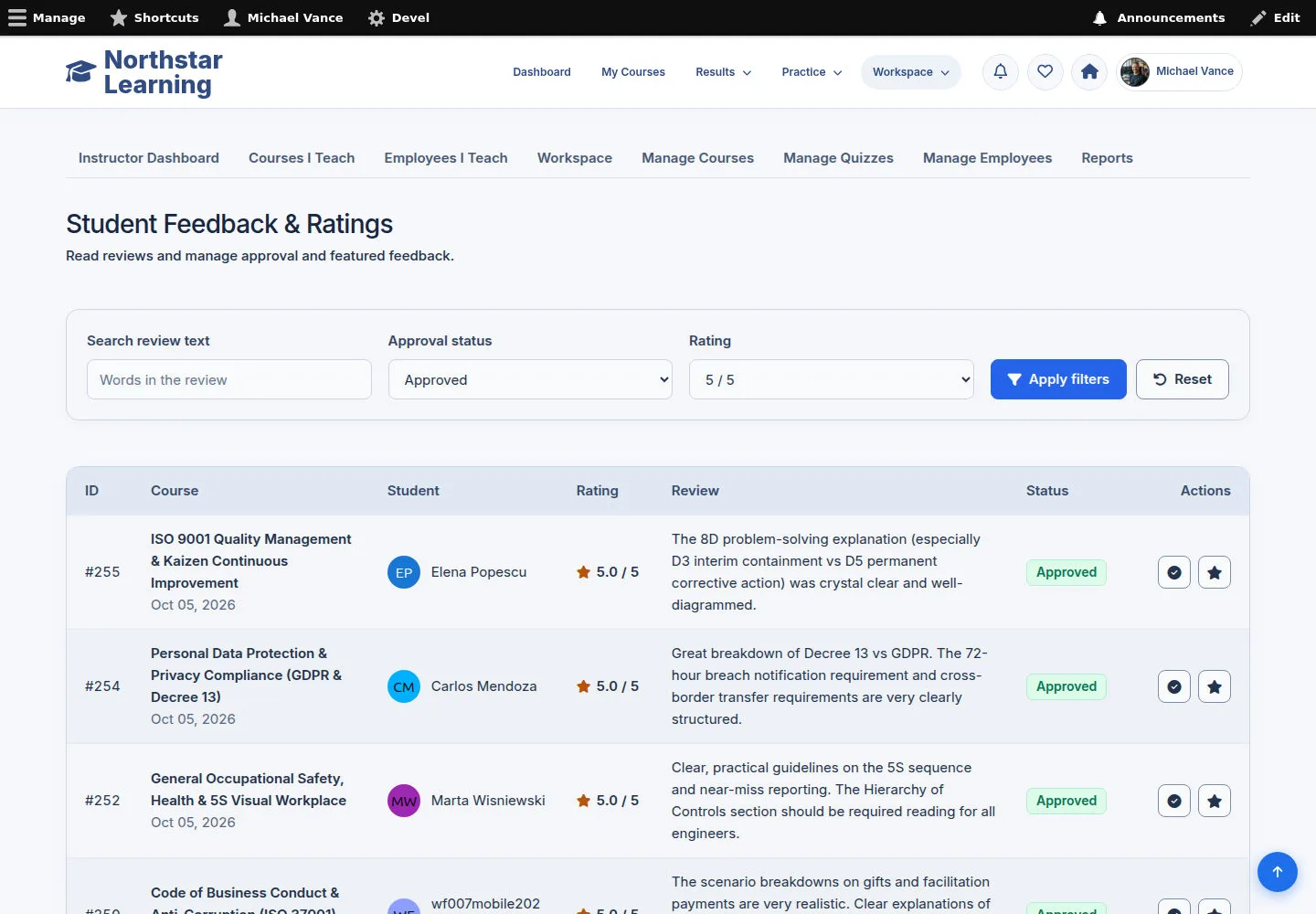
Filter feedback by status and score
Administrator
2Step 2 of 8
Filter by approval status and rating to focus on the feedback you need to review.
- Check the filter and the result count; change or reset the filter to review another group.
Open on site ↗sign-inFull-page screenshot ↗
The list reflects the filter you chose.
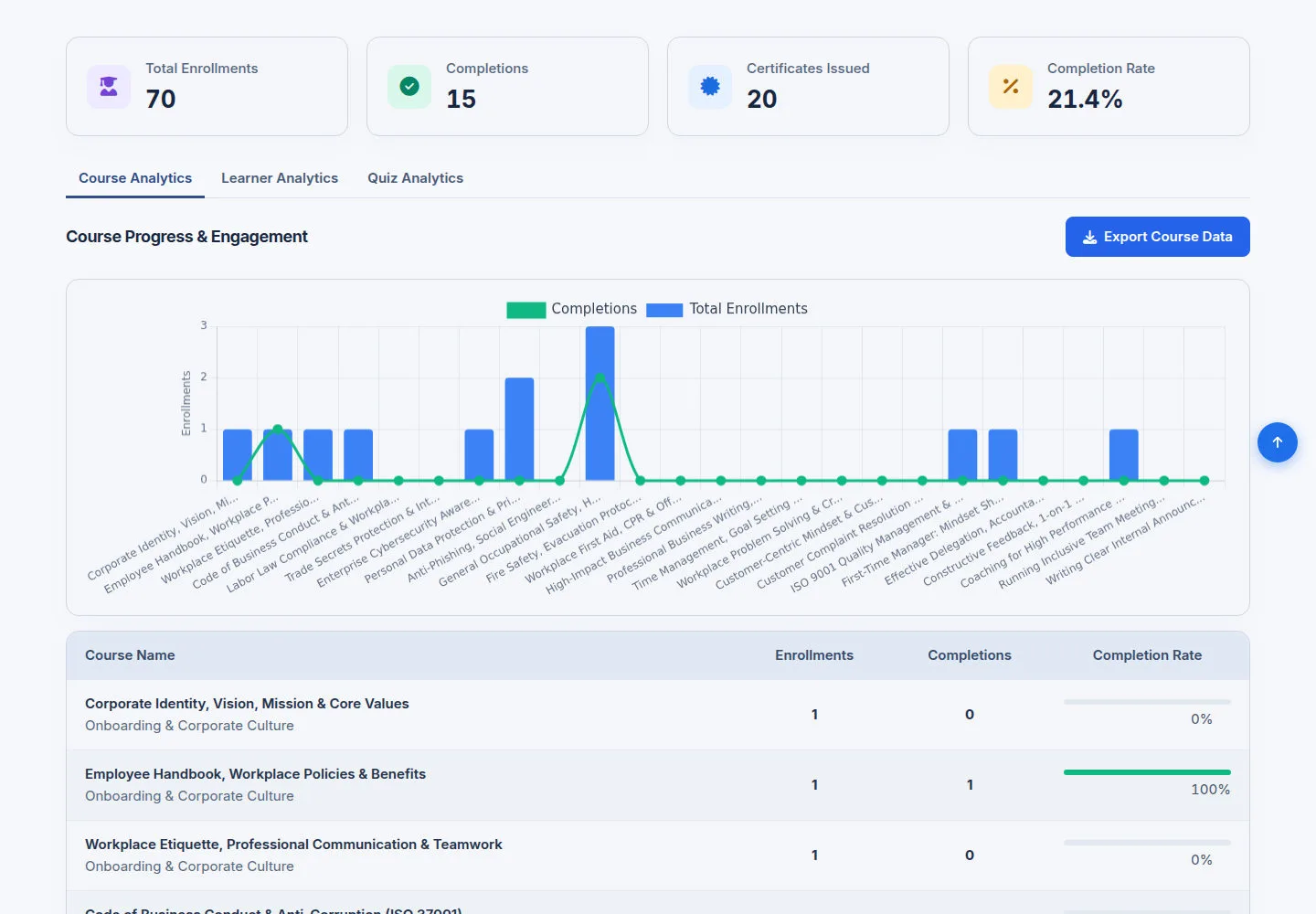
Read Course Analytics
Administrator
3Step 3 of 8
Reports & Analytics splits the data across the tabs.
- Read Course Analytics and the figures calculated from saved data; use the filters on the page to narrow them.
Open on site ↗sign-inFull-page screenshot ↗
You can review Course activity and identify where follow-up may be helpful.
Switch to Learner Analytics
Administrator
4Step 4 of 8
The Learner Analytics tab focuses on learner data.
- Choose Learner Analytics; find an employee with the filters on the page when needed.
Open on site ↗sign-inFull-page screenshot ↗
You see learner data for the selected tab.
Read Quiz Analytics
Administrator
5Step 5 of 8
Quiz Analytics summarises assessments within the scope.
- Choose Quiz Analytics and read the data for the Quizzes shown.
Open on site ↗sign-inFull-page screenshot ↗
You review assessment statistics from saved data.
Open Courses I Teach when permitted
Administrator
6Step 6 of 8
Use this area when your account has permission to review teaching activity.
- Open Courses I Teach and choose the Course whose activity you want to see.
Open on site ↗sign-inFull-page screenshot ↗
You use this area according to the management account's actual permissions.
Review Course activity
Administrator
7Step 7 of 8
Course stats open the data of one specific Course.
- Read the figures and the learner list; choose the learner you want to review.
Open on site ↗sign-inFull-page screenshot ↗
You see activity for the selected Course.
Review an employee’s Course activity
Administrator
8Step 8 of 8
The activity page is tied to the right employee and Course.
- Read the progress and learning records shown; compare them with the Course stats when needed.
Open on site ↗sign-inFull-page screenshot ↗
You see the selected employee’s progress and learning records for this Course.