






Room Board

Every room of the house: guest, dates, balance and cleaning, as cards or a list

  • A front desk account of the house
Receptionist
The board

Receptionist

The board

1Step 1 of 4

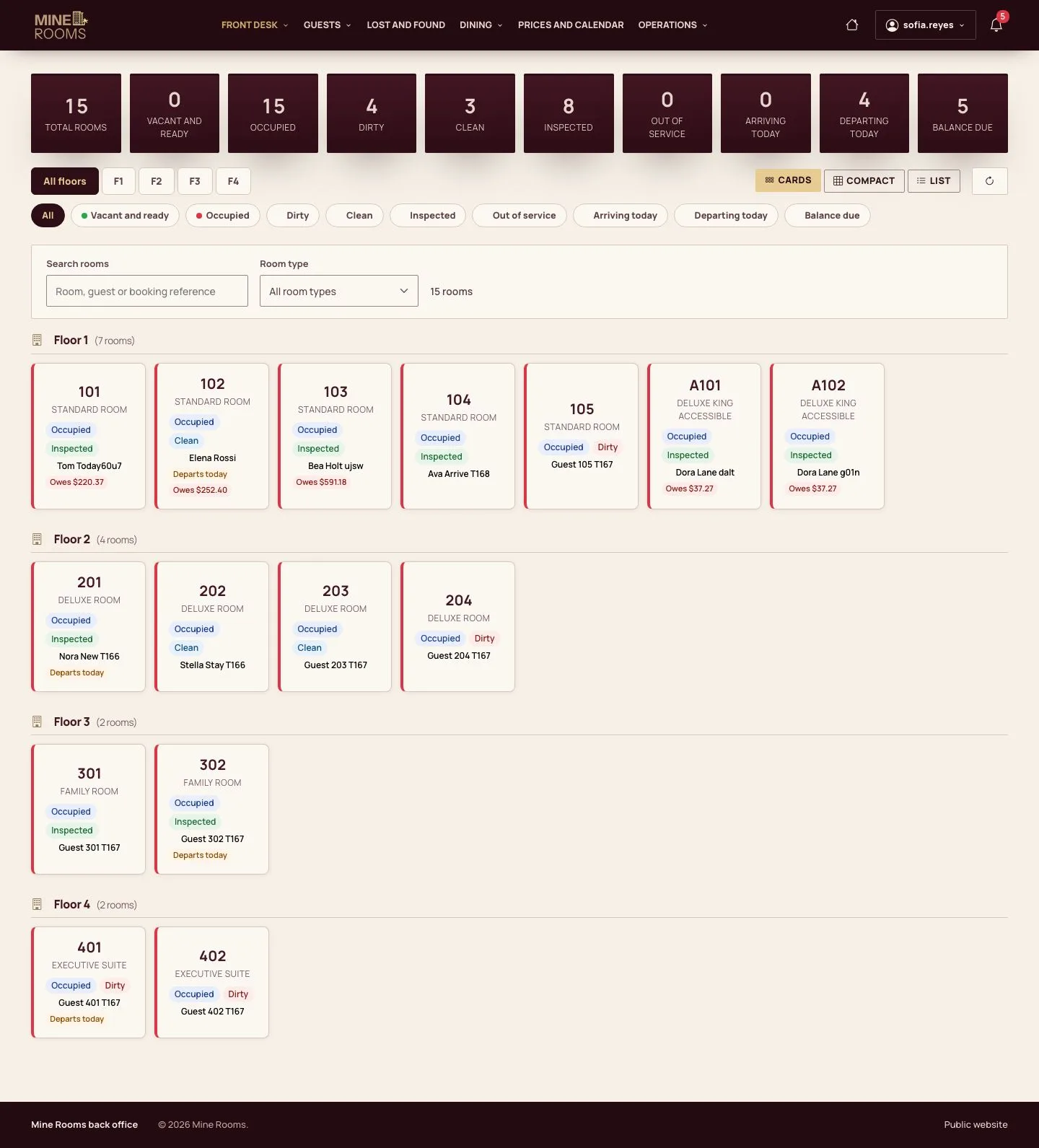
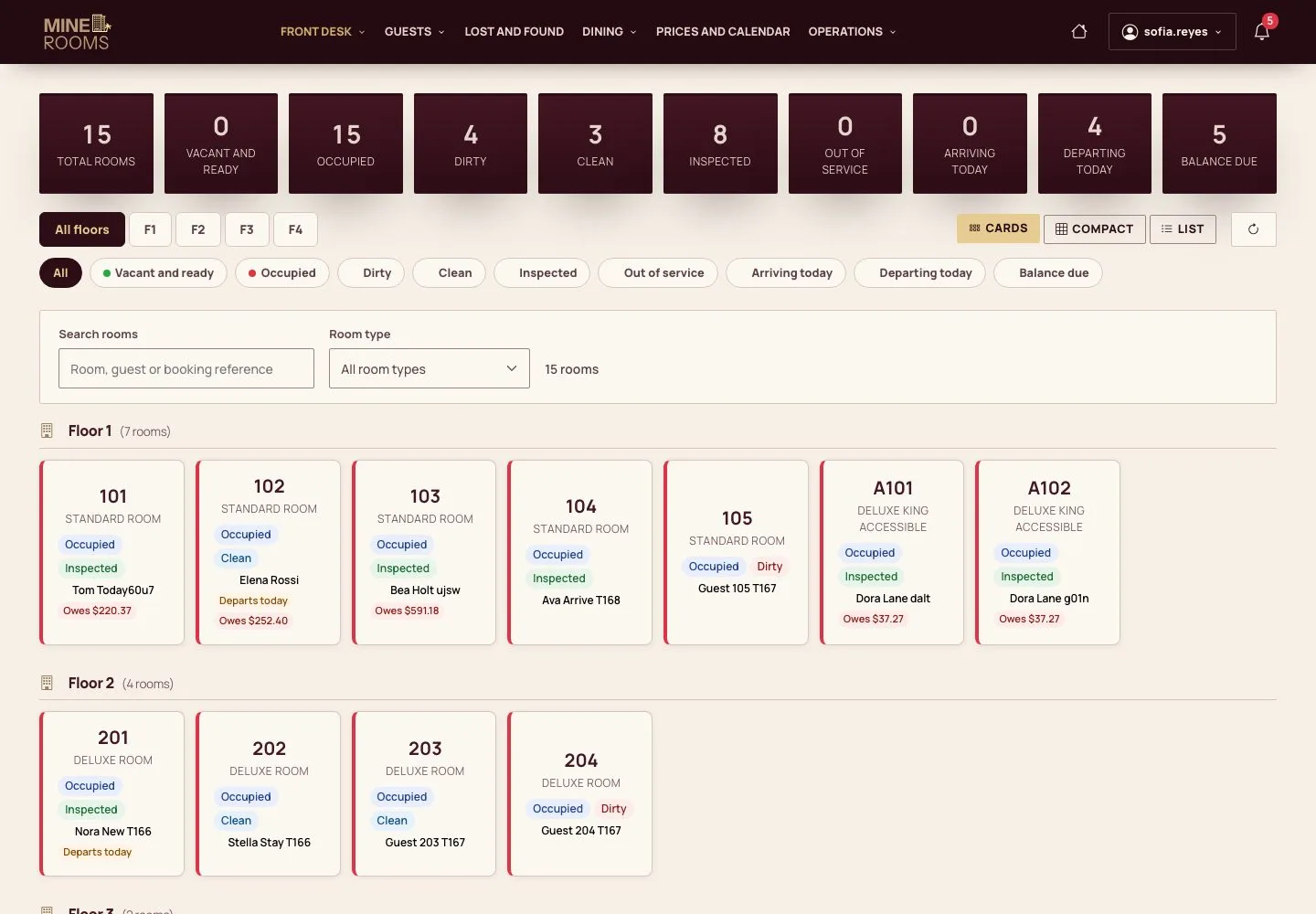
  1. The counts at the top give the rooms by status, the arrivals and departures of the day and the rooms with a balance.
  2. Each room shows its type, occupancy, cleaning status, the guest, a departure today and what is owed.

Enlarge, then scroll

Open illustrated screen ↗Full image ↗

Receptionist · Room Board01

List

Receptionist

List

2Step 2 of 4

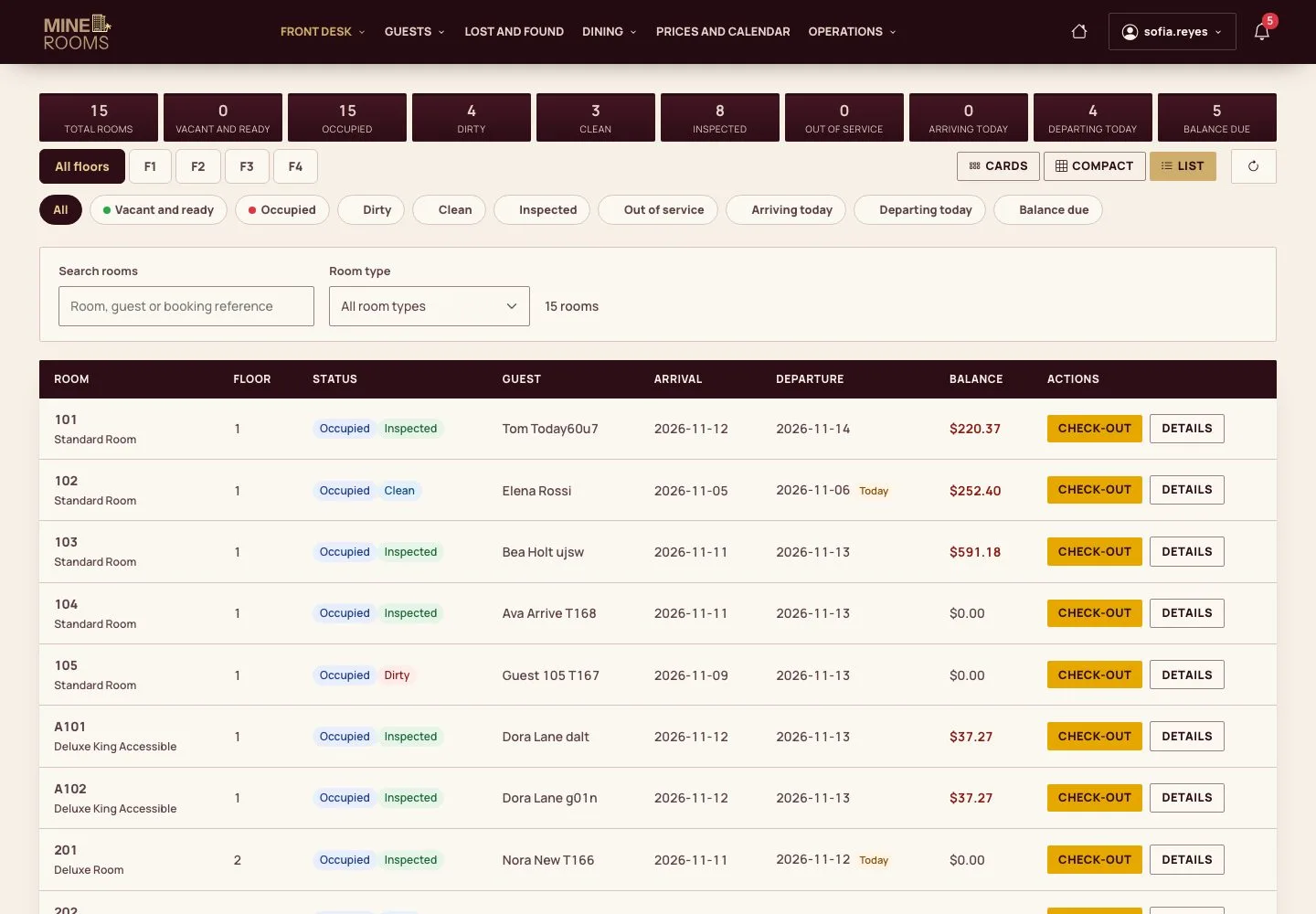
  1. List shows one row per room with the guest, arrival, departure and balance, and Check-out or Check-in at hand.
  2. Cards, Compact or List stays as you left it the next time you open the board.

Enlarge, then scroll

Open illustrated screen ↗Full image ↗

Receptionist · Room Board02

Filter

Receptionist

Filter

3Step 3 of 4

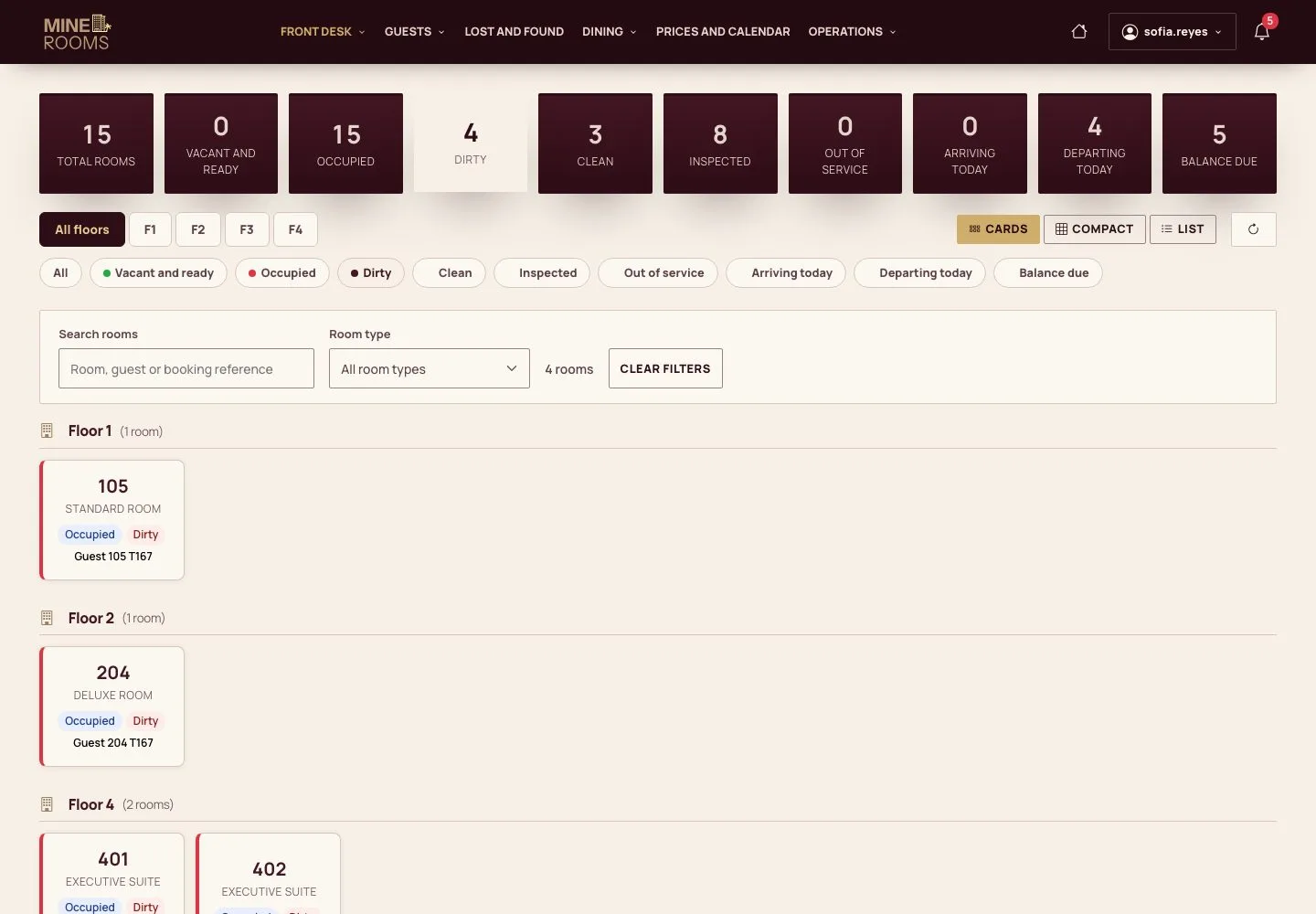
  1. A count or a status filters the board: Dirty shows the rooms to clean; a floor, a room type or a search narrows it further.
  2. Clear filters shows every room again.

Enlarge, then scroll

Open illustrated screen ↗Full image ↗

Receptionist · Room Board03

A room

Receptionist

A room

4Step 4 of 4

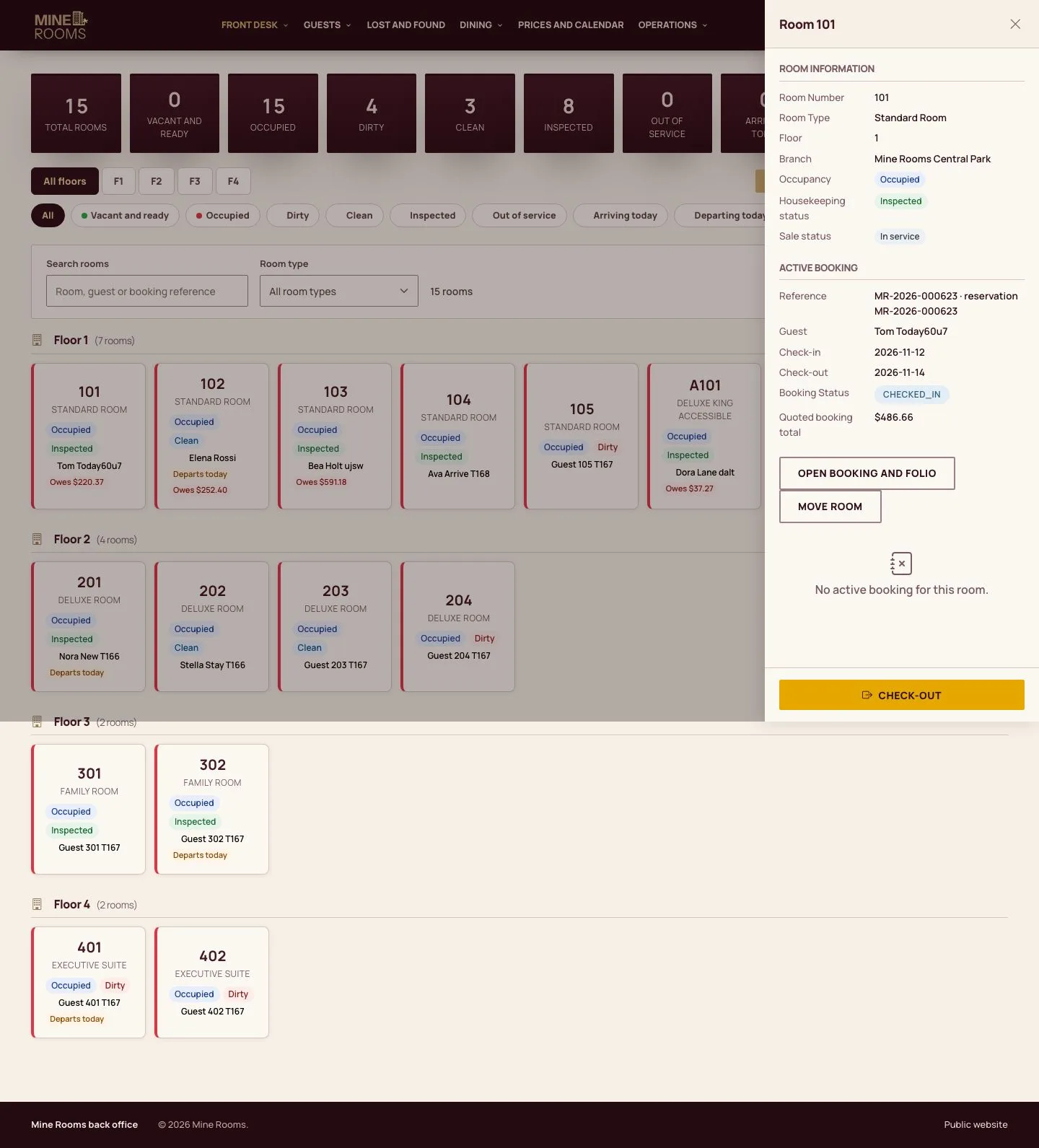
  1. Click a room for its actions: check in, check out, move the room, change the status or open the details.
  2. The details show the room and its booking, with Open booking and folio.

Enlarge, then scroll

Open illustrated screen ↗Full image ↗

Check

The desk sees at a glance who is in each room, who leaves today, what is owed and which rooms are ready.

Receptionist · Room Board04
1 / 5
Privacy Terms