Online payment

Card and PayPal on the provider's secure page

  • A provider connected by the Administrator
  • The method switched on for the house
Guest
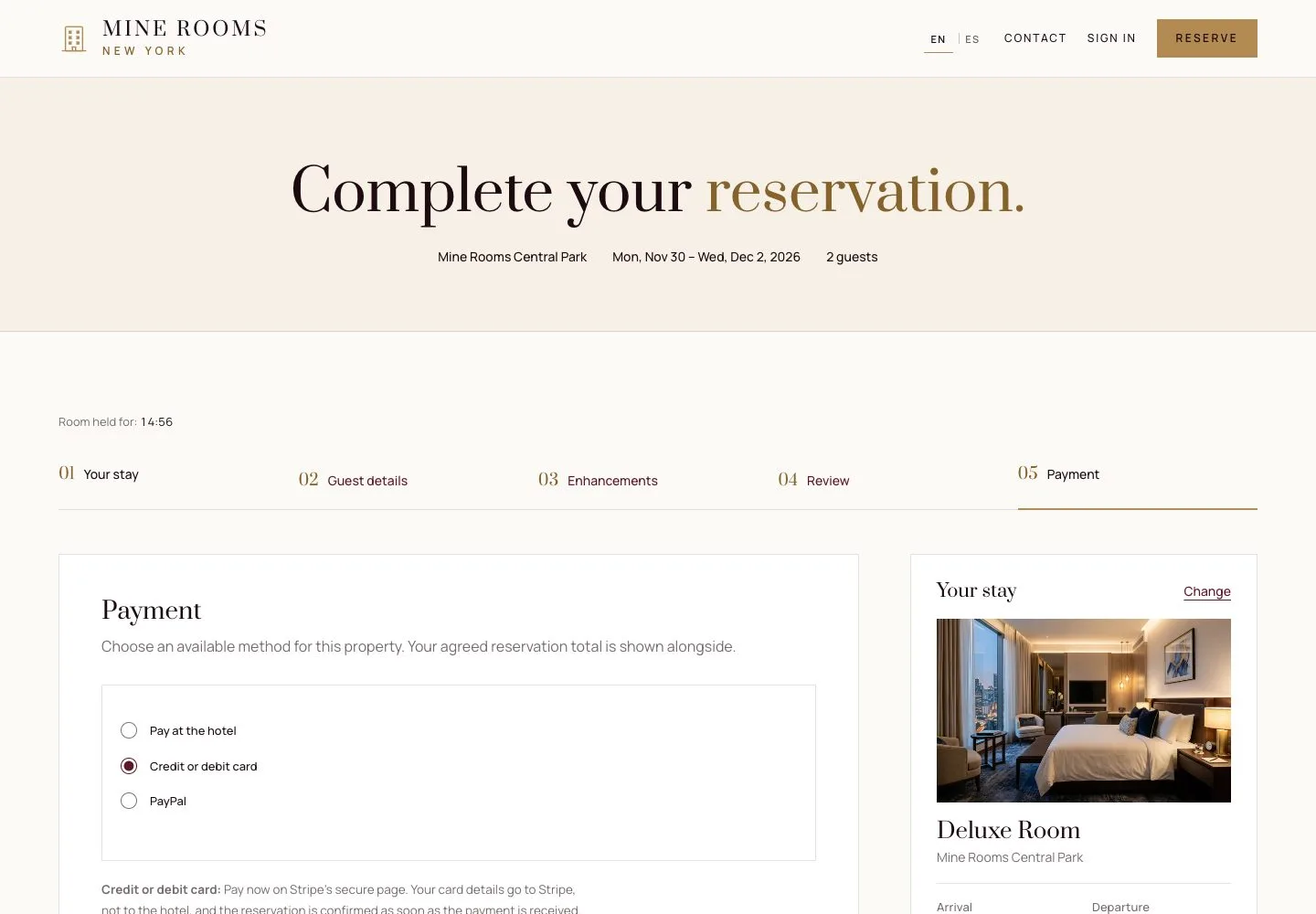
Choose how to pay

Visitor

Choose how to pay

1Step 1 of 6

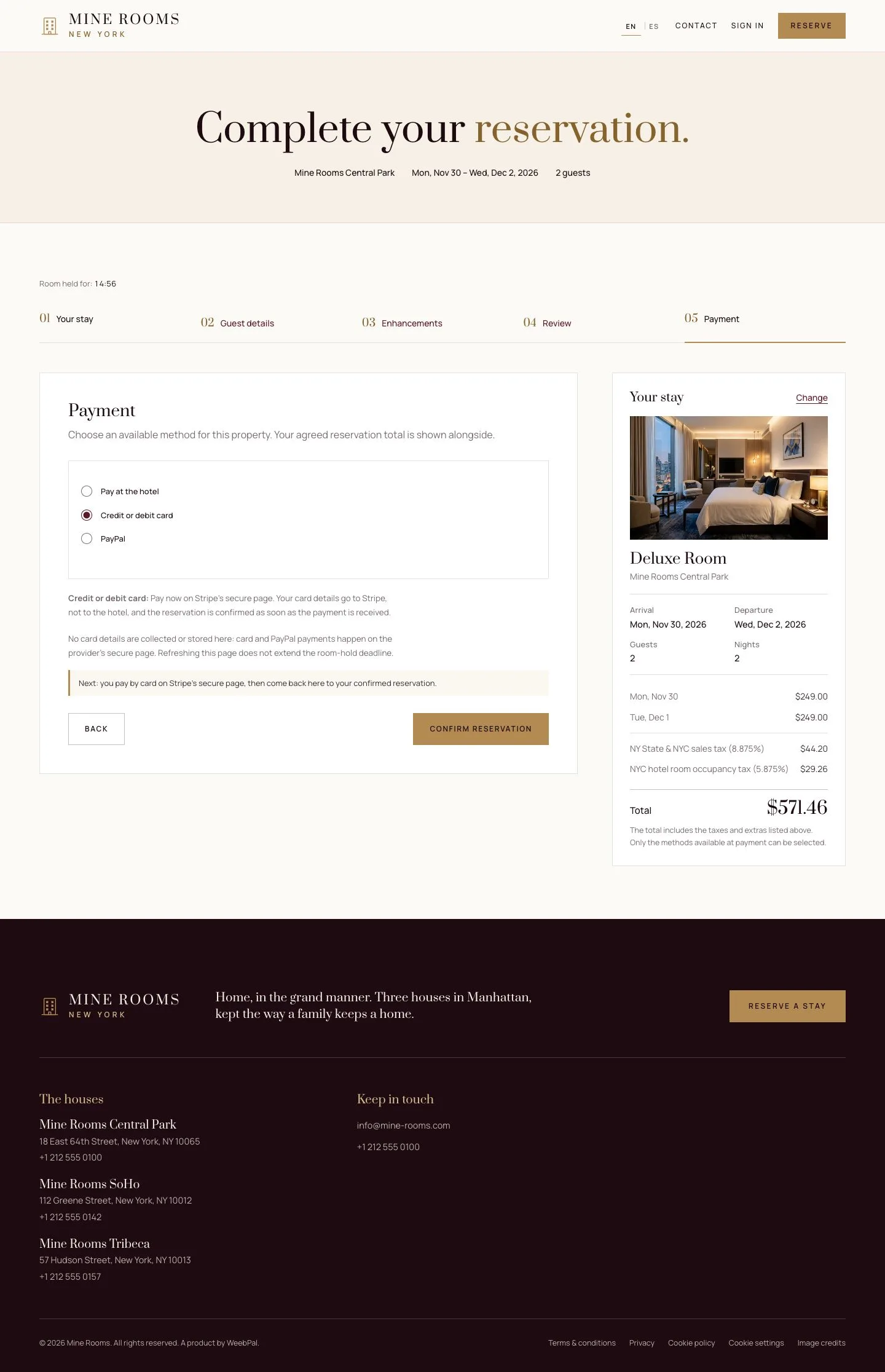
  1. On the Payment step, choose Credit or debit card or PayPal.
  2. The total on the button is the amount the provider will charge.

Enlarge, then scroll

Open illustrated screen ↗Full image ↗

Guest · Online payment01

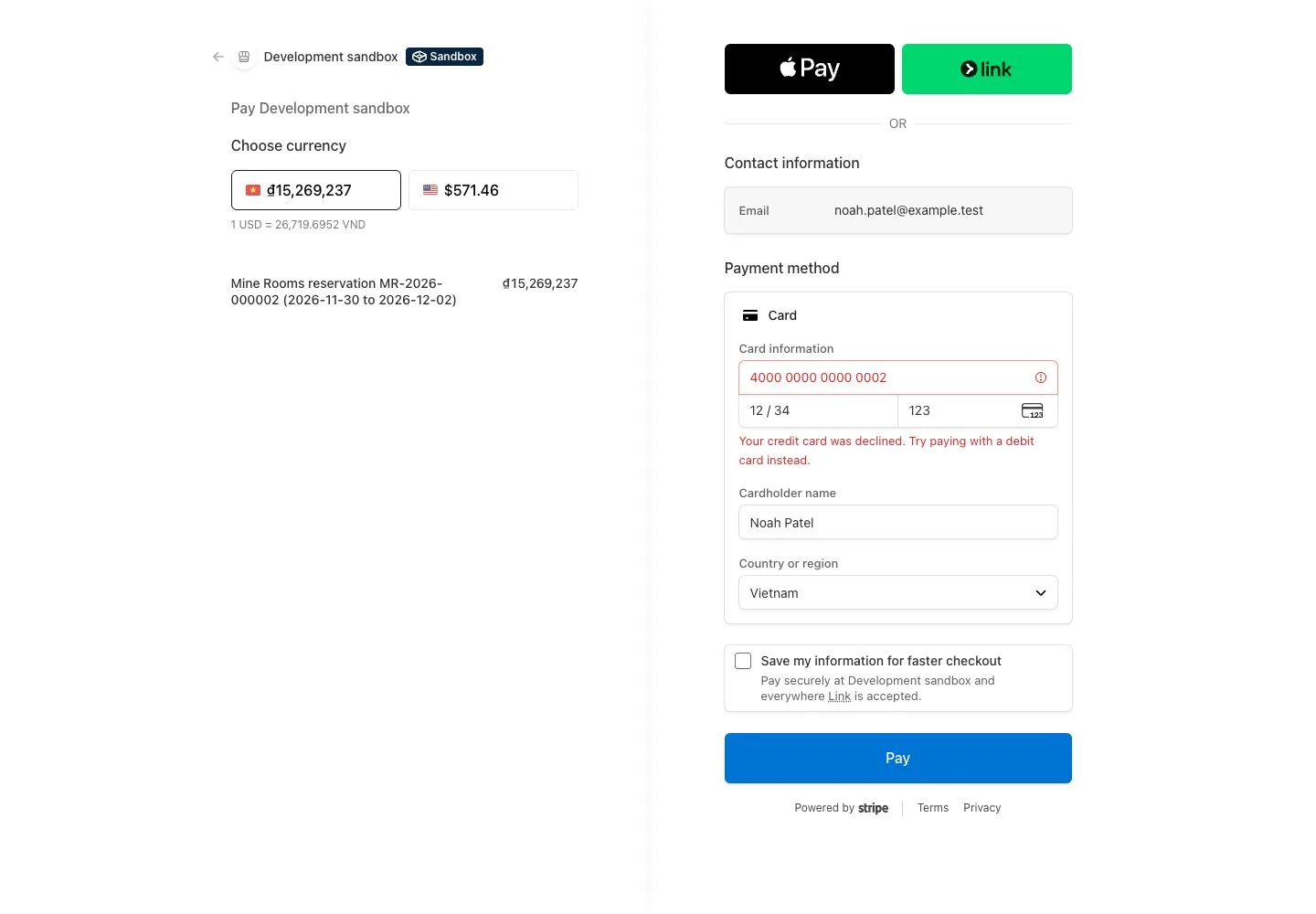
Pay on Stripe

Visitor

Pay on Stripe

2Step 2 of 6

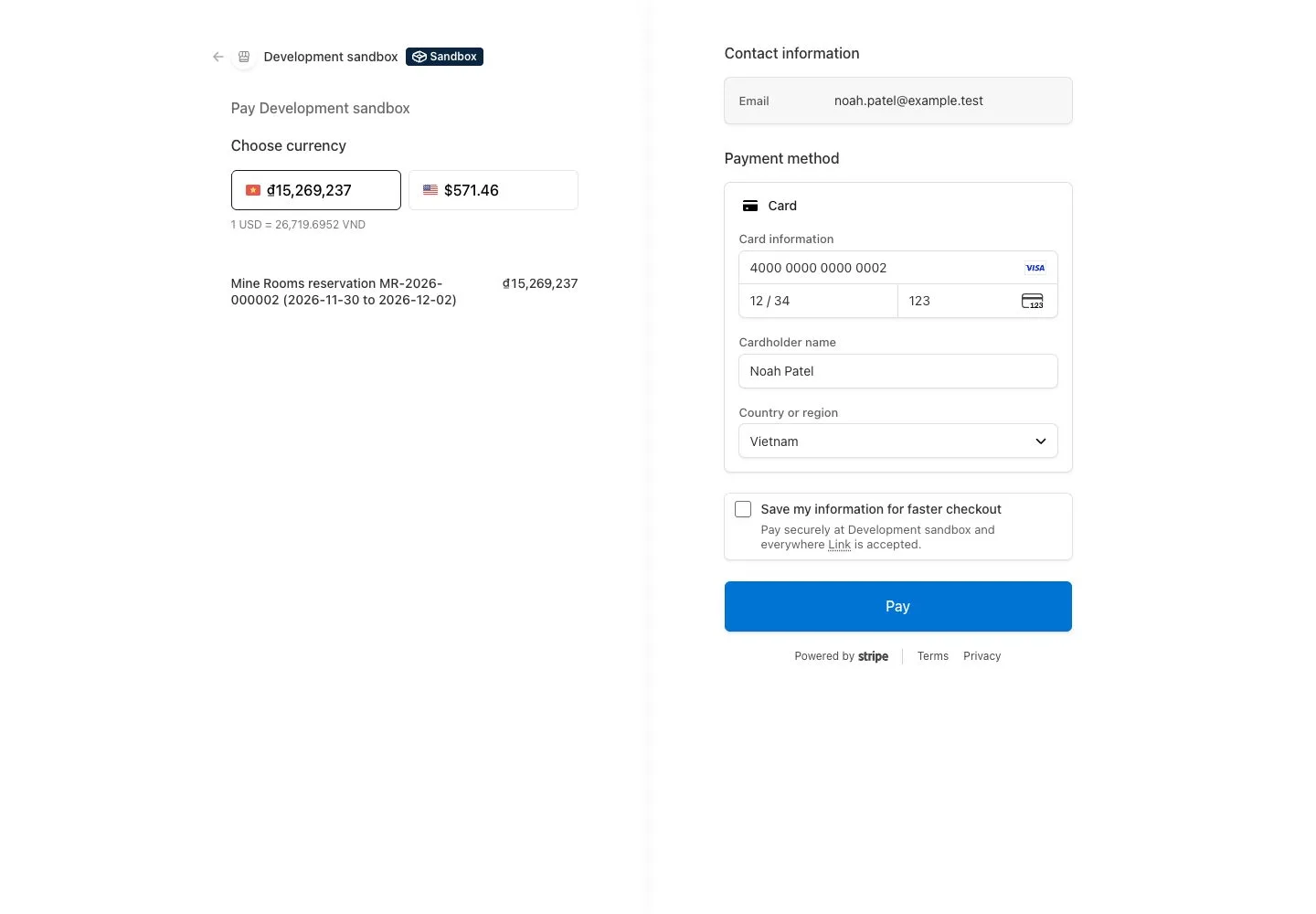
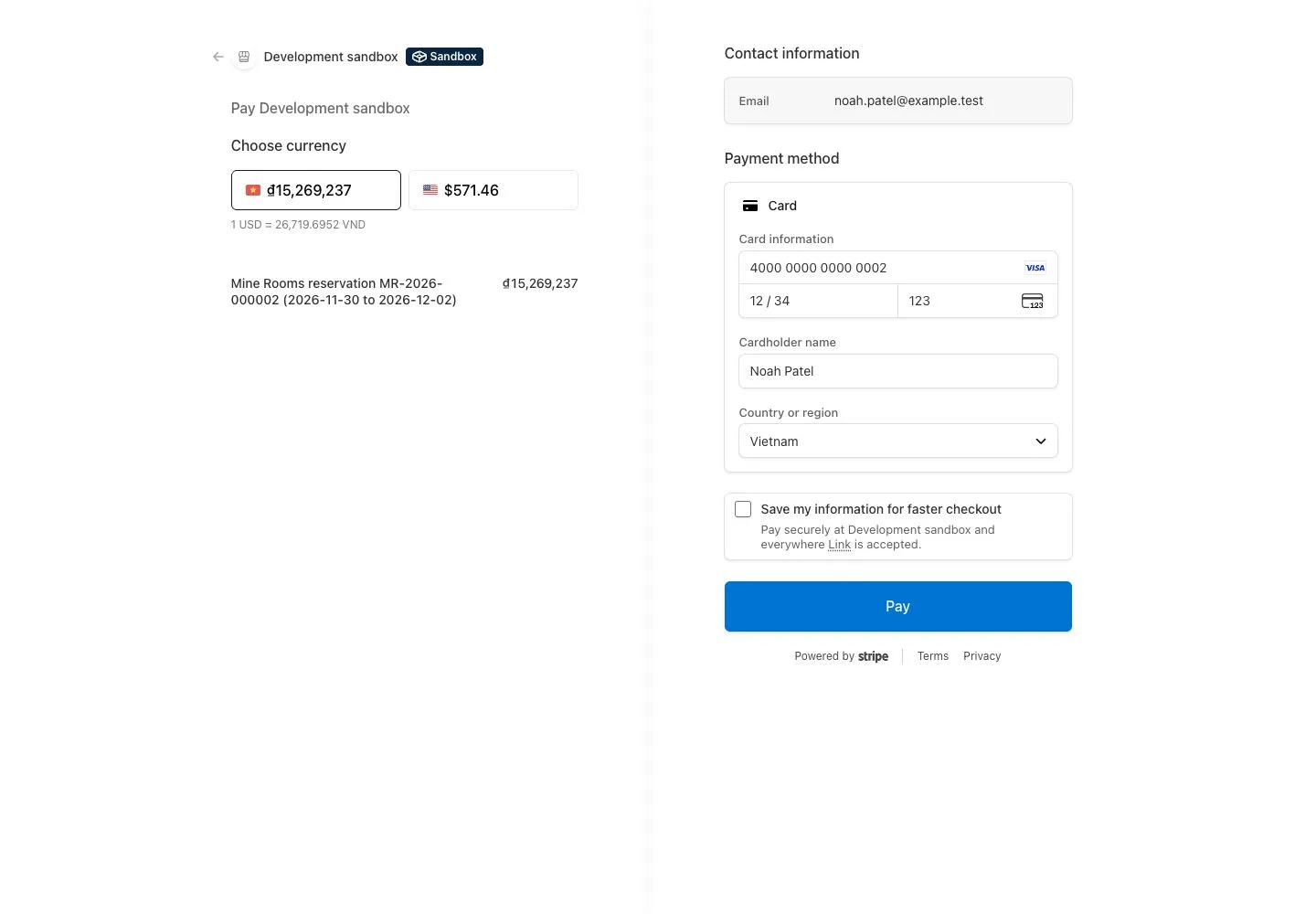
  1. The card is entered on Stripe's page, never on the hotel's site.
  2. The hotel's name and the amount appear there.

The screens show the provider's test mode with its test card.

Full image ↗

Guest · Online payment02

A declined card

Visitor

A declined card

3Step 3 of 6

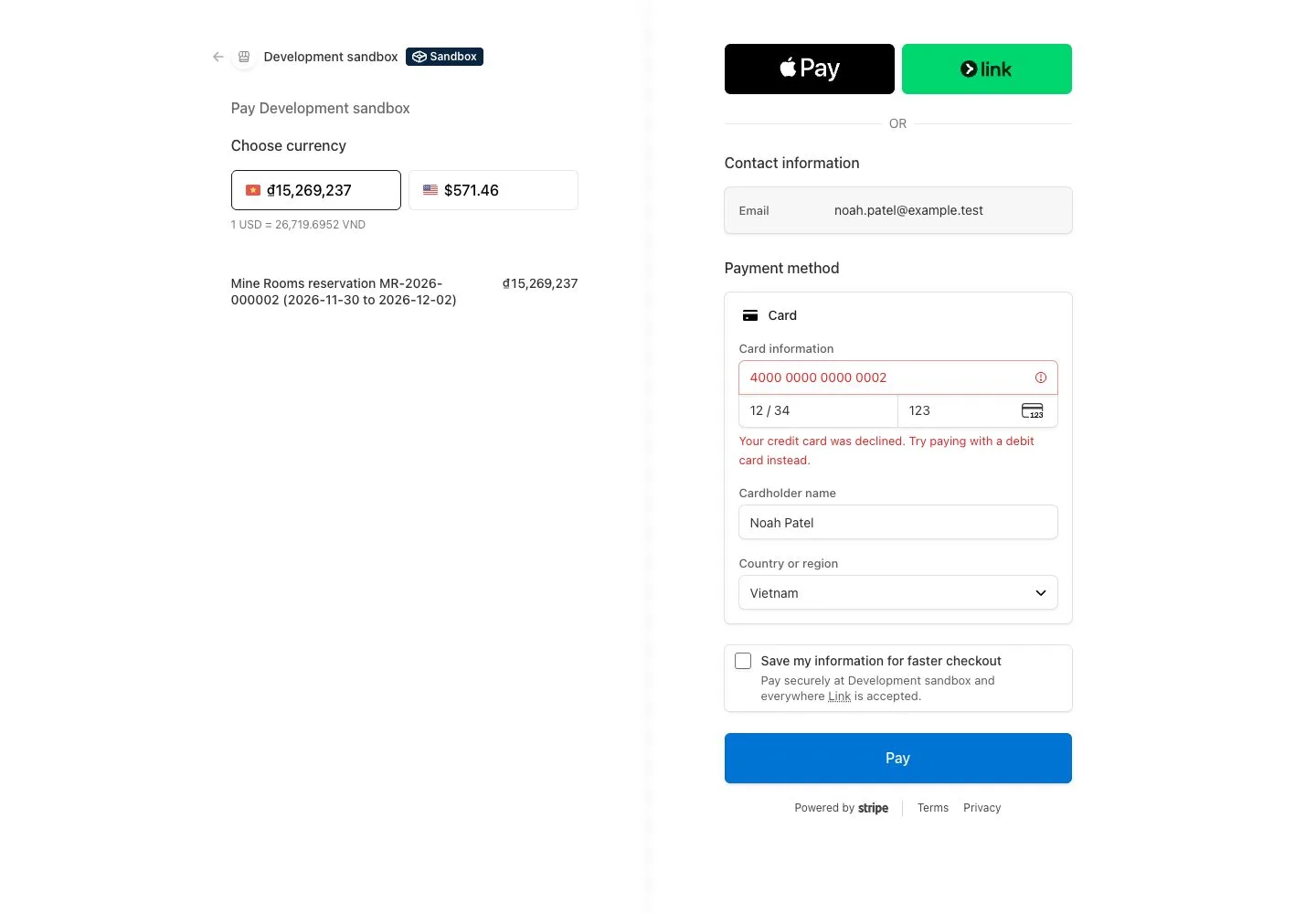
  1. Stripe shows the refusal on its own page and the guest can try another card.
  2. Nothing is recorded on the hotel's side until a payment succeeds.

Full image ↗

Guest · Online payment03

Payment received

Visitor

Payment received

4Step 4 of 6

  1. The guest returns to the hotel's site with the payment confirmed.
  2. The reservation becomes confirmed and the amount is on the folio, paid by Stripe.

The reservation is confirmed by the payment itself, not by the guest coming back to the page.

Enlarge, then scroll

Full image ↗

Guest · Online payment04

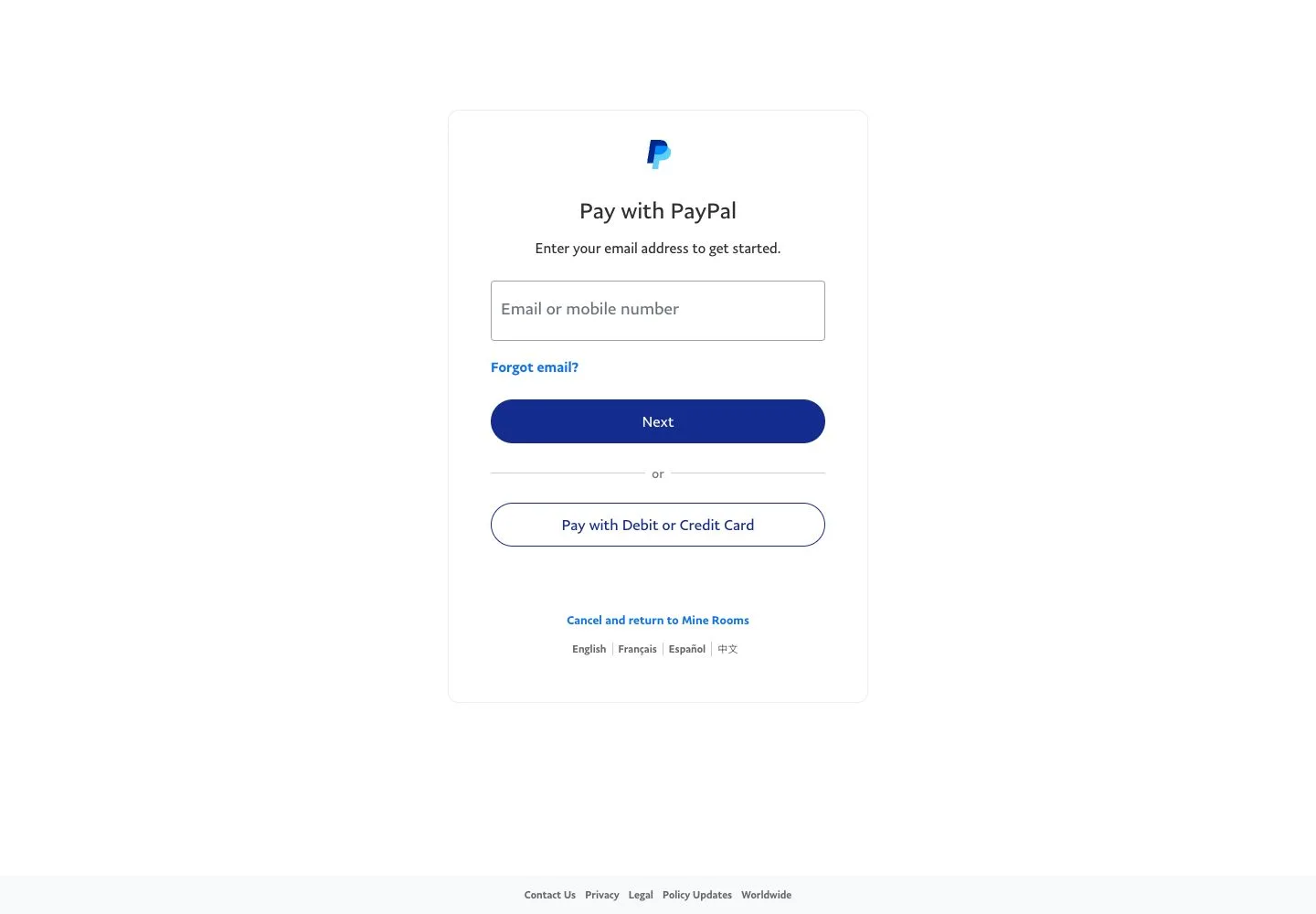
Pay with PayPal

Visitor

Pay with PayPal

5Step 5 of 6

  1. PayPal opens its own page, where the buyer signs in and approves the payment.
  2. The return works as with a card: the reservation is confirmed when the money arrives.

Full image ↗

Guest · Online payment05

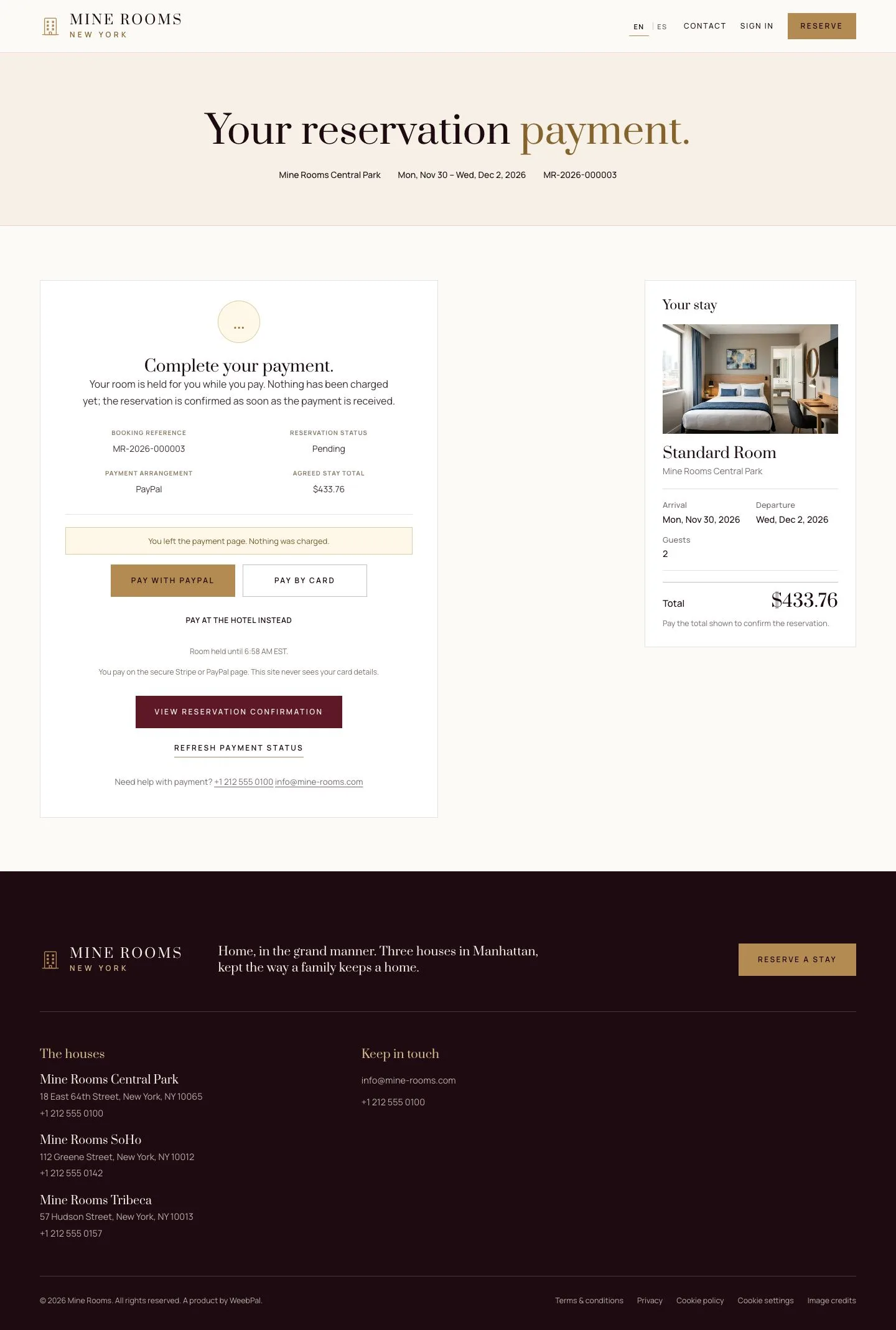
Leaving the payment page

Visitor

Leaving the payment page

6Step 6 of 6

  1. A guest who leaves the provider's page sees that nothing was charged.
  2. The room stays held until the hold ends, so the guest can come back and pay.

Enlarge, then scroll

Full image ↗

Check

The payment is on the folio and the reservation is confirmed.

Guest · Online payment06
1 / 7
Privacy Terms