Cancellation and refund

The policy of the house, a staff decision and the money back on the card

  • A confirmed booking
  • A cancellation policy in the House policy of the house
Guest
Ask to cancel

Guest

Ask to cancel

1Step 1 of 13

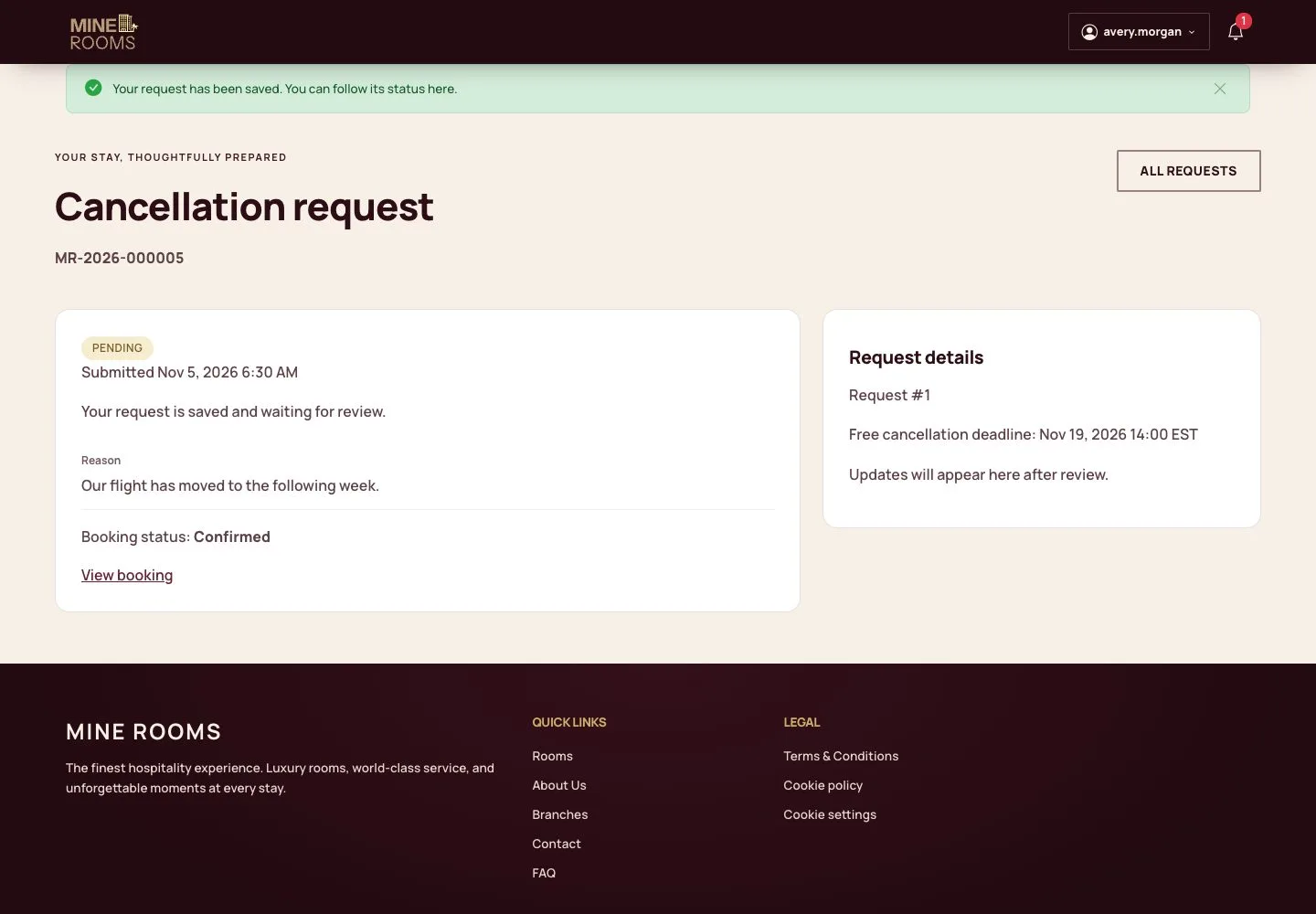
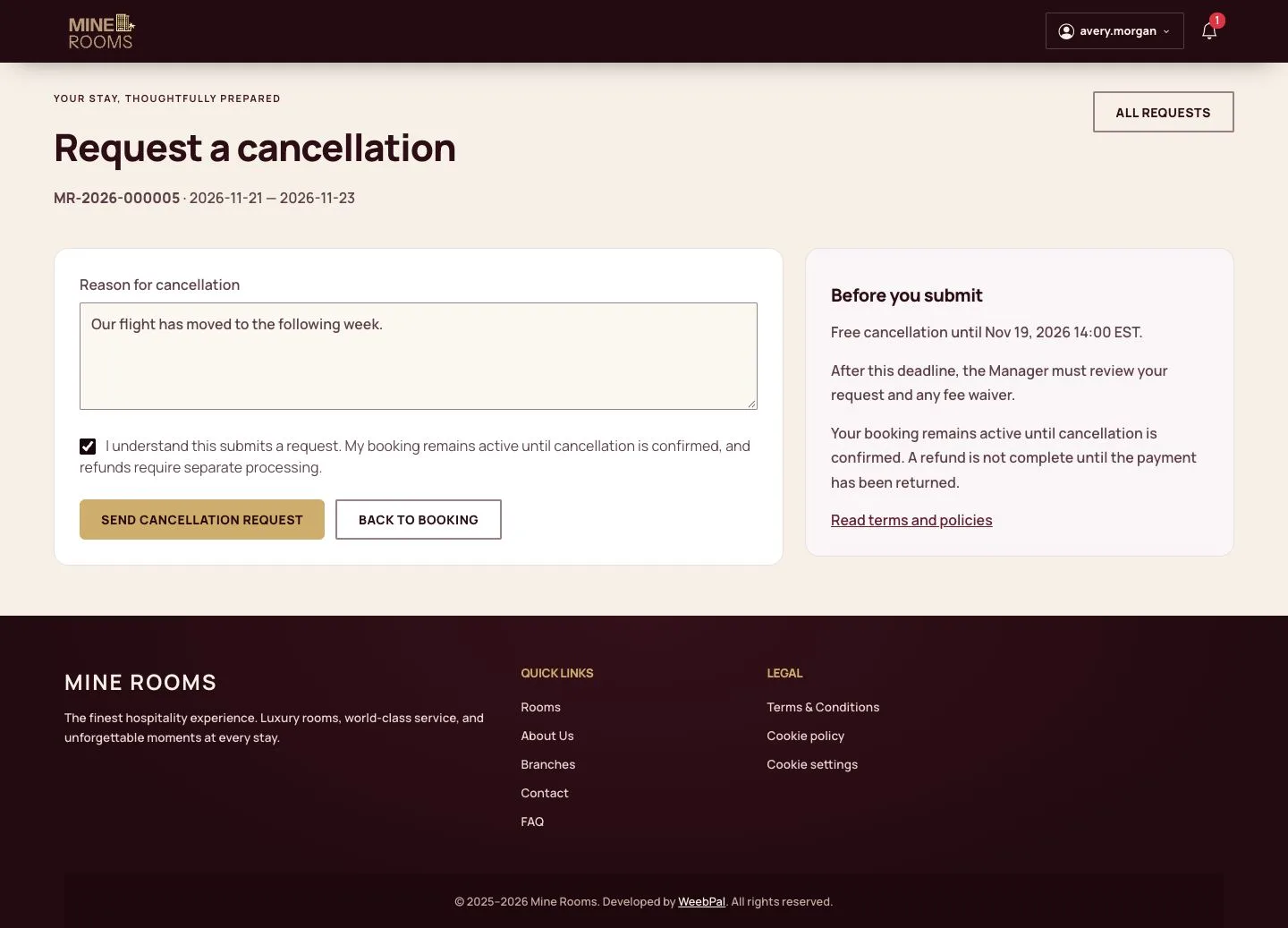
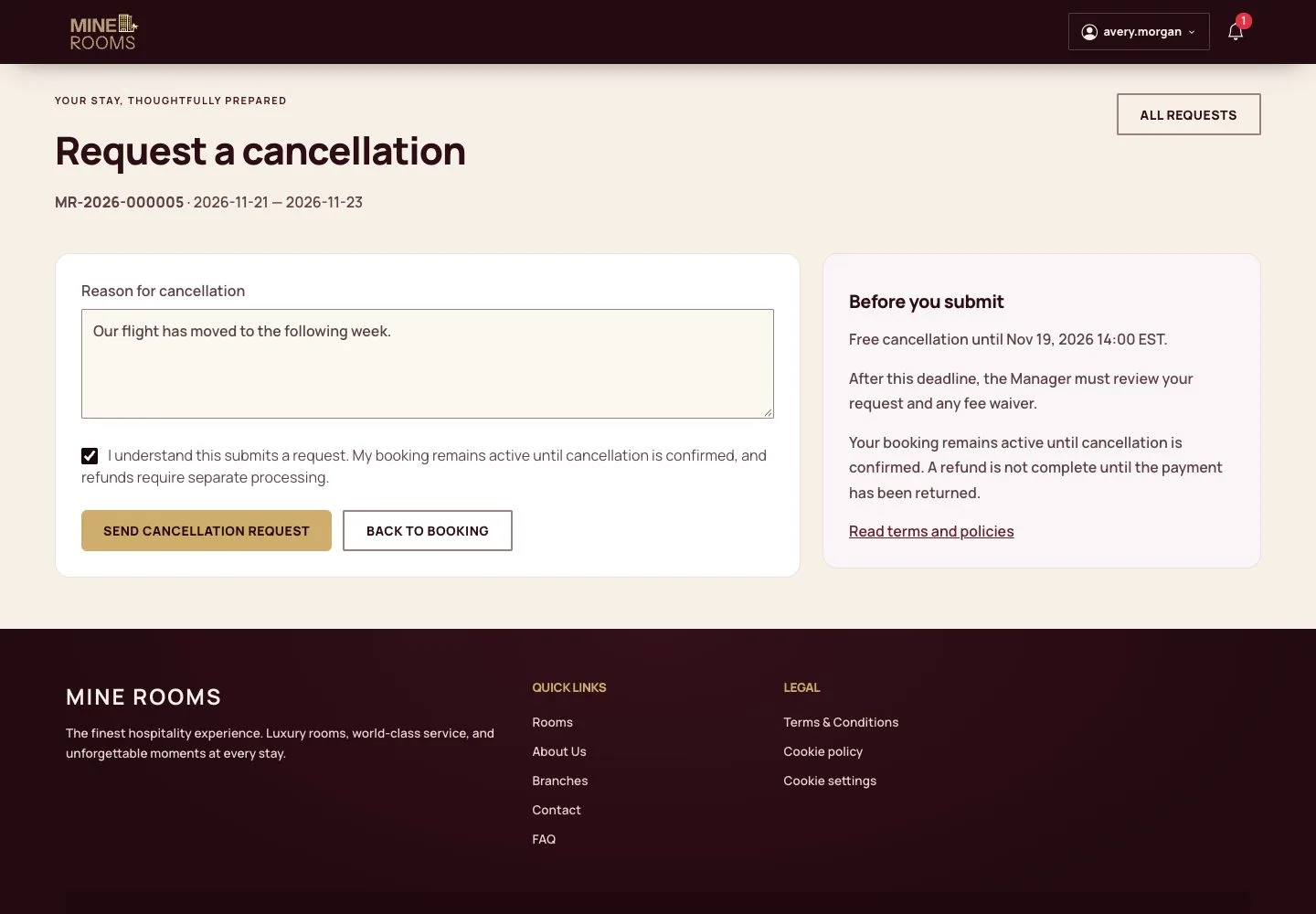
  1. From the booking, the guest opens Request a cancellation.
  2. The page shows the policy that applies to this stay; the guest gives a reason and accepts.

Enlarge, then scroll

Full image ↗

Guest · Cancellation and refund01

The request waits

Guest

The request waits

2Step 2 of 13

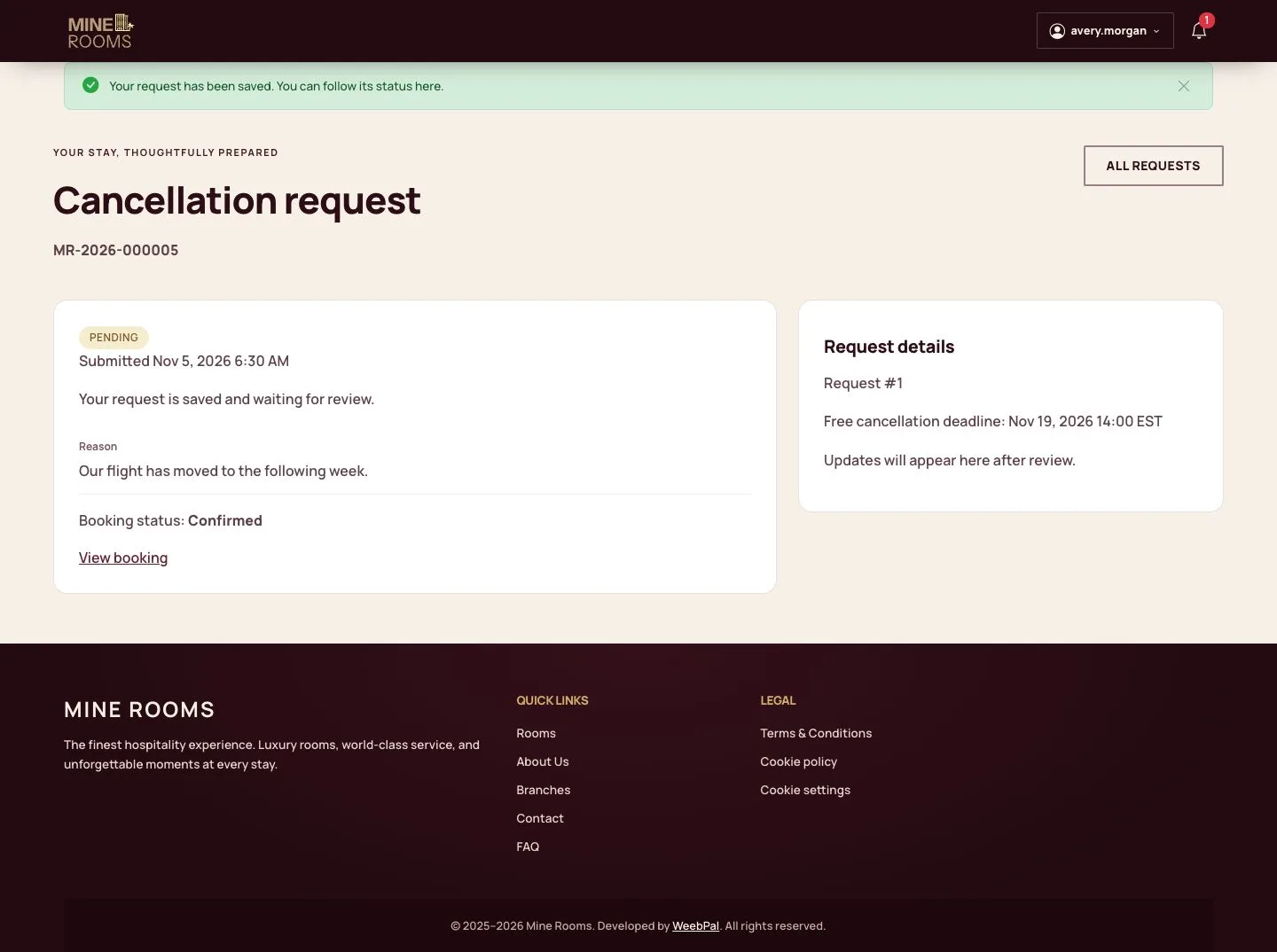
  1. The request is pending and the booking stays confirmed until staff decide.

Every cancellation by a guest goes through staff, so that no room is released by mistake.

Enlarge, then scroll

Open illustrated screen ↗Full image ↗

Guest · Cancellation and refund02

Guest requests

Manager

Guest requests

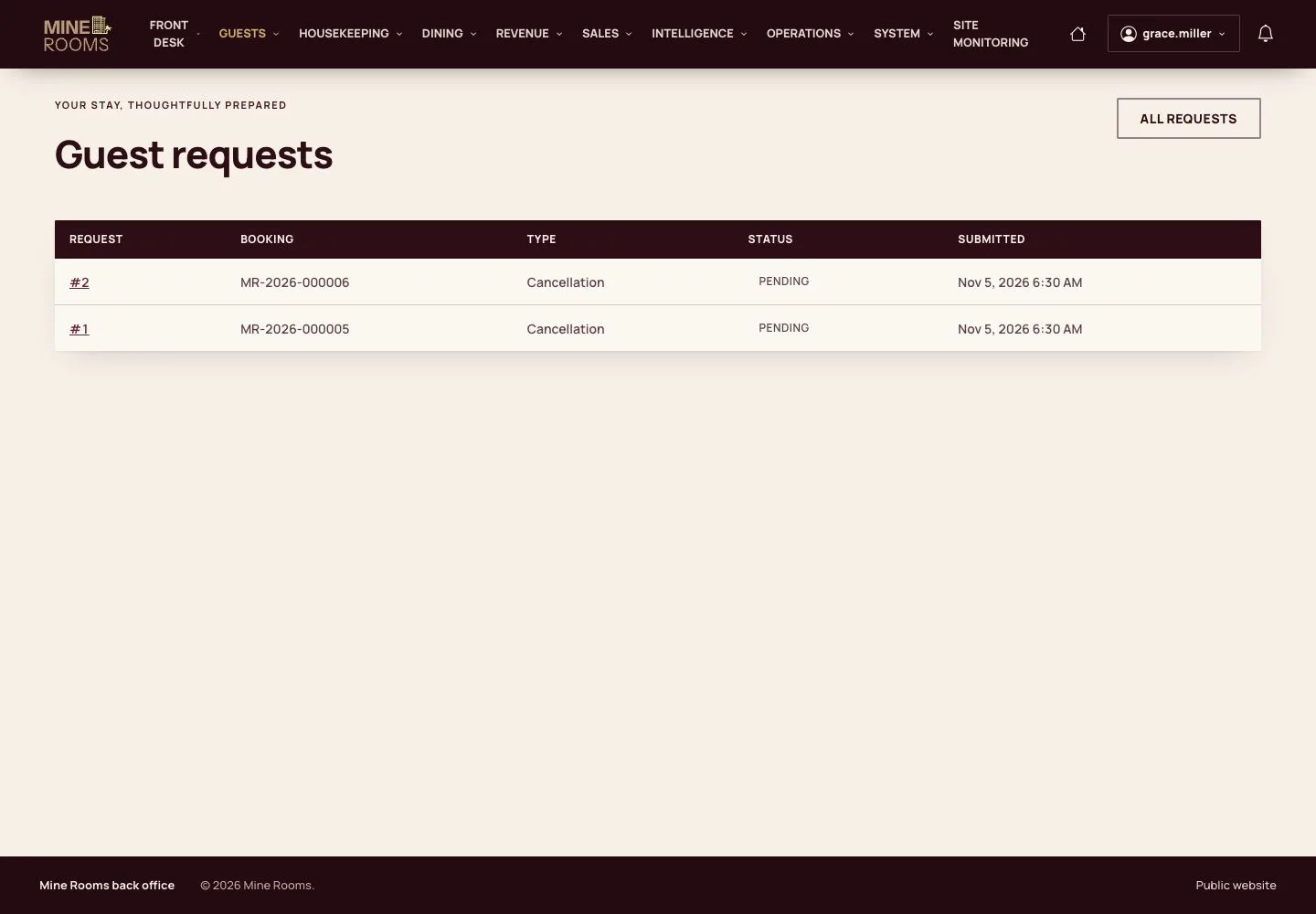
3Step 3 of 13

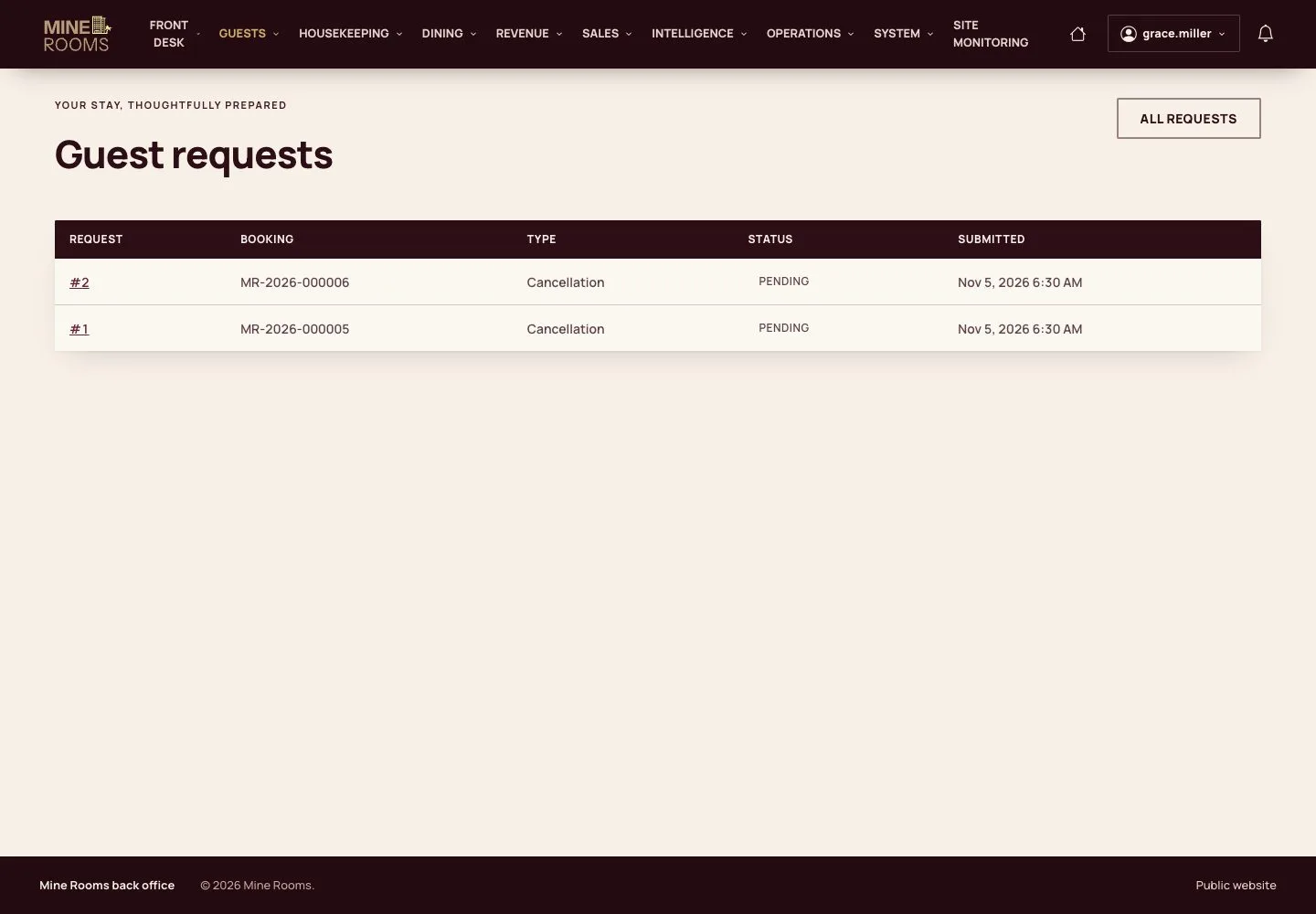
  1. The manager finds every pending request in Guest requests.
  2. A request made after the free-cancellation deadline is marked as such.

Open illustrated screen ↗Full image ↗

Guest · Cancellation and refund03

Decide

Manager

Decide

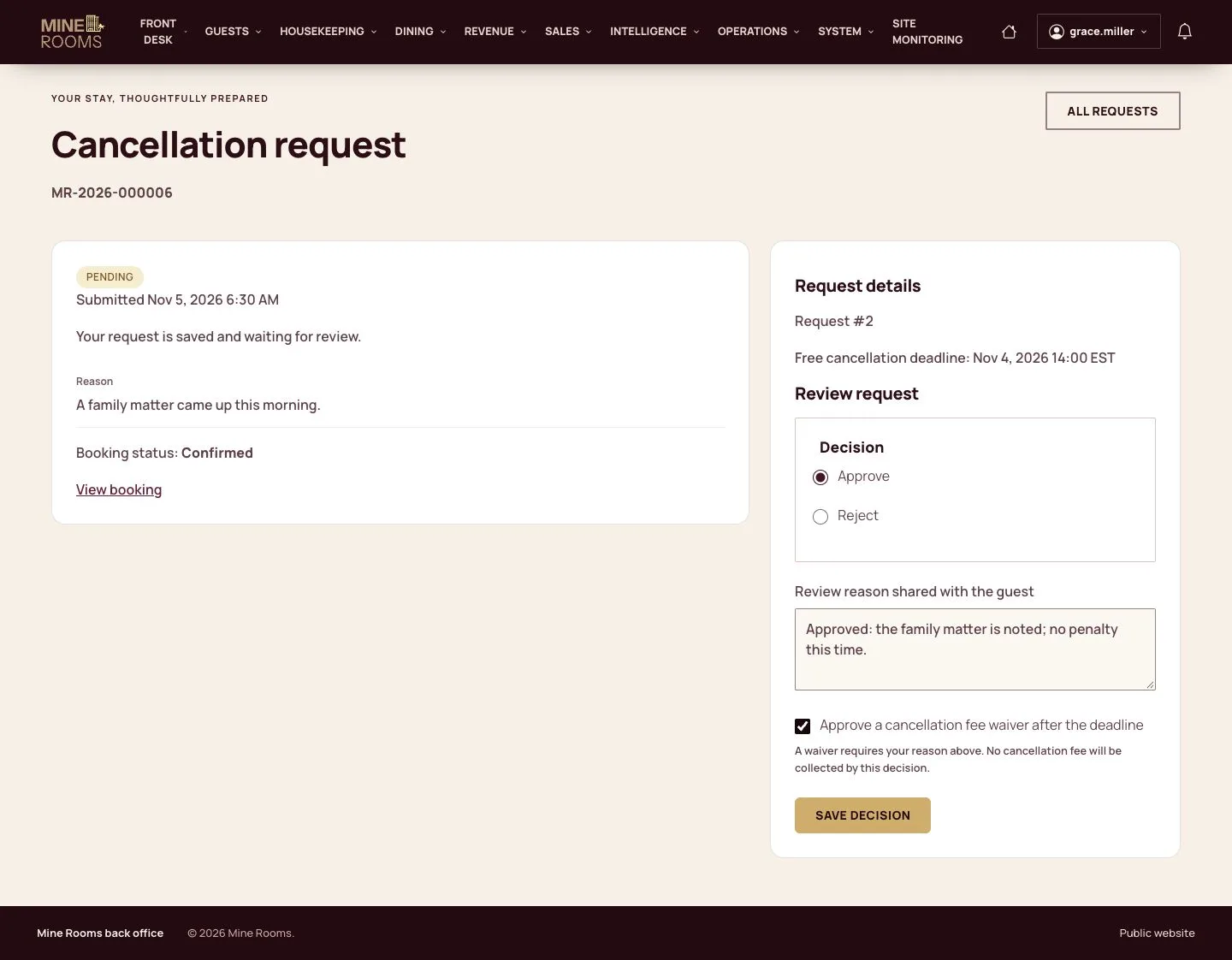
4Step 4 of 13

  1. Open the request, approve or reject it and give the reason the guest will read.
  2. After the deadline, waiving the fee needs a tick of its own.

Enlarge, then scroll

Full image ↗

Guest · Cancellation and refund04

Approved

Manager

Approved

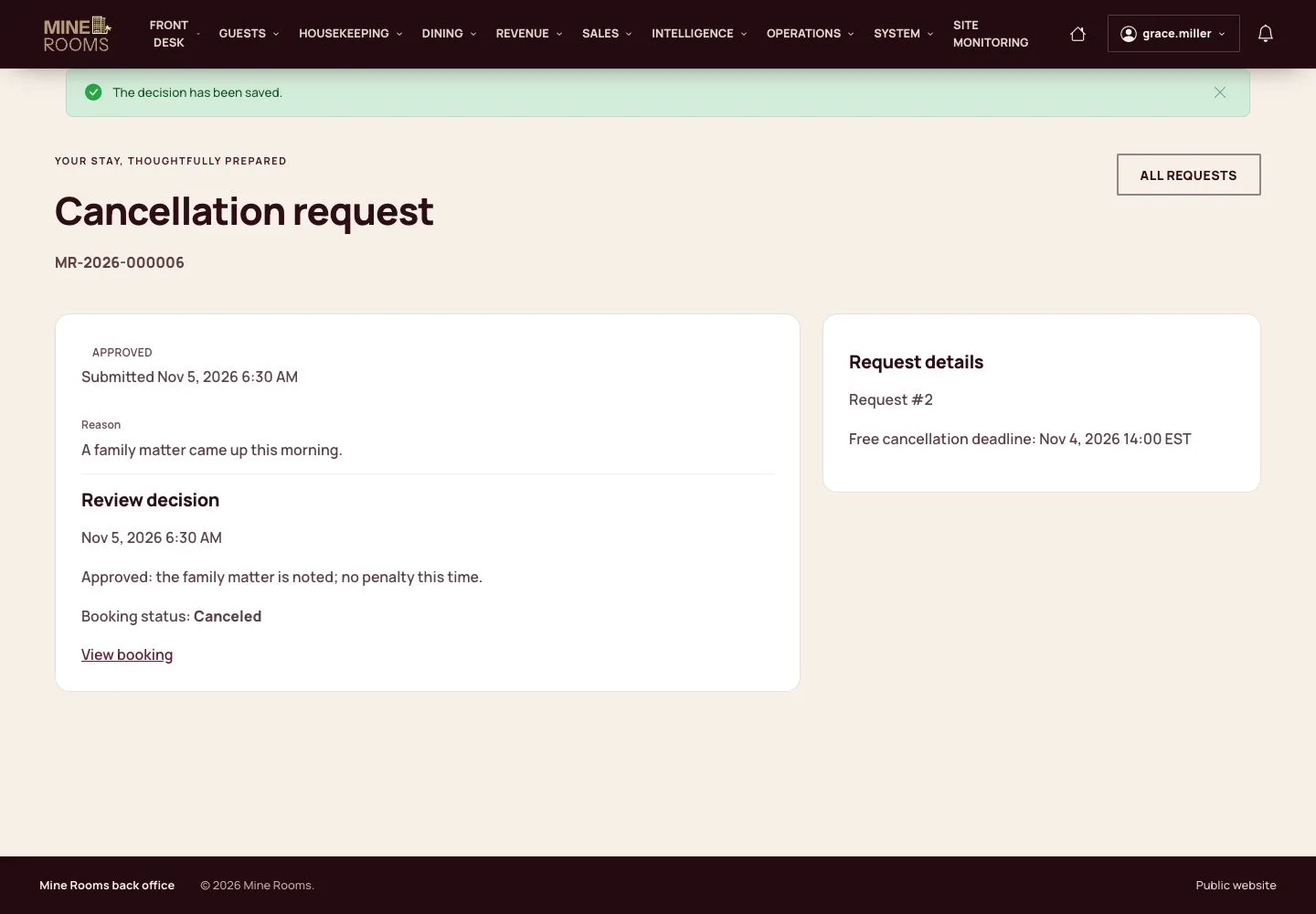
5Step 5 of 13

  1. The booking is cancelled and its room goes back on sale.

Full image ↗

Guest · Cancellation and refund05

The guest reads the decision

Guest

The guest reads the decision

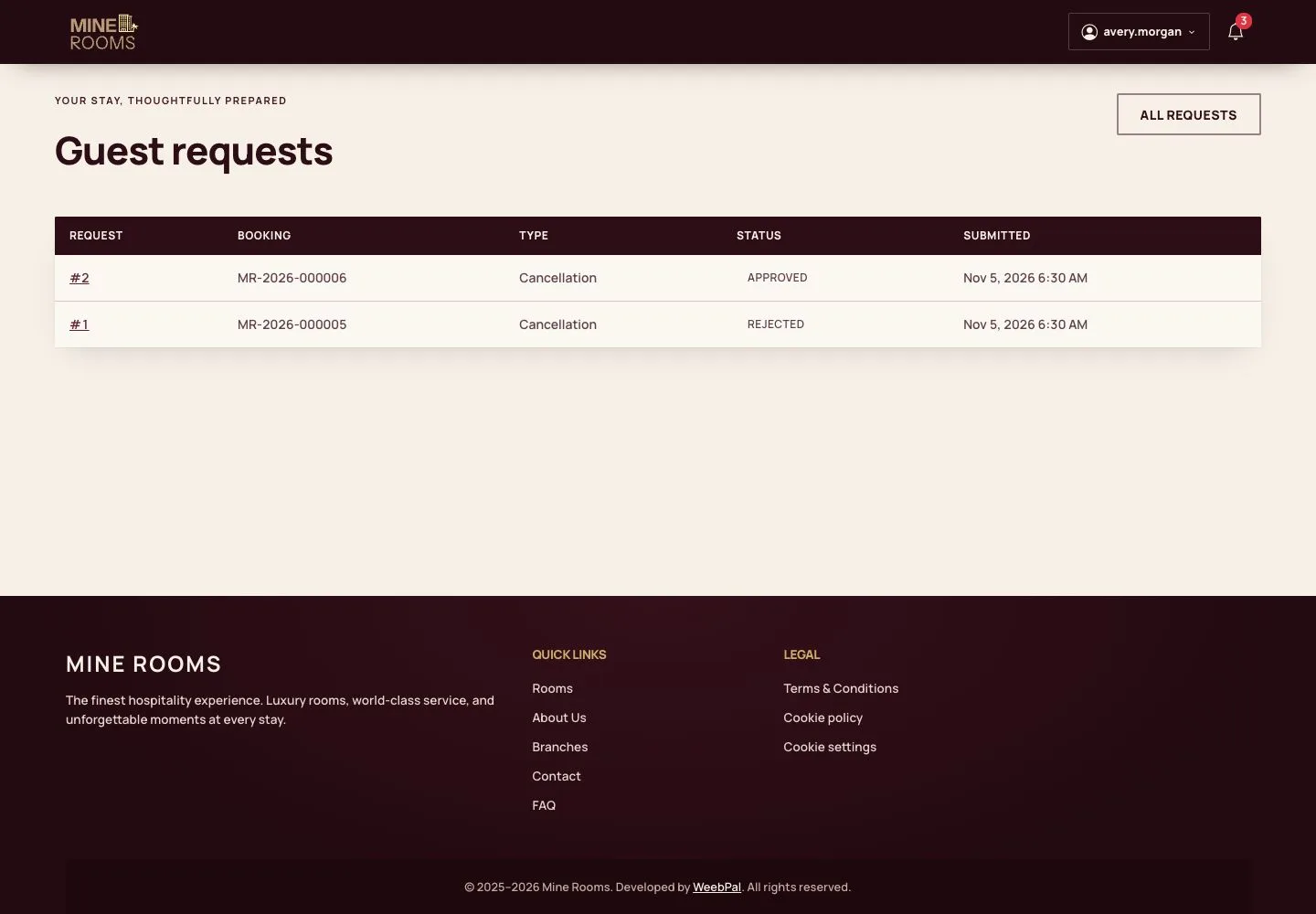
6Step 6 of 13

  1. The decision and the reason appear on the guest's booking.
  2. A rejected request says what to do instead, such as changing the dates.

Open illustrated screen ↗Full image ↗

Guest · Cancellation and refund06

Change a stay

Manager

Change a stay

7Step 7 of 13

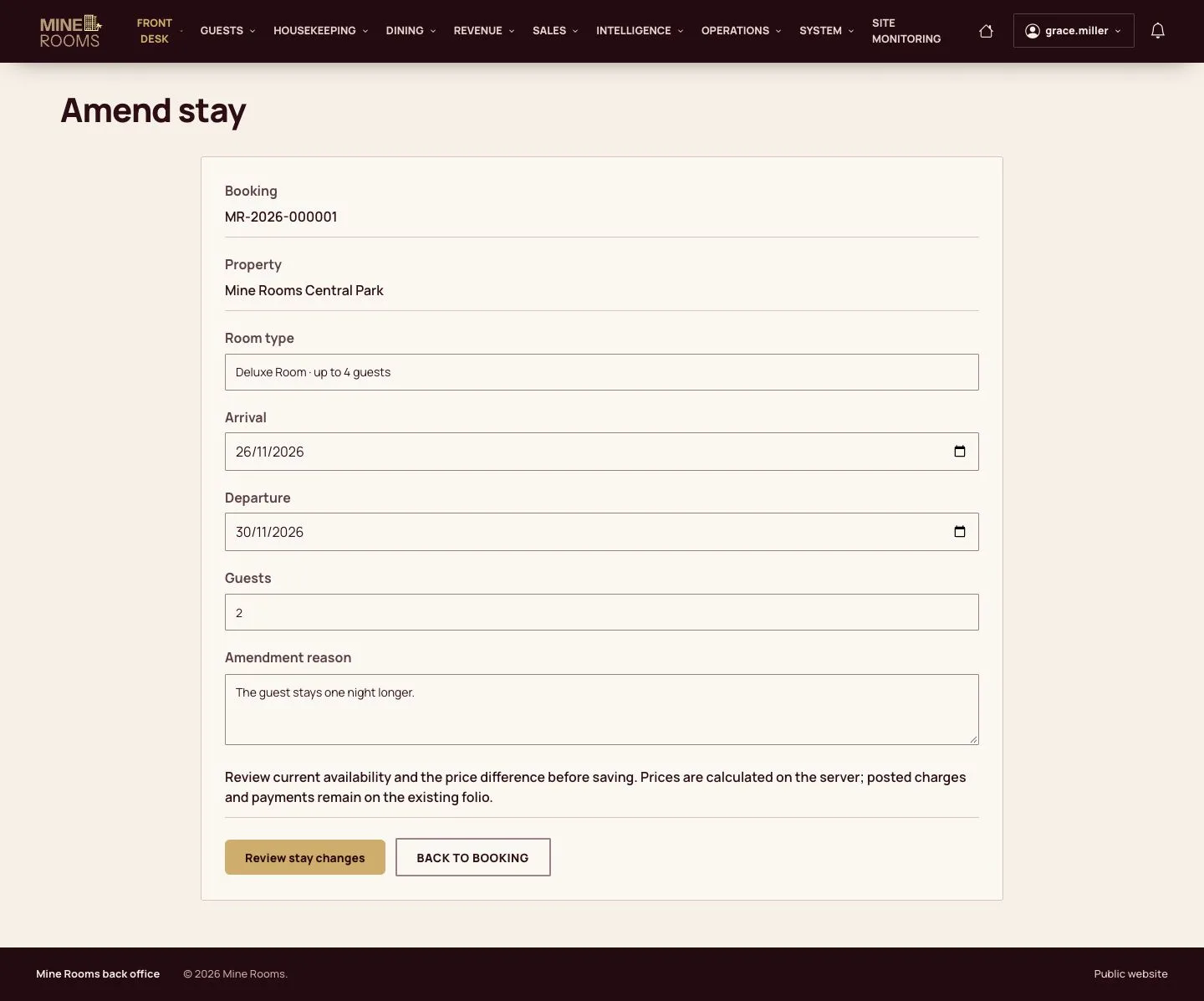
  1. A change of room type, departure or guests is made with Amend stay on the booking.
  2. The reason is required and stays with the booking.

Enlarge, then scroll

Full image ↗

Guest · Cancellation and refund07

Review the new price

Manager

Review the new price

8Step 8 of 13

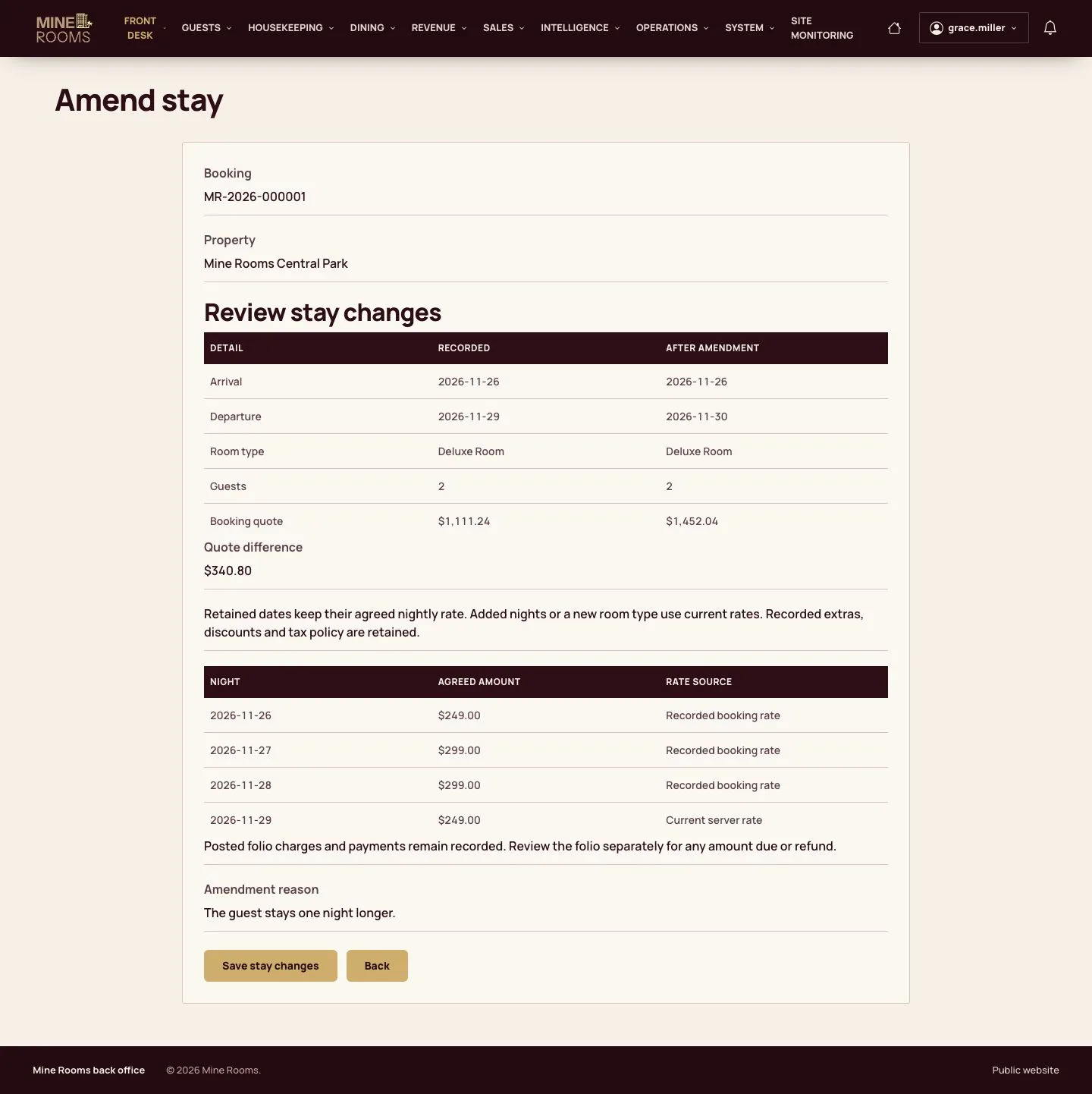
  1. The review lists each night: nights already booked keep their price, new nights take the current rate.
  2. Confirm to save the stay and update the folio.

Enlarge, then scroll

Full image ↗

Guest · Cancellation and refund08

Cancel a paid booking

Manager

Cancel a paid booking

9Step 9 of 13

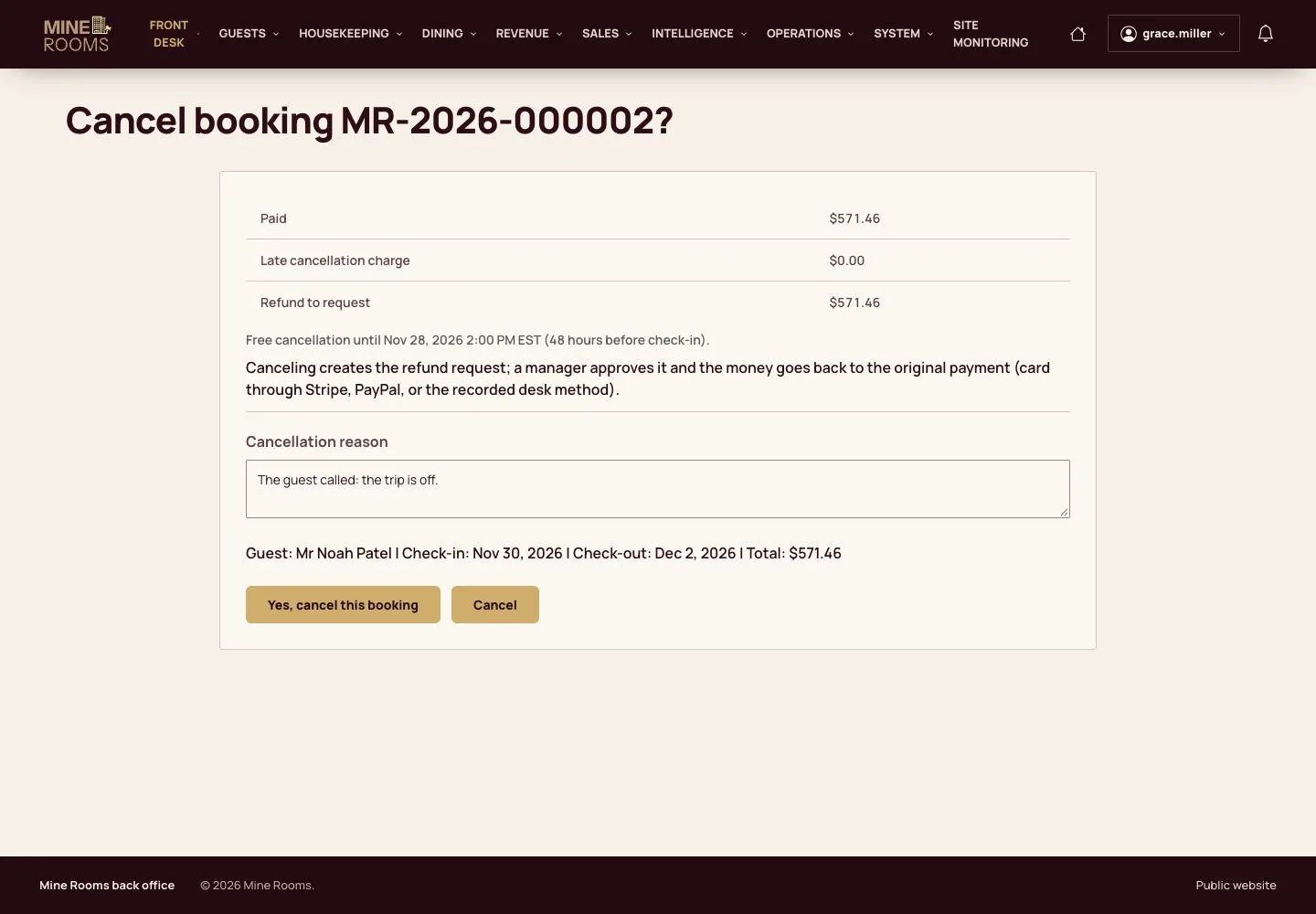
  1. Staff can cancel from the booking, with a reason.
  2. When the guest paid online, a refund request is created by itself.

Full image ↗

Guest · Cancellation and refund09

The refund request

Manager

The refund request

10Step 10 of 13

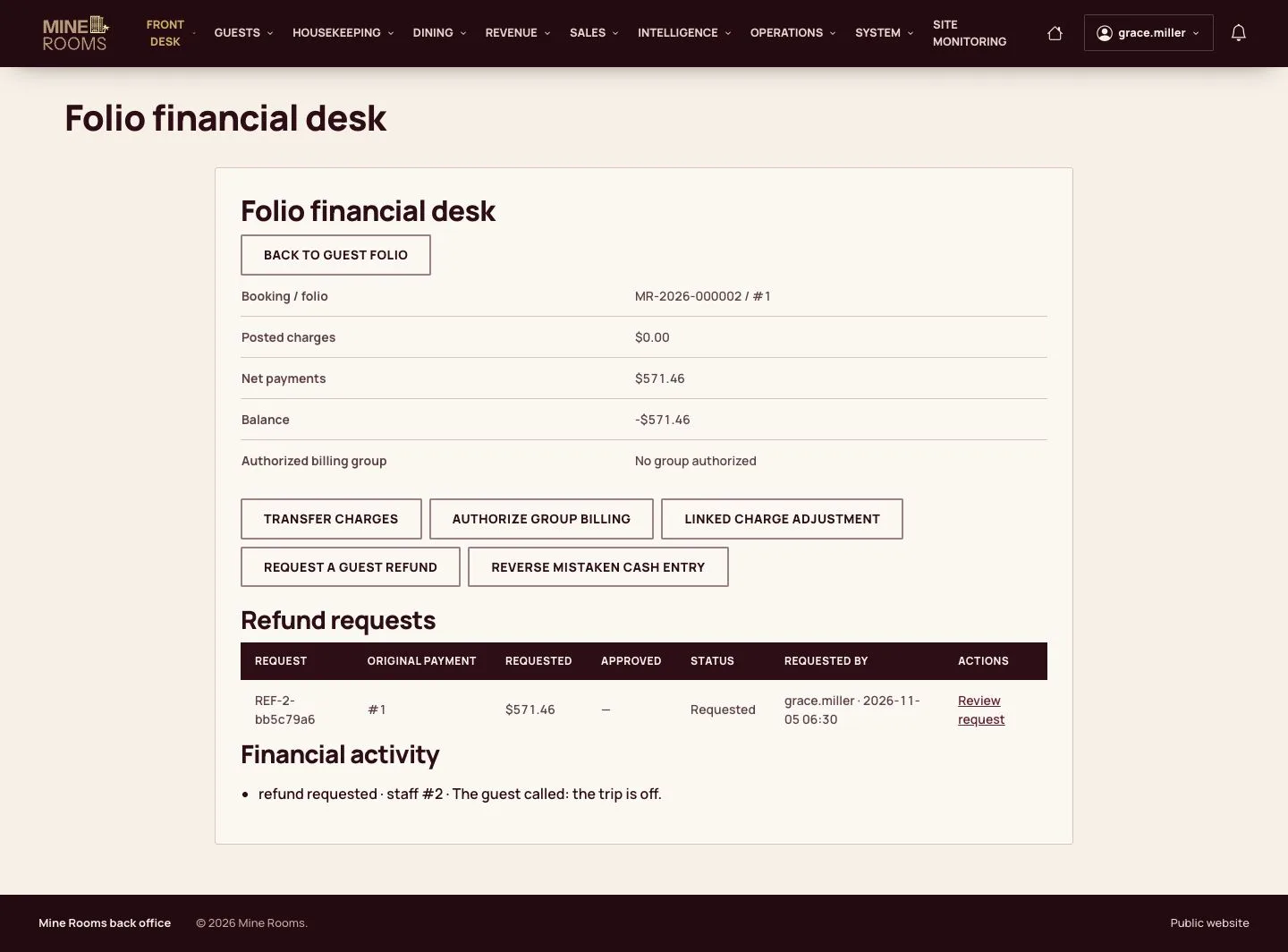
  1. The request appears on the folio's financial desk with its reference and amount.

Enlarge, then scroll

Full image ↗

Guest · Cancellation and refund10

Approve the refund

Manager

Approve the refund

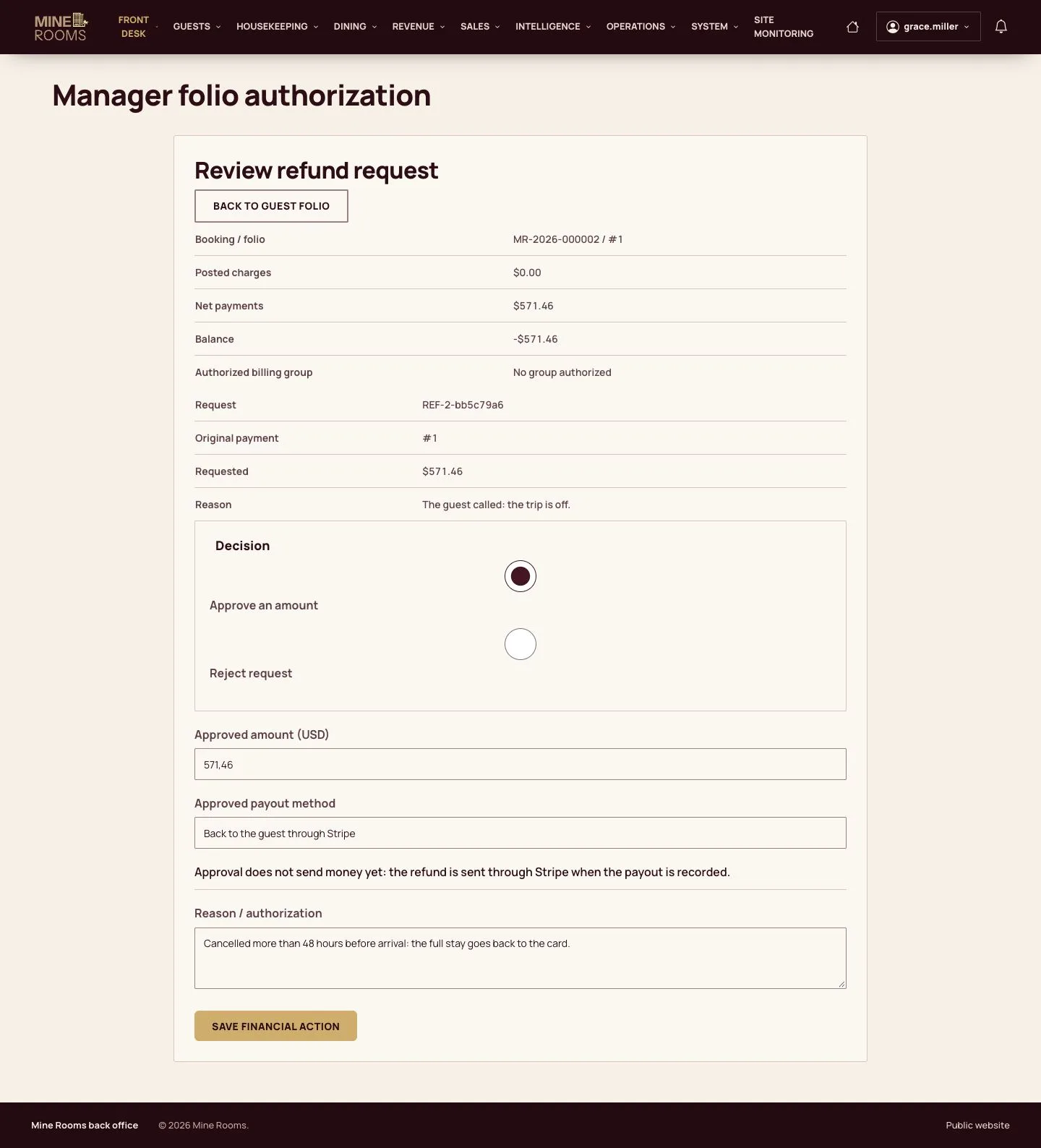
11Step 11 of 13

  1. Check the amount, keep it going back to the guest's original payment and give the reason.

Enlarge, then scroll

Full image ↗

Guest · Cancellation and refund11

Send the money back

Manager

Send the money back

12Step 12 of 13

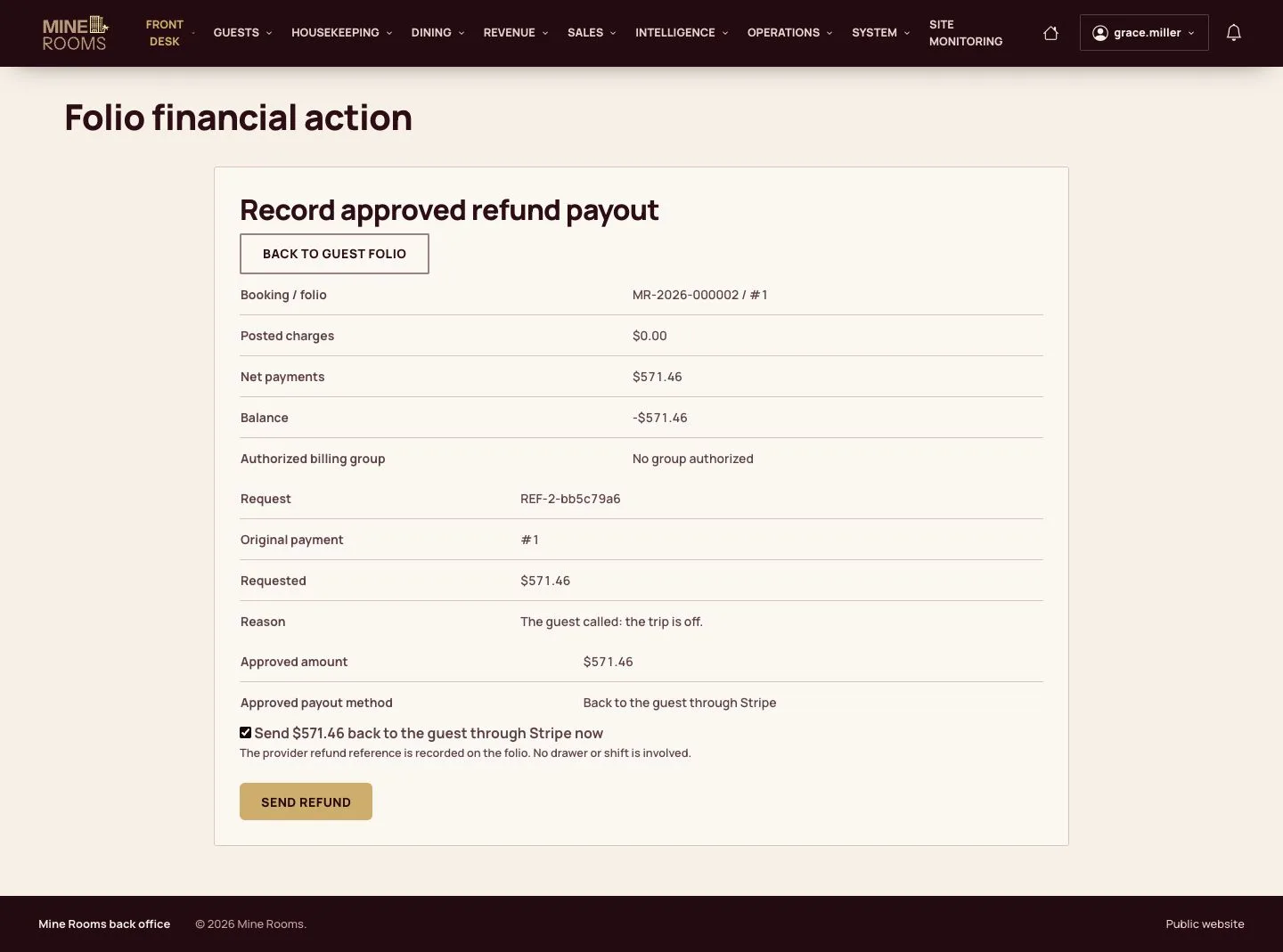
  1. The last step sends the amount through the provider that took the payment.
  2. Approving and sending are separate, so a refund is always looked at twice.

Enlarge, then scroll

Full image ↗

Guest · Cancellation and refund12

Refund completed

Manager

Refund completed

13Step 13 of 13

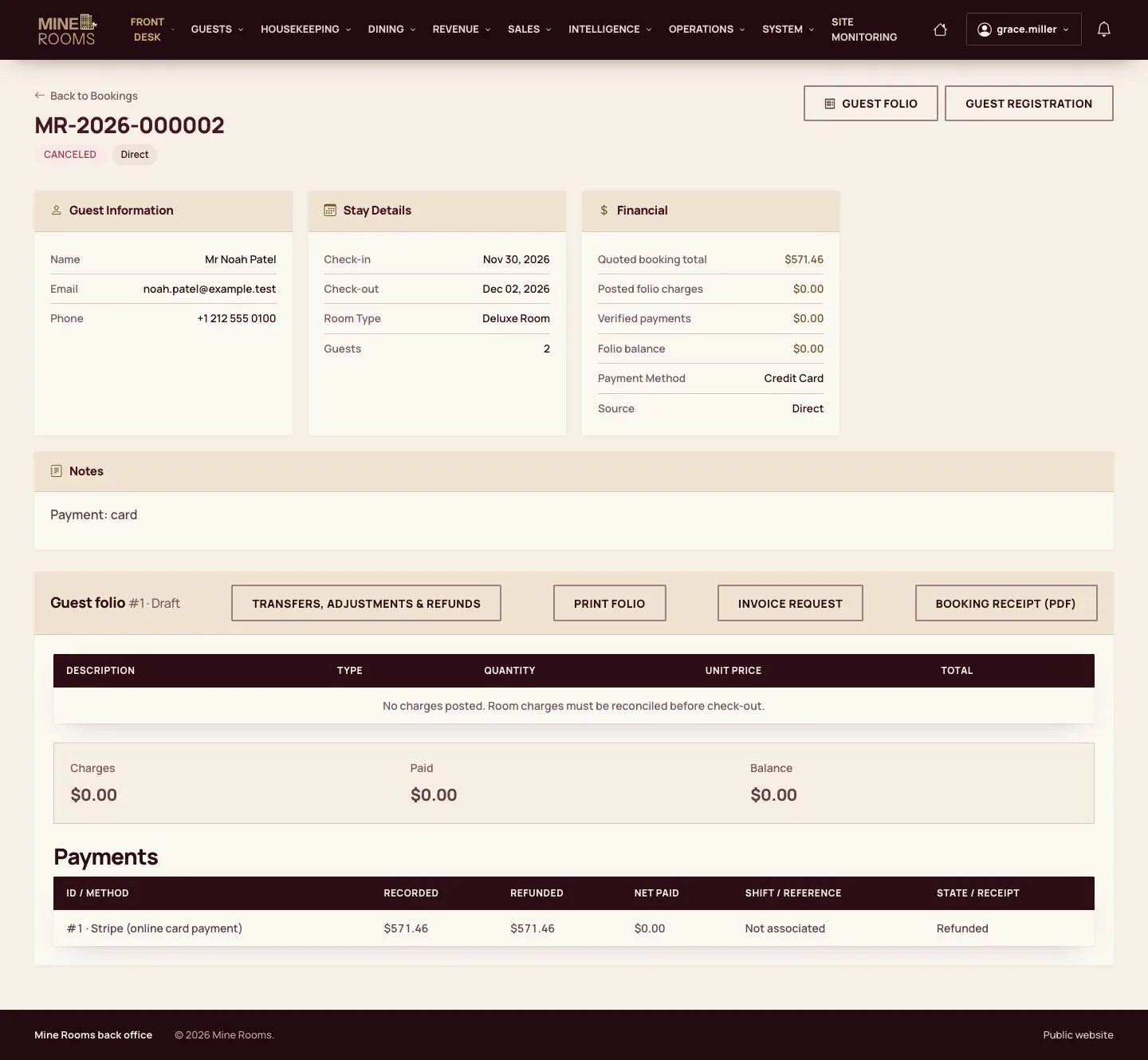
  1. The provider confirms the refund, the request is completed and the folio shows the refund.
  2. The balance of the cancelled booking is zero.

Enlarge, then scroll

Full image ↗

Check

The booking is closed, the refund is on the folio and the balance is zero.

Guest · Cancellation and refund13
1 / 14
Privacy Terms